> ## Documentation Index
> Fetch the complete documentation index at: https://docs.mention-me.com/llms.txt
> Use this file to discover all available pages before exploring further.
# Upload Vouchers
> Upload new voucher codes to the Mention Me platform via the Campaigns tab, Content page, reward email notification, or during onboarding.
Only users with **Marketing** or **Administrator** access can upload new codes. Please ensure vouchers are uploaded to the [Mention Me Live platform](https://mention-me.com/login).
## Where to Access the Upload Module
You can upload vouchers from several places in the platform:
### From the Campaigns Page
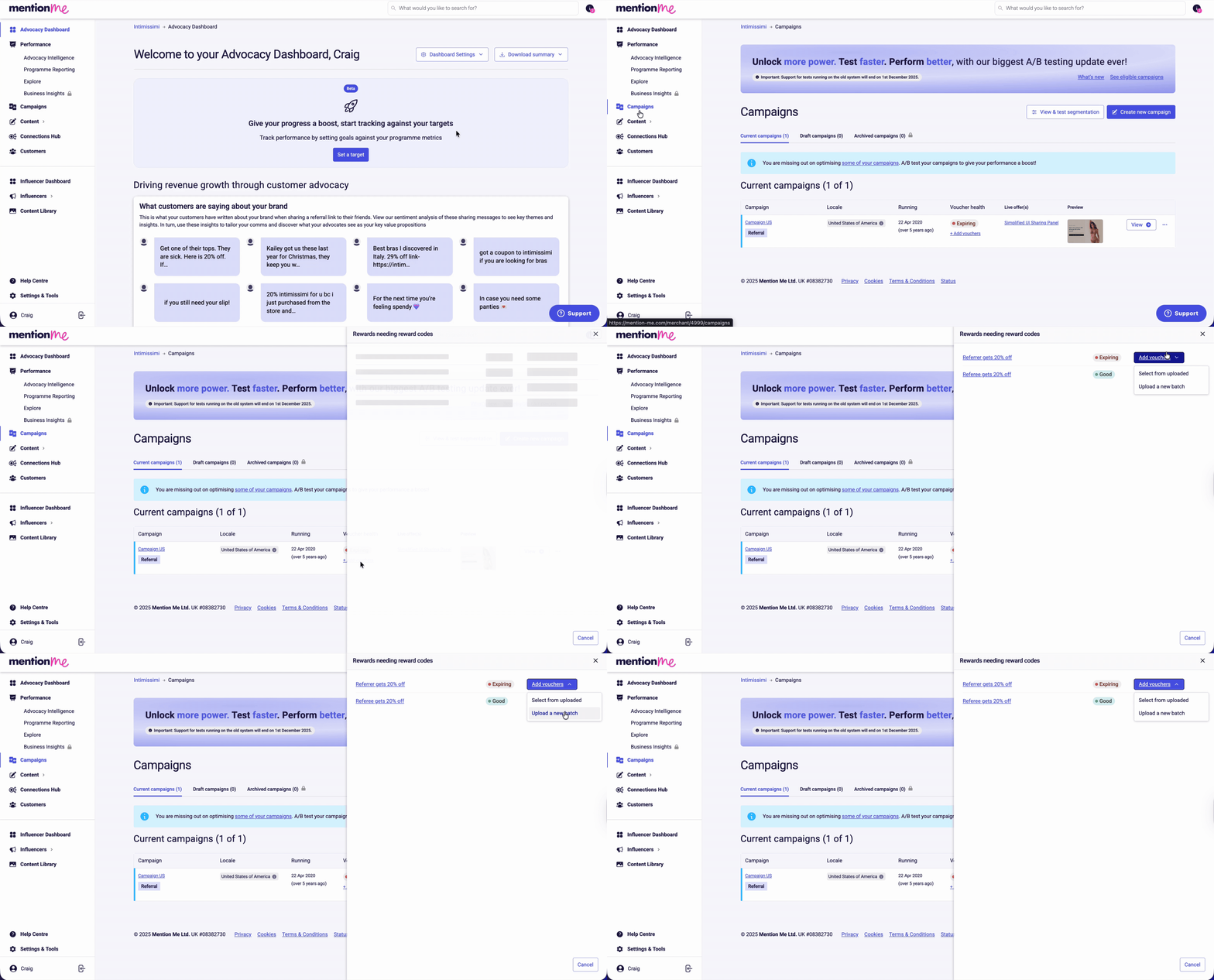
Go to the **Campaigns** section. The overview displays voucher health per campaign and highlights which ones need updates.
Click **+ Add vouchers**, find your reward, and click **Upload a new batch**.
 ### From the Experiment Page
Click **Campaigns**, select the campaign that requires new vouchers, choose the relevant reward (e.g. "Referrer gets 20% off when they spend over £100"), then click **Add vouchers** > **Upload a new batch**.
### From the Reward Email Notification
When you receive an email alerting that your rewards are running low, expiring, or expired:
1. The email highlights which experiments need attention and the current status
### From the Experiment Page
Click **Campaigns**, select the campaign that requires new vouchers, choose the relevant reward (e.g. "Referrer gets 20% off when they spend over £100"), then click **Add vouchers** > **Upload a new batch**.
### From the Reward Email Notification
When you receive an email alerting that your rewards are running low, expiring, or expired:
1. The email highlights which experiments need attention and the current status
 **Voucher status meanings:**
* **Critical:** Stock is almost depleted
* **Run Out:** No vouchers remain
* **Expiring:** Vouchers are nearing expiry
* **Expired:** Vouchers are no longer being distributed
2. Use the **Add Vouchers Now** buttons in the email — individual reward buttons give the quickest access
**Voucher status meanings:**
* **Critical:** Stock is almost depleted
* **Run Out:** No vouchers remain
* **Expiring:** Vouchers are nearing expiry
* **Expired:** Vouchers are no longer being distributed
2. Use the **Add Vouchers Now** buttons in the email — individual reward buttons give the quickest access

 3. Click **Add vouchers** > **Upload a new batch**
### During Onboarding
1. Navigate to **Content > Rewards** and click **Add vouchers** on the relevant reward
3. Click **Add vouchers** > **Upload a new batch**
### During Onboarding
1. Navigate to **Content > Rewards** and click **Add vouchers** on the relevant reward
 2. Select **Upload a new batch**
## Steps to Upload Your New Vouchers
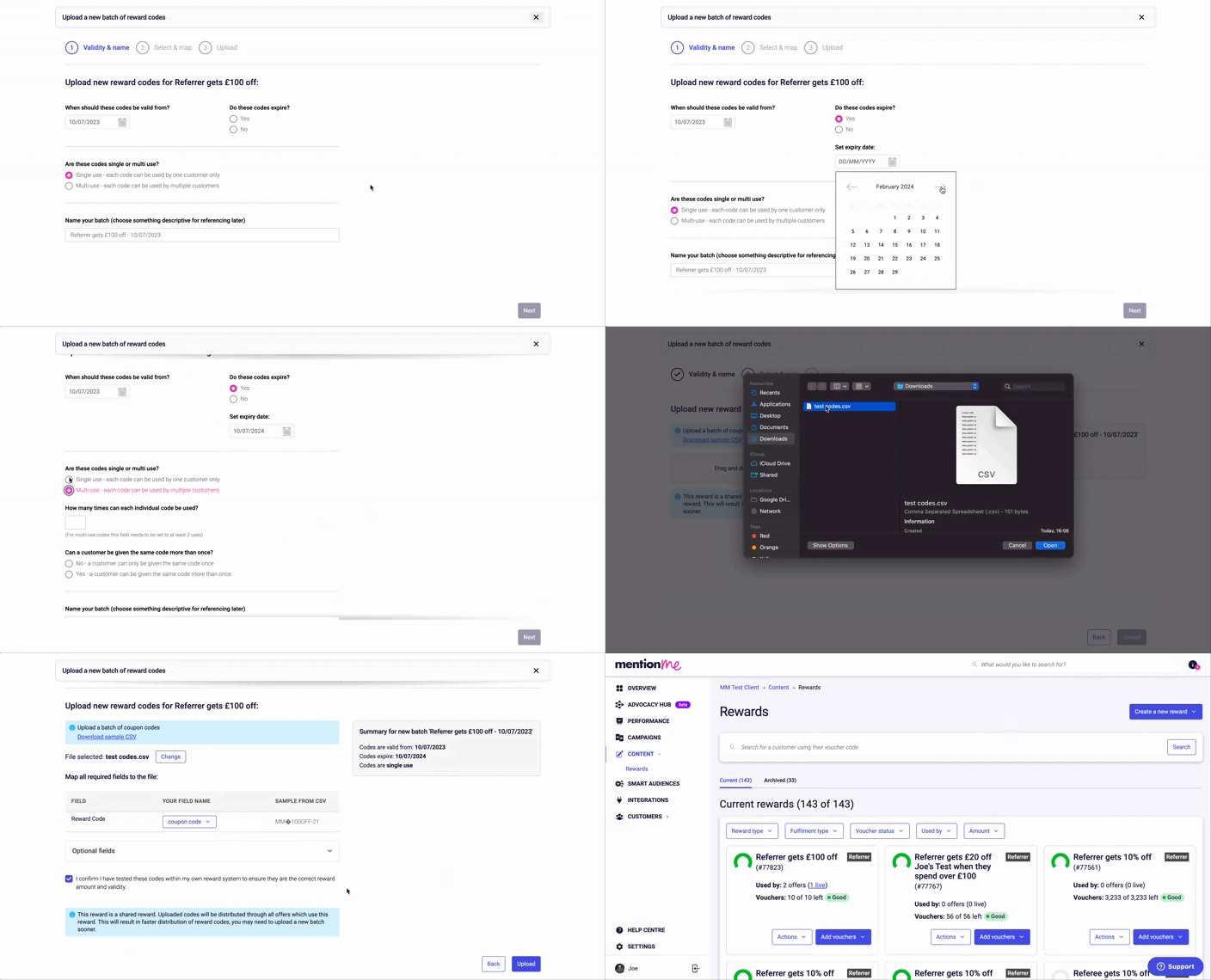
Click **Add vouchers** > **Upload a new batch**.
Configure the following:
* **Code Validity:** Start and end date for redemption
* **Code Usage:** Single-use or multi-use
* **Case Sensitivity:** Enforce uppercase/lowercase on redemption
* **File Naming:** Use a clear, descriptive name
2. Select **Upload a new batch**
## Steps to Upload Your New Vouchers
Click **Add vouchers** > **Upload a new batch**.
Configure the following:
* **Code Validity:** Start and end date for redemption
* **Code Usage:** Single-use or multi-use
* **Case Sensitivity:** Enforce uppercase/lowercase on redemption
* **File Naming:** Use a clear, descriptive name
 Code validity determines the distribution window, not the offer duration. Match your CRM expiry settings. Codes should ideally be valid for one year or more.
**Recommended settings:**
* Codes valid for at least 1 year
* Single-use codes only
* Codes should be non-stackable
* Codes set to target referrer vs referee use cases
Ensure Mention Me settings match your CRM system — changes here don't affect external platforms.
Review your setup, then drag and drop your file or use the file selector. Your file must include a **Reward Code** column header. Use the sample CSV if needed.
Code validity determines the distribution window, not the offer duration. Match your CRM expiry settings. Codes should ideally be valid for one year or more.
**Recommended settings:**
* Codes valid for at least 1 year
* Single-use codes only
* Codes should be non-stackable
* Codes set to target referrer vs referee use cases
Ensure Mention Me settings match your CRM system — changes here don't affect external platforms.
Review your setup, then drag and drop your file or use the file selector. Your file must include a **Reward Code** column header. Use the sample CSV if needed.
 Complete test mapping to confirm upload format, then click **Upload**.
 Progress will be displayed with success/failure per code. Choose to upload another file or finish.
 ## Sharing Voucher Batches Between Rewards
During onboarding, you can share a single voucher batch across multiple rewards (only works when batch values match exactly):
Click **Add vouchers** under a second reward.
Select **Select from uploaded**, tick the batch(es) you'd like to assign, and click **Assign reward codes**.
## Sharing Voucher Batches Between Rewards
During onboarding, you can share a single voucher batch across multiple rewards (only works when batch values match exactly):
Click **Add vouchers** under a second reward.
Select **Select from uploaded**, tick the batch(es) you'd like to assign, and click **Assign reward codes**.

 Repeat for any other rewards using the same voucher batch.