> ## Documentation Index
> Fetch the complete documentation index at: https://docs.mention-me.com/llms.txt
> Use this file to discover all available pages before exploring further.
# Extend Vouchers
> Extend the validity period for existing referral campaign vouchers instead of uploading new codes.
If vouchers are flagged as "expiring soon" and you want to continue using them, you can update their expiration date instead of uploading new codes.
Only users with **Marketing** or **Administrator** access can extend voucher validity.
## Extending from the Campaigns Tab
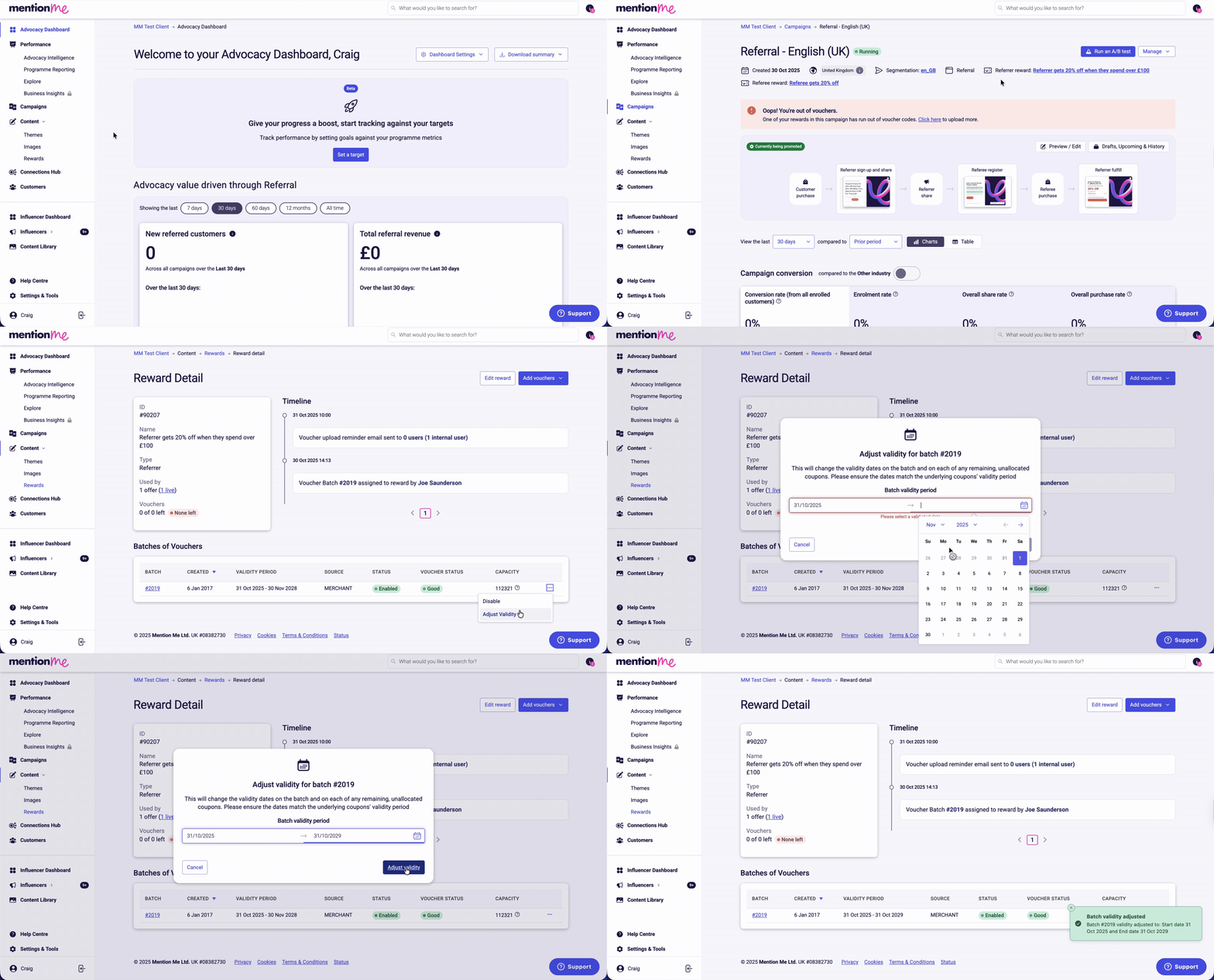
Click **Campaigns**, click the name of the relevant campaign, then click the name of the relevant reward (e.g. "Referrer gets 20% off when they spend over £100").
Click batch options (the three dots) and click **Adjust Validity**. Enter the start date and new end date, then click **Adjust validity** to save your changes.
 ## Extending from the Reward Email Notification
When you receive a reward alert email:
The email highlights experiments needing attention and shows which reward is impacted and its current status.
## Extending from the Reward Email Notification
When you receive a reward alert email:
The email highlights experiments needing attention and shows which reward is impacted and its current status.
 **Voucher status definitions:**
* **Critical:** Stock is very low; immediate action required
* **Run Out:** No vouchers remain
* **Expiring:** Vouchers are close to end of valid usage
* **Expired:** Vouchers can no longer be issued
Use the **Add Vouchers Now** buttons from the email. The button under each reward directly navigates to the specific reward (recommended). Click **Manage** next to the affected reward inside the platform.
**Voucher status definitions:**
* **Critical:** Stock is very low; immediate action required
* **Run Out:** No vouchers remain
* **Expiring:** Vouchers are close to end of valid usage
* **Expired:** Vouchers can no longer be issued
Use the **Add Vouchers Now** buttons from the email. The button under each reward directly navigates to the specific reward (recommended). Click **Manage** next to the affected reward inside the platform.
 Scroll to the "Batches of Vouchers" section. Each row shows an uploaded batch. Click the Batch ID to view individual codes, or click the 3-dot menu to manage a batch.
In the 3-dot menu, choose **Adjust Validity**. Choose the new expiration date from the calendar and click **Adjust Validity** to save.
Scroll to the "Batches of Vouchers" section. Each row shows an uploaded batch. Click the Batch ID to view individual codes, or click the 3-dot menu to manage a batch.
In the 3-dot menu, choose **Adjust Validity**. Choose the new expiration date from the calendar and click **Adjust Validity** to save.
 Your validity changes are saved, and vouchers will re-enter circulation with the new expiration date.
## Need Help?
If you're unsure which reward or voucher batch to update, contact your Client Success Manager or our Support Team.
Your validity changes are saved, and vouchers will re-enter circulation with the new expiration date.
## Need Help?
If you're unsure which reward or voucher batch to update, contact your Client Success Manager or our Support Team.