> ## Documentation Index
> Fetch the complete documentation index at: https://docs.mention-me.com/llms.txt
> Use this file to discover all available pages before exploring further.
# How to Assign Vouchers to Offers
> Assign listed and non-listed voucher batches to campaign rewards, including during onboarding.
Only users with **Marketing** or **Administrator** access can assign vouchers.
## Assigning a Listed Batch
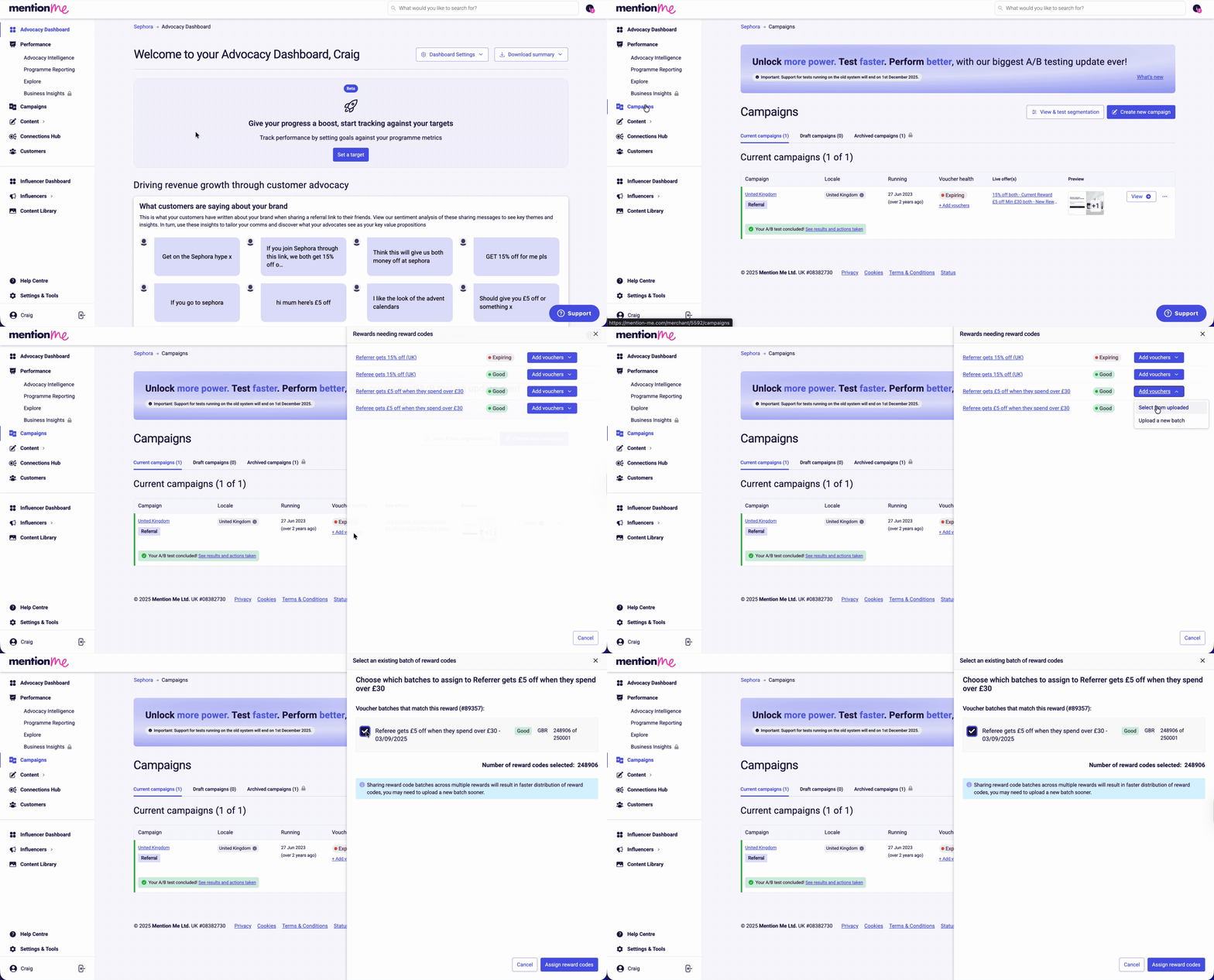
Click **Campaigns**. The overview displays voucher health per campaign and highlights which ones need updates.
Click **+ Add vouchers** > **Add vouchers** > **Select from uploaded**. Select all the relevant voucher batches that apply to this offer and click **Assign reward codes**.
 ## Assigning a Non-Listed Voucher Batch
Use this approach when a batch doesn't appear in the "Select an existing batch" sidebar - for example, if vouchers were uploaded to the wrong offer or an old batch is being re-purposed.
Click **Campaigns**, click the relevant campaign name, then click the name of the relevant reward. Make a note of the batch ID.
## Assigning a Non-Listed Voucher Batch
Use this approach when a batch doesn't appear in the "Select an existing batch" sidebar - for example, if vouchers were uploaded to the wrong offer or an old batch is being re-purposed.
Click **Campaigns**, click the relevant campaign name, then click the name of the relevant reward. Make a note of the batch ID.
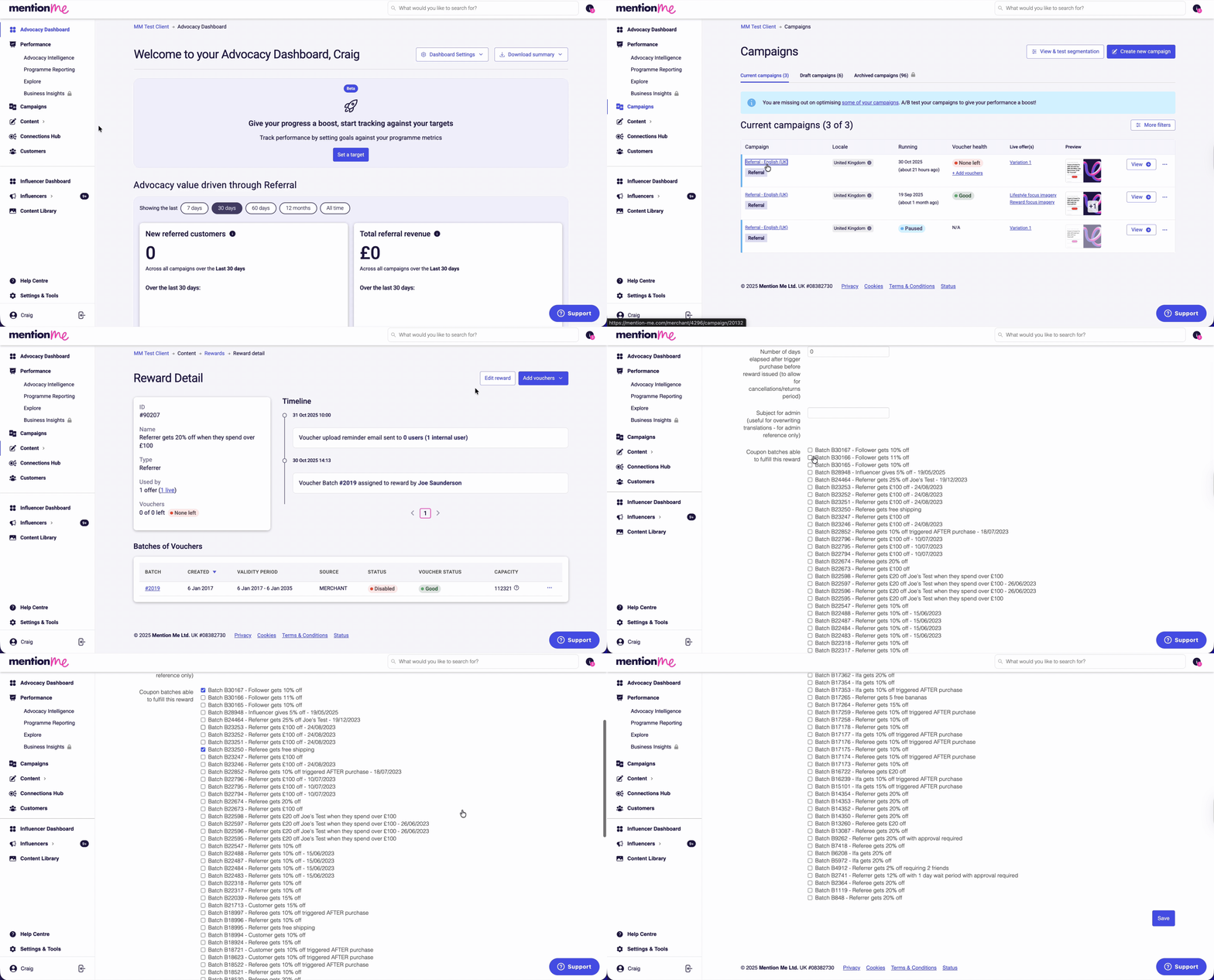
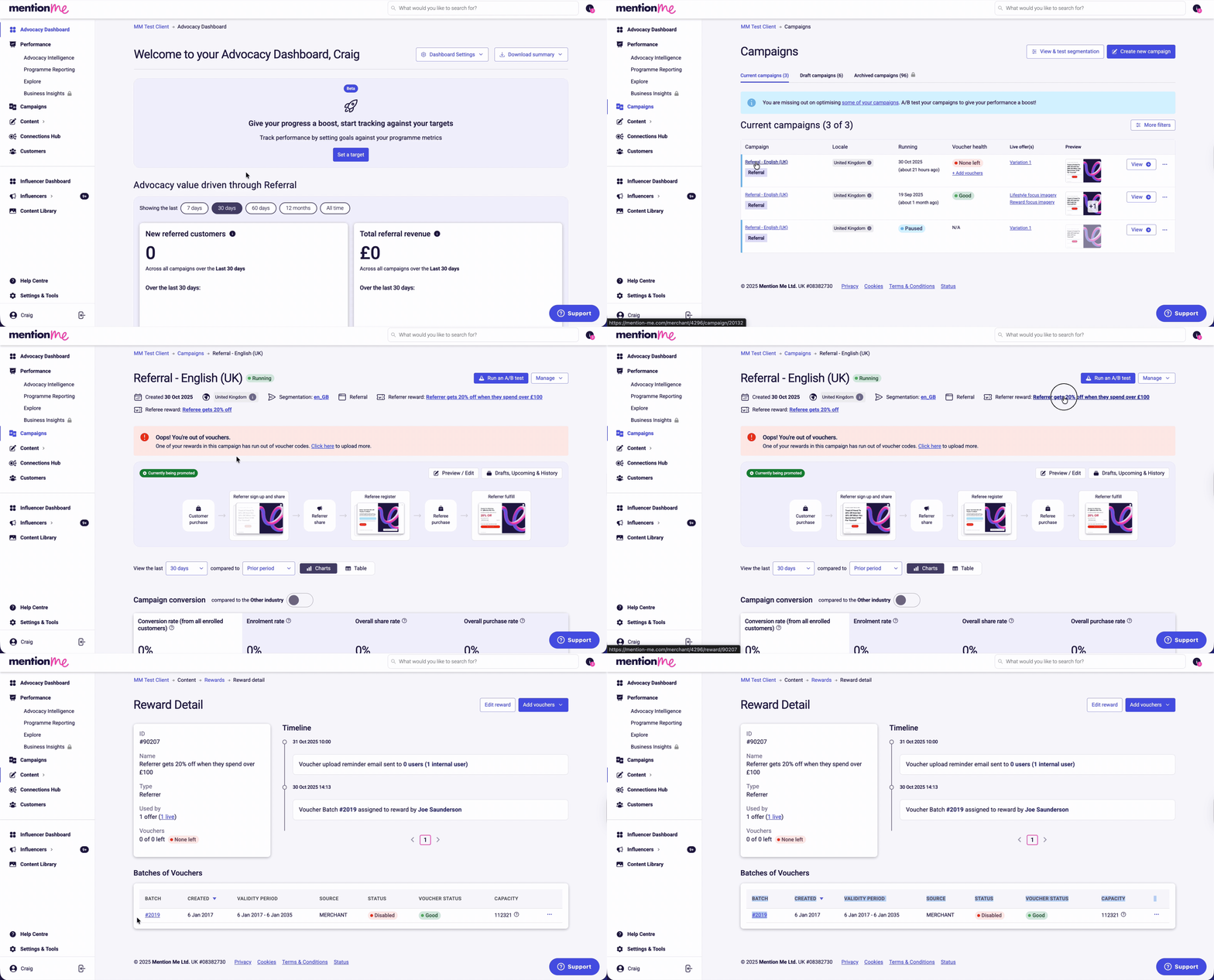 Click **Campaigns**, click the name of the relevant campaign you want to assign the vouchers to, then click the relevant reward name. Click **Edit reward**, tick and untick the batches that you want to apply to the offer, and press **Save**.
 ### Alternative: Find via Content Page
If you need to locate the reward from the Content page:
Go to **Content > Rewards**. Locate the matching reward using its reward ID code (typically 5 digits, visible on the experiment overview page). Use Ctrl/Cmd+F to search, or filter by:
* Reward Type (who the reward is for)
* Fulfilment Type (how rewards are distributed)
* Voucher Status (Good or None Left)
* Used By (Live, Draft, or Previous experiments)
* Amount (the value of the reward)
Click **Manage** on the reward, then click **Edit reward** in the top right corner.
Find the batch by its Batch ID, tick the checkbox, and click **Save**.
## Assigning During Onboarding
Go to your **Draft** campaign section. Click the campaign name, then the experiment name.
Click the notification under the preview: "Referrer reward / Referee reward has no means of fulfilment". This takes you to a filtered view of **Content > Rewards** for the specific reward.
Click **Add vouchers** > **Select from uploaded**. Select applicable batches and click **Assign reward codes**.
Repeat this process for each campaign or territory as needed.
### Alternative: Find via Content Page
If you need to locate the reward from the Content page:
Go to **Content > Rewards**. Locate the matching reward using its reward ID code (typically 5 digits, visible on the experiment overview page). Use Ctrl/Cmd+F to search, or filter by:
* Reward Type (who the reward is for)
* Fulfilment Type (how rewards are distributed)
* Voucher Status (Good or None Left)
* Used By (Live, Draft, or Previous experiments)
* Amount (the value of the reward)
Click **Manage** on the reward, then click **Edit reward** in the top right corner.
Find the batch by its Batch ID, tick the checkbox, and click **Save**.
## Assigning During Onboarding
Go to your **Draft** campaign section. Click the campaign name, then the experiment name.
Click the notification under the preview: "Referrer reward / Referee reward has no means of fulfilment". This takes you to a filtered view of **Content > Rewards** for the specific reward.
Click **Add vouchers** > **Select from uploaded**. Select applicable batches and click **Assign reward codes**.
Repeat this process for each campaign or territory as needed.