> ## Documentation Index
> Fetch the complete documentation index at: https://docs.mention-me.com/llms.txt
> Use this file to discover all available pages before exploring further.
# Approve or Decline Suspects
> Mark customers as suspected of gaming, and approve or decline referrals individually or in bulk from the gaming approvals queue.
## How to Mark a Customer as Suspected of Gaming
This only works if [Gaming Controls](/knowledge/referral/gaming/managing-gaming) are enabled. It won't stop the user from seeing referral offers, but their links will not yield rewards without manual approval.
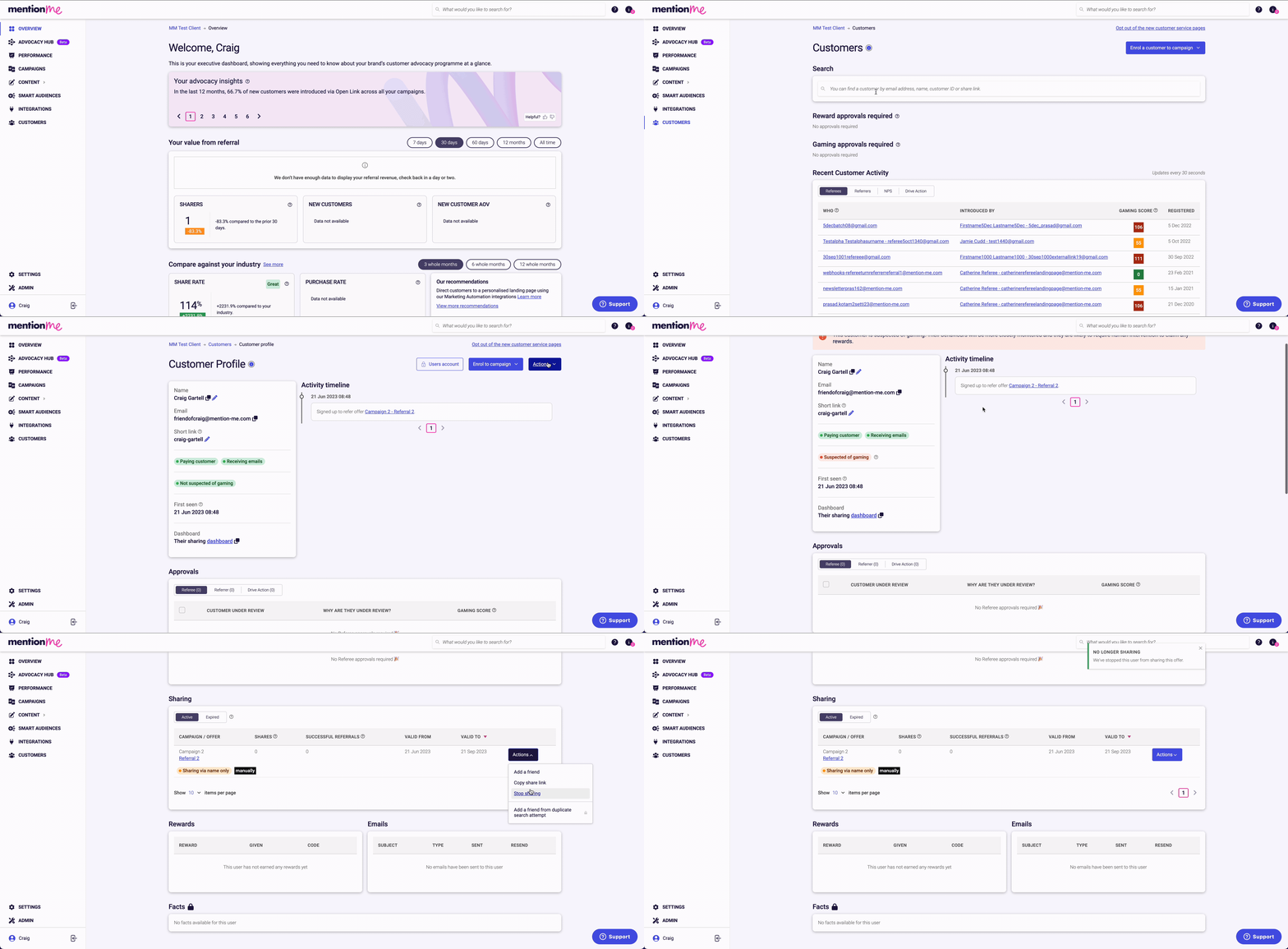
Go to the **Customers** section in the platform. Search by name, email, customer ID, or share link. Click to open the customer.
Click **Actions > Mark as suspected of gaming**.
 Click **Stop sharing** to prevent the customer from further sharing.
Once marked:
* All future referrals by that customer will require manual approval
* Their IP address and cookie will be flagged, affecting related profiles
Click **Stop sharing** to prevent the customer from further sharing.
Once marked:
* All future referrals by that customer will require manual approval
* Their IP address and cookie will be flagged, affecting related profiles
 ## How to Access the Gaming Approvals Queue
* Access requires specific user permissions. [See permission guide](/knowledge/security/account/user-management)
* Gaming and Velocity approvals are separate — you must manually approve both if flagged
* Bulk actions only affect visible referrals from the past 3 months
* Each referral attempt by the same customer must be approved individually
Go to the **Customers** section in the platform.
## How to Access the Gaming Approvals Queue
* Access requires specific user permissions. [See permission guide](/knowledge/security/account/user-management)
* Gaming and Velocity approvals are separate — you must manually approve both if flagged
* Bulk actions only affect visible referrals from the past 3 months
* Each referral attempt by the same customer must be approved individually
Go to the **Customers** section in the platform.
 In the Gaming approvals area, click either **Referee Gaming** or **Referrer Gaming**.
 Choose one of three approval methods described below.
### Option 1: Approve or Decline an Individual Referral
Each referral attempt must be actioned individually. You can choose:
* **Decline with no notification**
* **Decline and notify both referrer and referee**
Choose one of three approval methods described below.
### Option 1: Approve or Decline an Individual Referral
Each referral attempt must be actioned individually. You can choose:
* **Decline with no notification**
* **Decline and notify both referrer and referee**

 ### Option 2: Approve or Decline All Visible Customers
Bulk action applies to all listed customers, regardless of score.
### Option 3: Approve/Decline Based on Gaming Score
Set a threshold, e.g.:
* Approve all scores ≤ 55
* Decline all scores ≥ 70
### Option 2: Approve or Decline All Visible Customers
Bulk action applies to all listed customers, regardless of score.
### Option 3: Approve/Decline Based on Gaming Score
Set a threshold, e.g.:
* Approve all scores ≤ 55
* Decline all scores ≥ 70

 ## Need Help?
Contact Support through the [Contact Form](https://help.mention-me.com/hc/en-gb/requests/new?ticket_form_id=5268418076701), or use the Support widget in the platform.
## Need Help?
Contact Support through the [Contact Form](https://help.mention-me.com/hc/en-gb/requests/new?ticket_form_id=5268418076701), or use the Support widget in the platform.