> ## Documentation Index
> Fetch the complete documentation index at: https://docs.mention-me.com/llms.txt
> Use this file to discover all available pages before exploring further.
# Share Messages
> Edit the share message, customise the share image and overlay copy that referees see on social channels.
## What is the Share Message?
The share message is the message that the referee or friend will receive on their sharing channel (for example WhatsApp). It includes both a personalised share image and accompanying text.
We have seen as high as 17% increase in purchase rate and 14% increase in overall referral conversion when using personalised share images.
## Share Image Dimensions
| Journey | Touchpoint | Width | Height | Filetypes | File Size |
| ------- | --------------- | ------ | ------ | ----------------- | --------- |
| Referee | Invited by link | 1200px | 630px | .jpeg, .png, .gif | 250kb max |
Dimensions for all journey images can be found [here](/knowledge/referral/design/managing-images).
## Upload or Change the Share Image
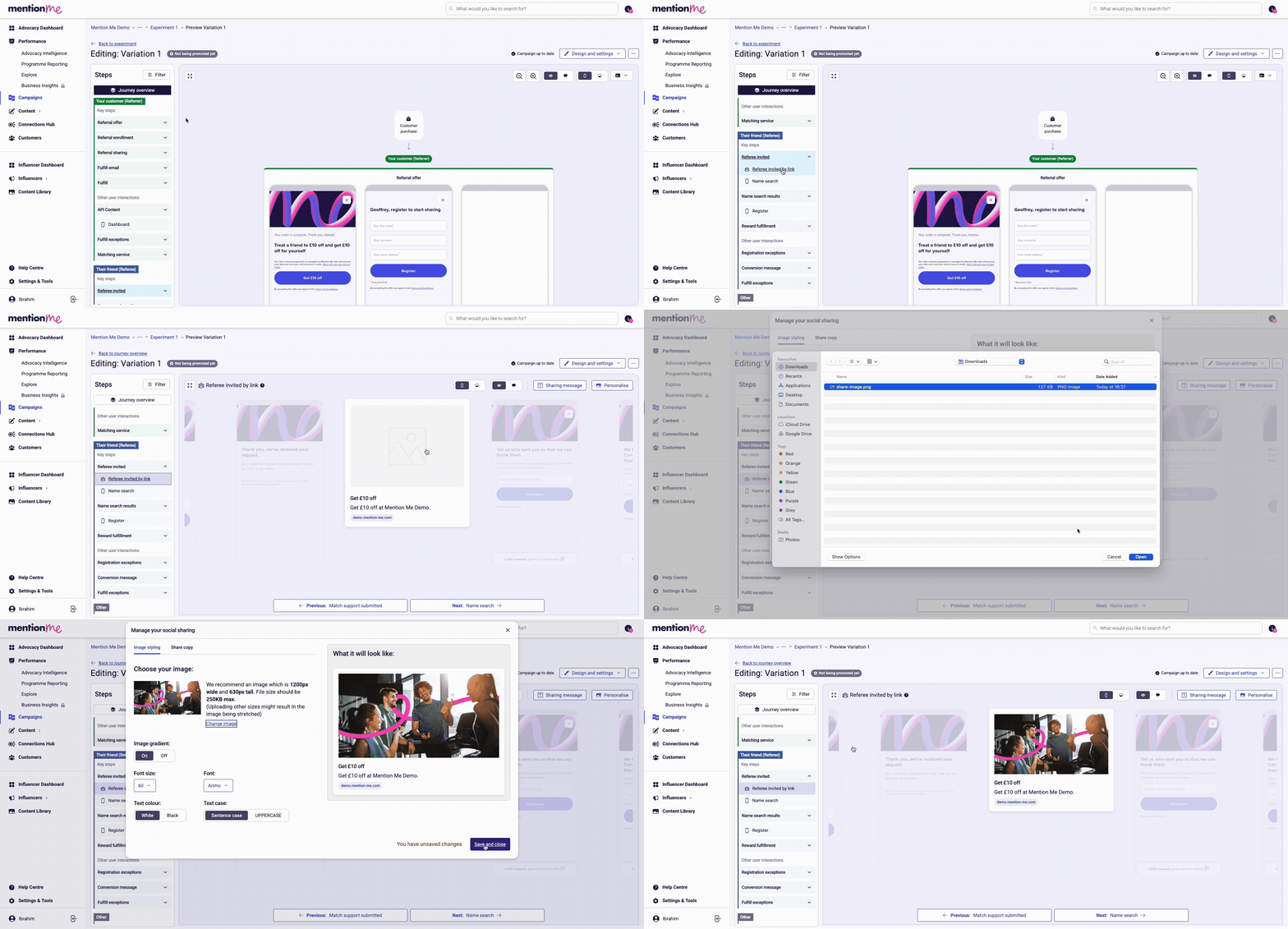
Go to the variation you wish to change the image for. In the left Steps menu, scroll down to the Referee invited step and click "Referee invited by link".
Click into the picture to open the pop-up, click the "Change image" button and select your image from your device, then click save and close.
 ## Edit the Overlay Copy
The overlay copy is the text that sits on top of the image, which gets rendered as part of the image when sent to the referee. You can style this copy to be on brand.
### Dynamic Content
## Edit the Overlay Copy
The overlay copy is the text that sits on top of the image, which gets rendered as part of the image when sent to the referee. You can style this copy to be on brand.
### Dynamic Content
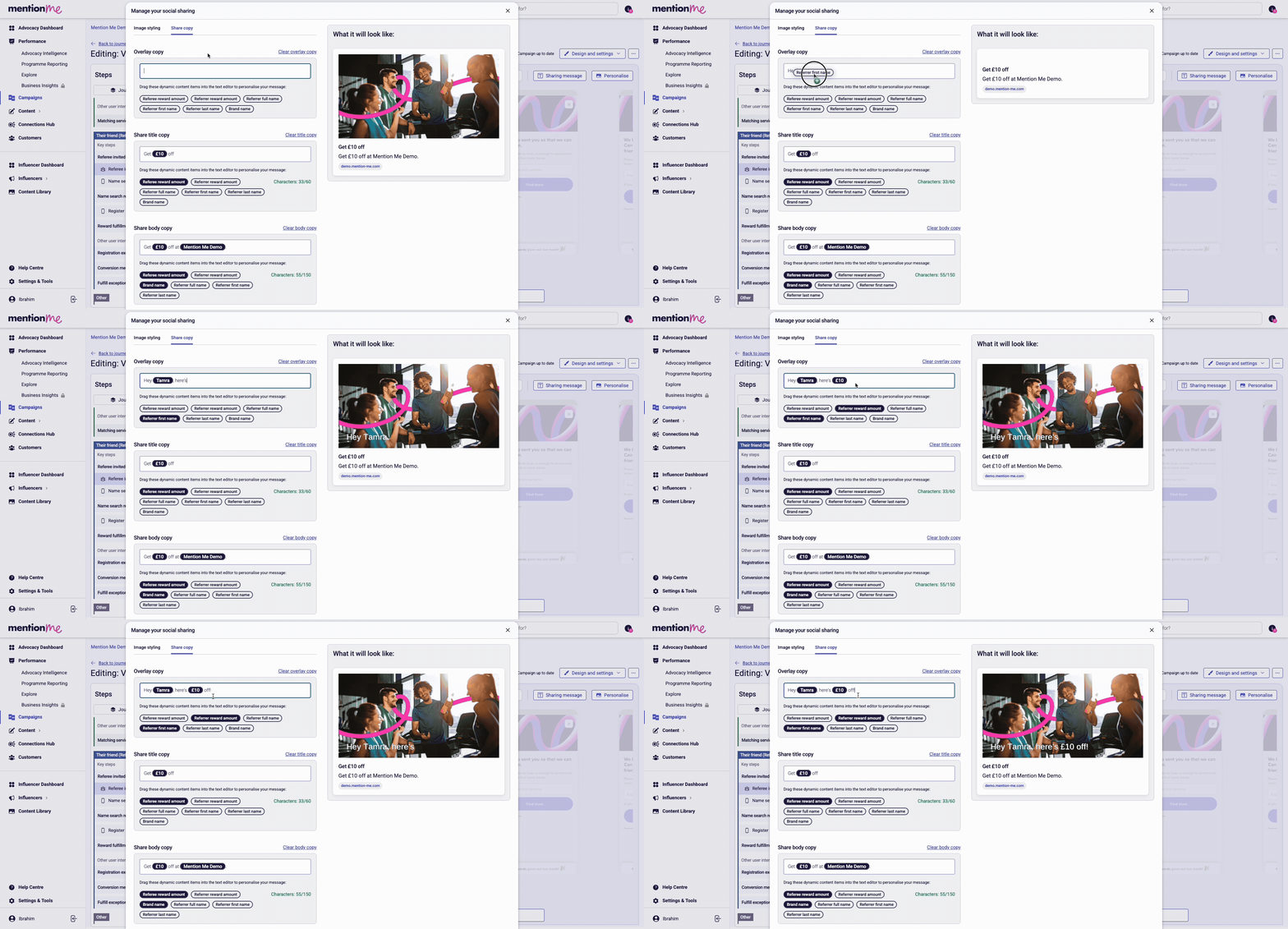 In the same pop-up, click the "Share Copy" tab and use the **Overlay copy** section. You can select from different dynamic content to pull in real user or brand data when the image is generated.
### Styling Options
In the same pop-up, click the "Share Copy" tab and use the **Overlay copy** section. You can select from different dynamic content to pull in real user or brand data when the image is generated.
### Styling Options
 Click the "Image styling" tab to view the styling settings:
* **Fonts** — Select from a list of web safe fonts
* **Font size** — Adjust from 40px to 80px depending on message length
* **Text colour** — Choose between black and white text (ensure sufficient contrast with your background)
* **Text case** — Choose between uppercase and sentence case
* **Image gradient** — Adds a drop shadow to improve readability on brighter images
## Edit the Share Copy
The share copy is the message that gets sent with the image as plain text.
Click the "Image styling" tab to view the styling settings:
* **Fonts** — Select from a list of web safe fonts
* **Font size** — Adjust from 40px to 80px depending on message length
* **Text colour** — Choose between black and white text (ensure sufficient contrast with your background)
* **Text case** — Choose between uppercase and sentence case
* **Image gradient** — Adds a drop shadow to improve readability on brighter images
## Edit the Share Copy
The share copy is the message that gets sent with the image as plain text.
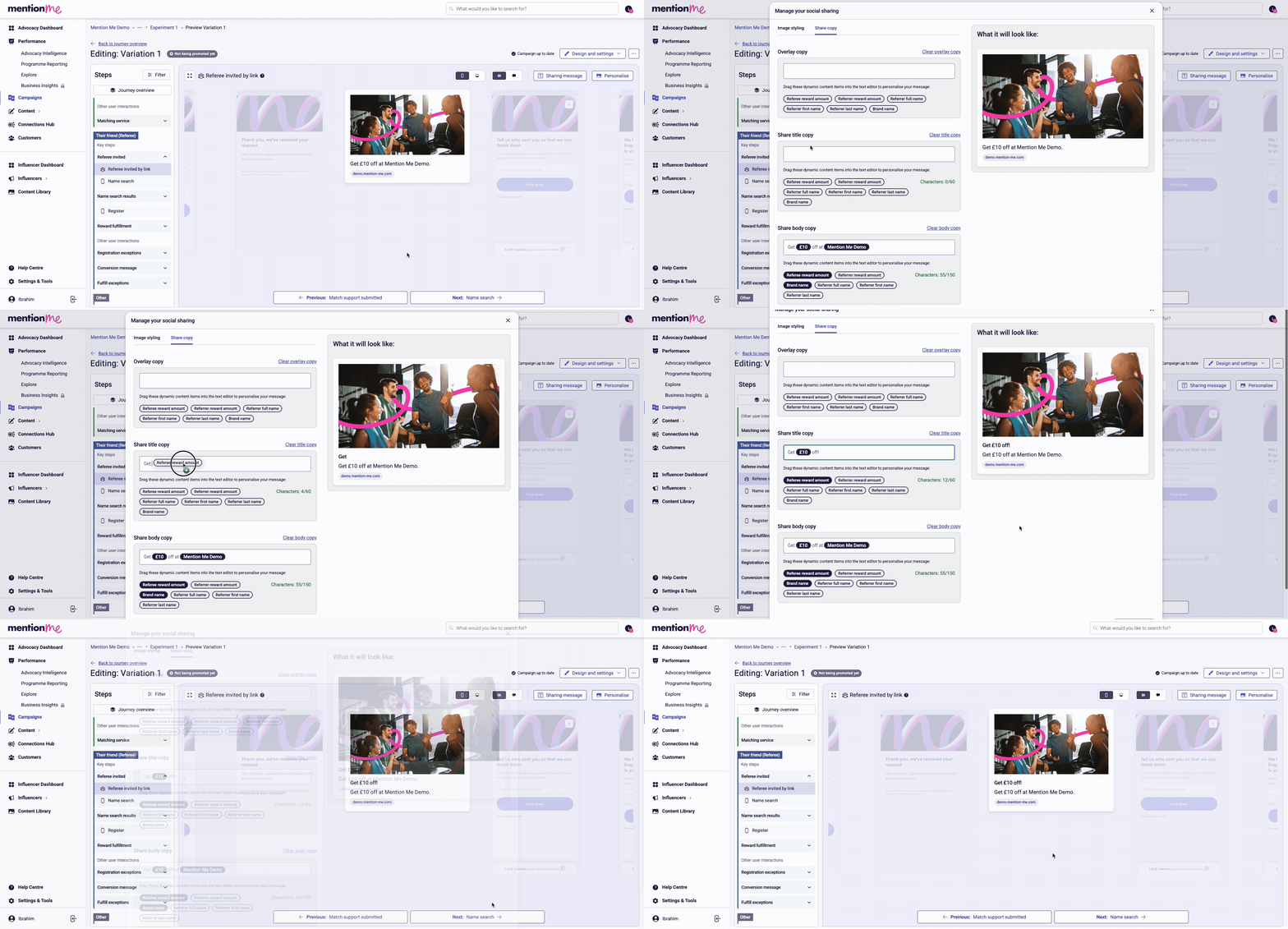 In the same pop-up, click the "Share Copy" tab and use the **Share title copy** and **Share body copy** sections. You can select from different dynamic content to pull in real user or brand data.
## Preview Your Changes
On the right hand side of the pop-up you will see the "What it will look like" preview which changes in real time.
## Edit the Share Message per Channel
Log into your dashboard, go to the campaign section and select one of your live campaigns. Create a draft experiment (the easiest way is duplicating an existing experiment).
Go to the preview section for the offer. In the preview section, go to the "Referee invited by link" section, select the "Sharing message" tab, then "Personalise your sharing message".
Click on the different tabs to edit the message for different sharing channels. Click "Save and close" when done.
## FAQ
### Where do I edit the sharing copy for the email the referrer sends to the friend?
This is handled in the "share by email" part of the preview page.
### Why are there only 5 sharing channels I can edit the share message for?
Native Share, WhatsApp, X (formerly Twitter), Line, and SMS are the only channels where we have a share message. Email is handled in the "share by email" part of the preview page.
In the same pop-up, click the "Share Copy" tab and use the **Share title copy** and **Share body copy** sections. You can select from different dynamic content to pull in real user or brand data.
## Preview Your Changes
On the right hand side of the pop-up you will see the "What it will look like" preview which changes in real time.
## Edit the Share Message per Channel
Log into your dashboard, go to the campaign section and select one of your live campaigns. Create a draft experiment (the easiest way is duplicating an existing experiment).
Go to the preview section for the offer. In the preview section, go to the "Referee invited by link" section, select the "Sharing message" tab, then "Personalise your sharing message".
Click on the different tabs to edit the message for different sharing channels. Click "Save and close" when done.
## FAQ
### Where do I edit the sharing copy for the email the referrer sends to the friend?
This is handled in the "share by email" part of the preview page.
### Why are there only 5 sharing channels I can edit the share message for?
Native Share, WhatsApp, X (formerly Twitter), Line, and SMS are the only channels where we have a share message. Email is handled in the "share by email" part of the preview page.