> ## Documentation Index
> Fetch the complete documentation index at: https://docs.mention-me.com/llms.txt
> Use this file to discover all available pages before exploring further.
# Managing Images
> Image dimensions, uploading imagery across single or multiple offers, and managing your image library.
## Image Dimensions
There are two designs available — Half panel and Full width — which require different sized imagery. Consider the contrast of text when using a Full width design as this can impact conversion and accessibility.
When uploading/changing an image, you can find the recommended dimensions beneath each button.
### Half Panel Design
| Journey | Touchpoint | Width | Height | Filetypes | File Size |
| -------- | --------------- | ------ | ------ | ----------------- | --------- |
| All | Mobile | 1080px | 455px | .jpeg, .png, .gif | \< 5mb |
| All | Email | 1200px | 800px | .jpeg, .png, .gif | \< 5mb |
| Referrer | Website | 960px | 1260px | .jpeg, .png, .gif | \< 5mb |
| Referee | Website | 846px | 1194px | .jpeg, .png, .gif | \< 5mb |
| Referee | Invited by link | 1200px | 630px | .jpeg, .png, .gif | 250kb max |
### Full Width Design
| Journey | Touchpoint | Width | Height | Filetypes | File Size |
| -------- | --------------- | ------ | ------ | ----------------- | --------- |
| All | Mobile | 1080px | 455px | .jpeg, .png, .gif | \< 5mb |
| All | Email | 1200px | 800px | .jpeg, .png, .gif | \< 5mb |
| Referrer | Website | 1920px | 1260px | .jpeg, .png, .gif | \< 5mb |
| Referee | Website | 1692px | 1194px | .jpeg, .png, .gif | \< 5mb |
| Referee | Invited by link | 1200px | 630px | .jpeg, .png, .gif | 250kb max |
### Miscellaneous
| Journey | Touchpoint | Width | Height | Filetypes | File Size |
| ------- | ---------- | ----- | ------ | ----------- | --------- |
| All | Logo | 556px | 223px | .jpeg, .png | \< 5mb |
Use exact dimensions for any images with graphics to ensure the journey looks as expected.
### Image Editing
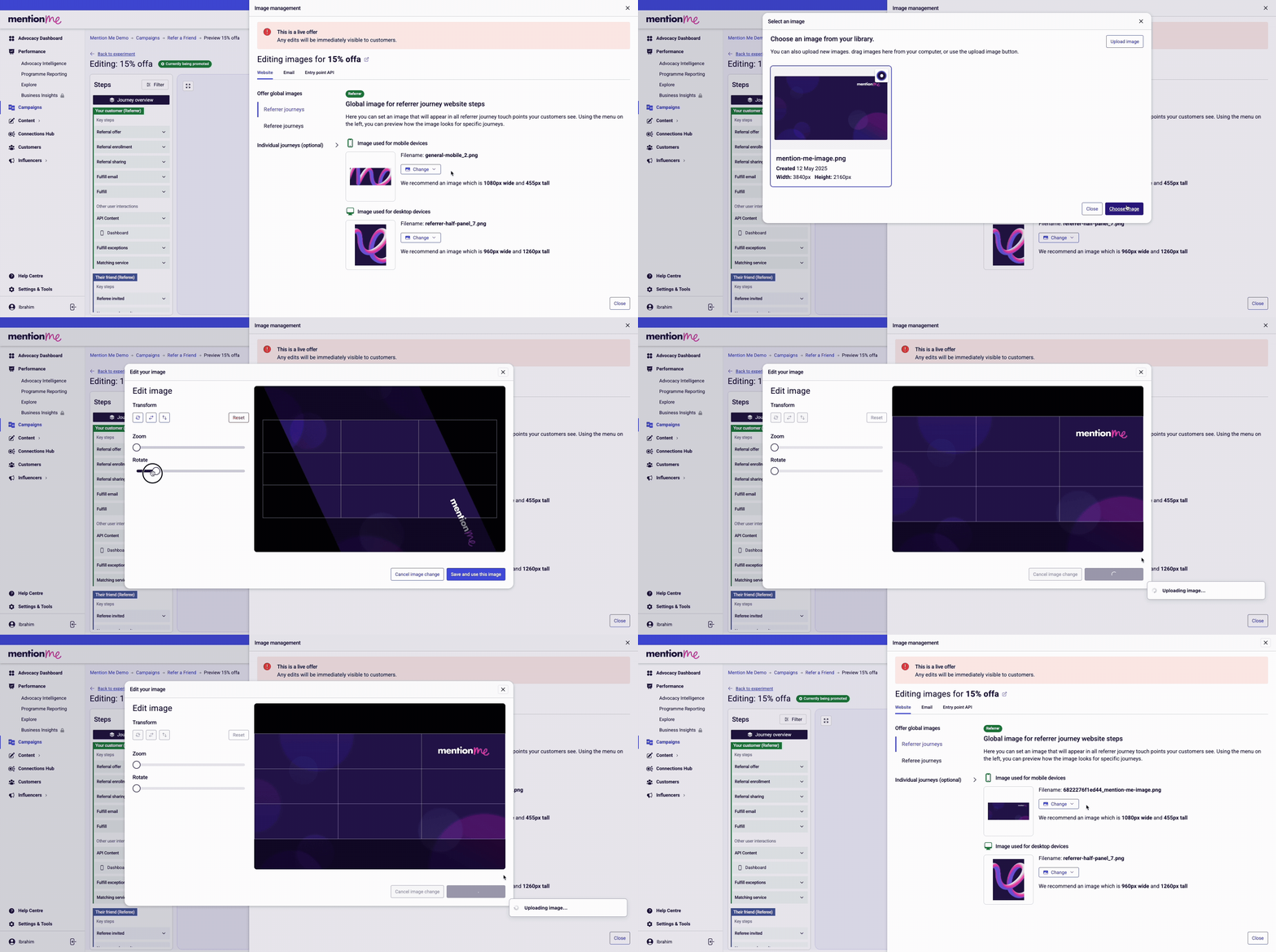 If you don't have the exact size, the platform allows you to **zoom, rotate**, and **drag** to crop the particular section of the image you want.
## Uploading Images
You can upload imagery from two different places, both with the same functionality. You can upload new imagery or select from your image library which contains images you have used in the past.
The platform accepts `.jpeg`, `.png`, and `.gif` files. We recommend file sizes less than 5mb.
### From the Offer Preview
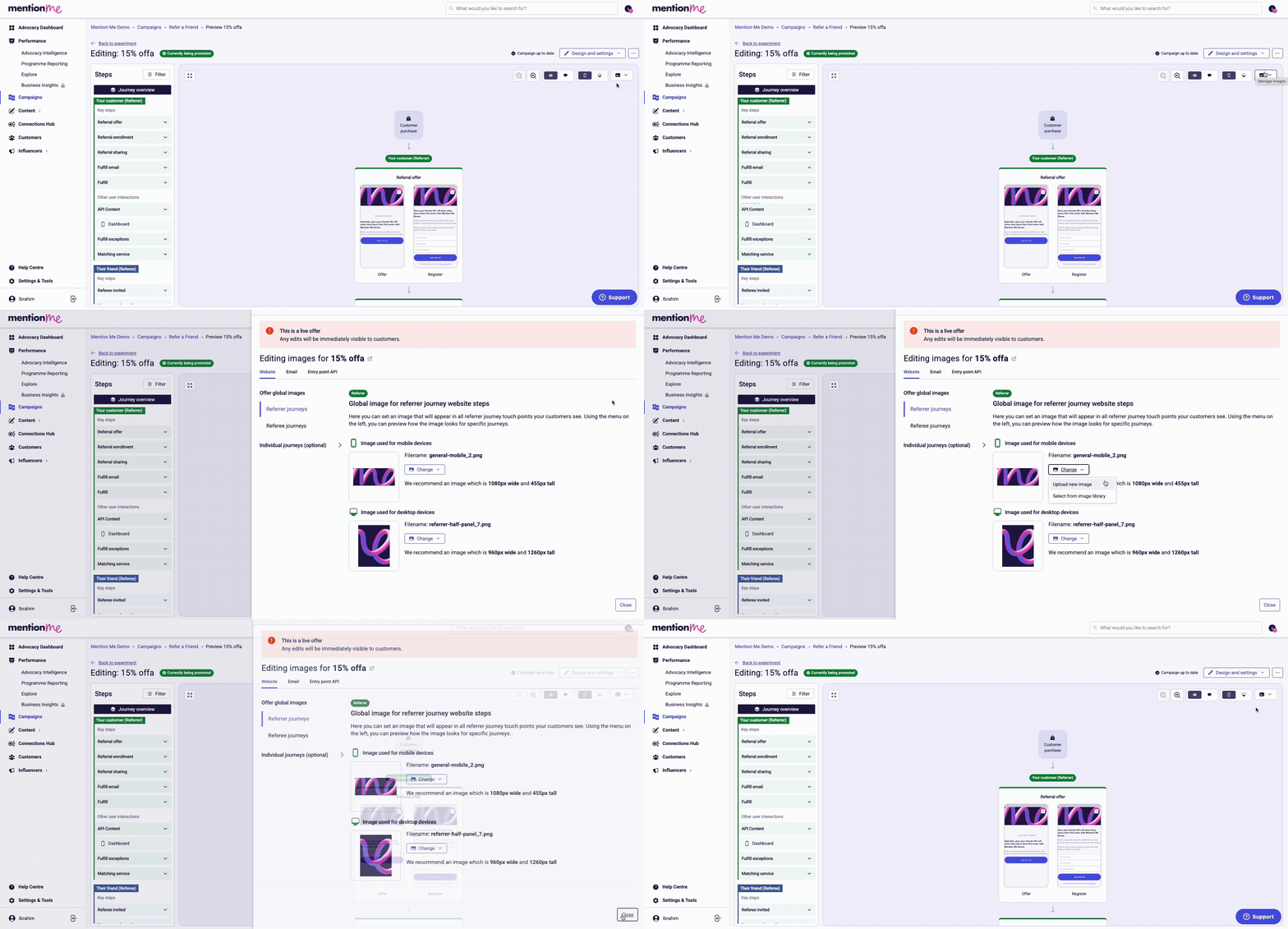
Open the preview page for the offer you want to change/upload to.
Click the "Manage images" button in the top right and select "For this offer".
Click the "Change" button on your selected touchpoint, then select "Upload new image" and choose an image from your device.
If you don't have the exact size, the platform allows you to **zoom, rotate**, and **drag** to crop the particular section of the image you want.
## Uploading Images
You can upload imagery from two different places, both with the same functionality. You can upload new imagery or select from your image library which contains images you have used in the past.
The platform accepts `.jpeg`, `.png`, and `.gif` files. We recommend file sizes less than 5mb.
### From the Offer Preview
Open the preview page for the offer you want to change/upload to.
Click the "Manage images" button in the top right and select "For this offer".
Click the "Change" button on your selected touchpoint, then select "Upload new image" and choose an image from your device.
 ### From the Image Library
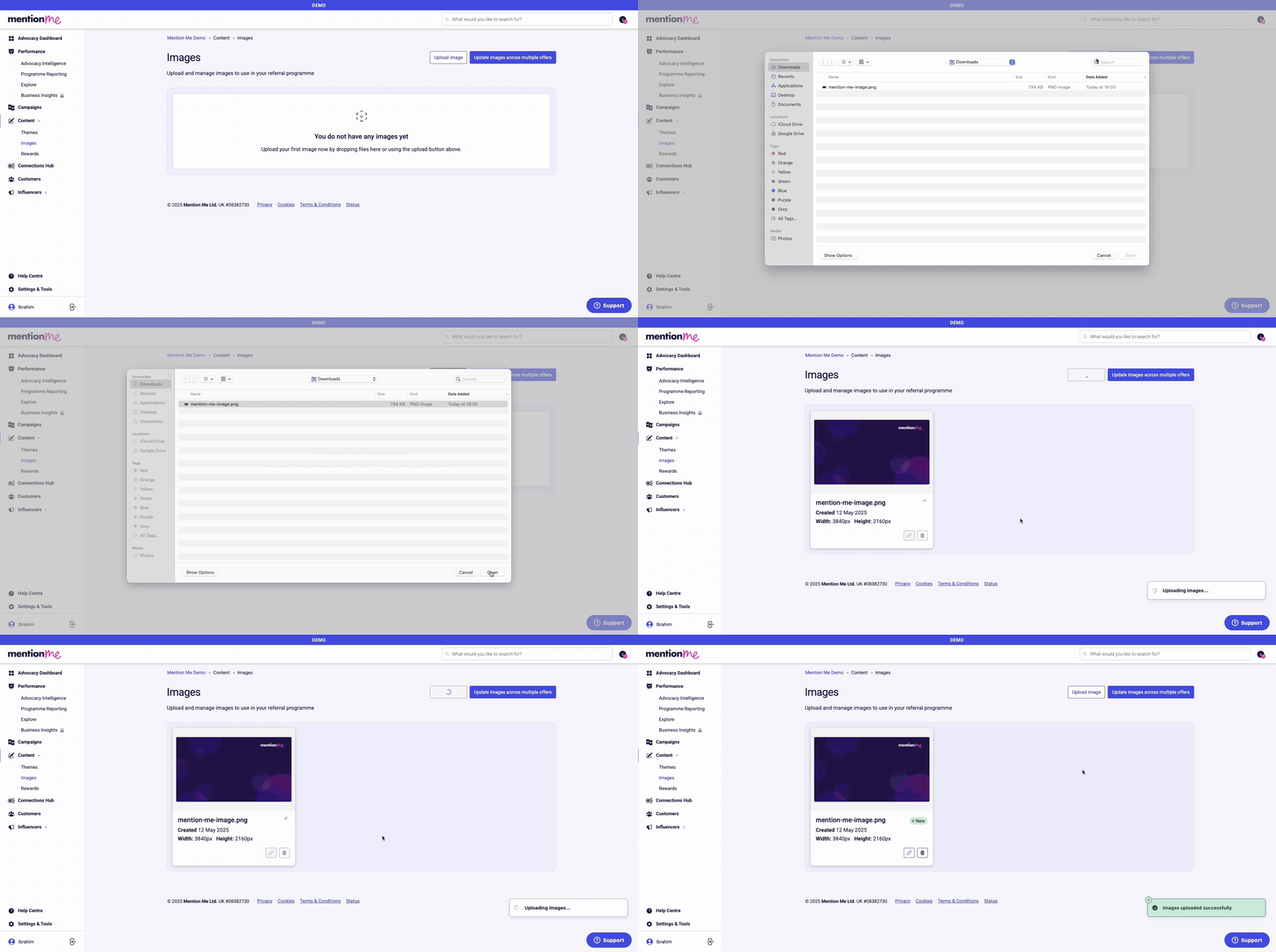
In the left hand side menu, navigate to **Content > Images**.
Click the "Upload Images" button in the top right and select an image from your device.
### From the Image Library
In the left hand side menu, navigate to **Content > Images**.
Click the "Upload Images" button in the top right and select an image from your device.
 ### Across Multiple Offers
Changing/uploading imagery across multiple offers follows the same process as a single offer. The only difference is that you click the multiple offers option and select the offers you want to change.
In the left hand side menu, navigate to **Content > Images**.
Click the "Update images across multiple offers" button in the top right. Select the offer type from the right hand side dropdown, then select the campaigns from the left hand side dropdown.
Tick the offers from the list shown and click "Manage images" button in the bottom right.
### Across Multiple Offers
Changing/uploading imagery across multiple offers follows the same process as a single offer. The only difference is that you click the multiple offers option and select the offers you want to change.
In the left hand side menu, navigate to **Content > Images**.
Click the "Update images across multiple offers" button in the top right. Select the offer type from the right hand side dropdown, then select the campaigns from the left hand side dropdown.
Tick the offers from the list shown and click "Manage images" button in the bottom right.
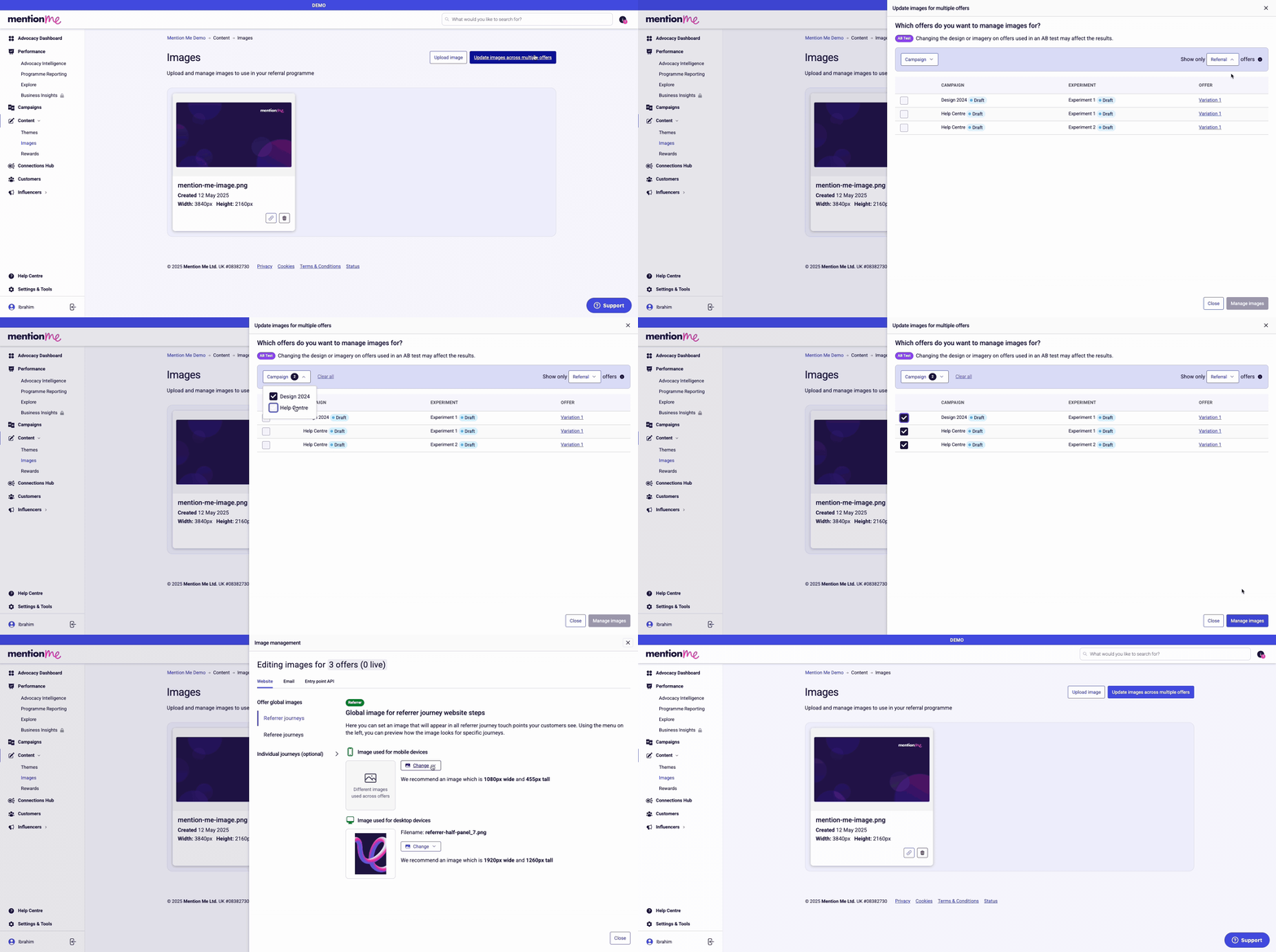 You can only bulk update imagery for offers of the same type (e.g. Referral, Drive Action, or NPS survey). To update all imagery, do one type at a time.
### Exceptions
The **Referee Invited by link** needs to be updated from the offer preview for each offer. The image uploader tool cannot be used for this specific part of the platform at this time.
Follow [this guide](/knowledge/referral/design/share-messages) to edit the Referee Invited by link (Personalised Share Image & Copy).
### Global and Individual Journey Images
You can only bulk update imagery for offers of the same type (e.g. Referral, Drive Action, or NPS survey). To update all imagery, do one type at a time.
### Exceptions
The **Referee Invited by link** needs to be updated from the offer preview for each offer. The image uploader tool cannot be used for this specific part of the platform at this time.
Follow [this guide](/knowledge/referral/design/share-messages) to edit the Referee Invited by link (Personalised Share Image & Copy).
### Global and Individual Journey Images
 Website imagery is split between **global images** and **individual journeys** (optional). Global imagery shares the image across all screens for the referrer and all screens for the referee.
Individual journeys break up the screens into more granular journeys so the customer can see alternative imagery depending on what stage they are on:
| Referrer Sign Up | Referrer Fulfil | Referrer Duplicate Match | Referee Search | Referee Fulfill |
| ---------------------- | --------------- | ------------------------------------------------------------------------------------------- | ------------------------------------------------------------------------------------------------------ | --------------------- |
| Offer, Register, Share | Fulfill | Match enter email, Match retry email, Match success, Match support, Match support submitted | Name search, Name search duplicate, Name search no match, Register, Existing customers, Referring self | Fulfill, Fulfill fail |
We recommend changing the image on the Referrer Fulfill and Referee Fulfill screens as an A/B test to drive conversion. You can submit an A/B Test request [here](https://help.mention-me.com/hc/en-gb/requests/new?ticket_form_id=5268134356509).
## Managing Images
### Where
Website imagery is split between **global images** and **individual journeys** (optional). Global imagery shares the image across all screens for the referrer and all screens for the referee.
Individual journeys break up the screens into more granular journeys so the customer can see alternative imagery depending on what stage they are on:
| Referrer Sign Up | Referrer Fulfil | Referrer Duplicate Match | Referee Search | Referee Fulfill |
| ---------------------- | --------------- | ------------------------------------------------------------------------------------------- | ------------------------------------------------------------------------------------------------------ | --------------------- |
| Offer, Register, Share | Fulfill | Match enter email, Match retry email, Match success, Match support, Match support submitted | Name search, Name search duplicate, Name search no match, Register, Existing customers, Referring self | Fulfill, Fulfill fail |
We recommend changing the image on the Referrer Fulfill and Referee Fulfill screens as an A/B test to drive conversion. You can submit an A/B Test request [here](https://help.mention-me.com/hc/en-gb/requests/new?ticket_form_id=5268134356509).
## Managing Images
### Where
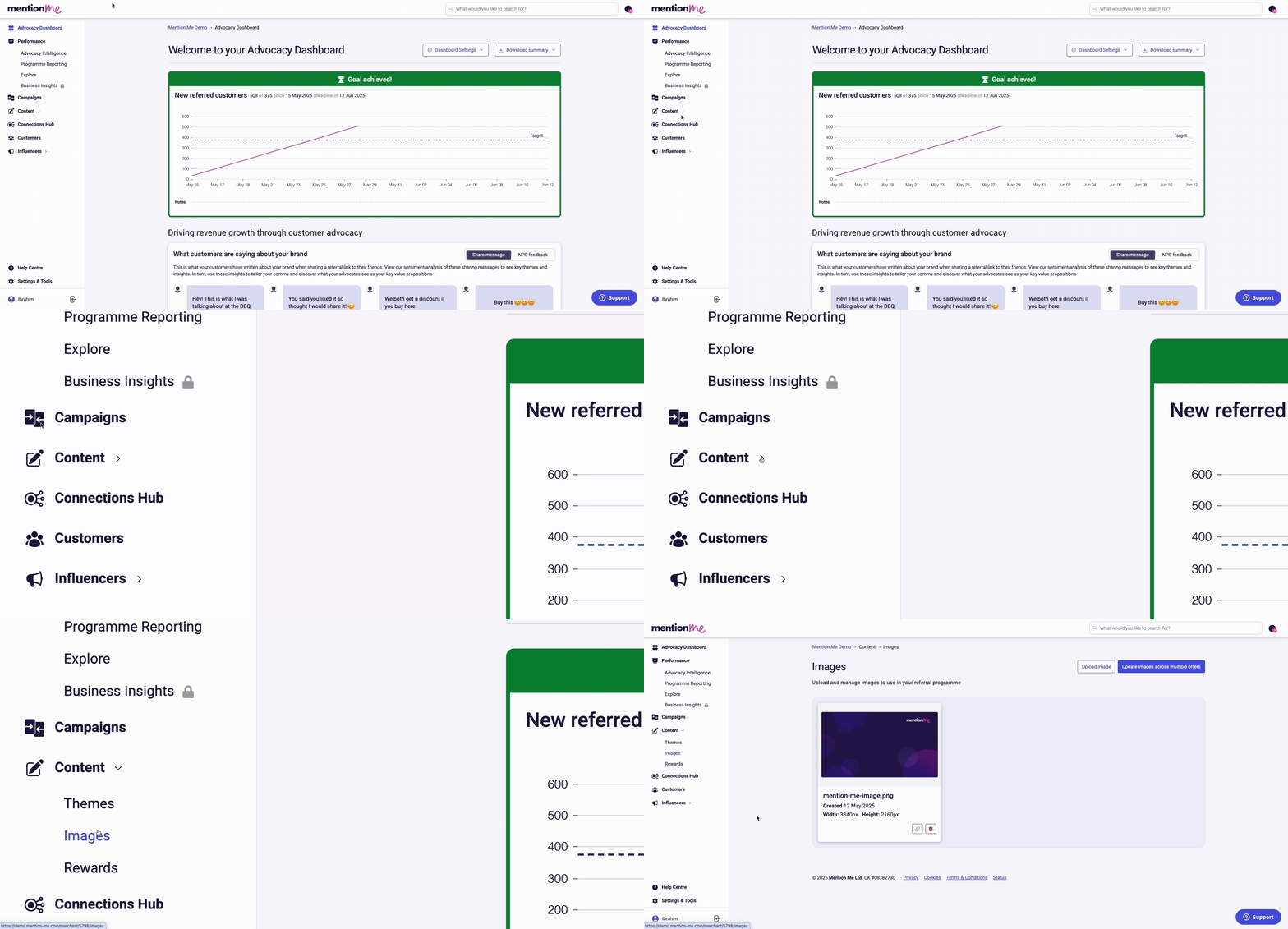 In the left navigation go to **Content > Images**. This is your image library containing any imagery you've uploaded to the platform since the feature launched. New imagery uploaded from anywhere will also be stored here.
### Archiving
Remove images from your library by archiving them. The archive button is at the bottom of each image card.
**If an image is being used on an offer and it is archived, it will still be present on the offer until a new image is uploaded.**
### Image Links
When images are uploaded to the platform they are hosted online. Each uploaded image generates a link which you can use. The copy URL button is at the bottom of each image card.
In the left navigation go to **Content > Images**. This is your image library containing any imagery you've uploaded to the platform since the feature launched. New imagery uploaded from anywhere will also be stored here.
### Archiving
Remove images from your library by archiving them. The archive button is at the bottom of each image card.
**If an image is being used on an offer and it is archived, it will still be present on the offer until a new image is uploaded.**
### Image Links
When images are uploaded to the platform they are hosted online. Each uploaded image generates a link which you can use. The copy URL button is at the bottom of each image card.