> ## Documentation Index
> Fetch the complete documentation index at: https://docs.mention-me.com/llms.txt
> Use this file to discover all available pages before exploring further.
# Purge Customer Data
> Permanently delete customer data from the Mention Me platform individually, in bulk via CSV, or automatically via SFTP.
There are three ways to purge customer data:
1. **Manual, individual deletion** — Delete a single customer directly from the platform
2. **Manual, bulk deletion via CSV upload** — Upload a list of customer emails to purge multiple accounts at once
3. **Automated deletion via SFTP** — Automate regular customer data purges by securely sending CSV files via SFTP
## Manual Deletion: Individual Accounts
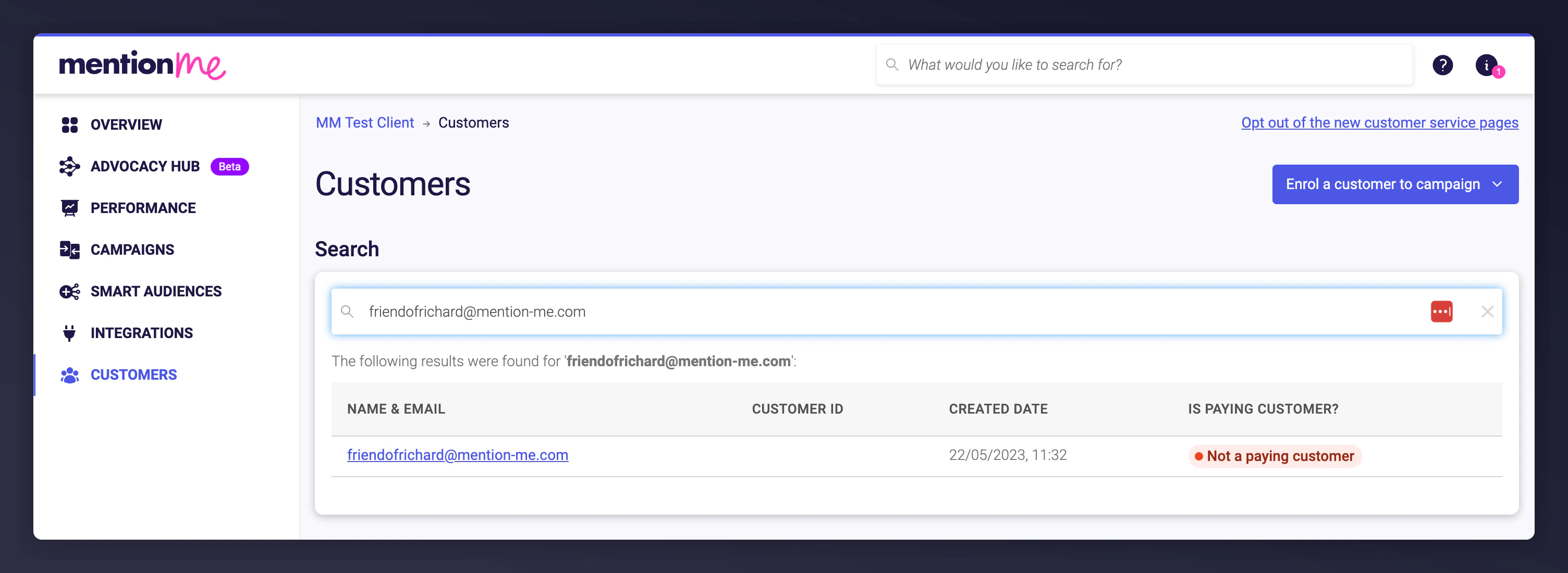
Go to the **Customers** section in the platform. Search for the customer using name, email, or customer ID, then click the customer's name to open their profile.
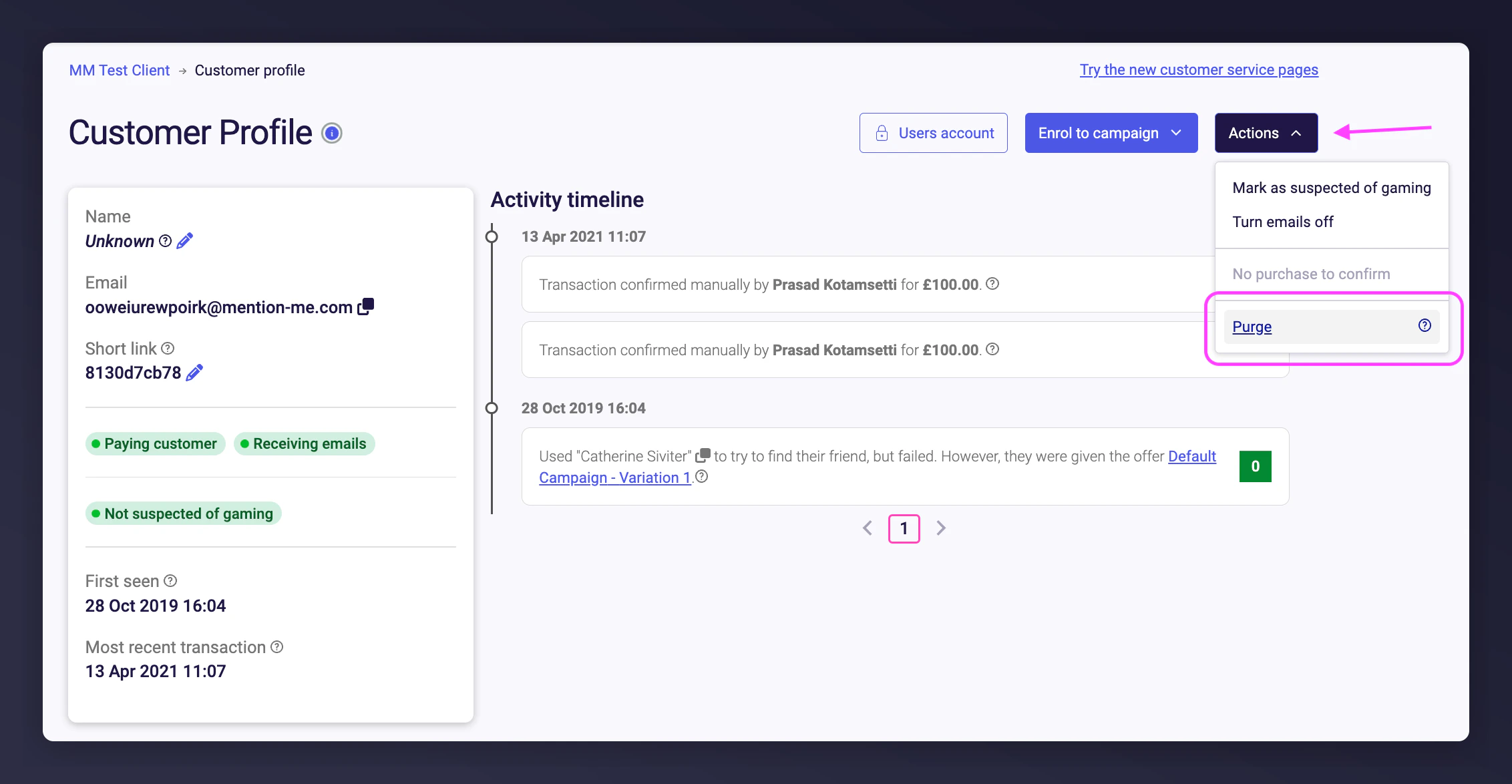
 Click **Actions > Purge**.
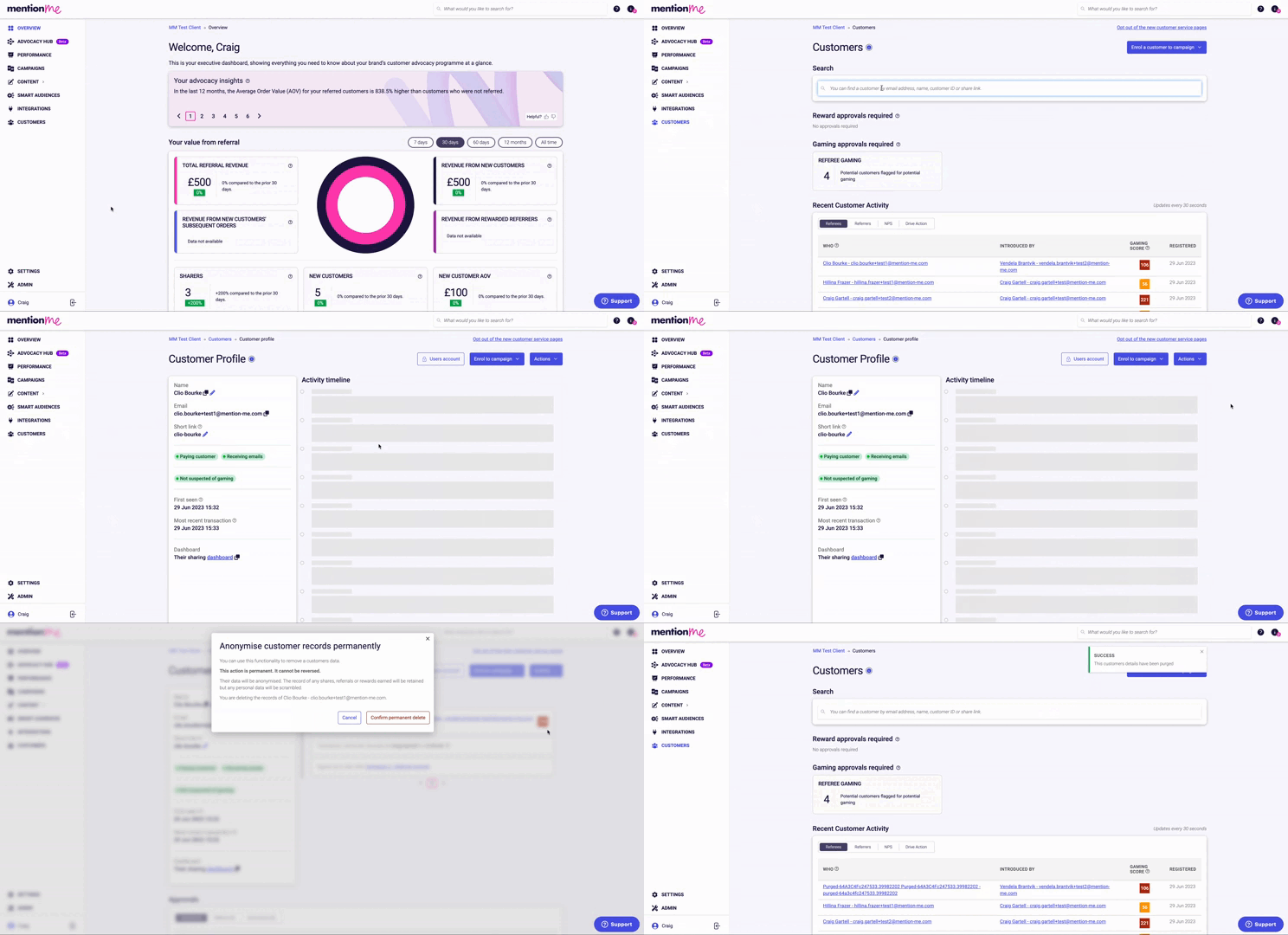
 Confirm. Once confirmed, the account is permanently deleted.
 ## Manual Deletion: Bulk Upload via CSV
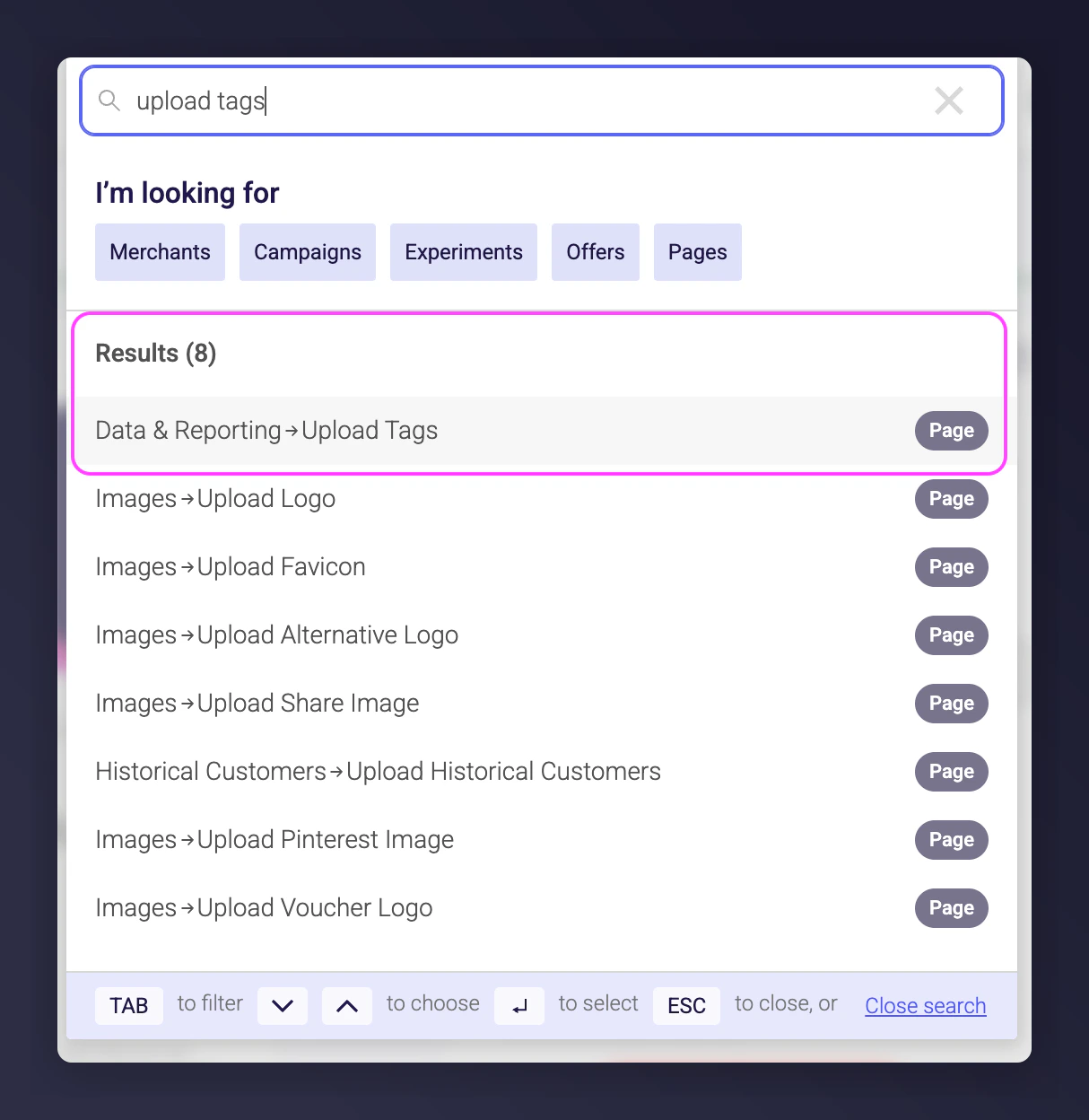
Go to **Settings & Tools > Upload Tags**, or use the search bar to type "Upload tags" and select the first result.
## Manual Deletion: Bulk Upload via CSV
Go to **Settings & Tools > Upload Tags**, or use the search bar to type "Upload tags" and select the first result.
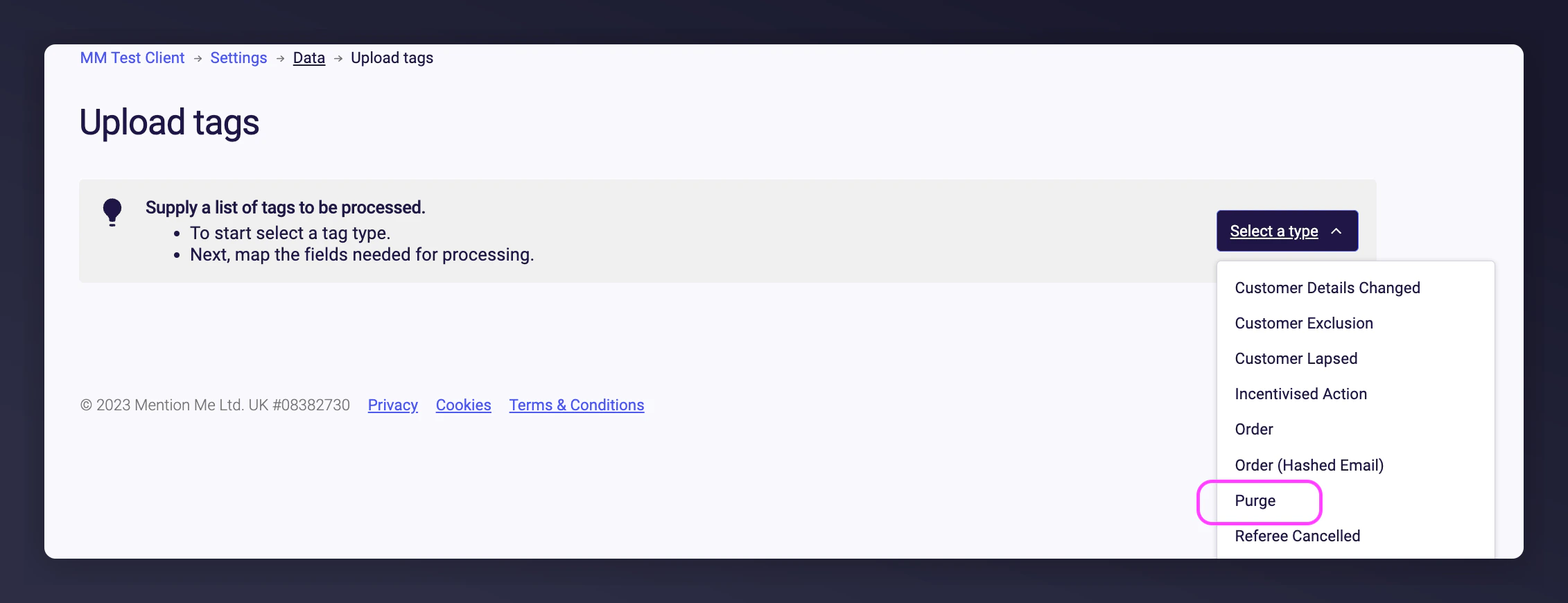
 In the dropdown list, choose **Purge**.
 Drag and drop your `.csv` file or select it manually.
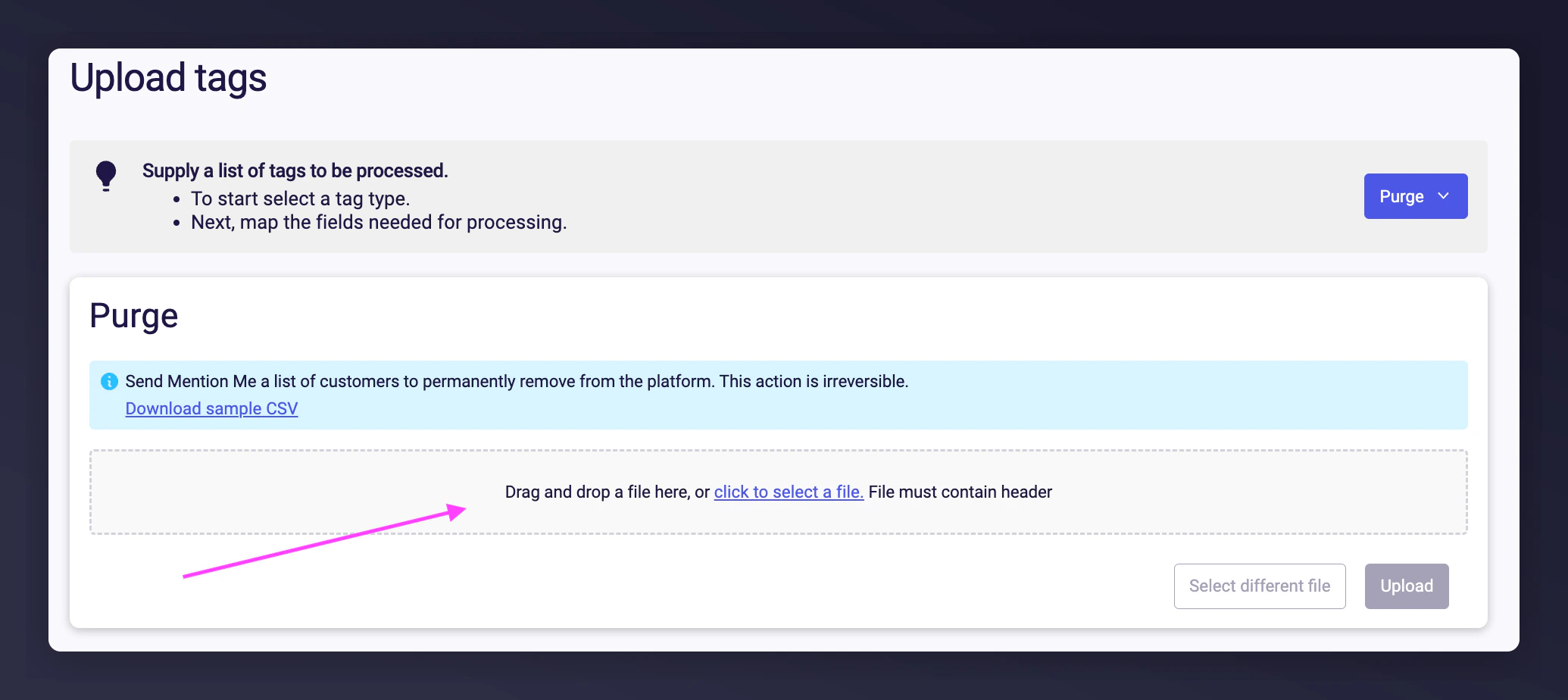 **Required CSV field:** Only "Customer Email" is mandatory. Ensure your file is saved in `.csv` format.
| Field | Field type | Example |
| -------------- | ---------- | ------------------------------------------- |
| Customer Email | email | [test@example.com](mailto:test@example.com) |
A field mapping step will validate the first \~100 rows. Errors (e.g. an invalid email) will be shown immediately in red. If validation passes, click **Upload** to continue. Invalid rows will be skipped during processing.
After processing, you'll see a summary of total rows processed, number of successful deletions, and any failed rows. Valid entries will be added to the purge queue and processed.
## Automated Deletion via SFTP
You can automate customer deletion by uploading a CSV file to our SFTP server. Once received, we permanently delete listed users — no additional input required from your team.
### If You Already Have SFTP Set Up
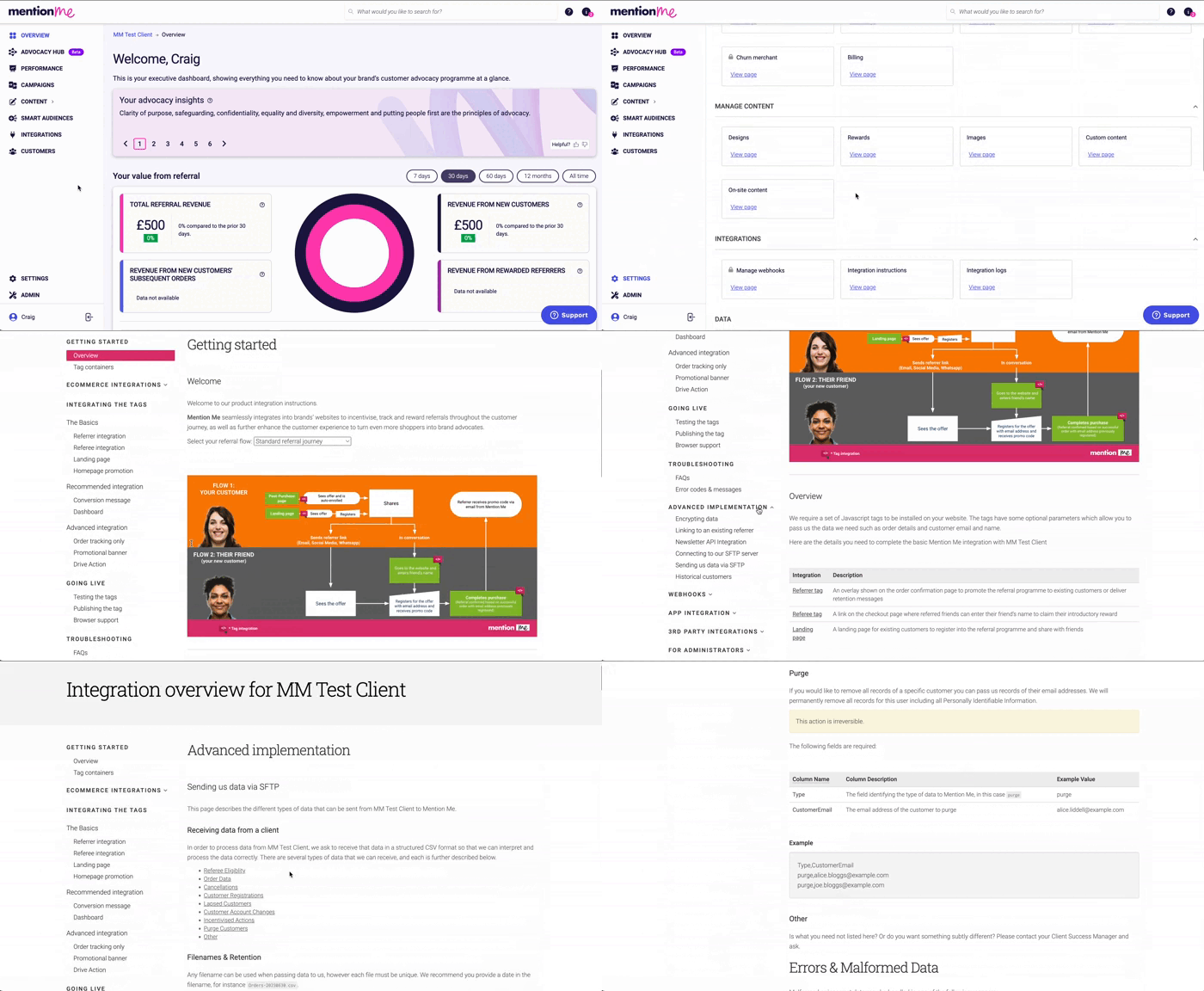
* Follow the format outlined in your integration instructions: **Settings & Tools > Integration Instructions > Advanced Implementation > Sending Data via SFTP > Purge Customers**
* Upload your files using the agreed format
* We will begin deleting the users as soon as the data is received
**Required CSV field:** Only "Customer Email" is mandatory. Ensure your file is saved in `.csv` format.
| Field | Field type | Example |
| -------------- | ---------- | ------------------------------------------- |
| Customer Email | email | [test@example.com](mailto:test@example.com) |
A field mapping step will validate the first \~100 rows. Errors (e.g. an invalid email) will be shown immediately in red. If validation passes, click **Upload** to continue. Invalid rows will be skipped during processing.
After processing, you'll see a summary of total rows processed, number of successful deletions, and any failed rows. Valid entries will be added to the purge queue and processed.
## Automated Deletion via SFTP
You can automate customer deletion by uploading a CSV file to our SFTP server. Once received, we permanently delete listed users — no additional input required from your team.
### If You Already Have SFTP Set Up
* Follow the format outlined in your integration instructions: **Settings & Tools > Integration Instructions > Advanced Implementation > Sending Data via SFTP > Purge Customers**
* Upload your files using the agreed format
* We will begin deleting the users as soon as the data is received
 ### If You Don't Have SFTP Set Up Yet
* Contact us to set up your SFTP connection
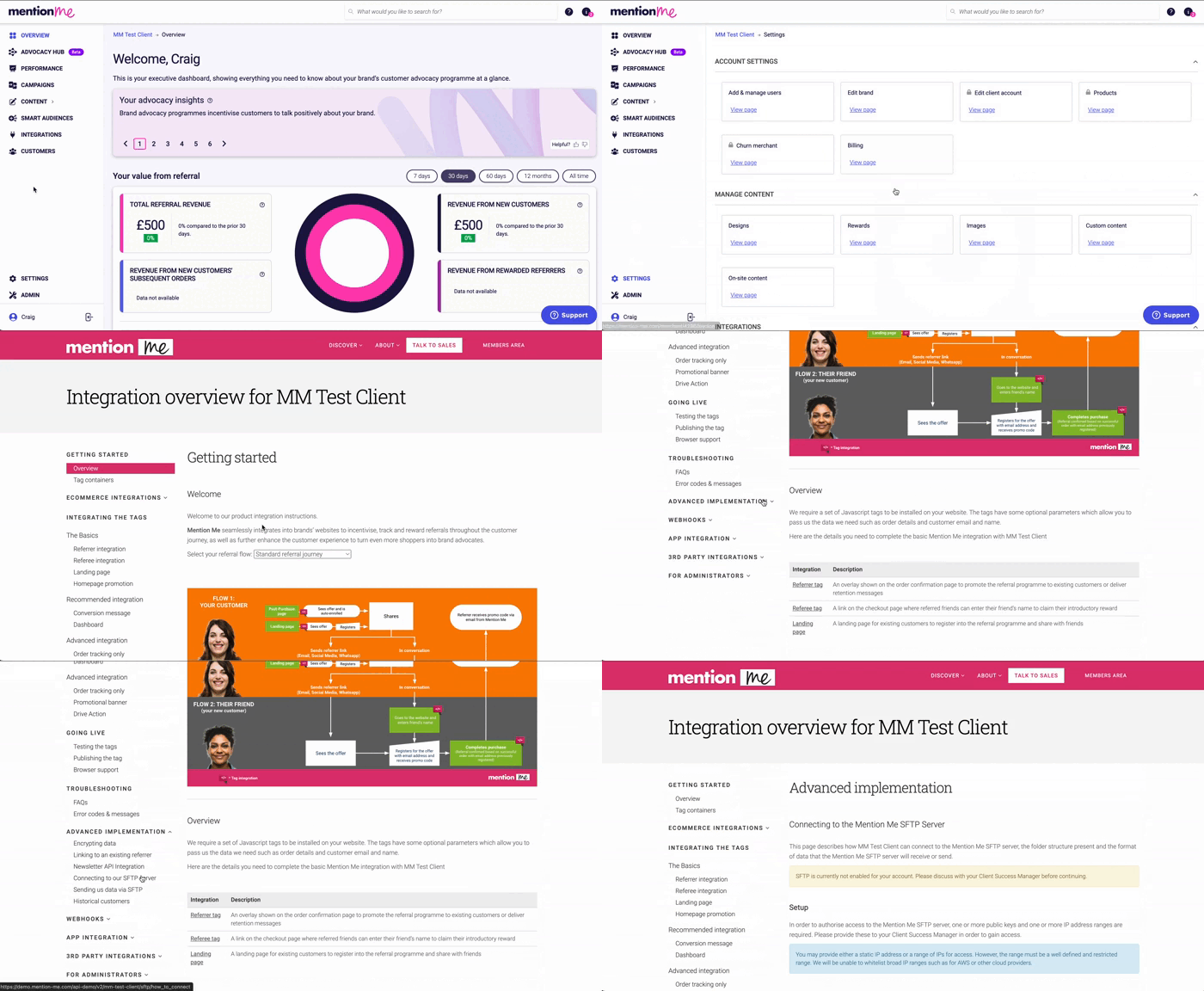
* Follow the setup steps in: **Settings & Tools > Integration Instructions > Advanced Implementation > Connecting to the Mention Me SFTP Server**
* Once connected, you can start submitting CSV files for automated deletion
### If You Don't Have SFTP Set Up Yet
* Contact us to set up your SFTP connection
* Follow the setup steps in: **Settings & Tools > Integration Instructions > Advanced Implementation > Connecting to the Mention Me SFTP Server**
* Once connected, you can start submitting CSV files for automated deletion
 Please let us know if you require any [additional help](https://help.mention-me.com/hc/en-gb/requests/new?ticket_form_id=8840645829405).