> ## Documentation Index
> Fetch the complete documentation index at: https://docs.mention-me.com/llms.txt
> Use this file to discover all available pages before exploring further.

# How to Confirm a Referral Purchase

> Manually confirm a referee's purchase in the merchant dashboard so referral rewards are issued when eligibility isn't detected automatically.

<Warning>
  Confirming a purchase sends a reward to the referrer. If the offer includes an "after purchase" reward, the referee also receives one.
</Warning>

Mention Me usually confirms a qualifying purchase automatically. You may need to confirm one manually if:

* The referee used a different email for their purchase than the one they used to sign up
* Your integration isn't sending orders with the correct email

## Steps to Confirm a Purchase

<Steps>
  <Step title="Open the Customer Search">
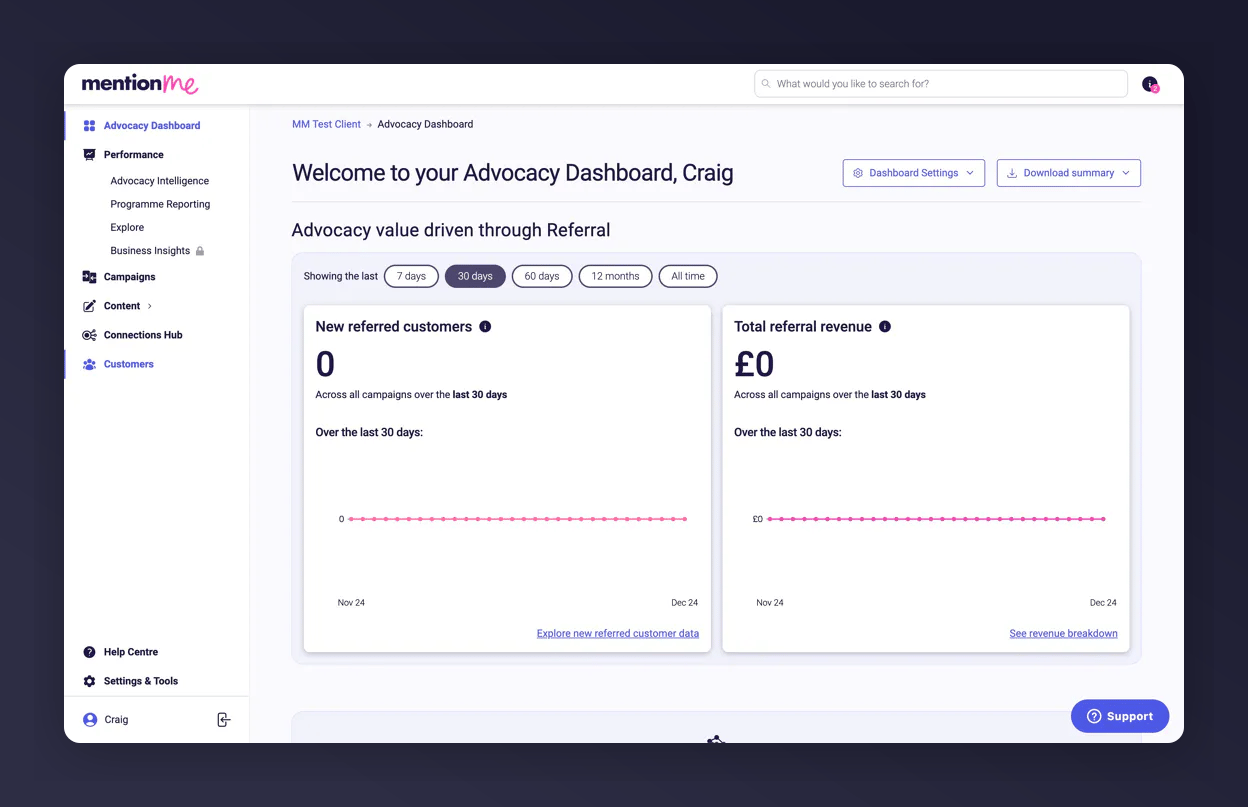
    Go to <a href="https://mention-me.com/merchant/" target="_blank" rel="noopener noreferrer">mention-me.com/merchant</a> and click **Customers**.

    <Frame caption="The Customers tab in the Mention Me dashboard navigation.">
      <img src="https://mintcdn.com/mentionme/1plw06TEDiD7_IVv/images/knowledge/referral/customers/confirm-purchase-customers-tab.png?fit=max&auto=format&n=1plw06TEDiD7_IVv&q=85&s=17e3a14828d92a4a4215d3294dca4670" alt="Customers tab in Mention Me dashboard" width="1248" height="807" data-path="images/knowledge/referral/customers/confirm-purchase-customers-tab.png" />
    </Frame>
  </Step>

  <Step title="Search for the Referee">
    <Warning>
      You must search for the **referee** (the new customer), not the referrer, to confirm a purchase.
    </Warning>

    Search using the referee's email, name, customer ID, or share link.
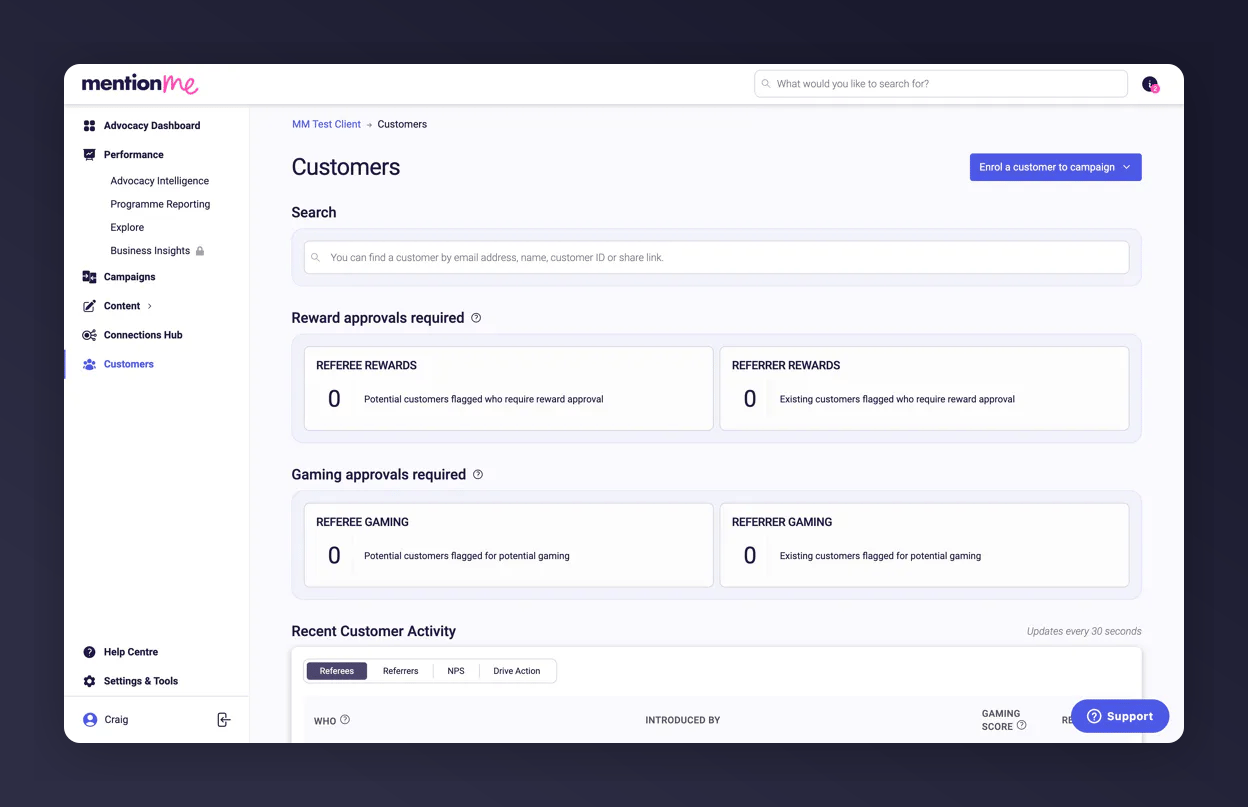
    <Frame caption="Searching for the referee in the customer lookup bar.">
      <img src="https://mintcdn.com/mentionme/1plw06TEDiD7_IVv/images/knowledge/referral/customers/confirm-purchase-search.png?fit=max&auto=format&n=1plw06TEDiD7_IVv&q=85&s=34d355710c86feab5dc812a67666ba3c" alt="Customer lookup bar for search" width="1248" height="807" data-path="images/knowledge/referral/customers/confirm-purchase-search.png" />
    </Frame>
  </Step>

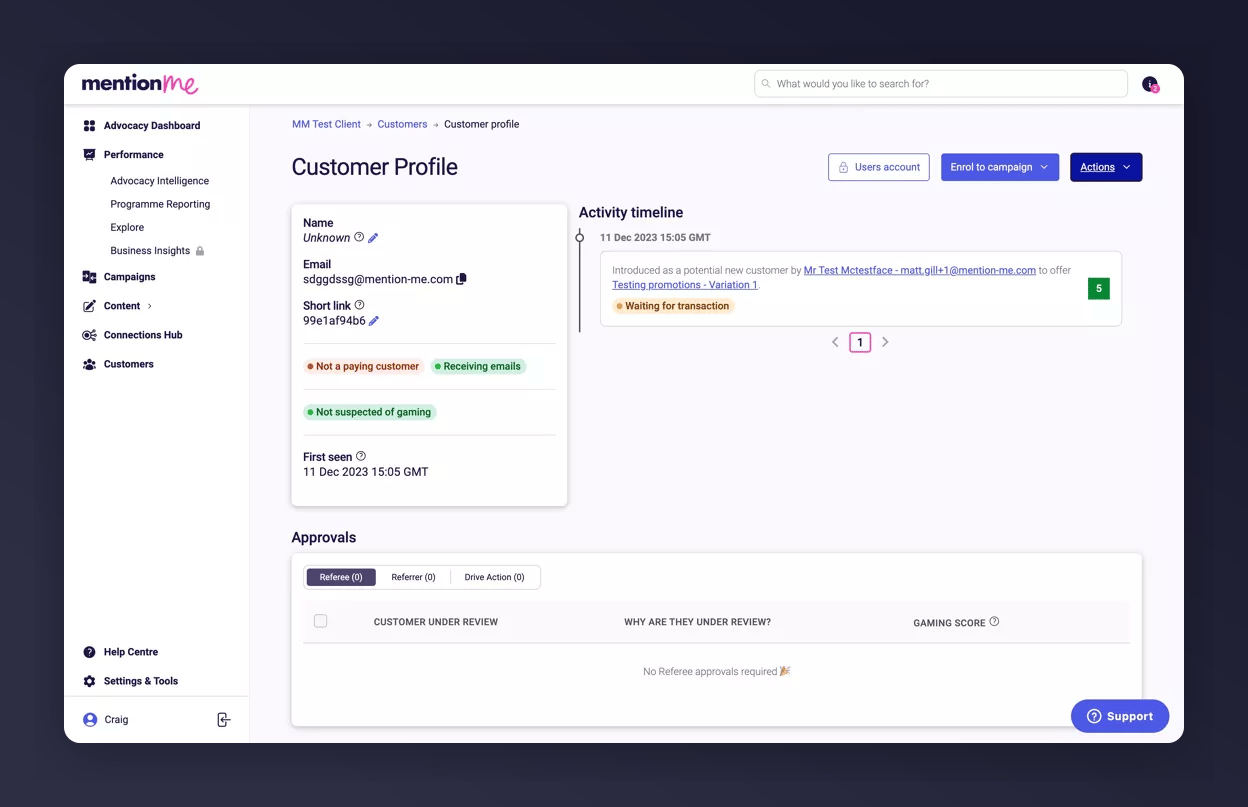
  <Step title="Open Their Record">
    Click the customer's profile to open their record.
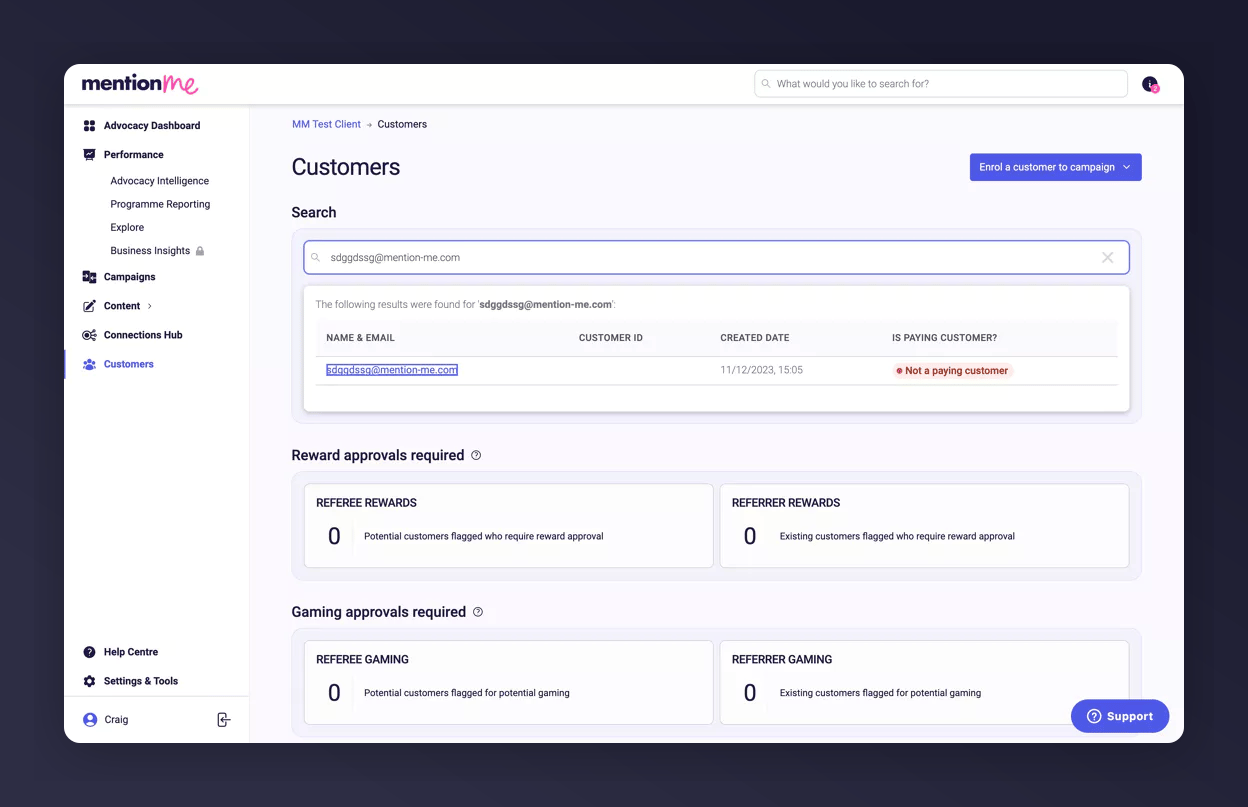
    <Frame caption="Opening the customer's account record.">
      <img src="https://mintcdn.com/mentionme/1plw06TEDiD7_IVv/images/knowledge/referral/customers/confirm-purchase-open-profile.png?fit=max&auto=format&n=1plw06TEDiD7_IVv&q=85&s=4deceb1d6367053d2b1e832dd7e167c7" alt="Opening customer account details in Mention Me" width="1248" height="807" data-path="images/knowledge/referral/customers/confirm-purchase-open-profile.png" />
    </Frame>
  </Step>

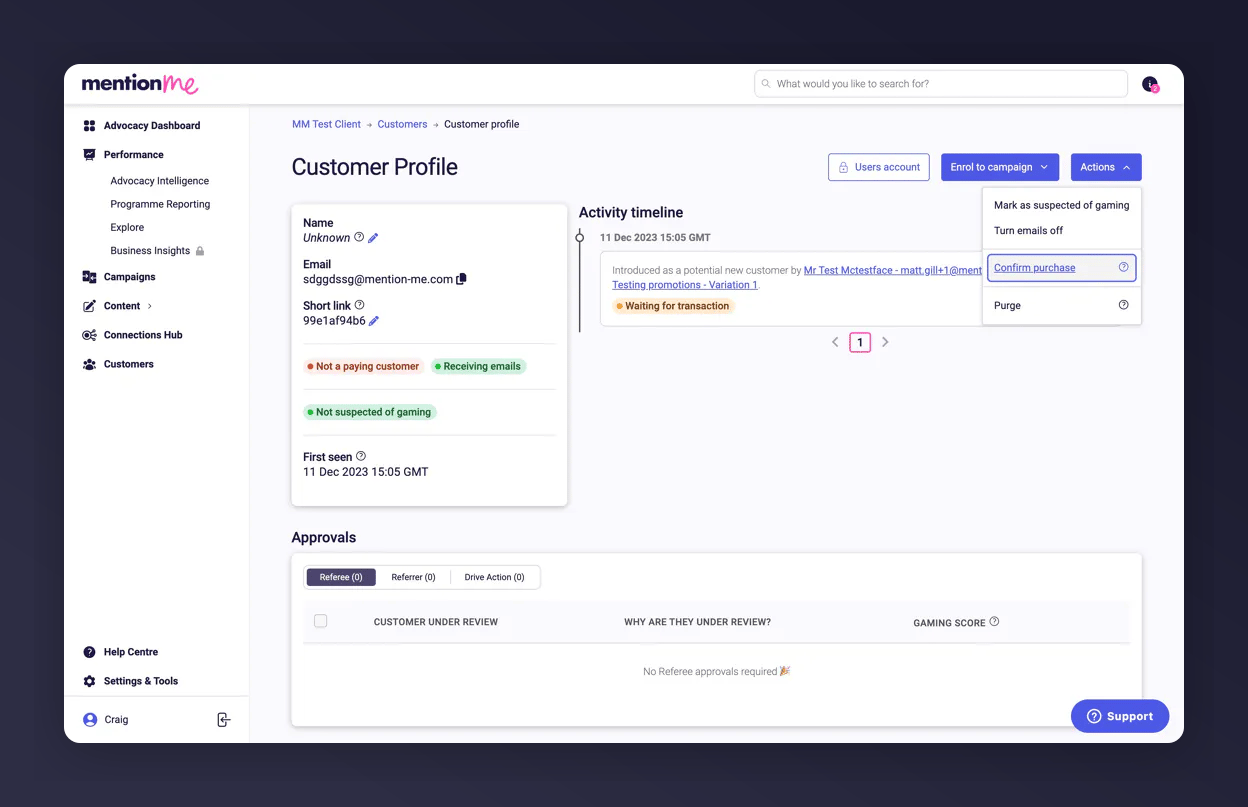
  <Step title="Open the Actions Menu">
    Click **Actions**.

    <Frame caption="The Actions menu on the customer profile.">
      <img src="https://mintcdn.com/mentionme/1plw06TEDiD7_IVv/images/knowledge/referral/customers/confirm-purchase-actions-menu.png?fit=max&auto=format&n=1plw06TEDiD7_IVv&q=85&s=d7293130351e8bf2ef3c893cb82ecb44" alt="Actions menu on customer profile" width="1248" height="807" data-path="images/knowledge/referral/customers/confirm-purchase-actions-menu.png" />
    </Frame>
  </Step>

  <Step title="Click Confirm Purchase">
    Click **Confirm Purchase**.

    <Frame caption="The Confirm purchase option in the Actions menu.">
      <img src="https://mintcdn.com/mentionme/1plw06TEDiD7_IVv/images/knowledge/referral/customers/confirm-purchase-button.png?fit=max&auto=format&n=1plw06TEDiD7_IVv&q=85&s=4c18c2b4dcd20f9d5869f8e81c79d38e" alt="Confirm purchase button popup" width="1248" height="807" data-path="images/knowledge/referral/customers/confirm-purchase-button.png" />
    </Frame>
  </Step>

  <Step title="Confirm Despite Minimum Spend (if Applicable)">
    <Info>
      There are two ways this step can proceed, depending on the order.
    </Info>

    If the purchase was below the minimum spend, you can still confirm it to issue rewards.
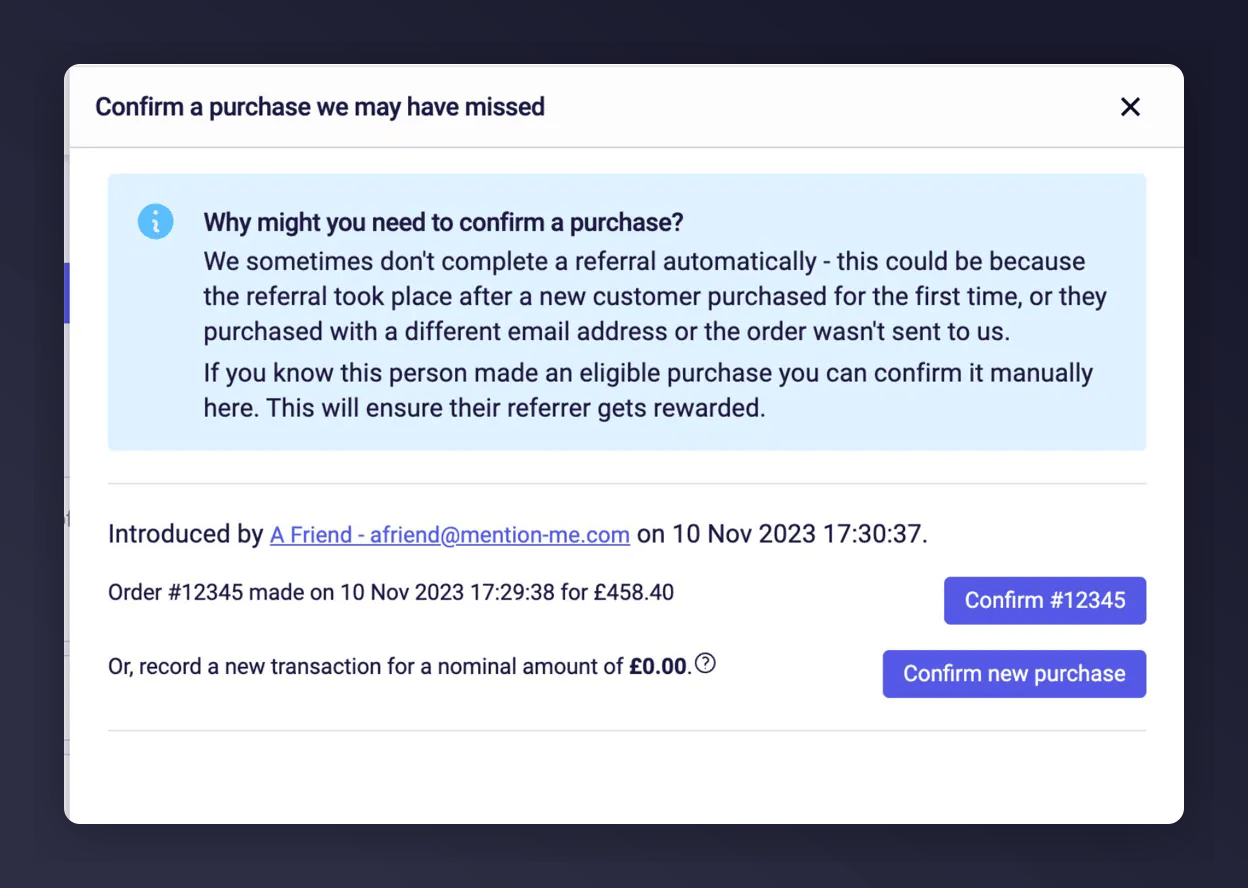
    <Frame caption="Confirming a purchase that didn't meet the minimum spend.">
      <img src="https://mintcdn.com/mentionme/1plw06TEDiD7_IVv/images/knowledge/referral/customers/confirm-purchase-minimum-spend.png?fit=max&auto=format&n=1plw06TEDiD7_IVv&q=85&s=bdb70da8cbfcd13190d6cbd80fde217a" alt="Confirm for minimum spend not met" width="1248" height="888" data-path="images/knowledge/referral/customers/confirm-purchase-minimum-spend.png" />
    </Frame>
  </Step>

  <Step title="Confirm the Promotion (if Applicable)">
    If the purchase is part of a promotion, you'll see whether confirming it applies to that promotion.
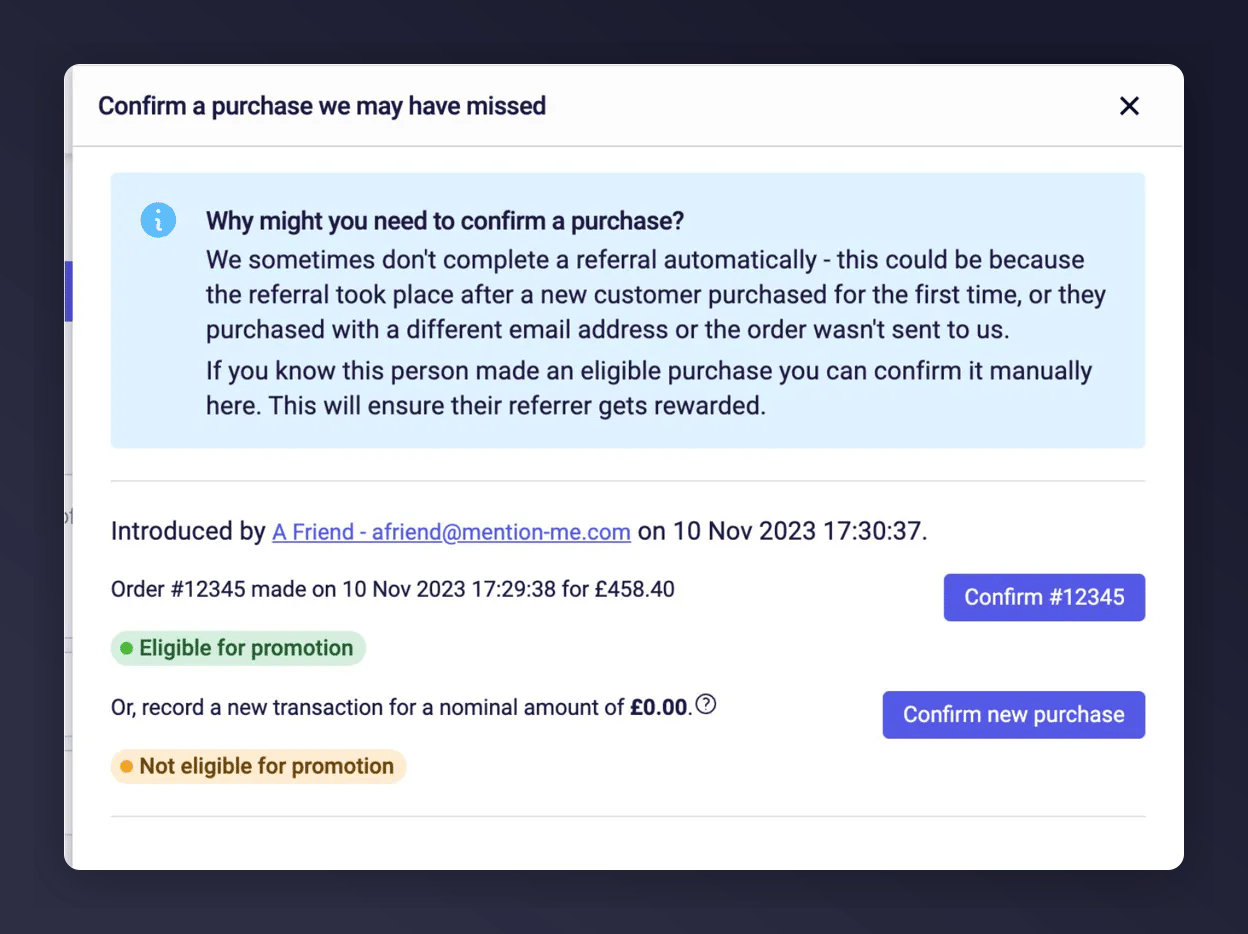
    <Frame caption="Choosing whether the confirmation applies to an active promotion.">
      <img src="https://mintcdn.com/mentionme/1plw06TEDiD7_IVv/images/knowledge/referral/customers/confirm-purchase-promotion.png?fit=max&auto=format&n=1plw06TEDiD7_IVv&q=85&s=5ee2f35396adc36f5b9f35811bffe56b" alt="Promotion selection confirmation option" width="1248" height="934" data-path="images/knowledge/referral/customers/confirm-purchase-promotion.png" />
    </Frame>
  </Step>

  <Step title="Click Confirm New Purchase">
    Click **Confirm New Purchase** to proceed.
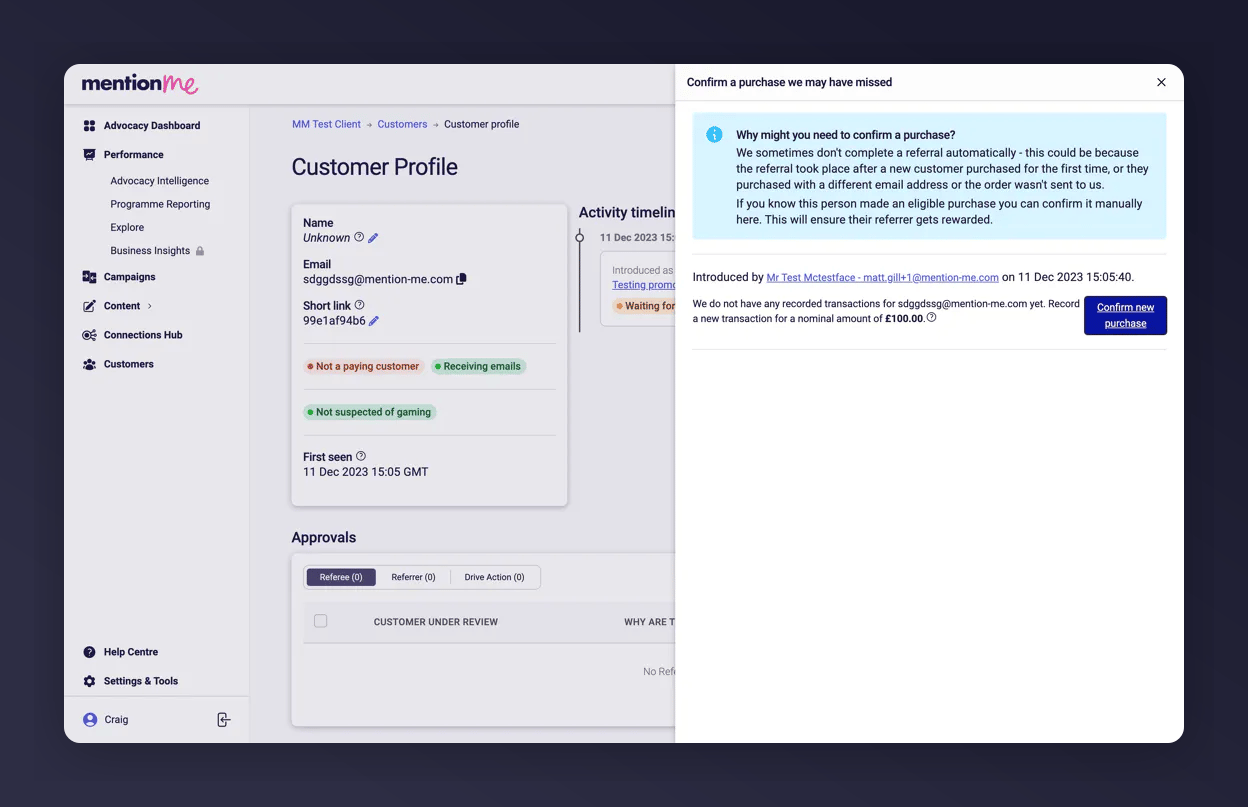
    <Frame caption="The final confirmation button for the new purchase.">
      <img src="https://mintcdn.com/mentionme/1plw06TEDiD7_IVv/images/knowledge/referral/customers/confirm-purchase-final-confirm.png?fit=max&auto=format&n=1plw06TEDiD7_IVv&q=85&s=8faf9fbeae77fbfa2c57c34c0a696142" alt="Final confirmation button" width="1248" height="807" data-path="images/knowledge/referral/customers/confirm-purchase-final-confirm.png" />
    </Frame>
  </Step>

  <Step title="Refresh and Verify">
    Refresh the page and find the customer's record again to confirm it was successful.
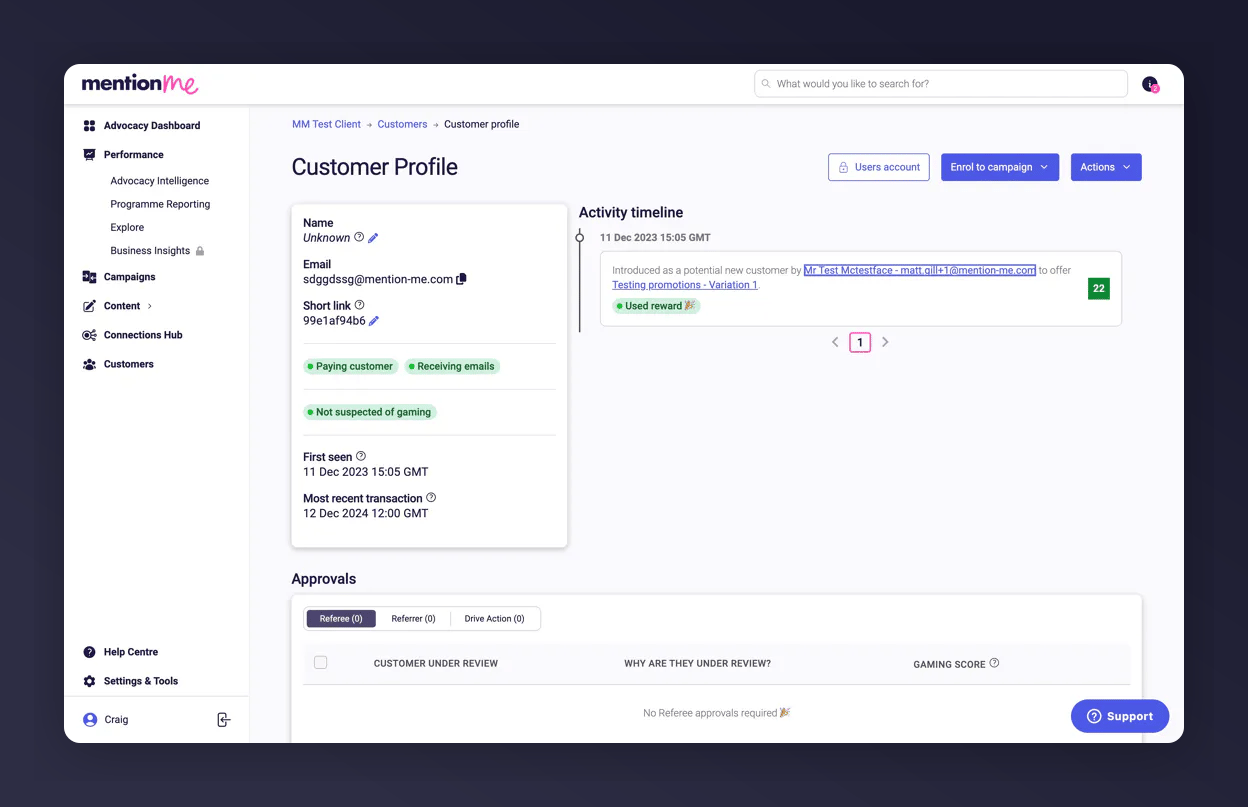
    <Frame caption="The customer account after refreshing the page.">
      <img src="https://mintcdn.com/mentionme/1plw06TEDiD7_IVv/images/knowledge/referral/customers/confirm-purchase-refresh.png?fit=max&auto=format&n=1plw06TEDiD7_IVv&q=85&s=cb4d7d7e109b4406a706824f13fbed1a" alt="Account refresh to see updated status" width="1248" height="807" data-path="images/knowledge/referral/customers/confirm-purchase-refresh.png" />
    </Frame>
  </Step>

  <Step title="Check the Activity Timeline">
    The referral now appears as linked under the customer's **Activity Timeline**.
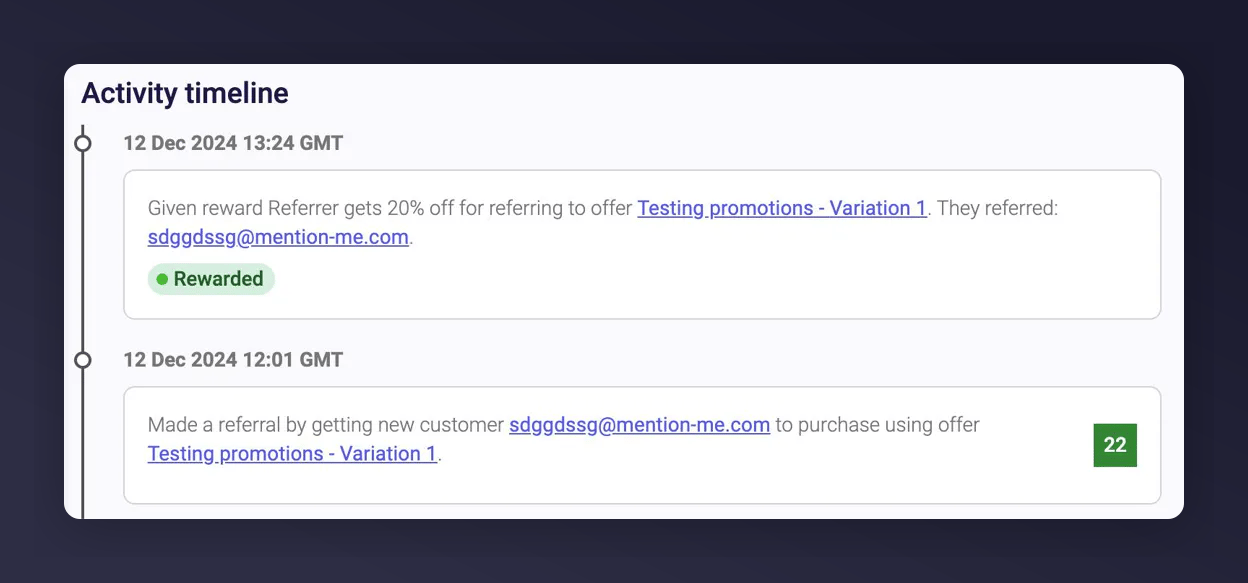
    <Frame caption="The confirmed referral shown in the customer's activity timeline.">
      <img src="https://mintcdn.com/mentionme/1plw06TEDiD7_IVv/images/knowledge/referral/customers/confirm-purchase-timeline.png?fit=max&auto=format&n=1plw06TEDiD7_IVv&q=85&s=3ccef7c1518c5139644c3e14727a5153" alt="Verified referral in timeline of Mention Me customer details" width="1248" height="583" data-path="images/knowledge/referral/customers/confirm-purchase-timeline.png" />
    </Frame>
  </Step>

  <Step title="Reveal the Reward Code">
    Under the **Rewards** section, you'll see the code that was issued. If you have the right permissions, click **Reveal** to display it.
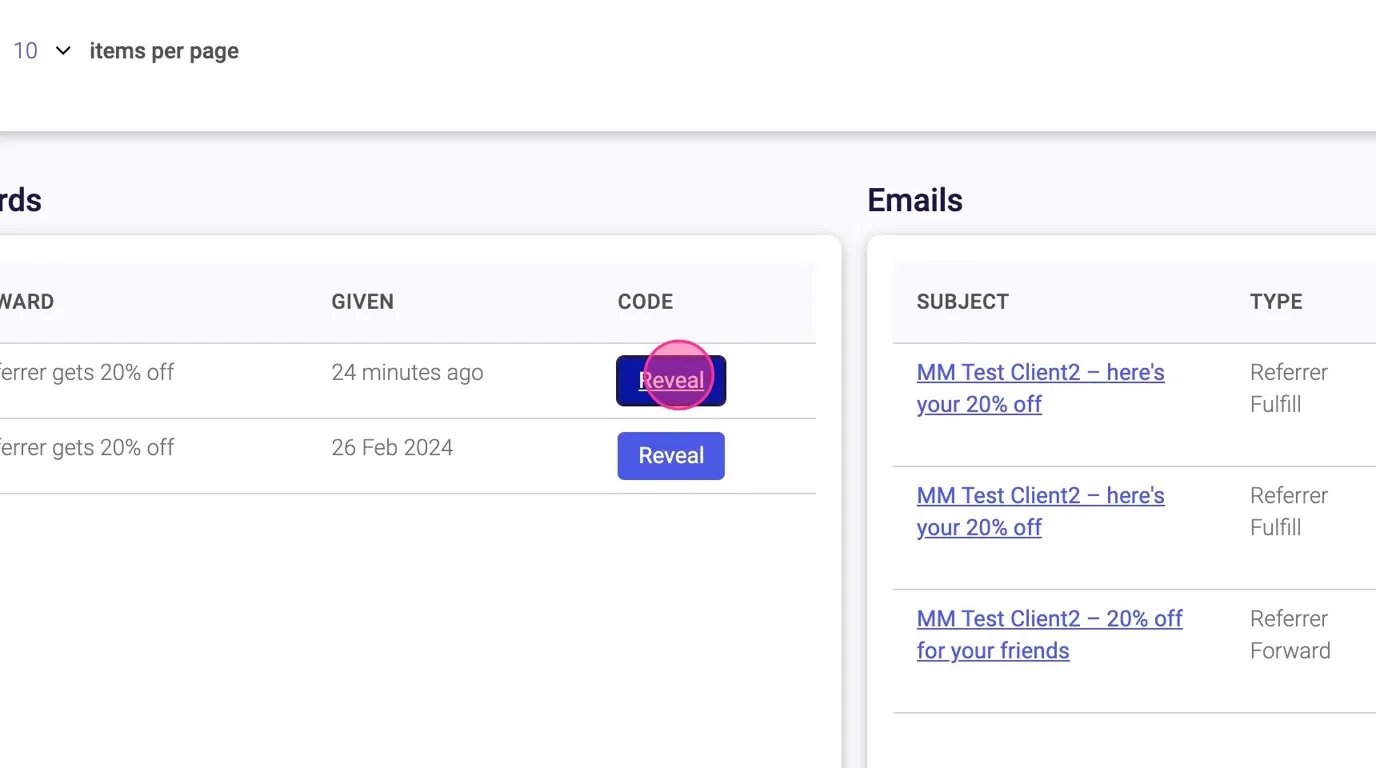
    <Frame caption="Revealing the issued reward code.">
      <img src="https://mintcdn.com/mentionme/066Umth6XEO80C2S/images/knowledge/referral/customers/confirm-purchase-reveal-code.webp?fit=max&auto=format&n=066Umth6XEO80C2S&q=85&s=8ea03c2d7fa3549988584f8ad4bcfc38" alt="Animation showing reward code reveal on Mention Me" width="1376" height="768" data-path="images/knowledge/referral/customers/confirm-purchase-reveal-code.webp" />
    </Frame>
  </Step>
</Steps>