> ## Documentation Index
> Fetch the complete documentation index at: https://docs.mention-me.com/llms.txt
> Use this file to discover all available pages before exploring further.
# The Campaigns & Preview Section
> How to use the campaign preview tool to visualise, review, and share your referral customer journey.
The Campaign Preview tool gives you a comprehensive way to visualise and share your customer journey across all user scenarios. It helps you streamline reviews, spot issues early, and launch high-performing campaigns.
## Getting started
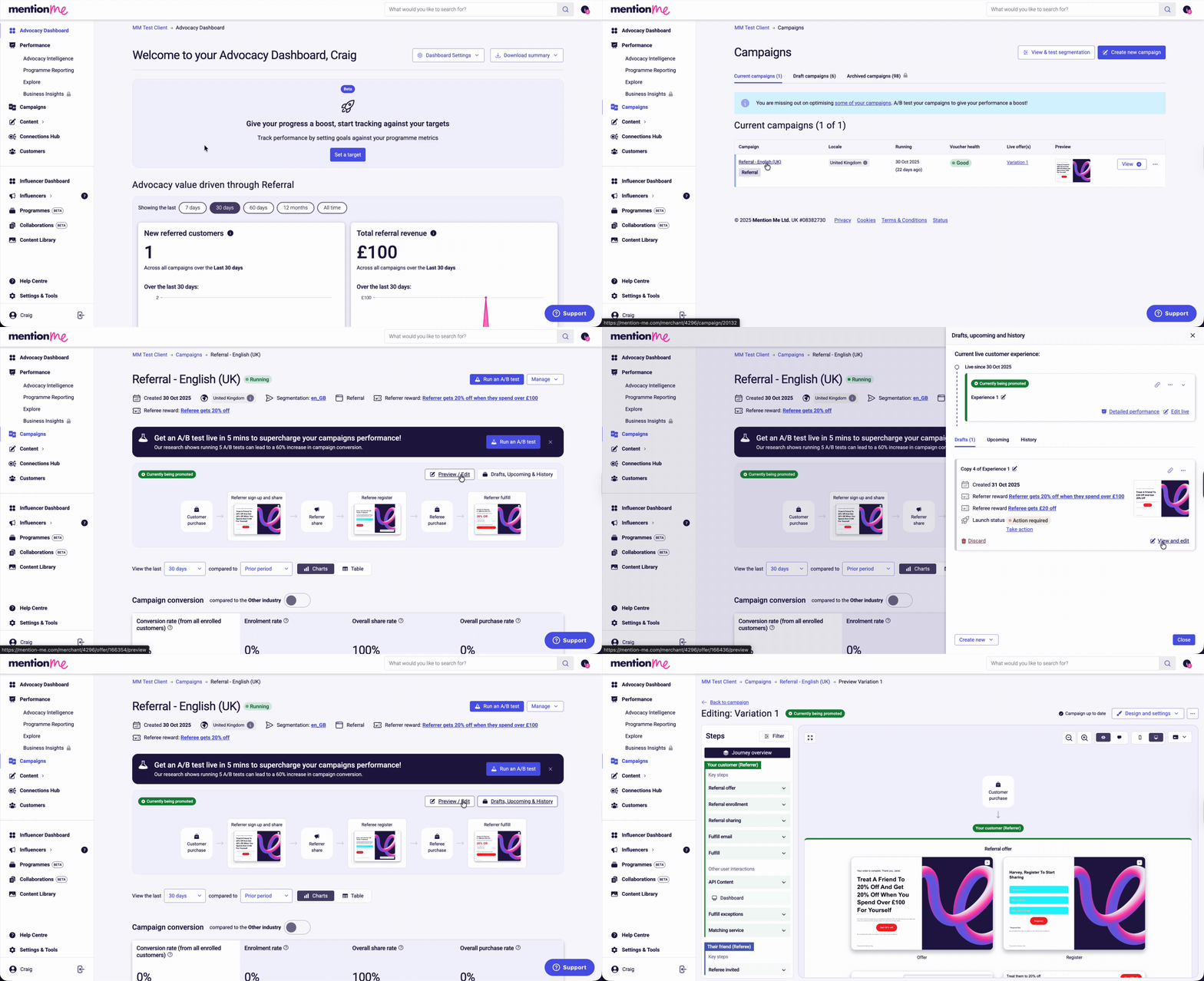
To access the preview:
1. Log in to your dashboard
2. Go to the **Campaigns** section and select a live or draft campaign
3. Click **Preview / Edit** to preview the journey for your live experiment
4. Or click **Drafts, Upcoming & History** followed by **View and Edit** to preview a non-live experiment
 ## Using the preview
The redesigned preview interface offers:
* **Full campaign journey overview** — Visualise the complete journey for both referrers and referees
* **Simplified navigation** — Journey steps are clearly outlined and organised
* **Clean, intuitive layout** — Navigate with more clarity and less friction
## Journey breakdown
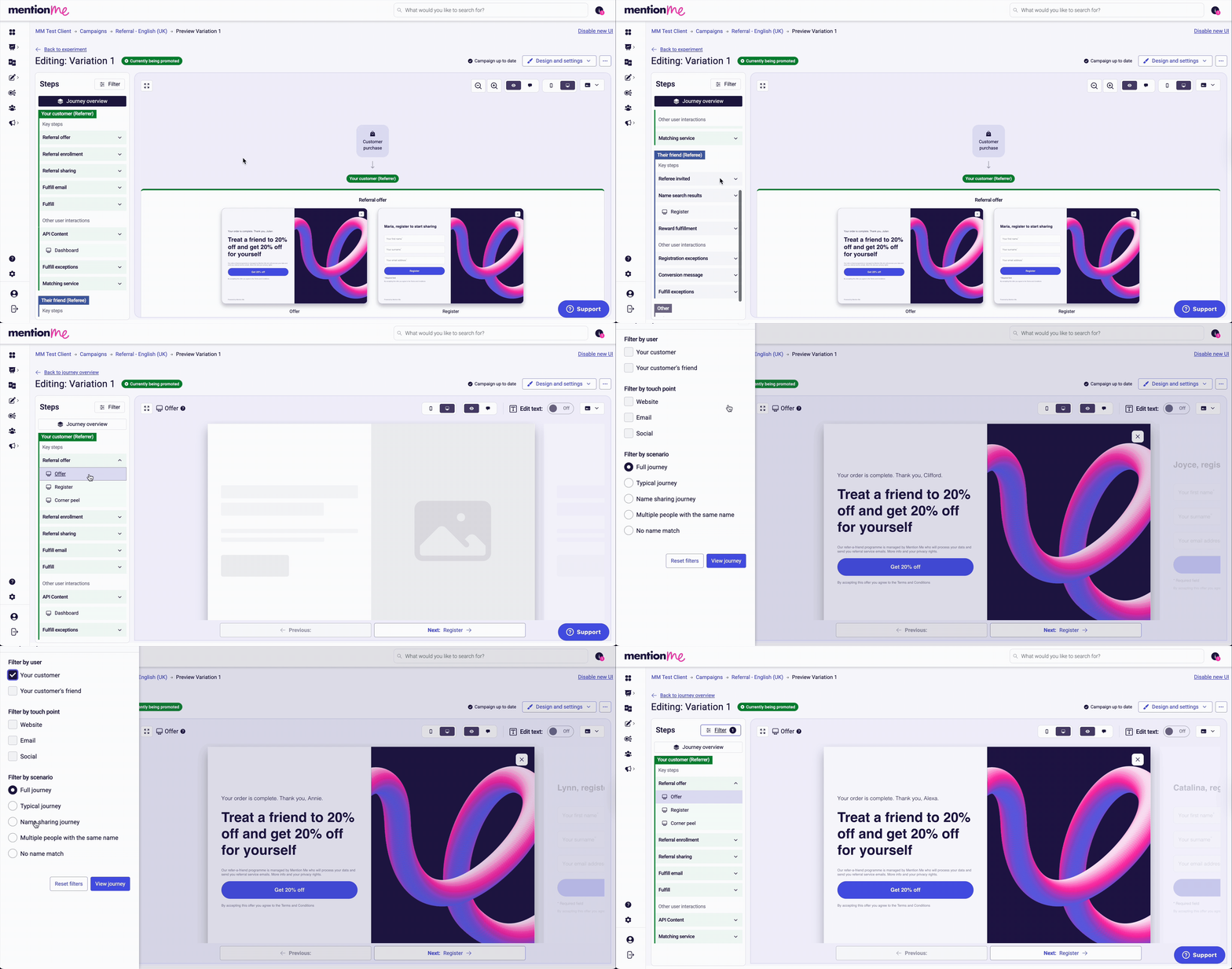
The left-hand panel categorises the journey into two user perspectives:
* **Your Customer** (Referrer)
* **Their Friend** (Referee)
Each perspective is segmented into:
* Key Steps
* Other Interactions
These segments are organised by scenario, showing individual pages and actions aligned with specific user behaviours.
### Filters
Use filters to tailor your preview:
* **User:** Referrer or Referee
* **Scenario:** Show specific user conditions or paths
* **Touchpoint:** Filter by Website, Email, or Social
## Using the preview
The redesigned preview interface offers:
* **Full campaign journey overview** — Visualise the complete journey for both referrers and referees
* **Simplified navigation** — Journey steps are clearly outlined and organised
* **Clean, intuitive layout** — Navigate with more clarity and less friction
## Journey breakdown
The left-hand panel categorises the journey into two user perspectives:
* **Your Customer** (Referrer)
* **Their Friend** (Referee)
Each perspective is segmented into:
* Key Steps
* Other Interactions
These segments are organised by scenario, showing individual pages and actions aligned with specific user behaviours.
### Filters
Use filters to tailor your preview:
* **User:** Referrer or Referee
* **Scenario:** Show specific user conditions or paths
* **Touchpoint:** Filter by Website, Email, or Social
 ## Preview features
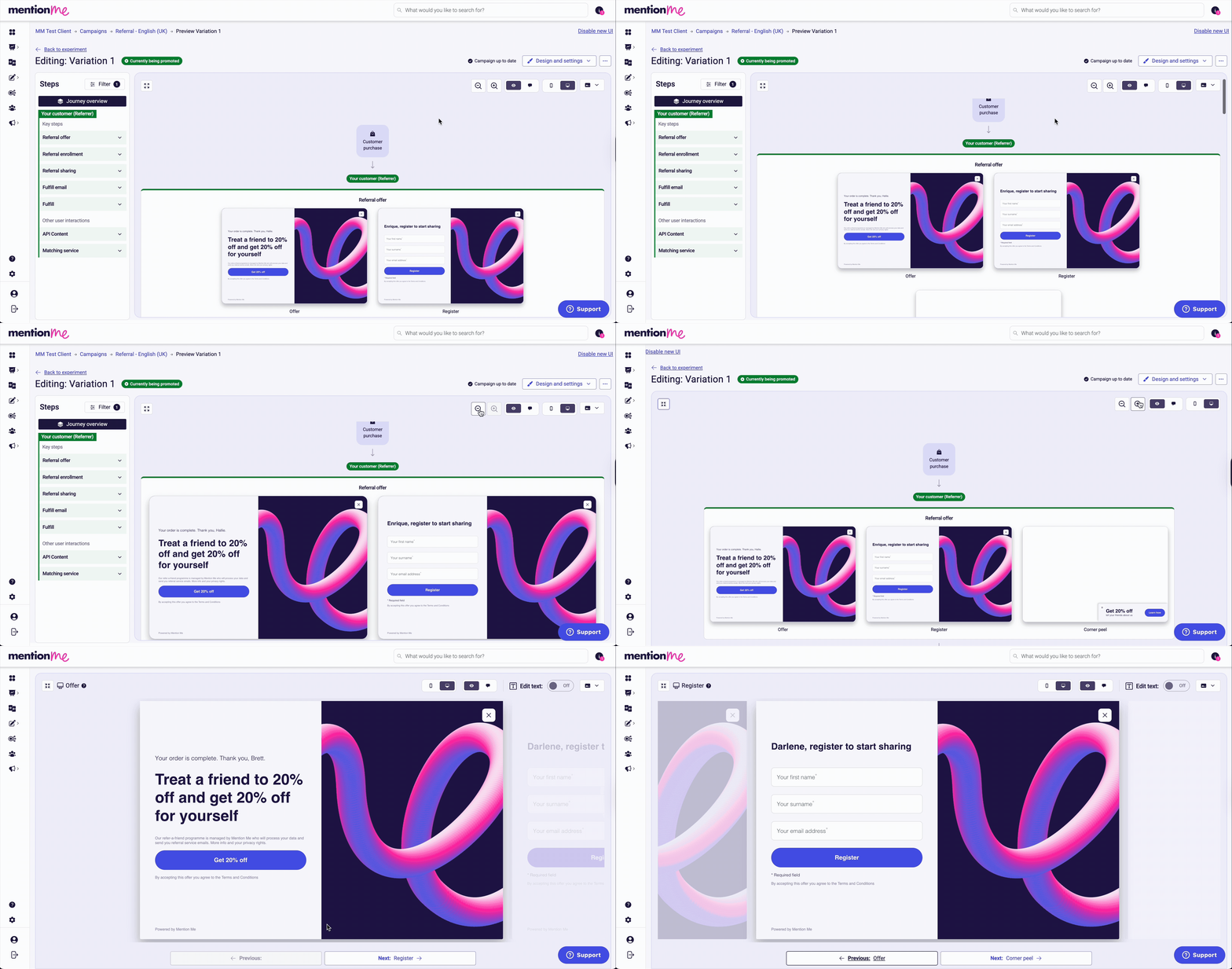
* **Journey timing** — View when pages display and when automated emails trigger
* **Adjustable view** — Zoom in or go full screen
* **Page navigation** — Click through each screen, or use Next/Previous buttons. Use keyboard arrow keys to toggle through screens.
## Preview features
* **Journey timing** — View when pages display and when automated emails trigger
* **Adjustable view** — Zoom in or go full screen
* **Page navigation** — Click through each screen, or use Next/Previous buttons. Use keyboard arrow keys to toggle through screens.
 ## Additional tools
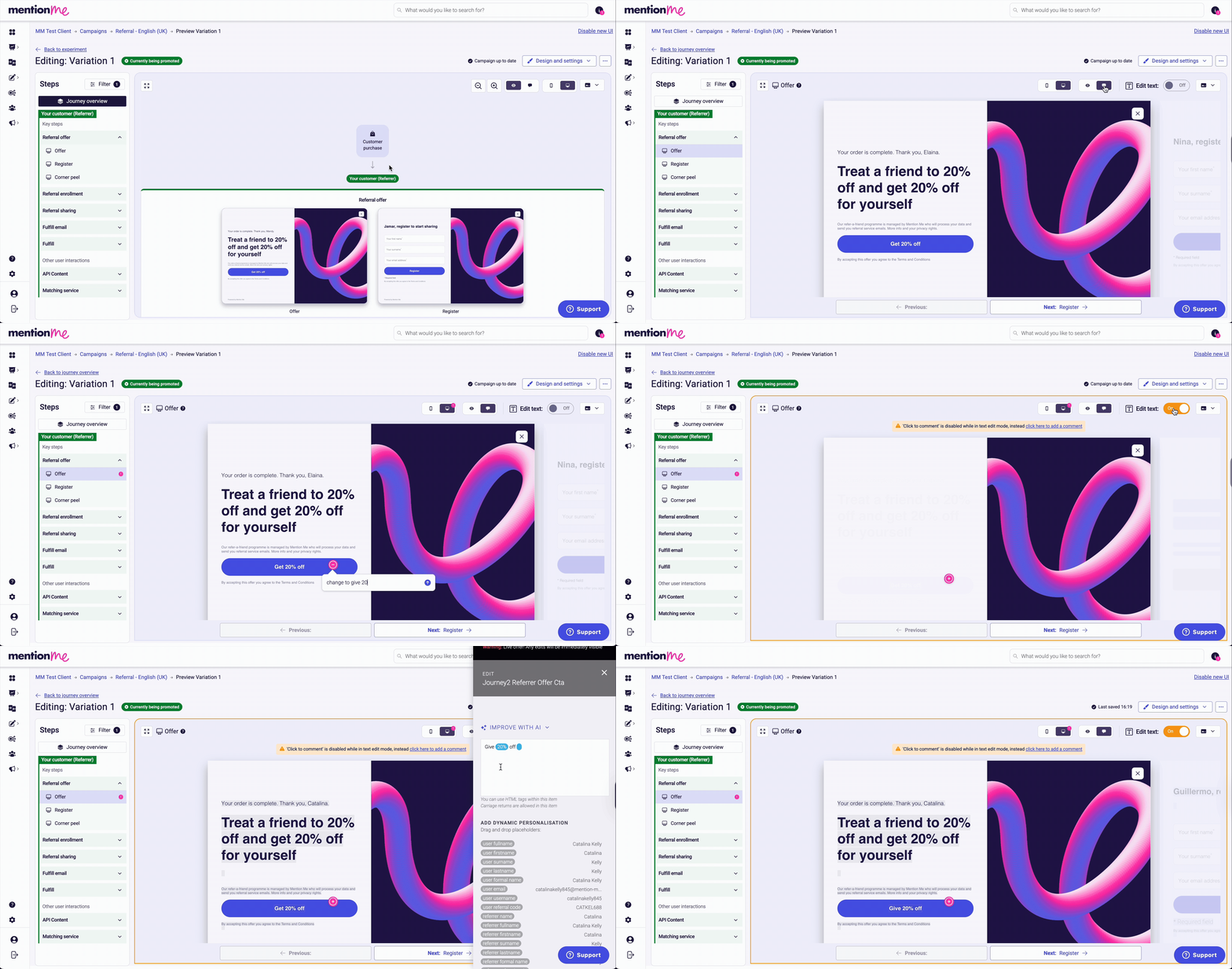
All previous tools are still available:
* Switch between mobile and desktop views
* Add and view comments directly on the preview
* Edit offer messaging and details
## Additional tools
All previous tools are still available:
* Switch between mobile and desktop views
* Add and view comments directly on the preview
* Edit offer messaging and details