> ## Documentation Index
> Fetch the complete documentation index at: https://docs.mention-me.com/llms.txt
> Use this file to discover all available pages before exploring further.
# Runa
> Set up the Runa voucher integration to issue gift card rewards through your referral programme.
## About the integration
Integrating with Runa lets you choose from a selection of standard gift cards or create your own, which are then passed to the Mention Me platform as referral rewards.
To proceed, you need to:
1. Create Runa API Keys and save them in the Mention Me platform
2. Provide voucher Product Codes to Mention Me (either as a Payout Link Template ID or a Single Product Code)
3. Optionally provide a User Redemption Template if required
Contact your Mention Me onboarding project manager or CSM with any questions.
## Step 1 — Create API Key in Runa
[Log in](https://app.runa.io/) to Runa with an account that has permissions to create API Keys.
Navigate to **API > Create API Key**. [Learn more about creating API keys](https://developer.runa.io/docs/getting-an-api-key).
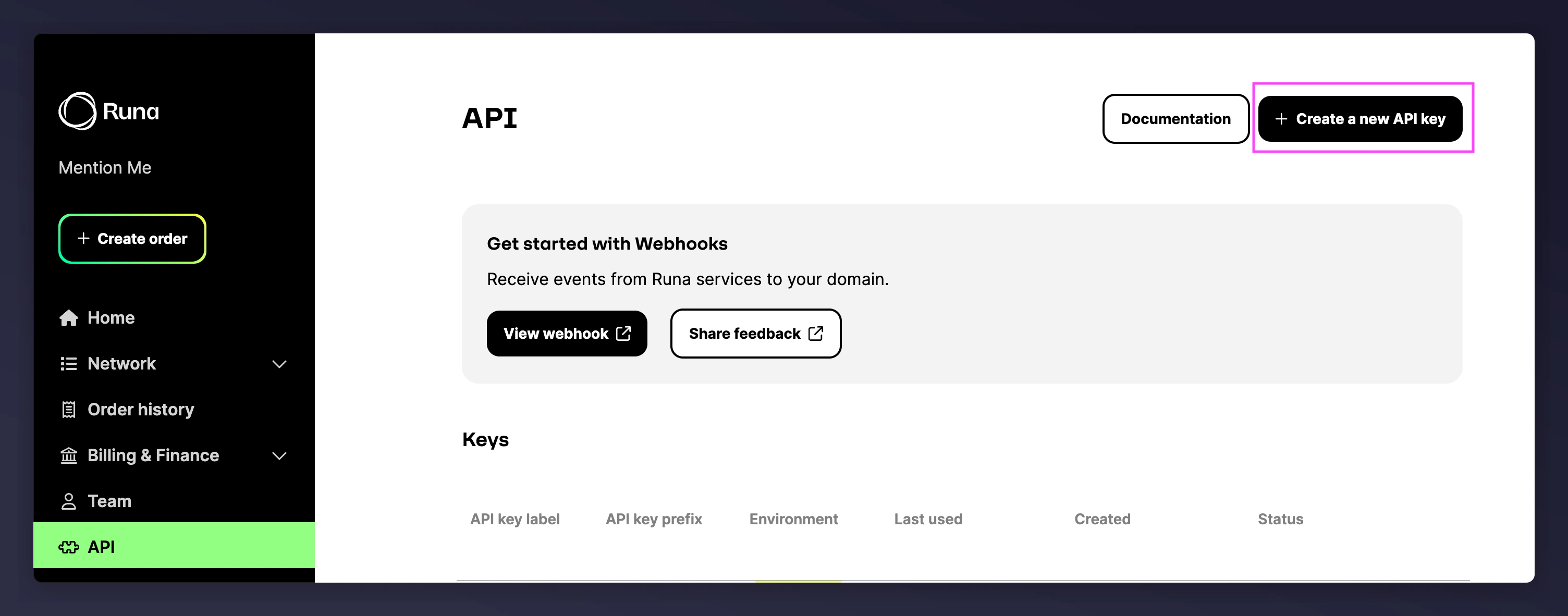 Select **Production Key**.
Enter a name for the key (e.g. `Mention_Me`) and press **Create Key**.
Save the credentials immediately — you will only see them once.
## Step 2 — Save Runa API Key in Mention Me
Go to the [Mention Me platform](https://mention-me.com/merchant/~/reward-providers) and click **Set-up new 3rd Party Provider**. Select **Runa**.
Select **Production Key**.
Enter a name for the key (e.g. `Mention_Me`) and press **Create Key**.
Save the credentials immediately — you will only see them once.
## Step 2 — Save Runa API Key in Mention Me
Go to the [Mention Me platform](https://mention-me.com/merchant/~/reward-providers) and click **Set-up new 3rd Party Provider**. Select **Runa**.
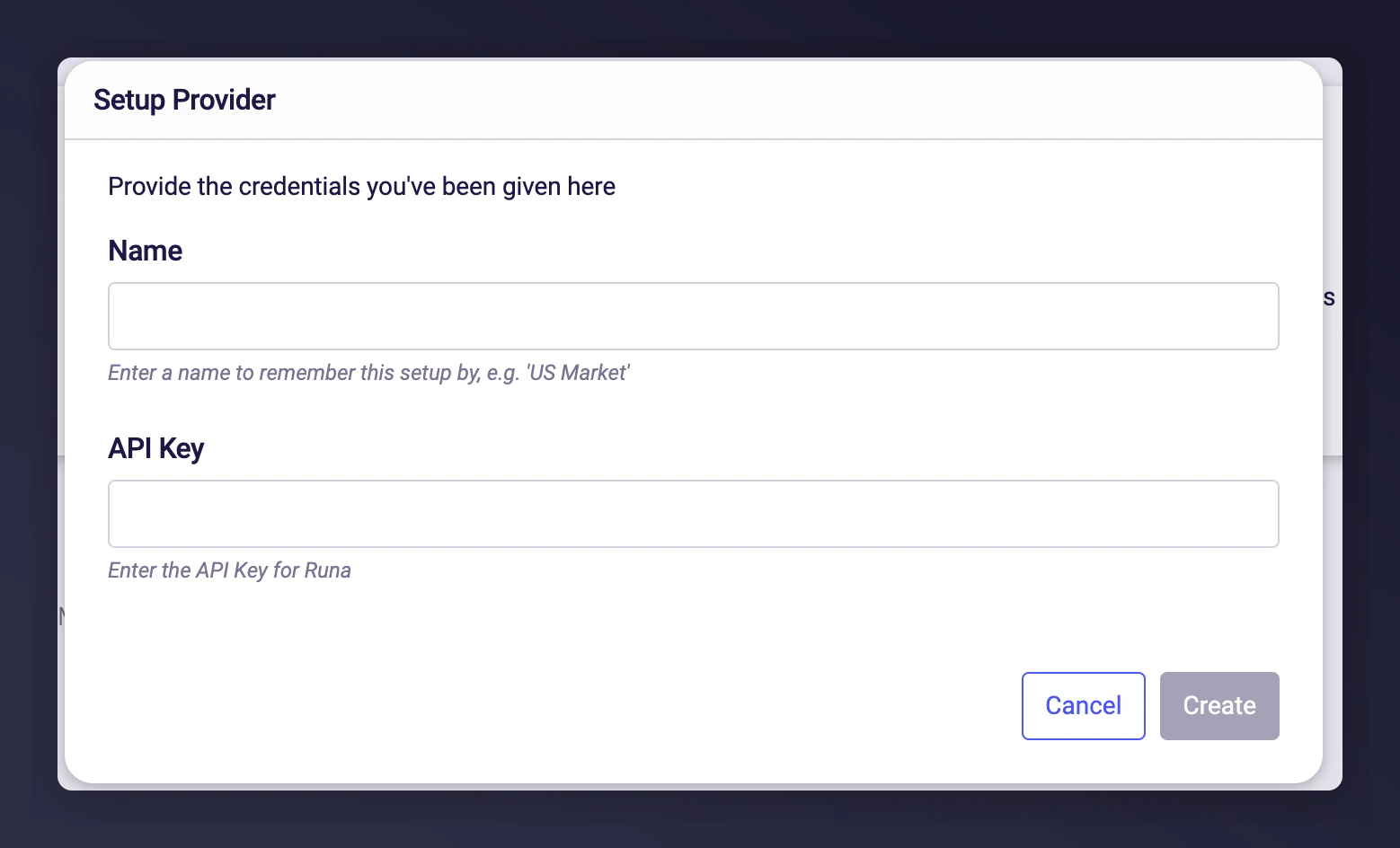
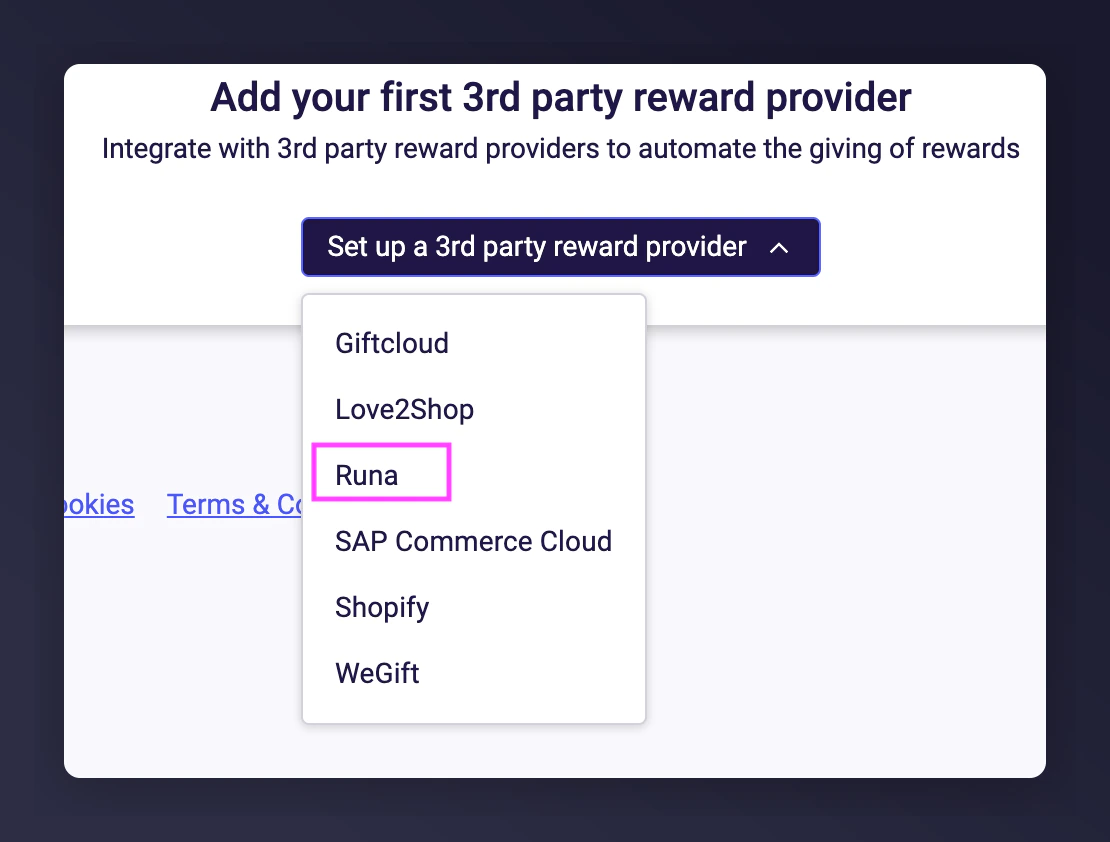 Enter a name and paste the **API Key** from Step 1. Click **Create**.
 ## Step 3 — Share Runa Product Codes
Based on your campaign setup, you can use either a single product order or a payout link.
Email these codes to Mention Me Support, your CSM, or Onboarding Project Manager.
### Single Product Orders
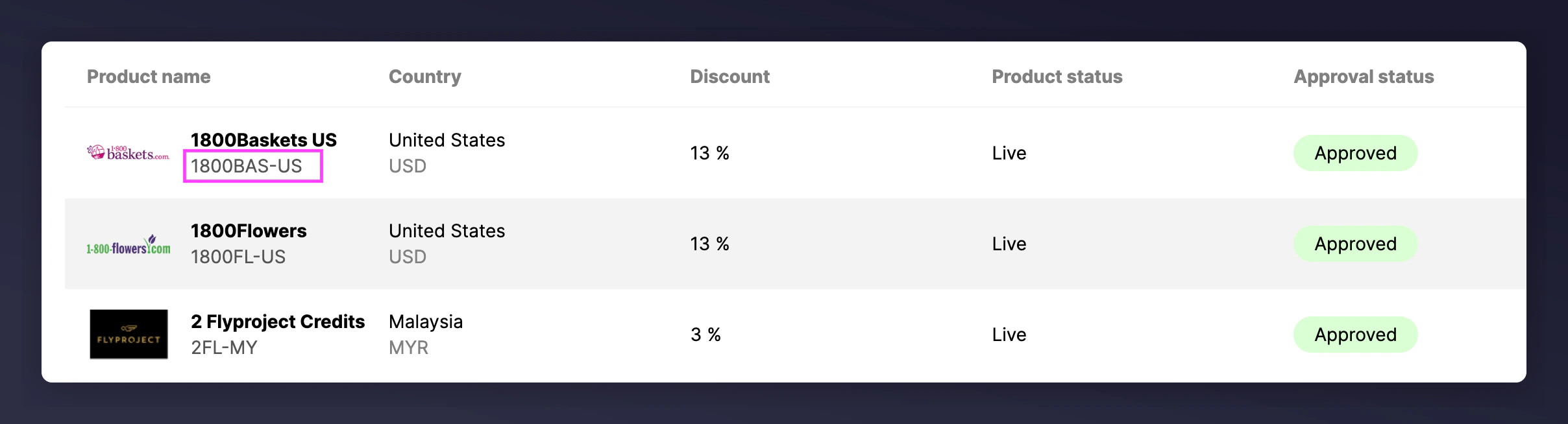
Identify and copy the product code of the specific voucher to be issued, then send to Mention Me.
## Step 3 — Share Runa Product Codes
Based on your campaign setup, you can use either a single product order or a payout link.
Email these codes to Mention Me Support, your CSM, or Onboarding Project Manager.
### Single Product Orders
Identify and copy the product code of the specific voucher to be issued, then send to Mention Me.
 ### Payout Links
Create a payout template by following [these instructions](https://runapay.zendesk.com/hc/en-gb/articles/16748251131037-How-to-create-payout-selection-templates).
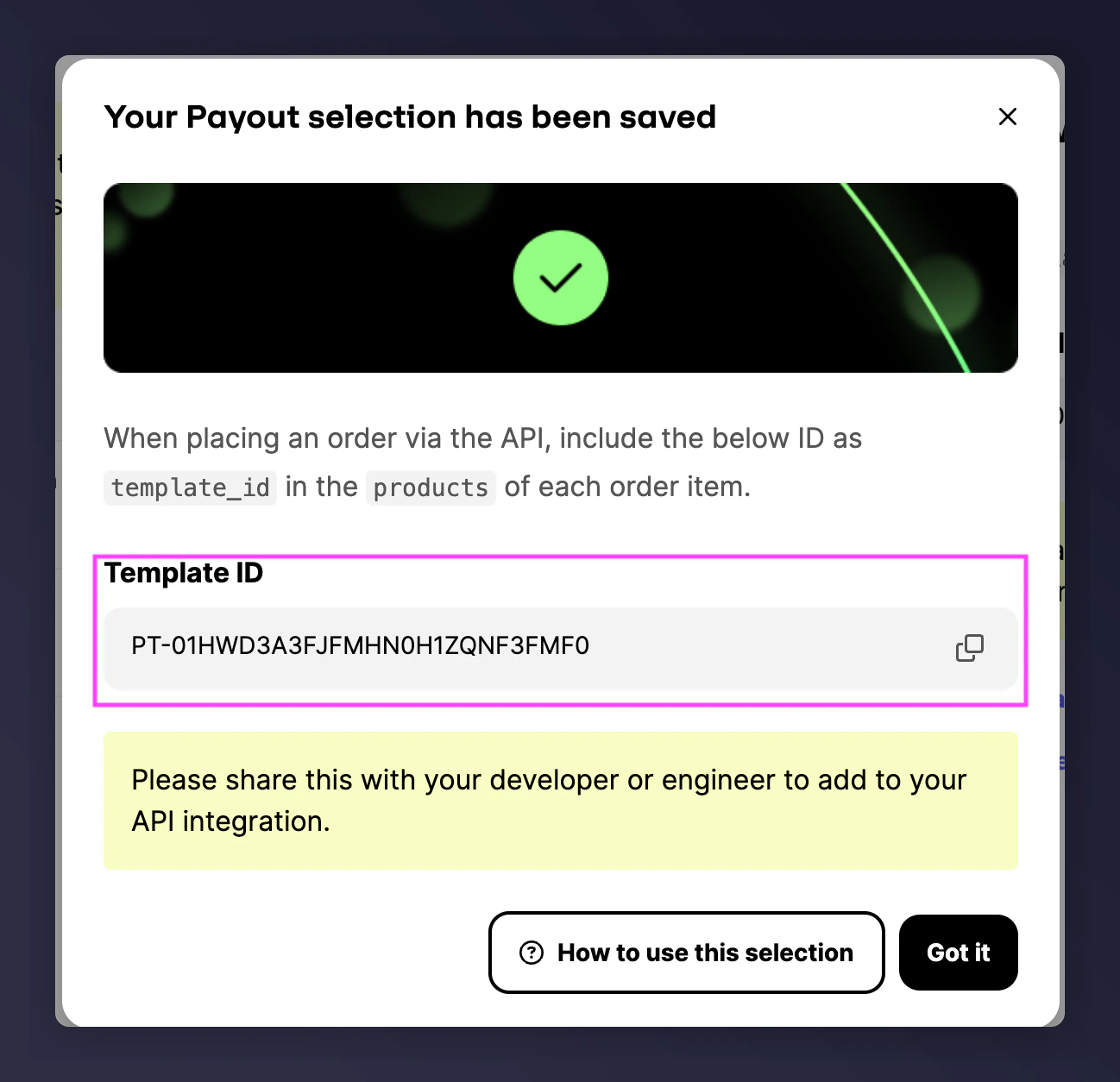
Copy the **Template ID** (begins with `PT`) and send it to Mention Me.
### Payout Links
Create a payout template by following [these instructions](https://runapay.zendesk.com/hc/en-gb/articles/16748251131037-How-to-create-payout-selection-templates).
Copy the **Template ID** (begins with `PT`) and send it to Mention Me.
 ## Step 4 — Share Runa User Redemption Template ID (optional)
If using a custom redemption page:
Follow [these steps](https://runapay.zendesk.com/hc/en-gb/articles/16748212211101-How-to-create-redemption-templates) to create a redemption template.
Copy the **Template ID** (starts with `DT`) and share with Mention Me.
## Step 4 — Share Runa User Redemption Template ID (optional)
If using a custom redemption page:
Follow [these steps](https://runapay.zendesk.com/hc/en-gb/articles/16748212211101-How-to-create-redemption-templates) to create a redemption template.
Copy the **Template ID** (starts with `DT`) and share with Mention Me.
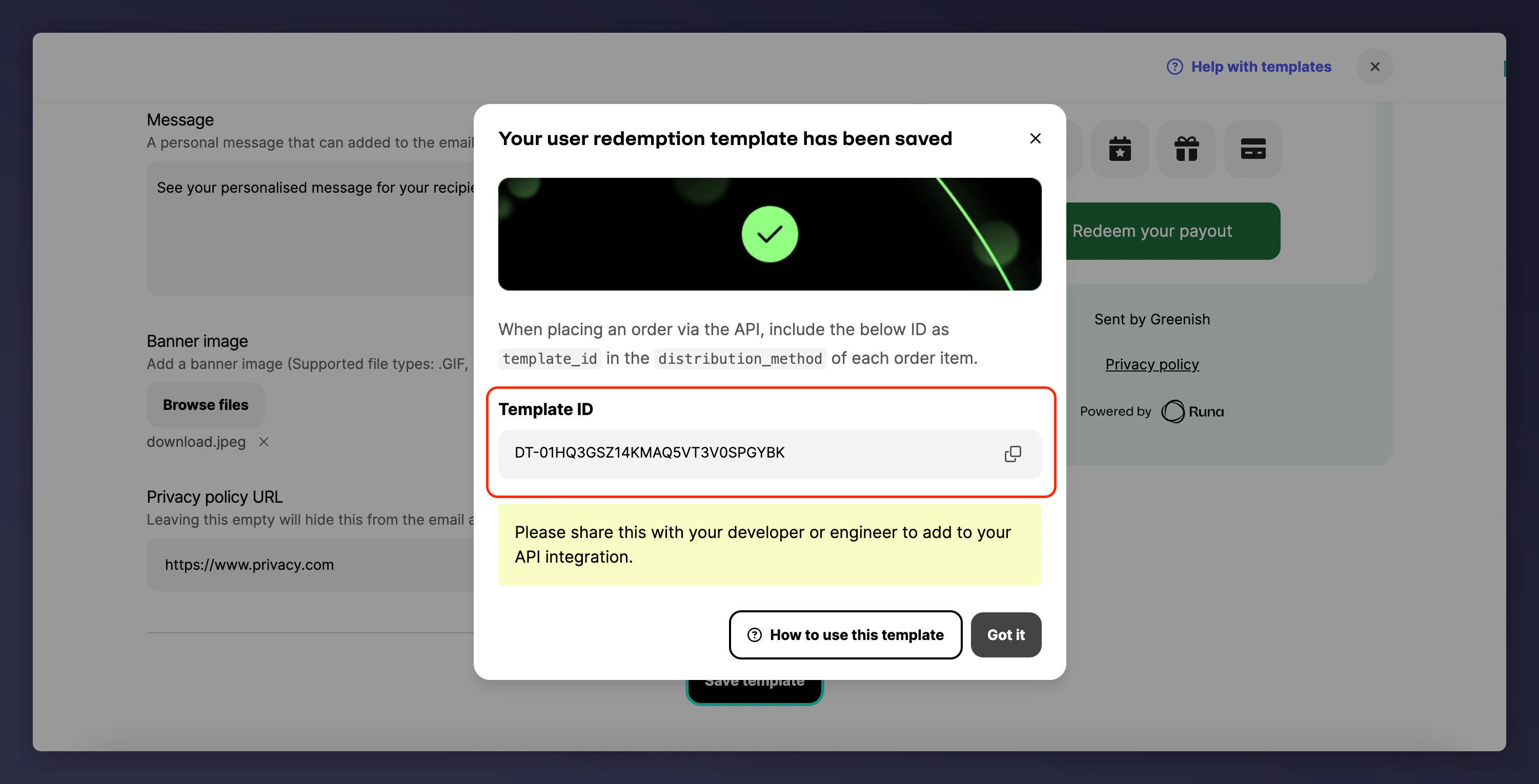 Send this code to Mention Me Support, your CSM, or Onboarding Project Manager so they can configure your reward.