> ## Documentation Index
> Fetch the complete documentation index at: https://docs.mention-me.com/llms.txt
> Use this file to discover all available pages before exploring further.
# Email Vouchers in BAU Emails
> Insert Mention Me voucher codes into your Bloomreach BAU emails to remind customers about unused vouchers.
This guide walks through adding Mention Me voucher codes into your Bloomreach BAU emails to remind customers about unused vouchers.
You can also use [pre-built initiatives](/knowledge/esp-crm/bloomreach/setup) to automate email reminders. Importing the initiative into Bloomreach generates:
* [Aggregates](https://documentation.bloomreach.com/engagement/docs/aggregates-and-running-aggregates)
* Example banners
* Segments used to display voucher content based on referral activity
## Aggregates
All aggregates are calculated using the last issued voucher (either to a referrer or referee) with a future expiry date.
| Aggregate Name | Description |
| -------------------------------------------- | ----------------------------------------------------------------- |
| last\_mention\_me\_referee\_voucher\_code | Referee's latest voucher code. Example: `10USDOFF-RXAAURVZ` |
| last\_mention\_me\_referee\_voucher\_expiry | Referee voucher expiry date. Example: `2024-09-03T16:19:19.000Z` |
| last\_mention\_me\_referee\_voucher\_value | Referee's voucher value. Example: `20%` or `10 GBP` |
| last\_mention\_me\_referrer\_voucher\_code | Referrer's latest voucher code. Example: `10USDOFF-RXAAURVZ` |
| last\_mention\_me\_referrer\_voucher\_expiry | Referrer voucher expiry date. Example: `2024-09-03T16:19:19.000Z` |
| last\_mention\_me\_referrer\_voucher\_value | Referrer's voucher value. Example: `20%` or `10 GBP` |
To format expiry dates for customer-facing display:
```jinja theme={null}
{{ aggregates['aggregate_id'] | to_timestamp | from_timestamp('%A, %d of %B %Y') }}
```
## Example banners
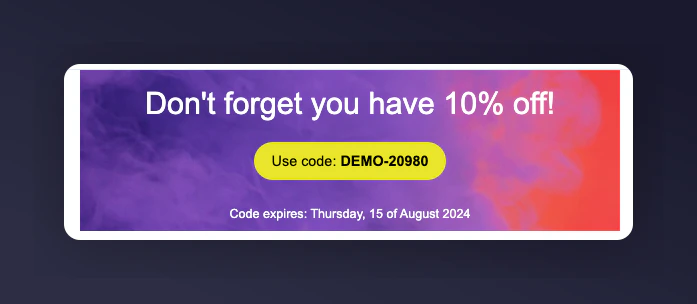
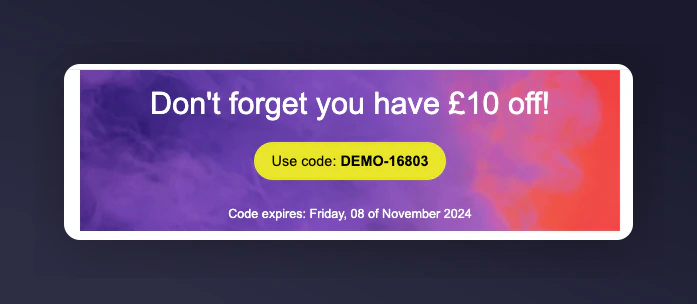
Two example banners (referrer and referee) are provided with pre-inserted aggregates.
 ## Pre-built segments
These segments control banner visibility and only display content to customers with voucher rewards.
## Prerequisites
1. An active Mention Me referral programme that rewards referees and referrers
2. Mention Me and Bloomreach integration enabled
3. Email Service Provider (ESP) integrated with your Bloomreach account
4. Understanding of [Bloomreach Jinja](https://documentation.bloomreach.com/engagement/docs/filters#date--time-processing)
## Step 1 — Download banner aggregates
Download the JSON file linked at the bottom of this guide.
## Step 2 — Import into Bloomreach
Log in to [Bloomreach](https://app.exponea.com/login).
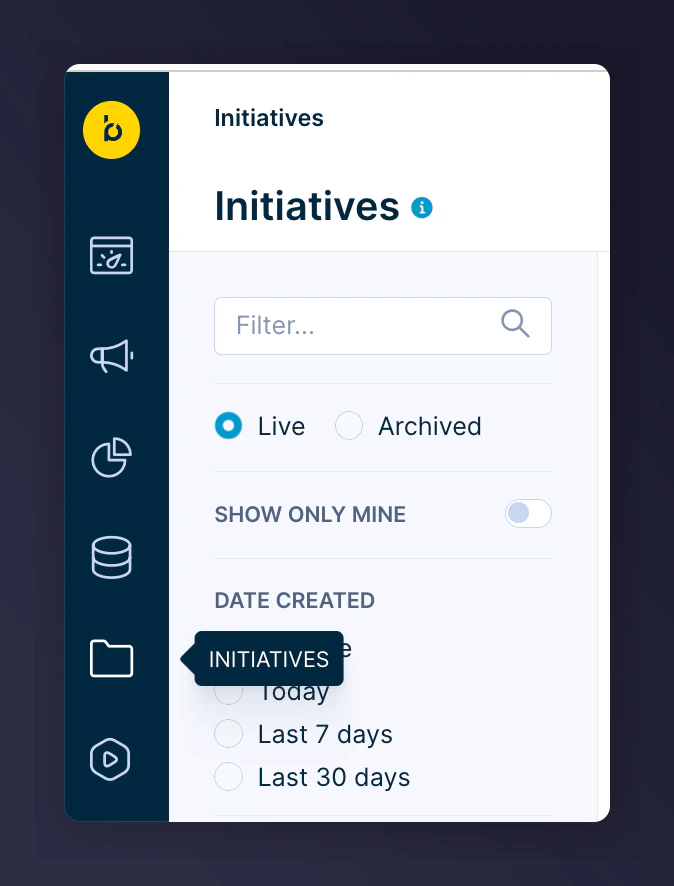
Navigate to **Initiatives**.
## Pre-built segments
These segments control banner visibility and only display content to customers with voucher rewards.
## Prerequisites
1. An active Mention Me referral programme that rewards referees and referrers
2. Mention Me and Bloomreach integration enabled
3. Email Service Provider (ESP) integrated with your Bloomreach account
4. Understanding of [Bloomreach Jinja](https://documentation.bloomreach.com/engagement/docs/filters#date--time-processing)
## Step 1 — Download banner aggregates
Download the JSON file linked at the bottom of this guide.
## Step 2 — Import into Bloomreach
Log in to [Bloomreach](https://app.exponea.com/login).
Navigate to **Initiatives**.
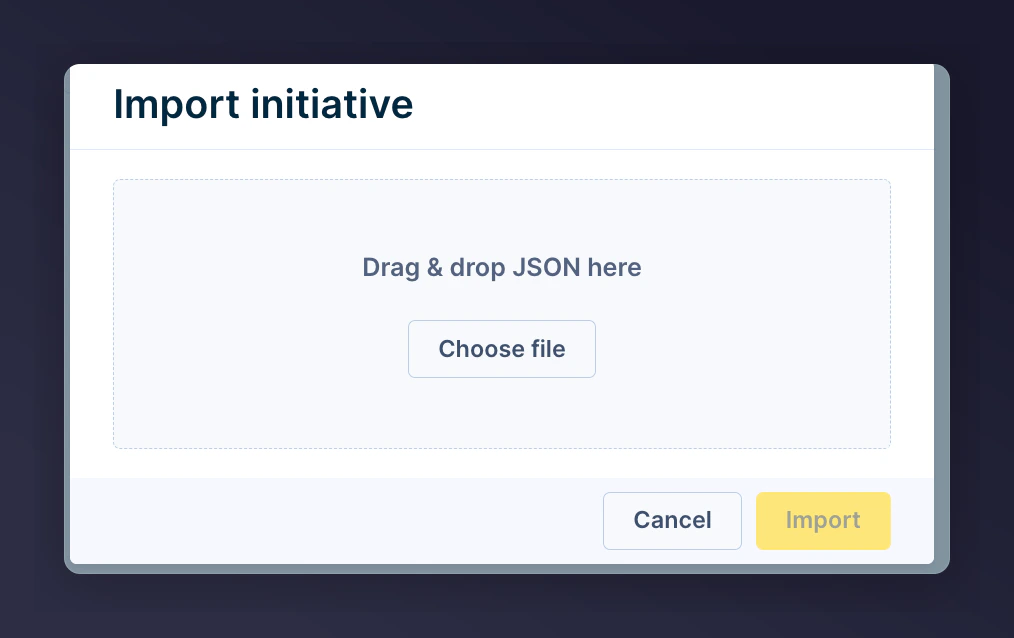
 Click **Import**.
 Upload the downloaded file and click **Import**.
 ## Step 3 — Add a banner to emails
You have two options:
### Using the pre-built banner
Add a new row in your email design and choose **Custom**.
Insert either the referrer or referee banner.
## Step 3 — Add a banner to emails
You have two options:
### Using the pre-built banner
Add a new row in your email design and choose **Custom**.
Insert either the referrer or referee banner.
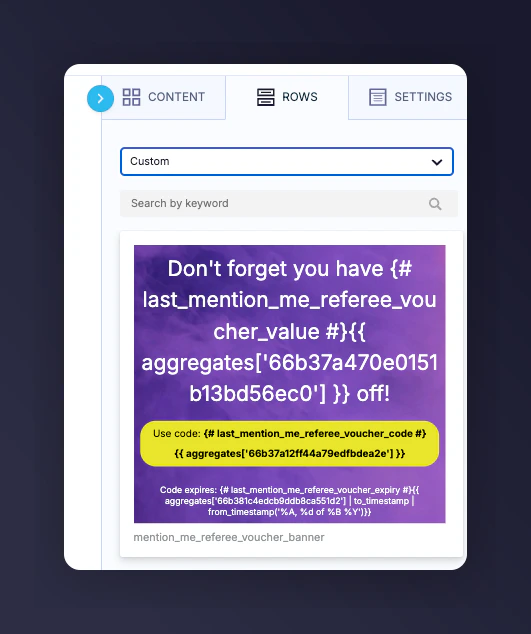 Update banner copy and imagery to match your brand.
### Using your own banner with aggregates
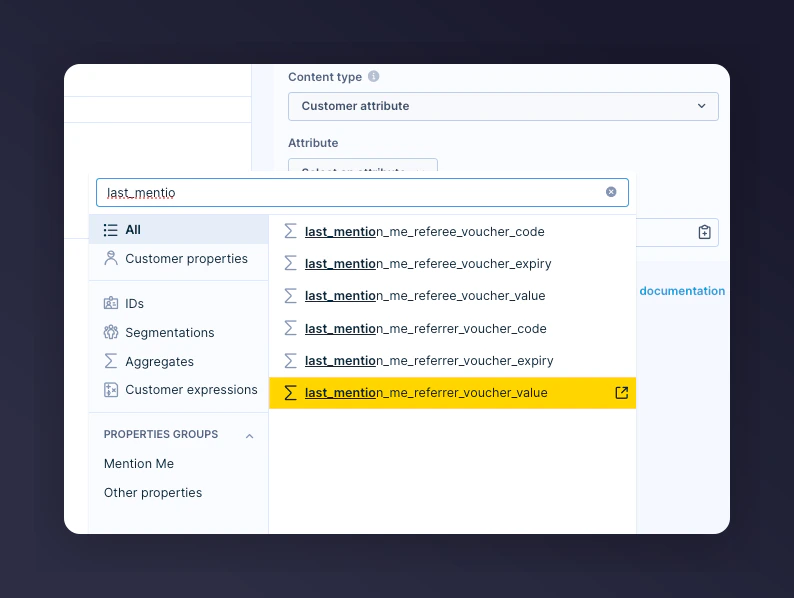
In your email, add a new personalisation tag using **Customer attribute**.
Select an aggregate starting with `last_mention_me`.
Update banner copy and imagery to match your brand.
### Using your own banner with aggregates
In your email, add a new personalisation tag using **Customer attribute**.
Select an aggregate starting with `last_mention_me`.
 For expiry dates, use Jinja formatting:
```jinja theme={null}
{{ aggregates['aggregate_id'] | to_timestamp | from_timestamp('%A, %d of %B %Y') }}
```
For expiry dates, use Jinja formatting:
```jinja theme={null}
{{ aggregates['aggregate_id'] | to_timestamp | from_timestamp('%A, %d of %B %Y') }}
```
