> ## Documentation Index
> Fetch the complete documentation index at: https://docs.mention-me.com/llms.txt
> Use this file to discover all available pages before exploring further.
# Set Up Salesforce Marketing Cloud (SFMC) with Mention Me
> Connect your SFMC account to Mention Me to sync referral data, opt-ins, and link data extensions.
## About the integration
Seamlessly integrate high-quality, first-party referral data into Salesforce Marketing Cloud (SFMC) to enhance customer segmentation and campaign performance. Use Mention Me data — like next-best action, propensity to refer, and Extended Customer Revenue — to target high-value customer segments more effectively.
The integration is self-serve, requires no major IT effort, and can be fully set up in under 10 minutes.
## Integration capabilities
* Send contact data and opt-ins from Mention Me referred customers to SFMC in real time
* Create coupon email reminders using referral data
* Use referral data to boost targeting across other marketing channels
## Prerequisites
* **Salesforce Marketing Cloud** — You must have *Administrator* or *Marketing Cloud Administrator* roles.
* **Mention Me** — Access to the [Mention Me platform](https://mention-me.com/login). Contact your Mention Me CSM if needed.
## Step 1: Create a Mention Me app in Salesforce Marketing Cloud
Log in to your Salesforce Marketing Cloud admin account to set up a Mention Me App integration:
Ensure you have *Installed Package > Administrator* permissions.
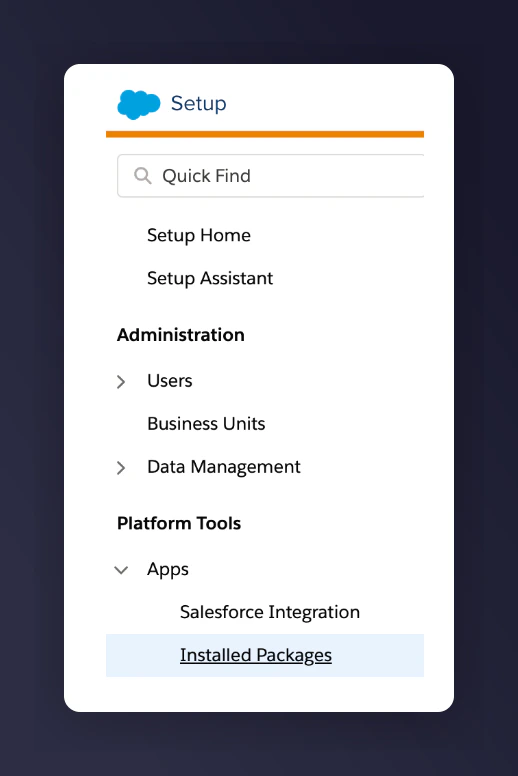
Go to *Setup > Apps > Installed Packages*.
 Click **New** and name the package **Mention Me**.
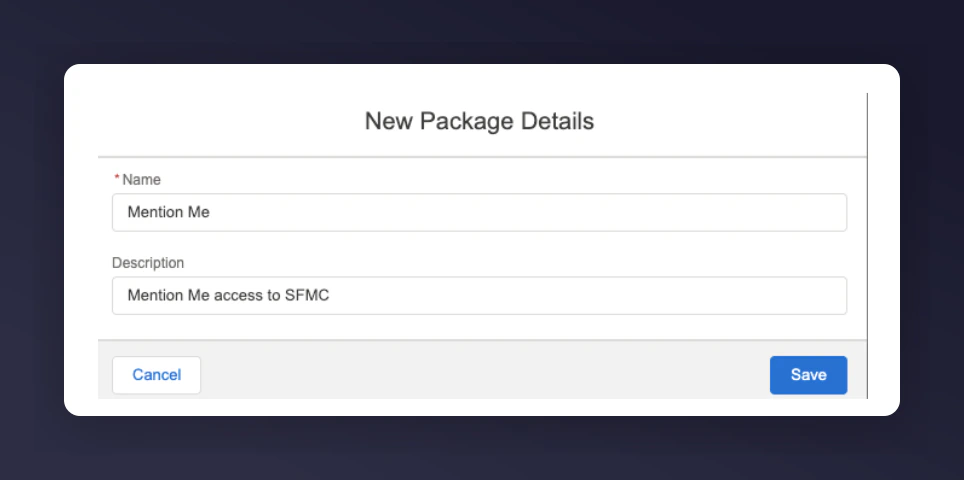 Click **Save**.
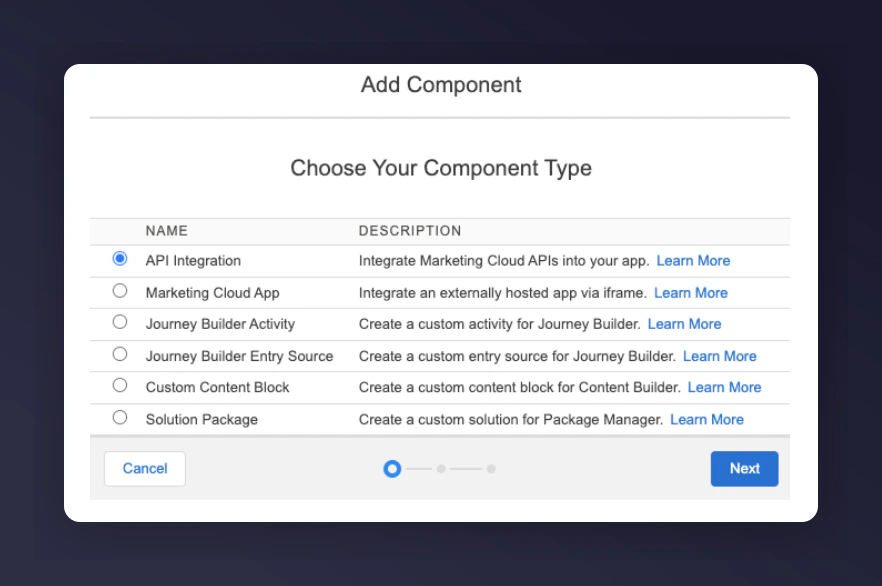
Under Components, click **Add Component**.
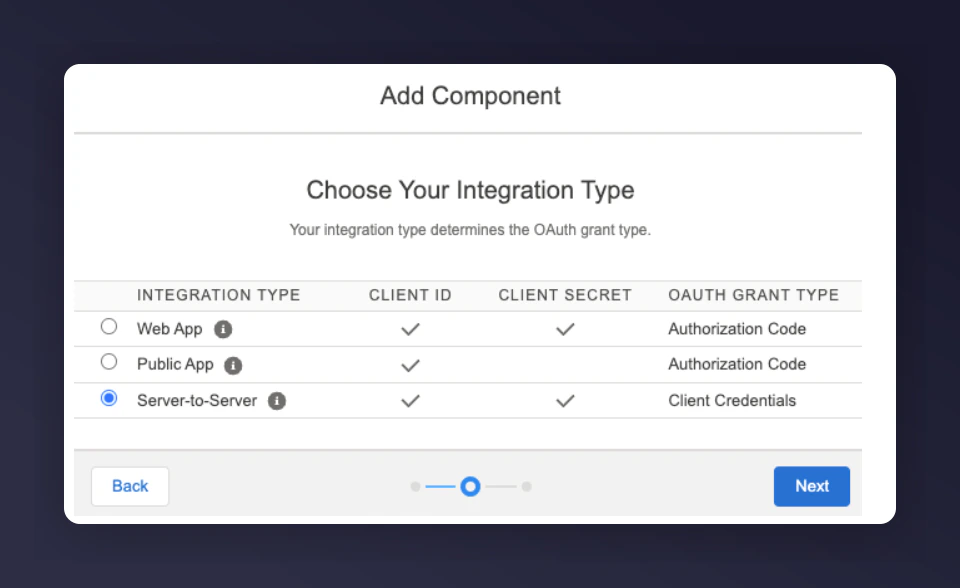
Set the Component Type to **API Integration** with Integration Type **Server-to-Server**.
Click **Save**.
Under Components, click **Add Component**.
Set the Component Type to **API Integration** with Integration Type **Server-to-Server**.
 Click **Edit** and enable the following permissions:
* Journeys > Read & Write
* List and Subscribers > Read & Write
* Data Extensions > Read & Write
Click **Edit** and enable the following permissions:
* Journeys > Read & Write
* List and Subscribers > Read & Write
* Data Extensions > Read & Write
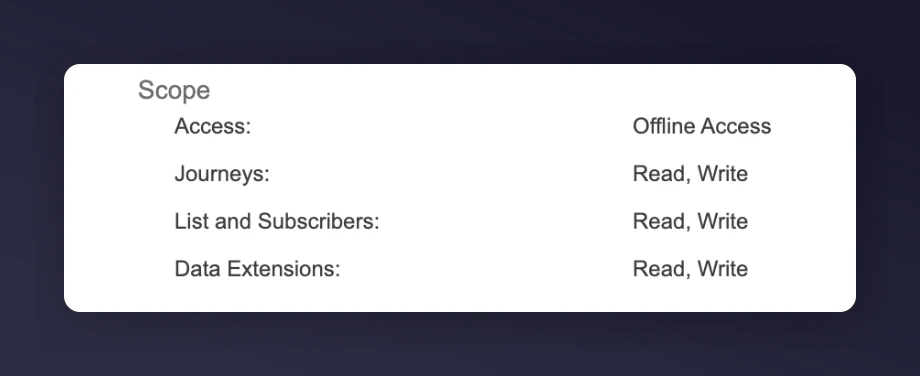 Click **Save**.
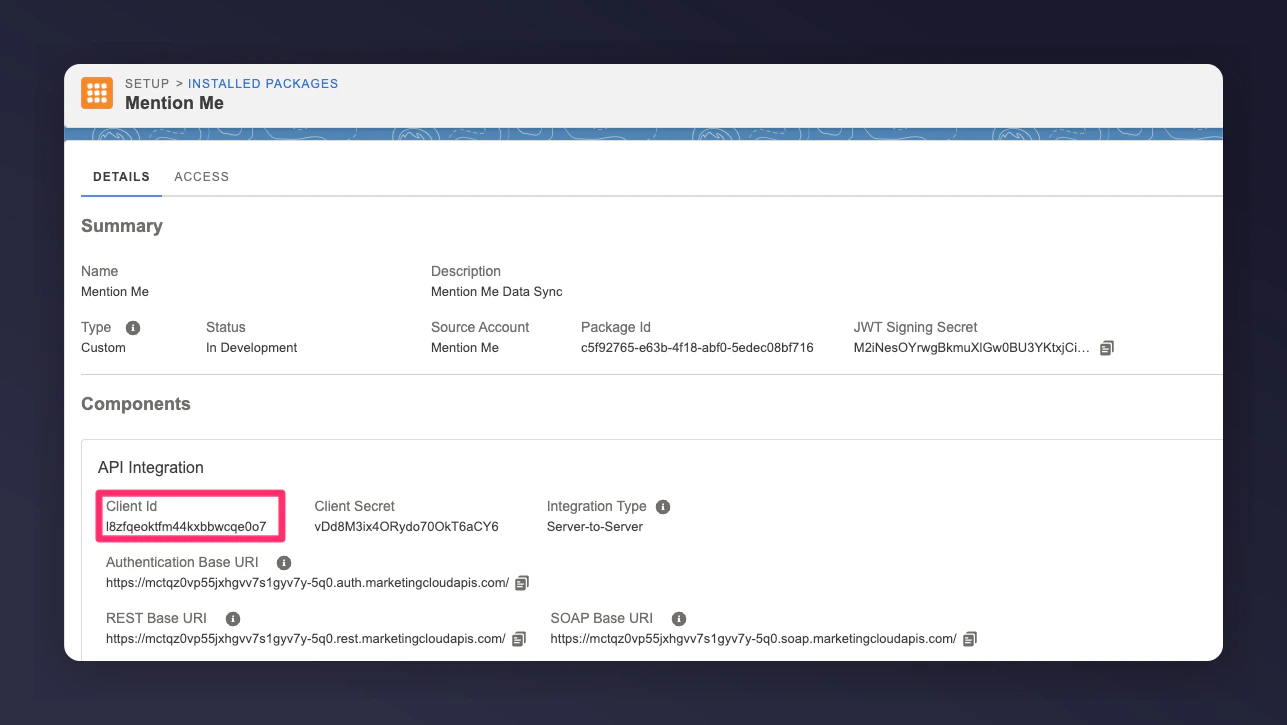
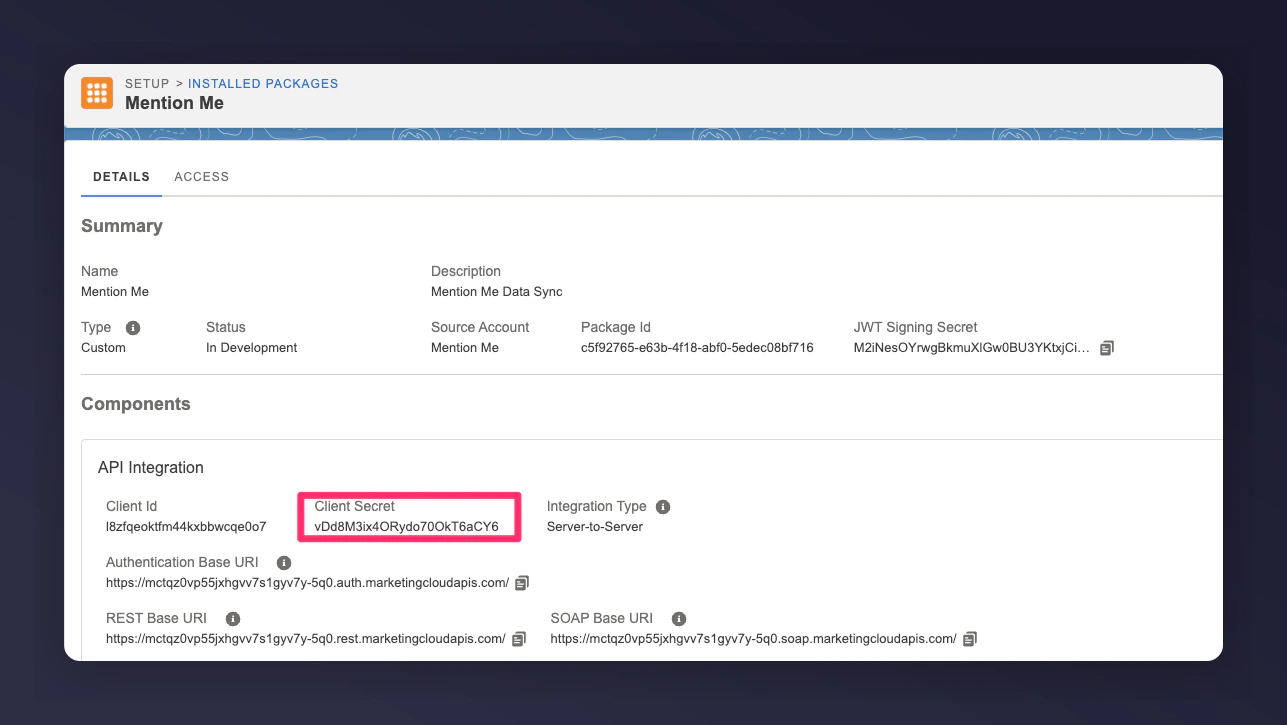
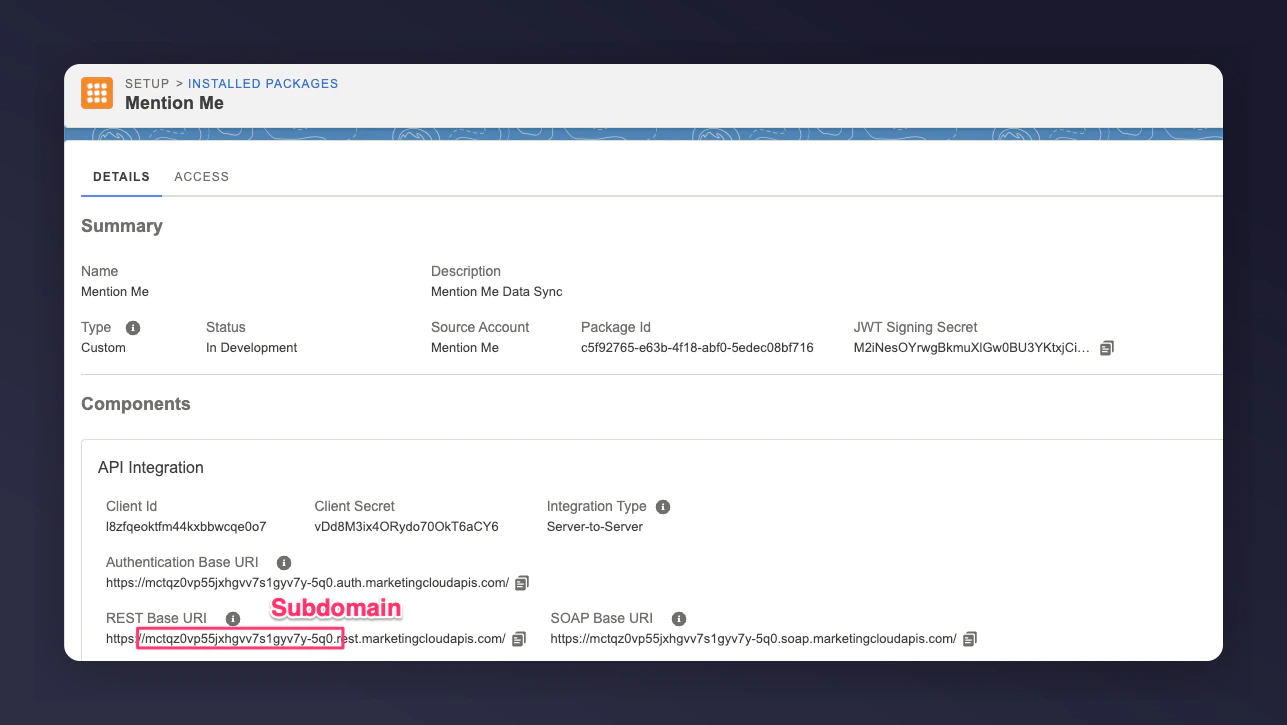
Note down the following values from the created app:
* **Client ID**
* **Client Secret**
* **Subdomain** (from the REST Base URI, between `https://` and `.rest`)
Click **Save**.
Note down the following values from the created app:
* **Client ID**
* **Client Secret**
* **Subdomain** (from the REST Base URI, between `https://` and `.rest`)
 ## Step 2: Set up the integration in Mention Me
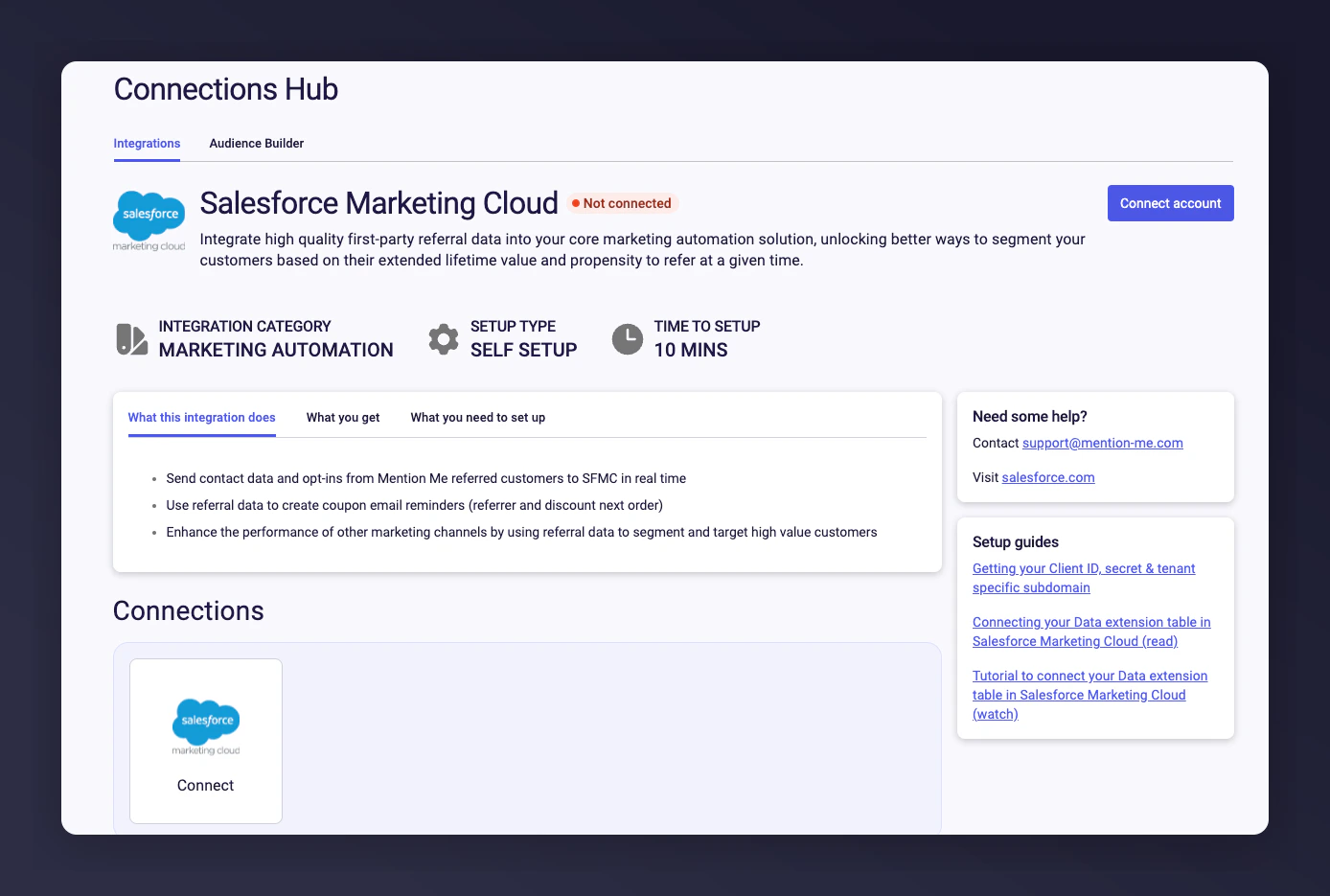
Go to the [Mention Me platform](https://mention-me.com/merchant/~/integrations/salesforce_marketing_cloud) and click **Connect**.
## Step 2: Set up the integration in Mention Me
Go to the [Mention Me platform](https://mention-me.com/merchant/~/integrations/salesforce_marketing_cloud) and click **Connect**.
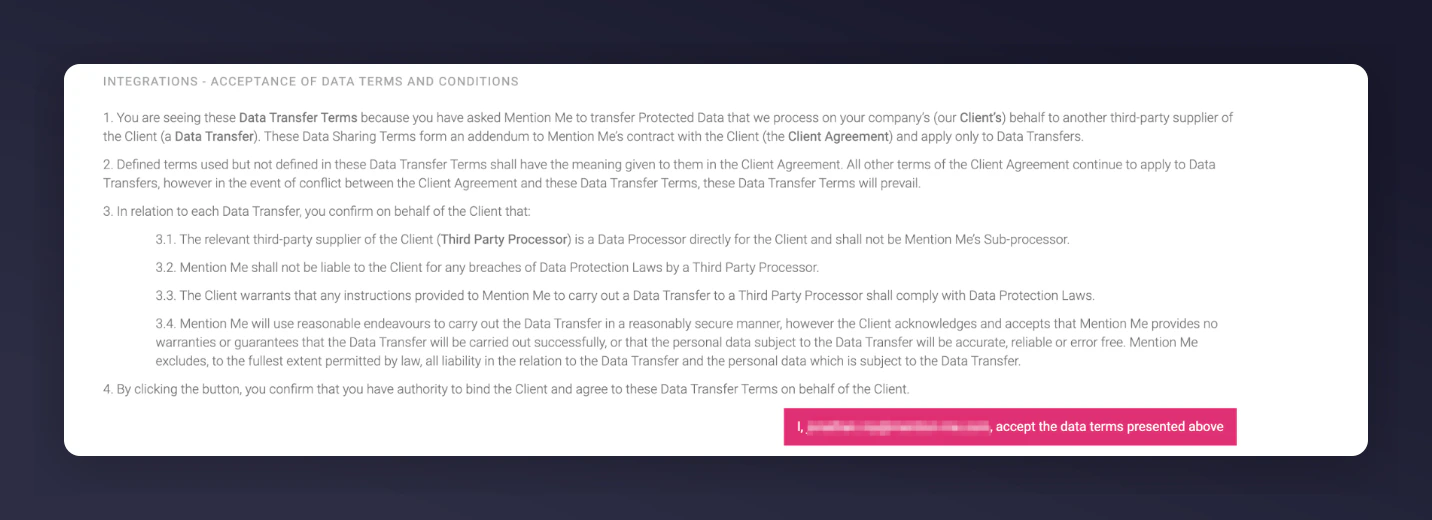
 Accept the terms and conditions if prompted.
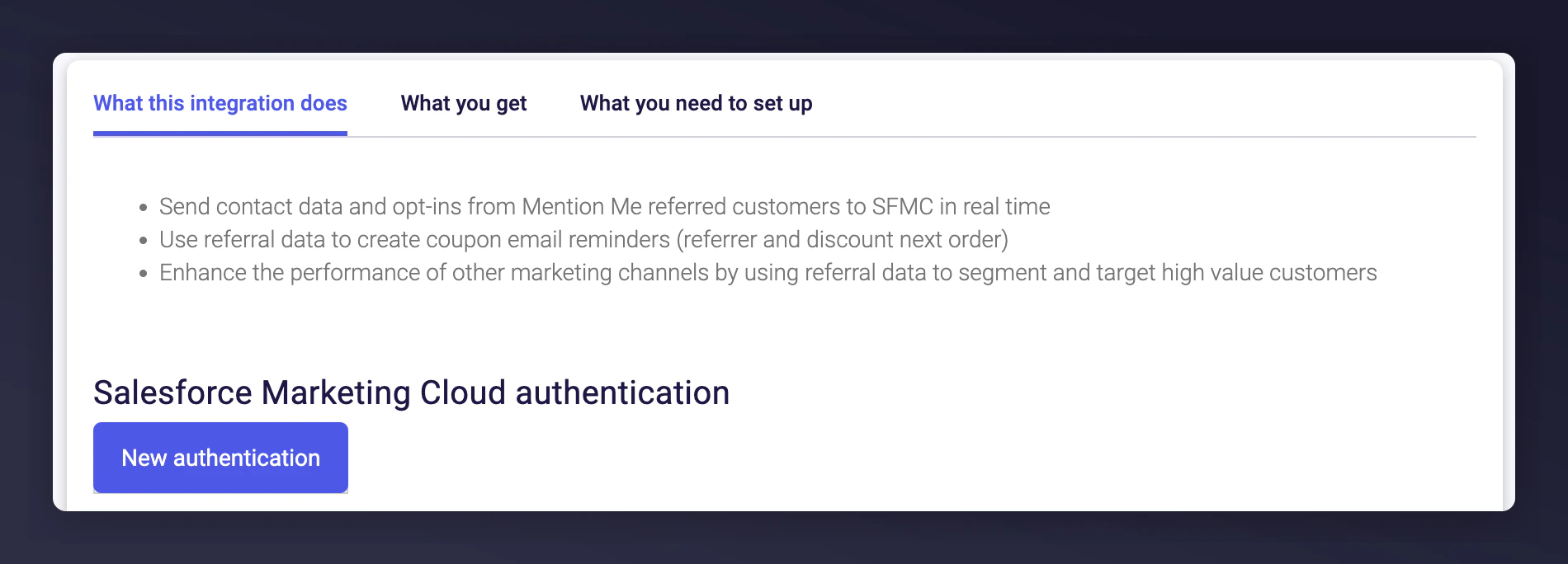
 Click **New authentication**.
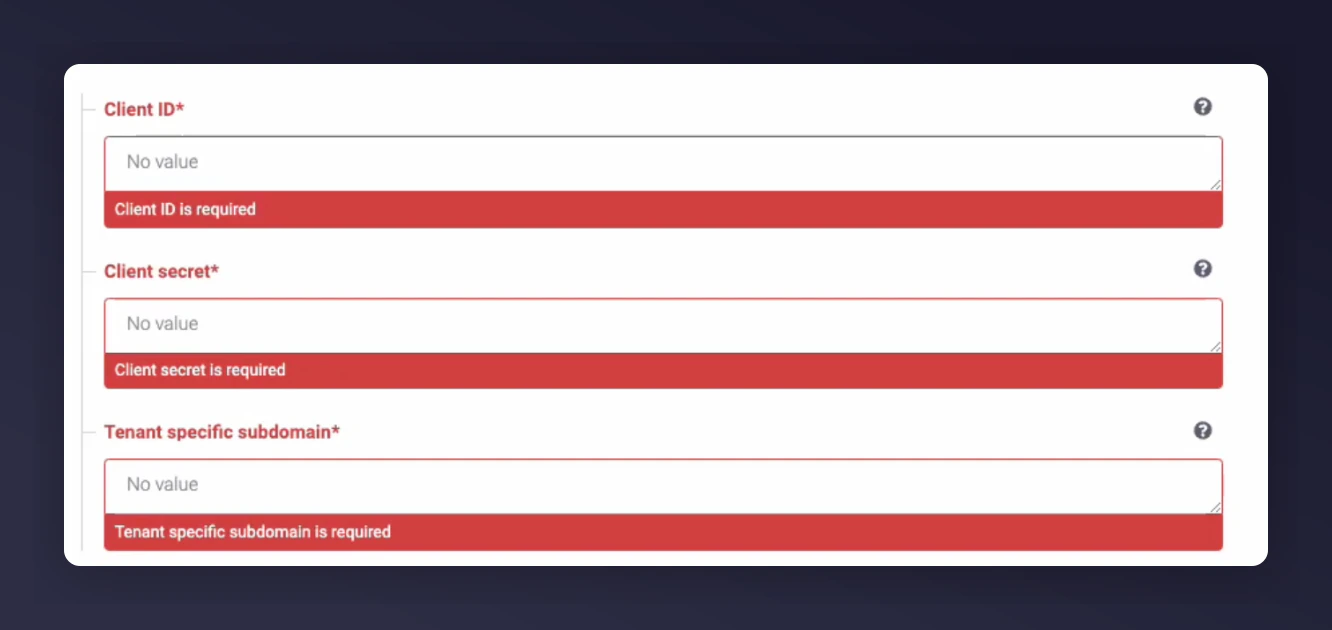
 Fill in the following values gathered in Step 1:
* Client ID
* Client Secret
* Subdomain
Fill in the following values gathered in Step 1:
* Client ID
* Client Secret
* Subdomain
 Click **Create**.
If your SFMC Contact Key is not an email, **untick** the email option.
Click **Create**.
If your SFMC Contact Key is not an email, **untick** the email option.
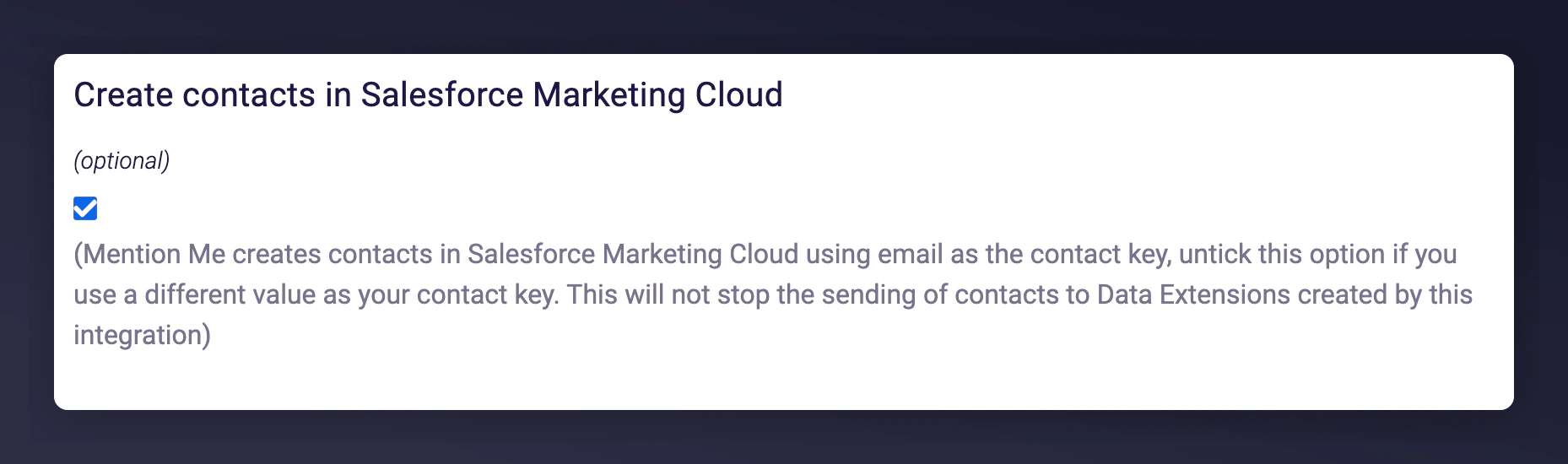 Click **Authorise**.
Select the countries for which you want Mention Me data synced.
Click **Authorise**.
Select the countries for which you want Mention Me data synced.
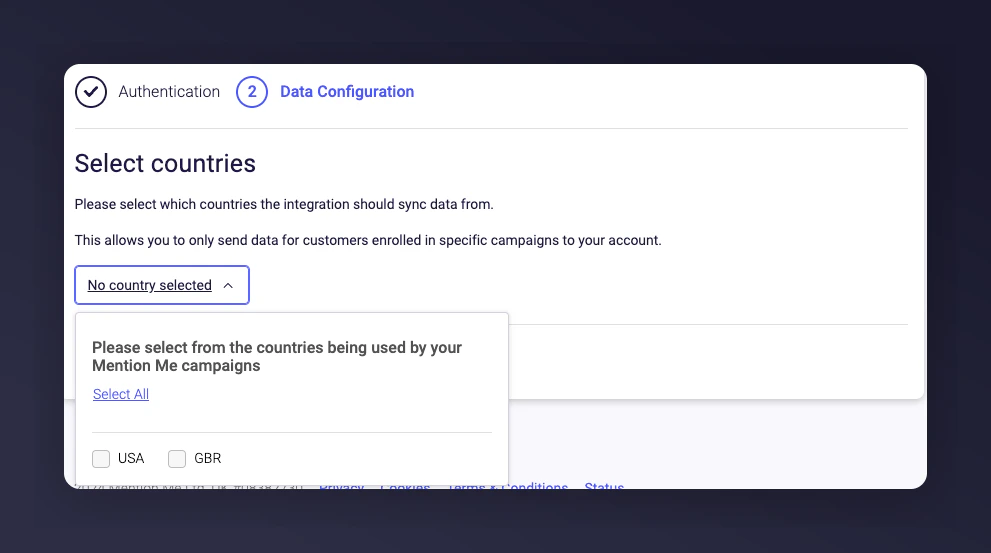 Only data from selected Mention Me countries will be synced to Salesforce.
Click **Connect**.
Mention Me will now complete the integration and create relevant Data Extensions in Salesforce. This setup may take up to 1 minute to complete before moving to the final step.
## Step 3: Link the Mention Me data extension
Once the integration is set up, you need to link the data extension that Mention Me created to your email contact data. This enables Mention Me customer attributes to sync with your contacts for use across Marketing Cloud journeys and campaigns.
### Navigate to Contact Builder
Log in to Salesforce Marketing Cloud.
Click **Audience Builder** > **Contact Builder**.
Only data from selected Mention Me countries will be synced to Salesforce.
Click **Connect**.
Mention Me will now complete the integration and create relevant Data Extensions in Salesforce. This setup may take up to 1 minute to complete before moving to the final step.
## Step 3: Link the Mention Me data extension
Once the integration is set up, you need to link the data extension that Mention Me created to your email contact data. This enables Mention Me customer attributes to sync with your contacts for use across Marketing Cloud journeys and campaigns.
### Navigate to Contact Builder
Log in to Salesforce Marketing Cloud.
Click **Audience Builder** > **Contact Builder**.
 Click **Email Data**.
### Link the data extension
Go to **Data Extensions**.
Click **Link**.
Click **Email Data**.
### Link the data extension
Go to **Data Extensions**.
Click **Link**.
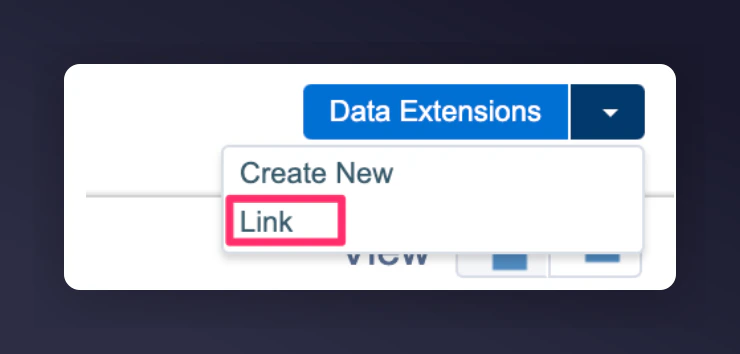 Expand the Data Extensions folder.
Select the **Mention Me Custom Fields** Data Extension.
Expand the Data Extensions folder.
Select the **Mention Me Custom Fields** Data Extension.
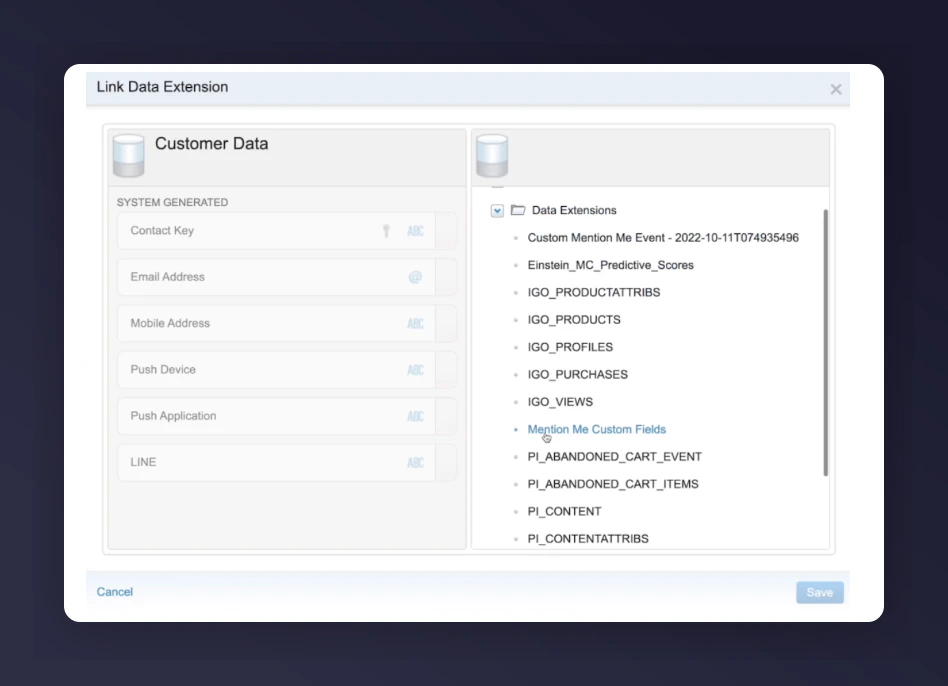 Map the Mention Me Email field to your system's Email Address field.
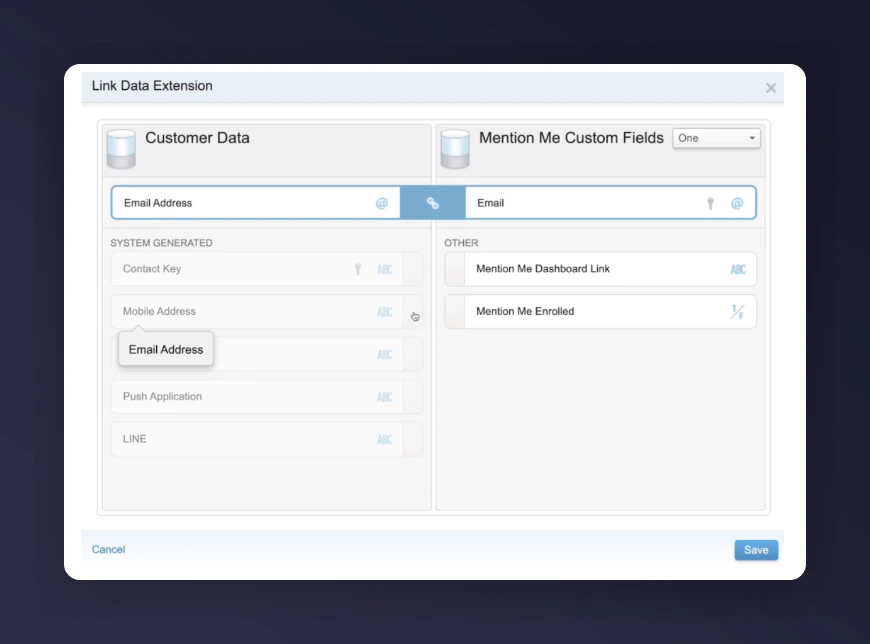 Click **Save**.
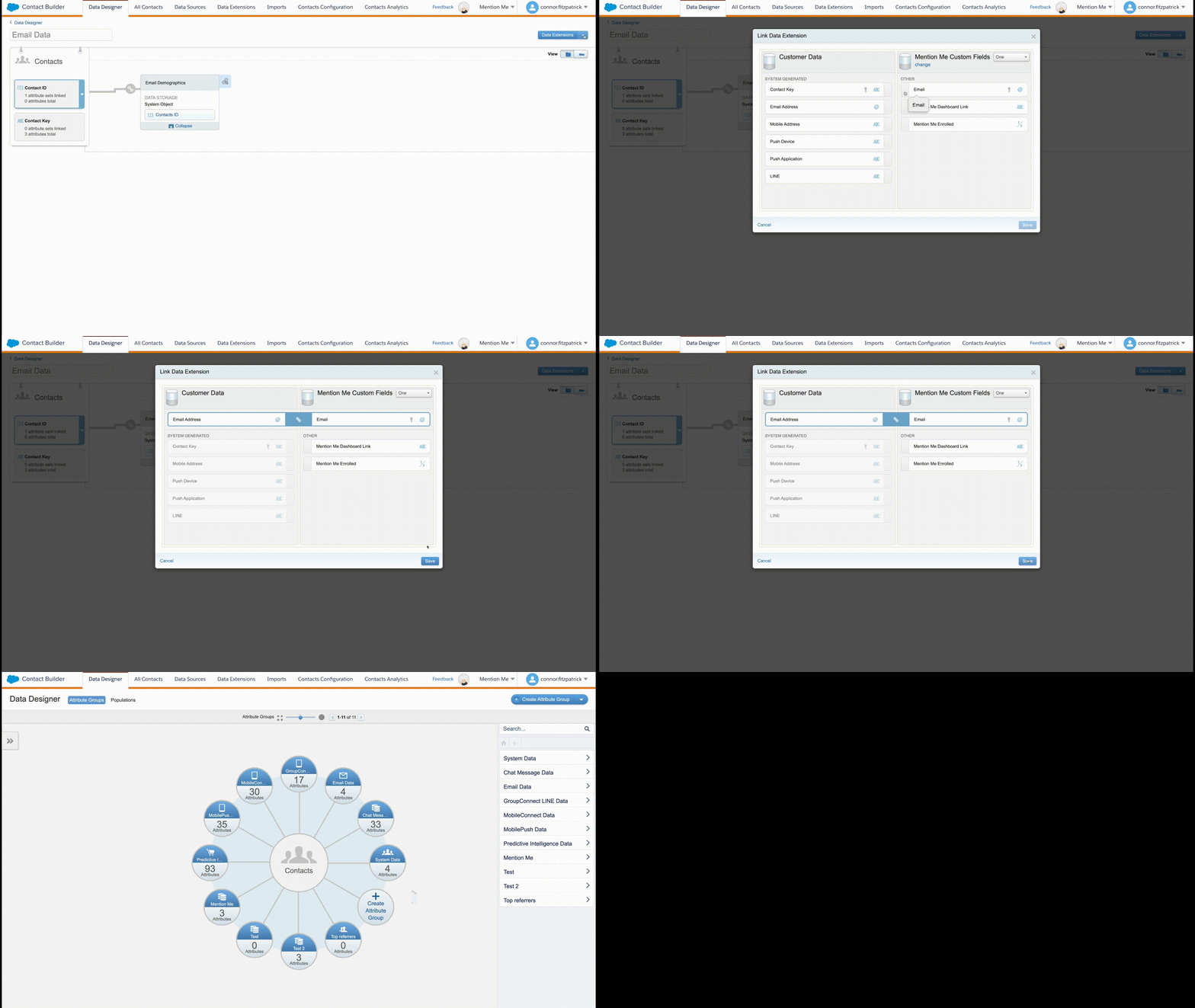 Your Mention Me customer attributes are now successfully linked to your Marketing Cloud contact data using the email address.