> ## Documentation Index
> Fetch the complete documentation index at: https://docs.mention-me.com/llms.txt
> Use this file to discover all available pages before exploring further.
# Set Up mParticle with Mention Me
> Connect your mParticle account to Mention Me to sync referral and advocacy data into your CDP.
## About the integration
Put advocacy data at the heart of your core CDP so you can drive more value from your base by nurturing and retaining your biggest fans.
## Integration capabilities
* Grow your marketing database by sending opt-ins and contacts in real-time to mParticle
* Activate Mention Me data across downstream systems and marketing tools integrated with mParticle (email platforms, ad networks, CRM systems)
* Enhance other marketing channels by using referral data to segment and target high-value customers
## Prerequisites
* **mParticle** — Ability to [create Access Credentials](https://docs.mparticle.com/guides/getting-started/create-an-input/#create-access-credentials). Know the name of your [GDPR Consent Purposes](https://docs.mparticle.com/guides/data-privacy-controls/#common-uses-of-data-privacy-controls) used for email opt-ins.
* **Mention Me** — Access to the [Mention Me platform](https://mention-me.com/login). Contact your CSM or [submit a support request](https://help.mention-me.com/hc/en-gb/requests/new) if needed.
## Step 1: Add Mention Me feed input to mParticle
[Log in](https://app.mparticle.com/login?) to mParticle with access to add **Inputs**.
If you have more than one workspace, select the main workspace that stores your customer data.
Go to Setup > Inputs > **Add Feed Input**.
 Select **Mention Me** from the drop-down. If Mention Me is not available, select **Custom Event**.
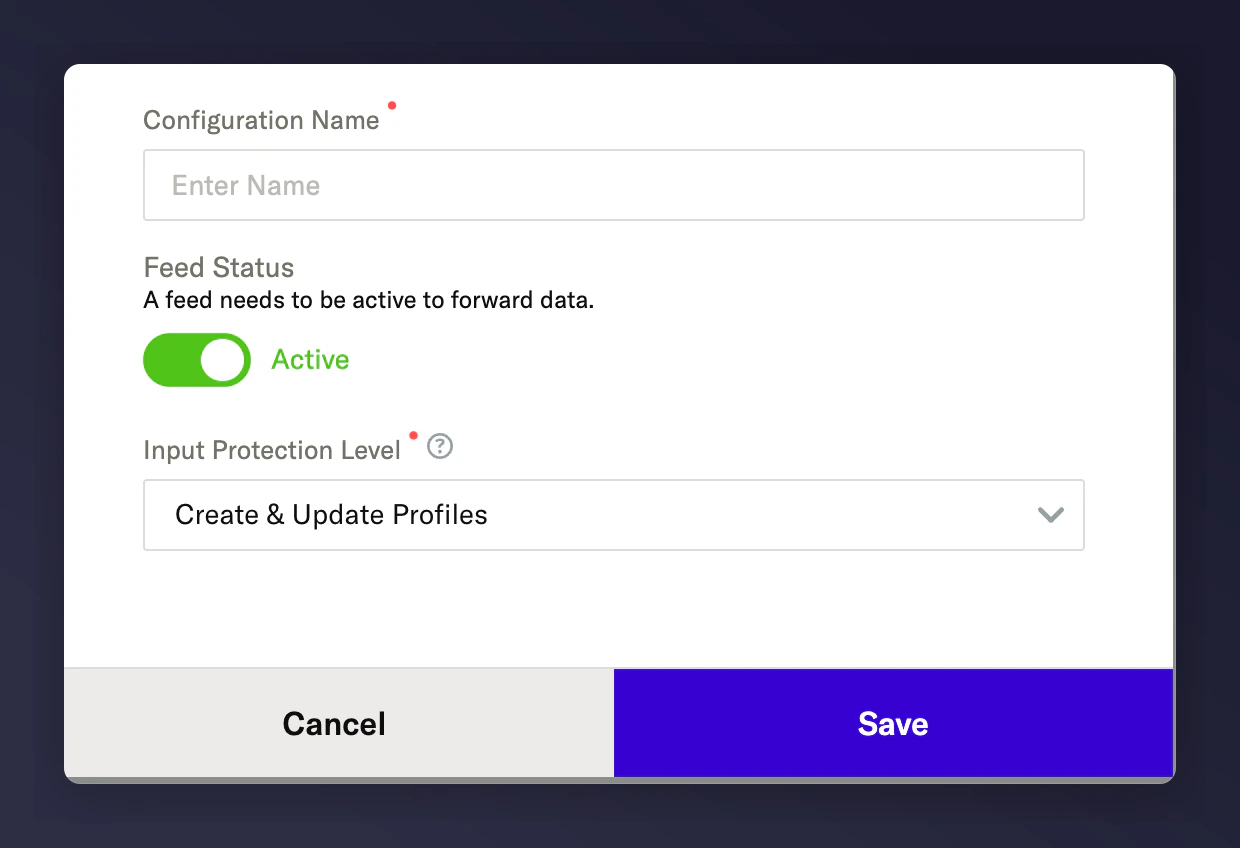
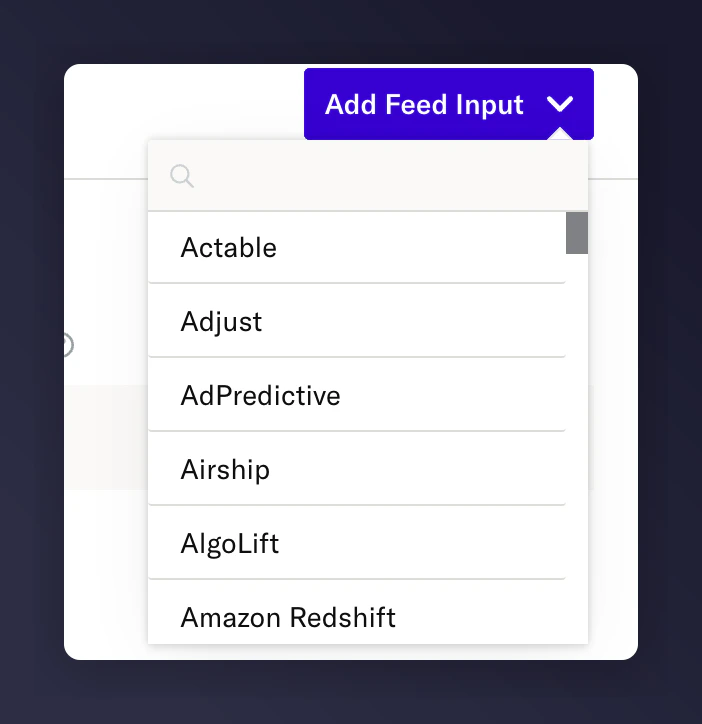 Fill in the following details and press **Save**:
* Configuration Name
* Set Feed to **Active**
* Set Permissions to **Create & Update Profiles**
Fill in the following details and press **Save**:
* Configuration Name
* Set Feed to **Active**
* Set Permissions to **Create & Update Profiles**
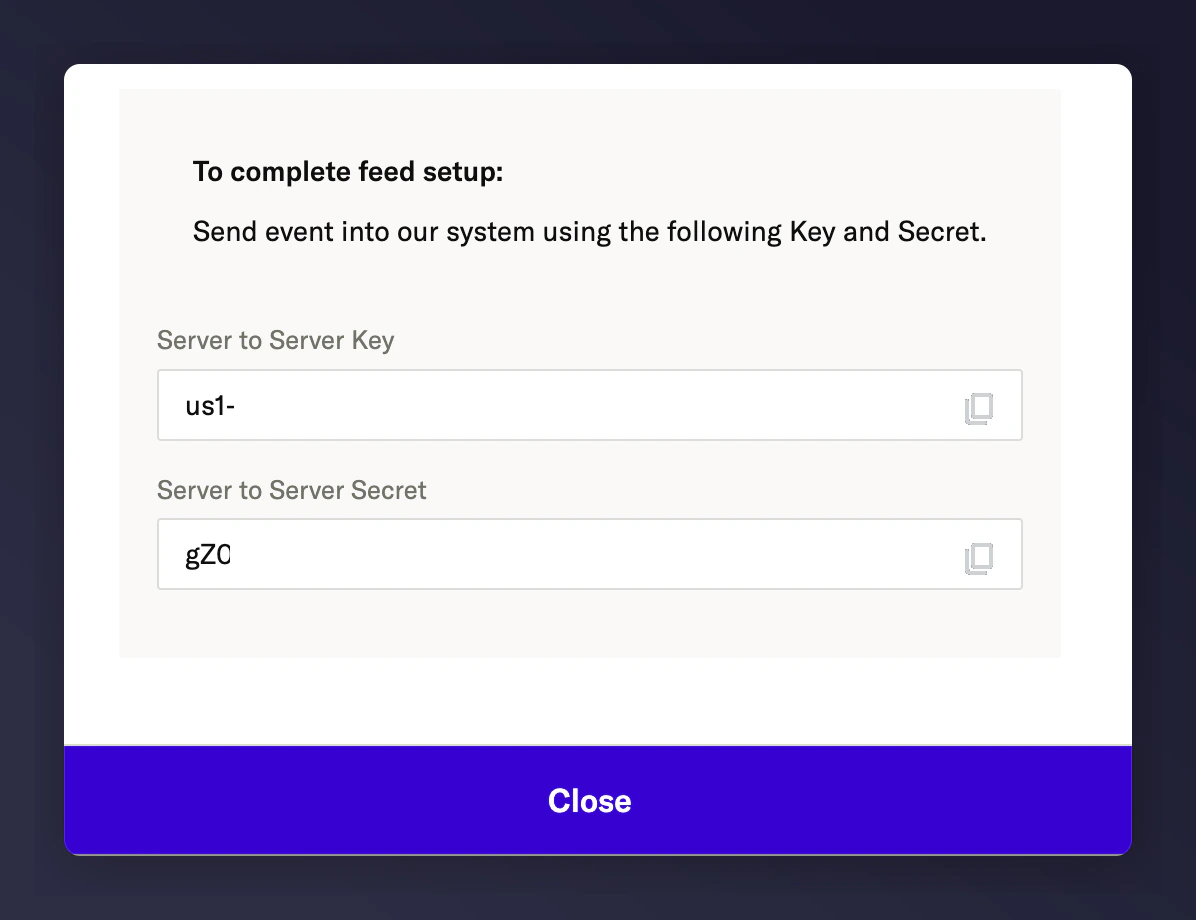
 Copy the following values before pressing **Close**:
* Server-to-Server Key
* Server-to-Server Secret
Copy the following values before pressing **Close**:
* Server-to-Server Key
* Server-to-Server Secret
 ## Step 2: Set up the integration in Mention Me
Log in to the [Mention Me platform](https://mention-me.com/merchant/~/integrations/mparticle) and click **Connect**.
## Step 2: Set up the integration in Mention Me
Log in to the [Mention Me platform](https://mention-me.com/merchant/~/integrations/mparticle) and click **Connect**.
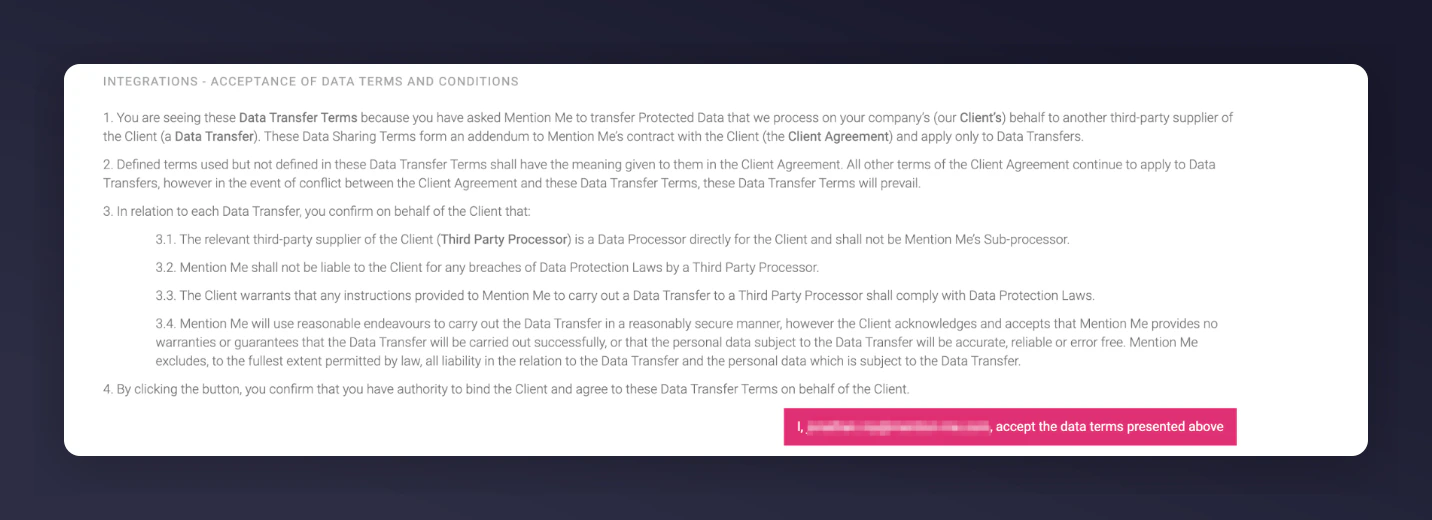
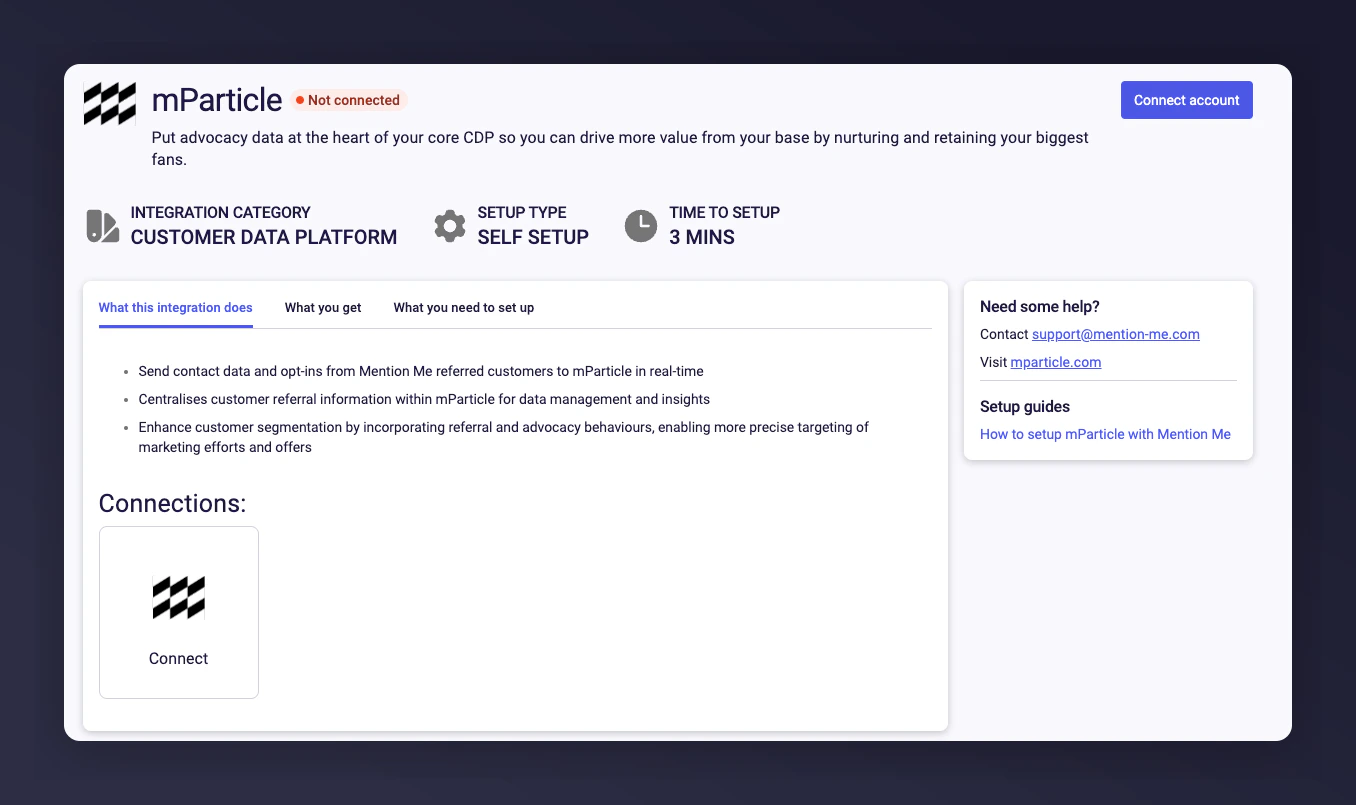 Agree to the Terms and Conditions to allow Mention Me to transfer data to mParticle (if prompted).
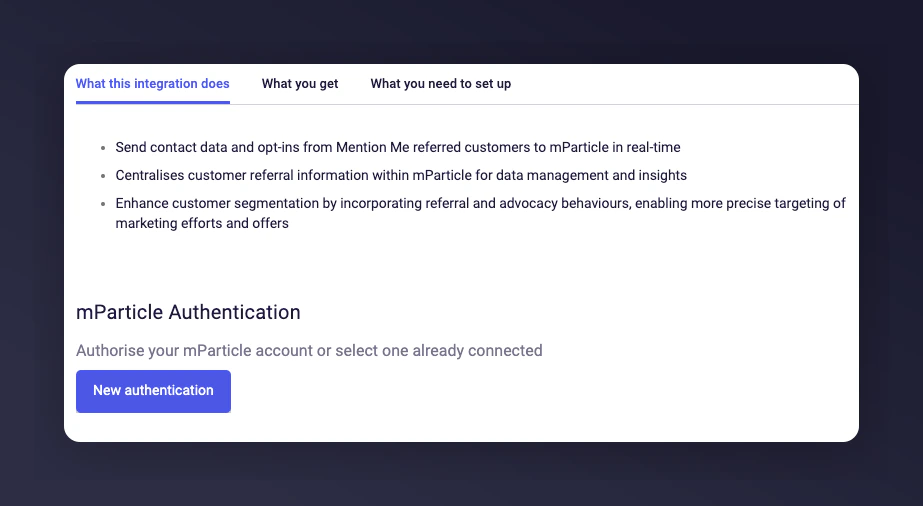
 Click **New Authentication**.
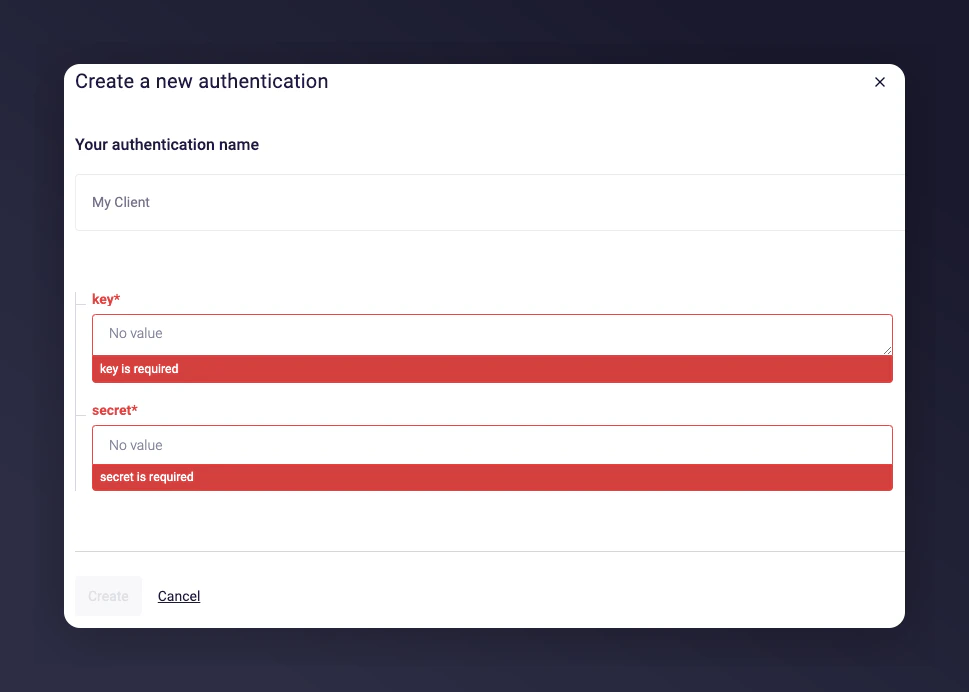
 Name your authentication. For multi-account setups, use descriptive names; otherwise, use the default.
Enter the following from Step 1 and click **Save**:
* API Key
* API Secret
Name your authentication. For multi-account setups, use descriptive names; otherwise, use the default.
Enter the following from Step 1 and click **Save**:
* API Key
* API Secret
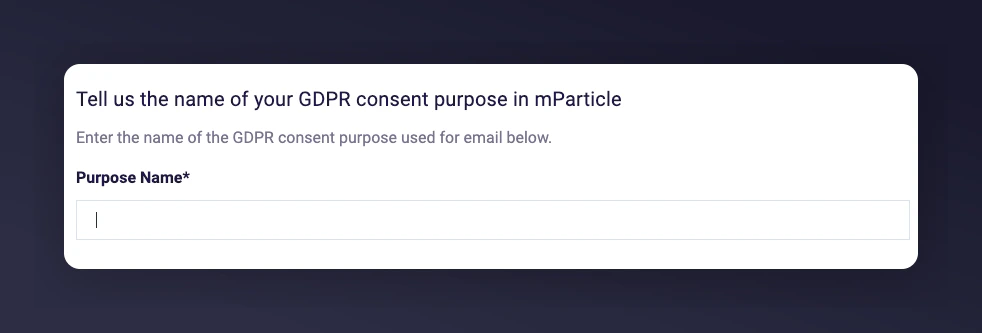
 Enter the name of the GDPR consent purpose category to assign opt-ins from Mention Me. [Learn more about consent purposes](https://docs.mparticle.com/guides/data-privacy-controls/#common-uses-of-data-privacy-controls).
 Mention Me captures opt-ins during the referee journey or at post-purchase for a specific newsletter sign-up offer.
Select the country or countries to sync to your mParticle account.
Mention Me captures opt-ins during the referee journey or at post-purchase for a specific newsletter sign-up offer.
Select the country or countries to sync to your mParticle account.
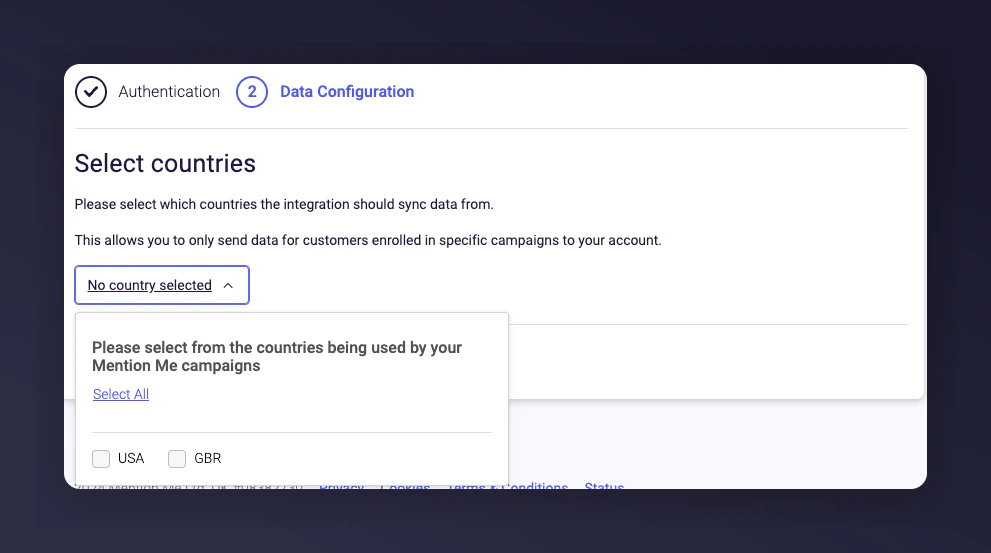 If you operate in multiple countries, you can choose to sync opt-in data from specific Mention Me enabled countries.
Click **Connect** to finalise setup. You will see a confirmation message once complete.
If you operate in multiple countries, you can choose to sync opt-in data from specific Mention Me enabled countries.
Click **Connect** to finalise setup. You will see a confirmation message once complete.
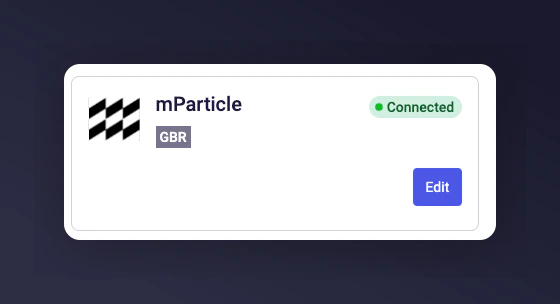 From this point, Mention Me events and contacts will begin syncing to your mParticle account. You can start using Mention Me data in mParticle to sync with other downstream tools.
For further help, contact your Mention Me Client Success Manager or [submit a support request](https://help.mention-me.com/hc/en-gb/requests/new).
From this point, Mention Me events and contacts will begin syncing to your mParticle account. You can start using Mention Me data in mParticle to sync with other downstream tools.
For further help, contact your Mention Me Client Success Manager or [submit a support request](https://help.mention-me.com/hc/en-gb/requests/new).