> ## Documentation Index
> Fetch the complete documentation index at: https://docs.mention-me.com/llms.txt
> Use this file to discover all available pages before exploring further.
# Set Up Klaviyo with Mention Me
> Connect your Klaviyo account to Mention Me to sync referral data, opt-ins, and enable pre-built flows.
## About the integration
Activate your biggest fans by feeding first-party advocacy data directly into Klaviyo to deliver higher engagement, retention, and revenue across your customer base.
## Integration capabilities
* Send contact data and opt-ins from Mention Me referred customers to Klaviyo in real-time
* Use referral data to create coupon email reminders
* Enhance other marketing channels by using referral and advocacy data to segment and target high-value customers
## Prerequisites
* **Mention Me** — Access to the [Mention Me platform](https://mention-me.com/login). If you do not have access, reach out to your Mention Me CSM or [submit a support request](https://help.mention-me.com/hc/en-gb/requests/new).
## Step 1: Set up the integration in Mention Me
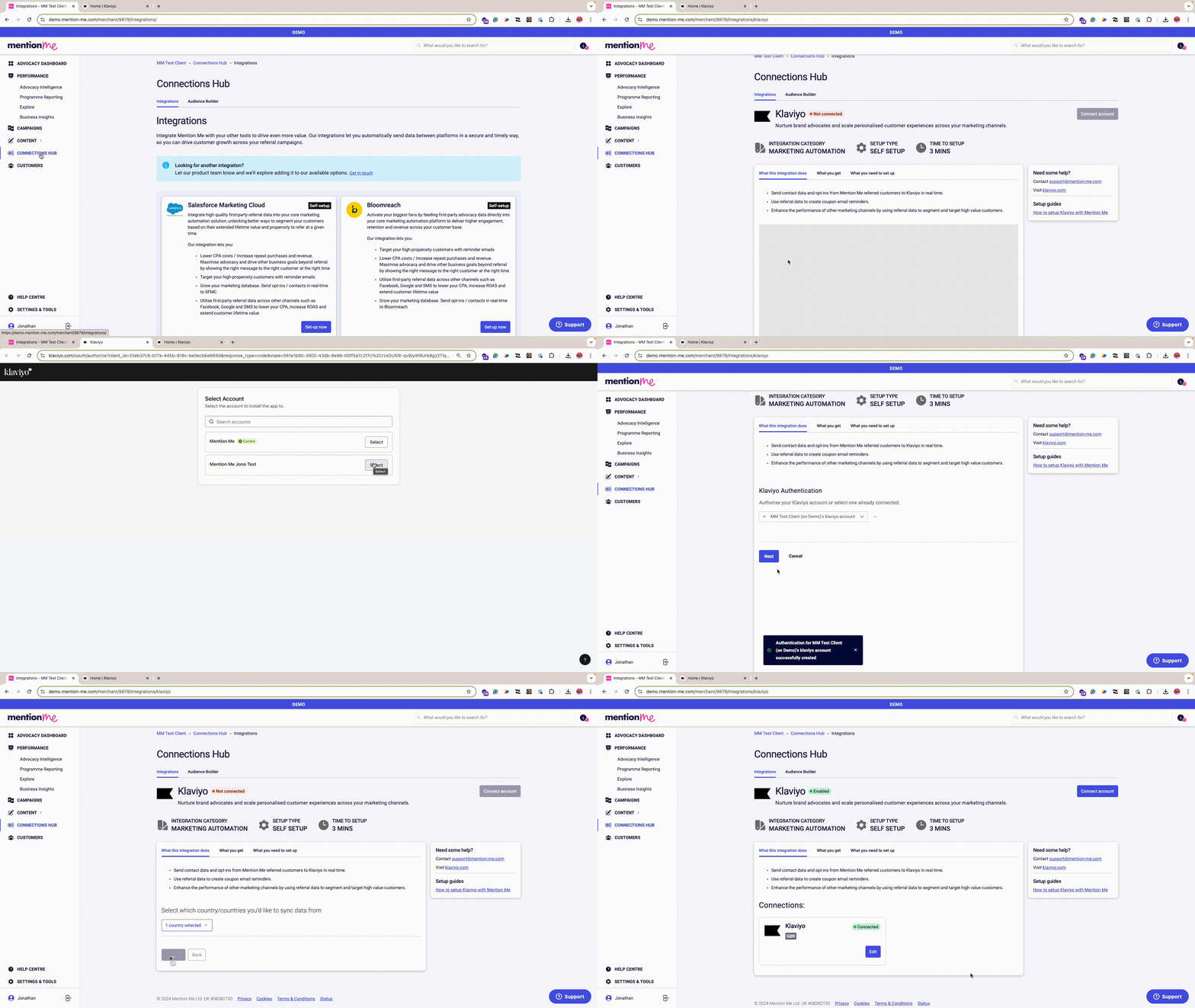 Log in to the [Mention Me platform](https://mention-me.com/merchant/~/integrations/klaviyo).
Click **Connect** to begin the setup process.
Log in to the [Mention Me platform](https://mention-me.com/merchant/~/integrations/klaviyo).
Click **Connect** to begin the setup process.
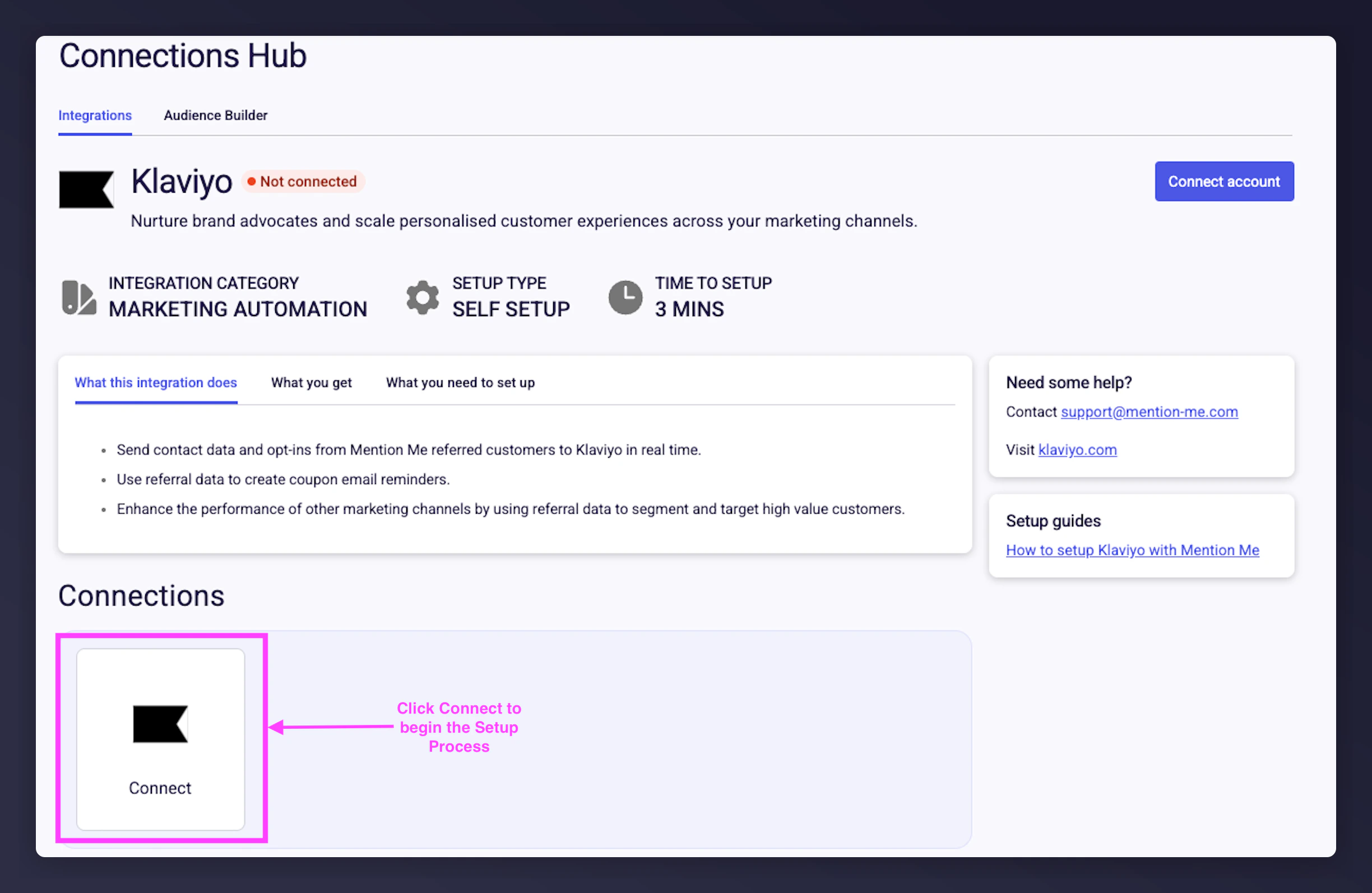 Agree to the Terms and Conditions to allow Mention Me to transfer data to Klaviyo.
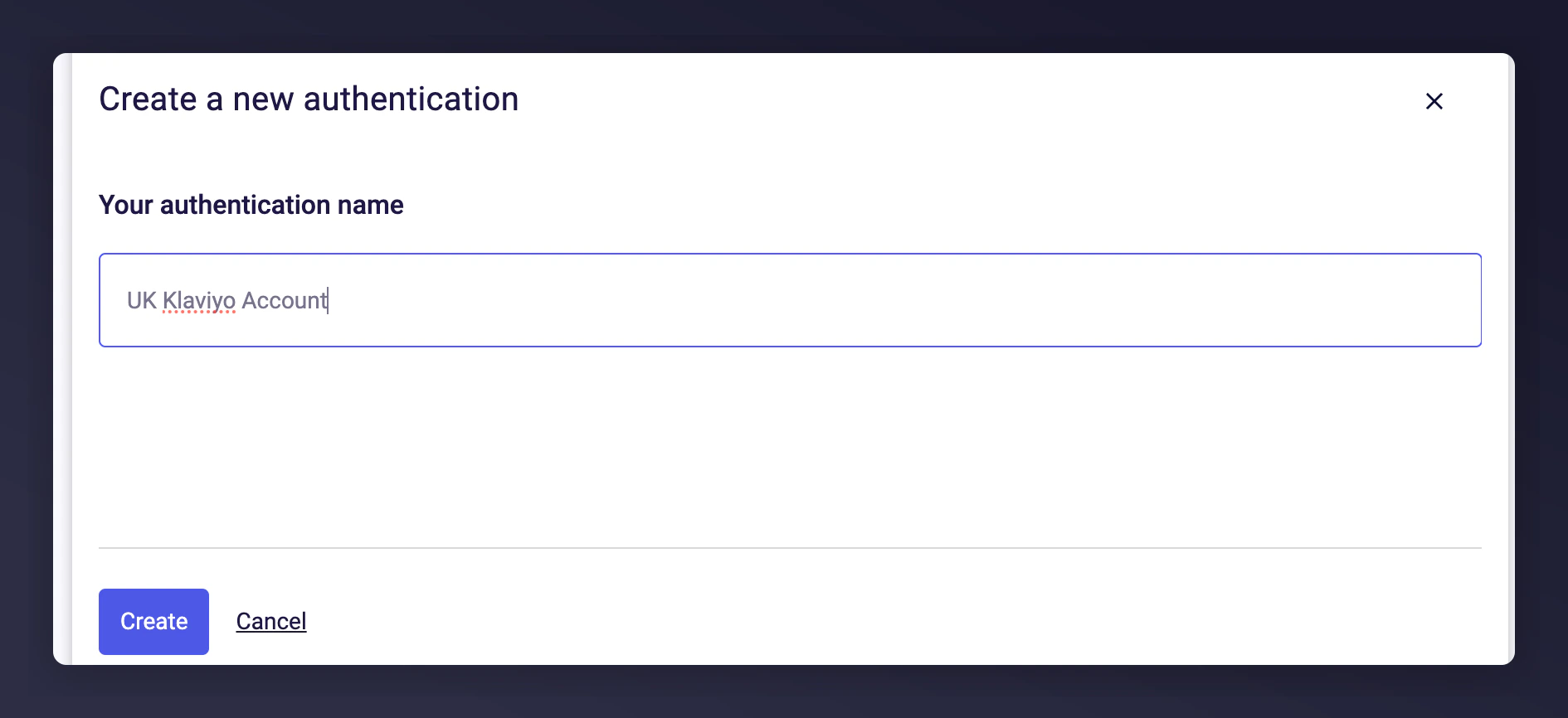
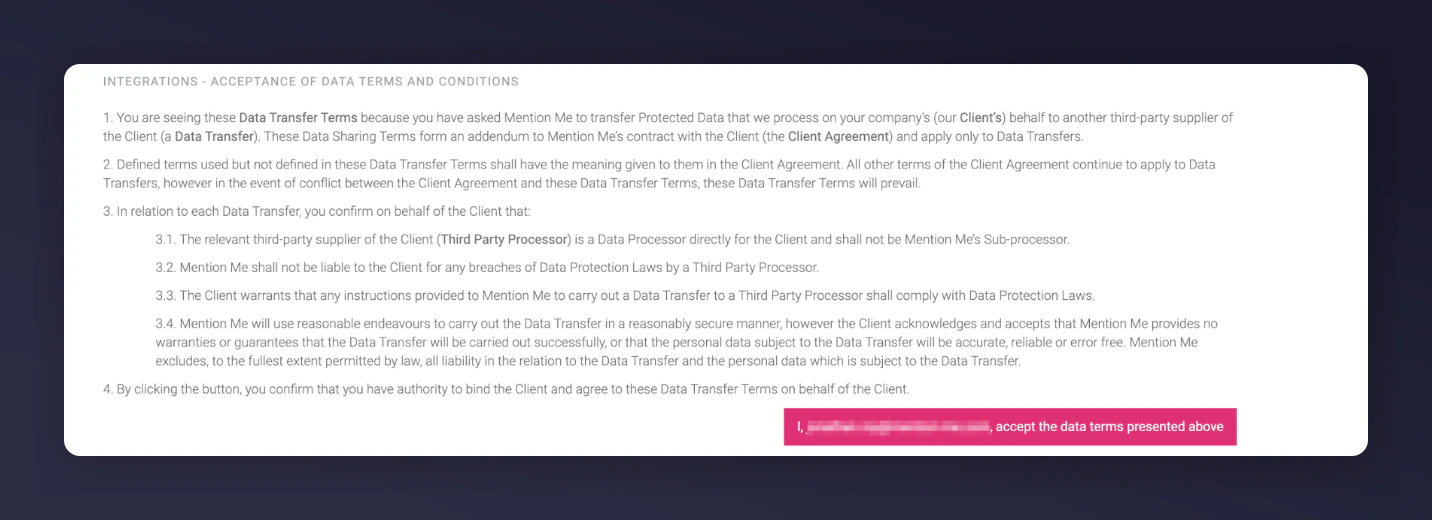 Click **New authentication**.
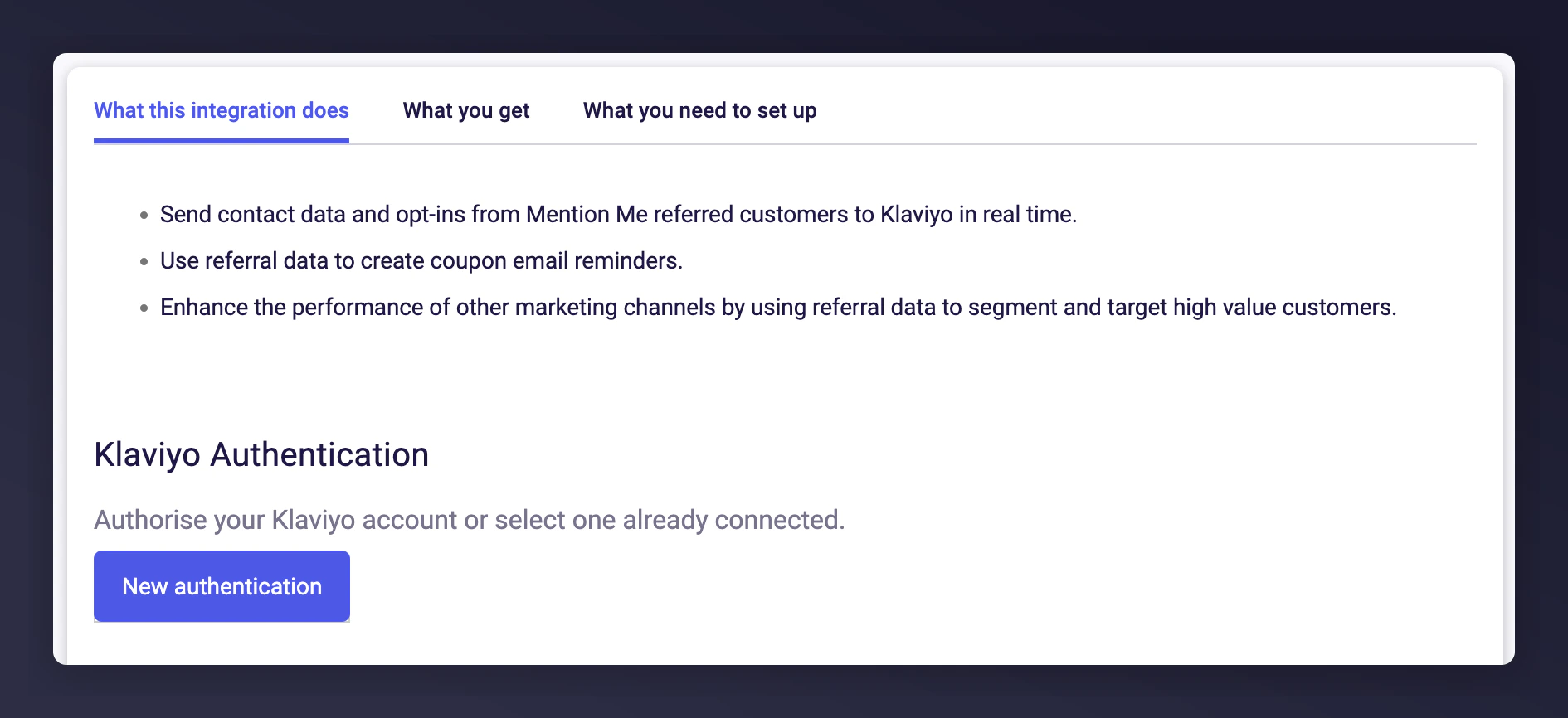 Name your authentication.
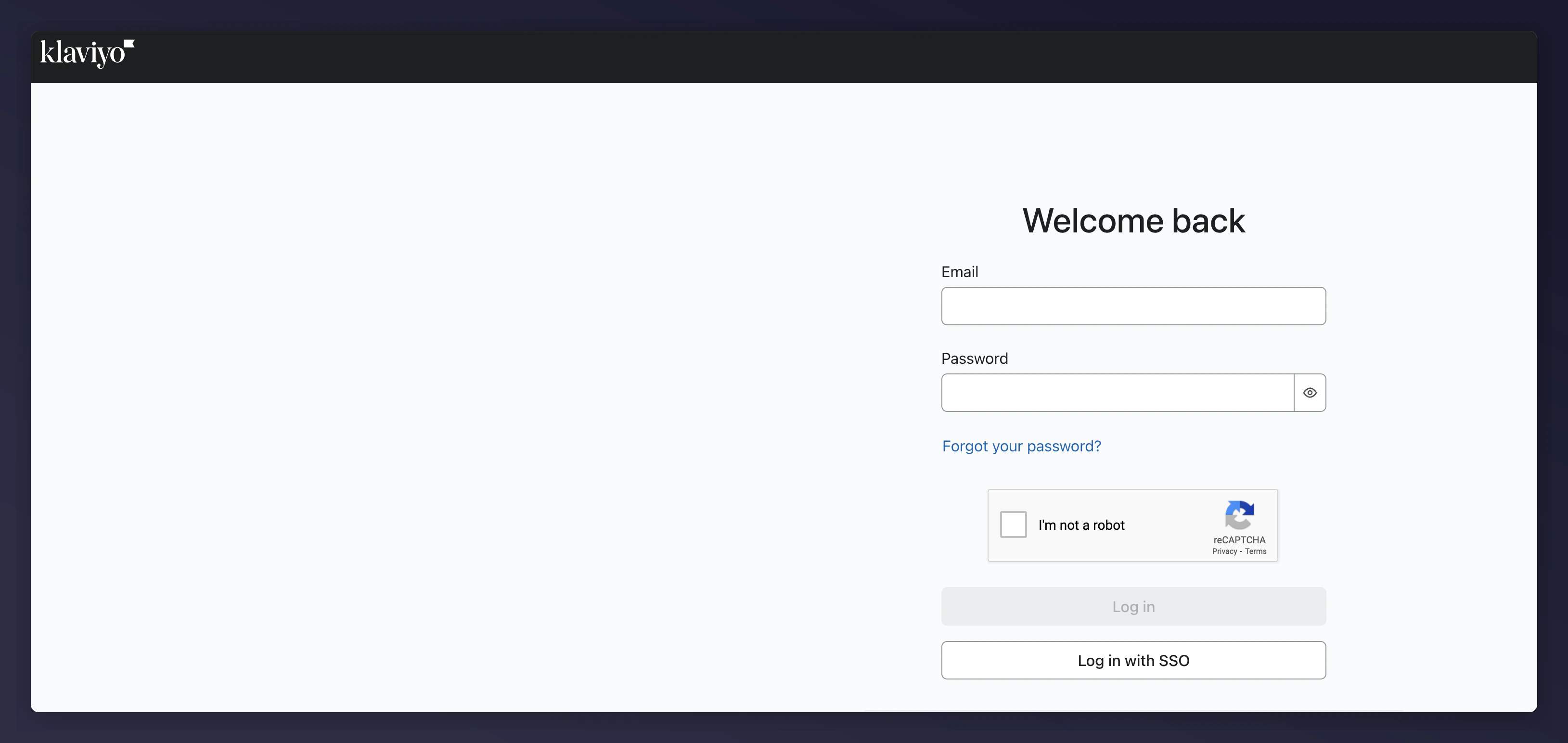
 Log in with your Klaviyo details.
 Select the account you wish to link Mention Me to.
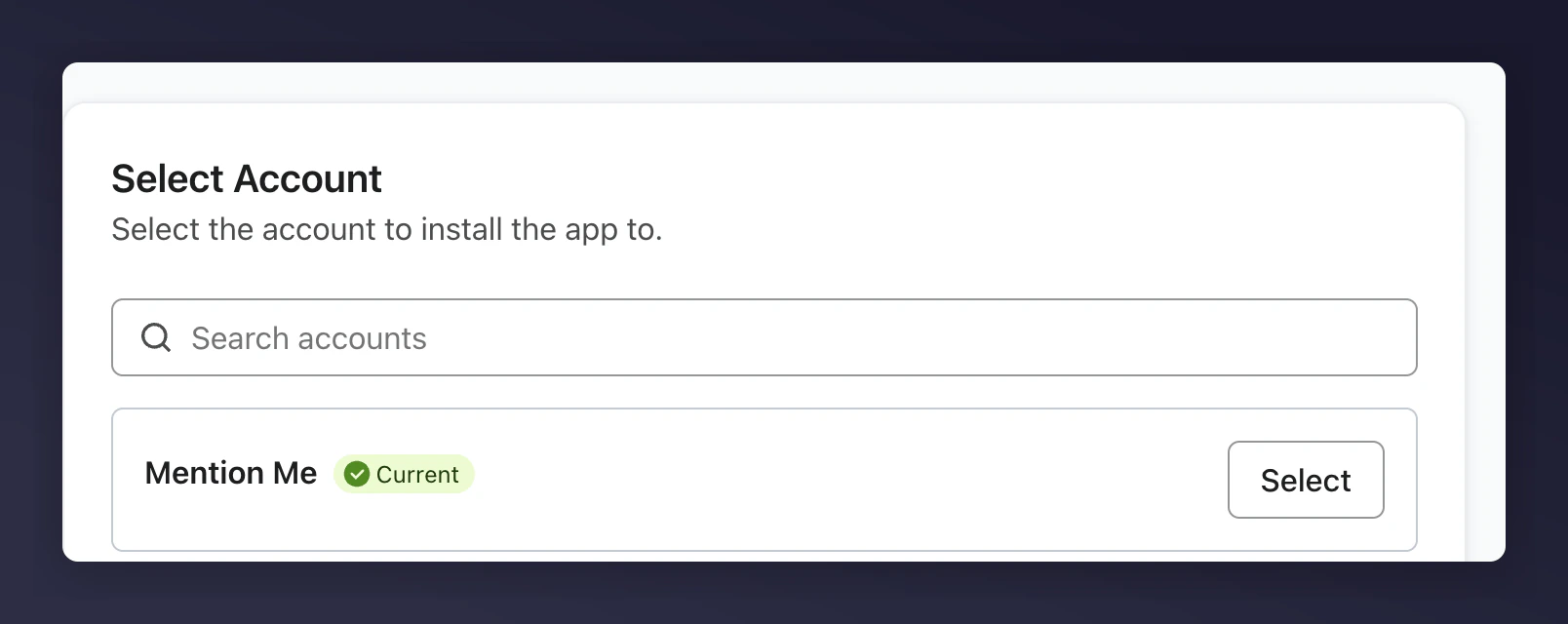 If you have multiple Klaviyo accounts, ensure you select the correct one (e.g., US vs UK).
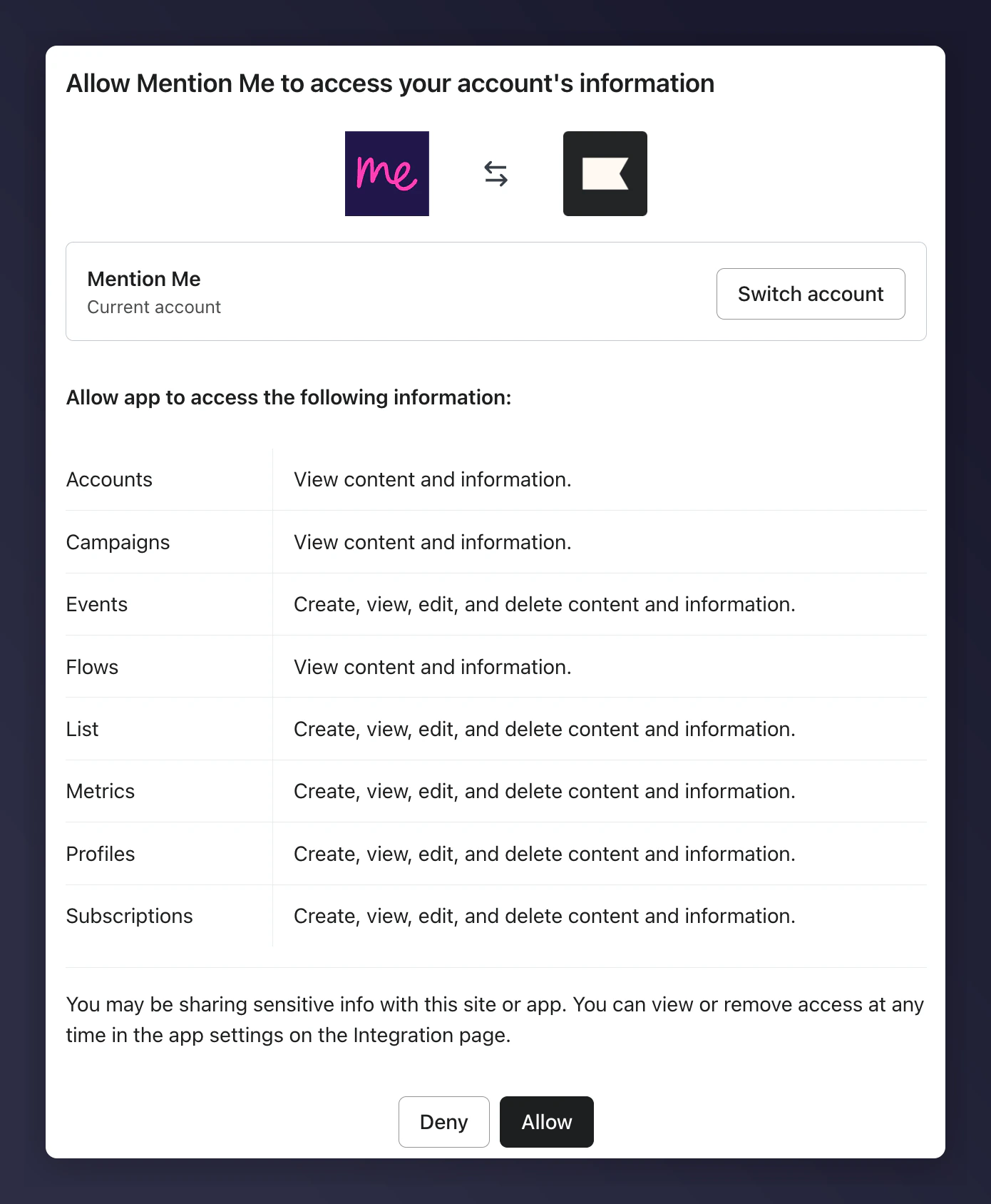
Grant Mention Me permission to access your Klaviyo account.
If you have multiple Klaviyo accounts, ensure you select the correct one (e.g., US vs UK).
Grant Mention Me permission to access your Klaviyo account.
 Select the newsletter list for opt-ins.
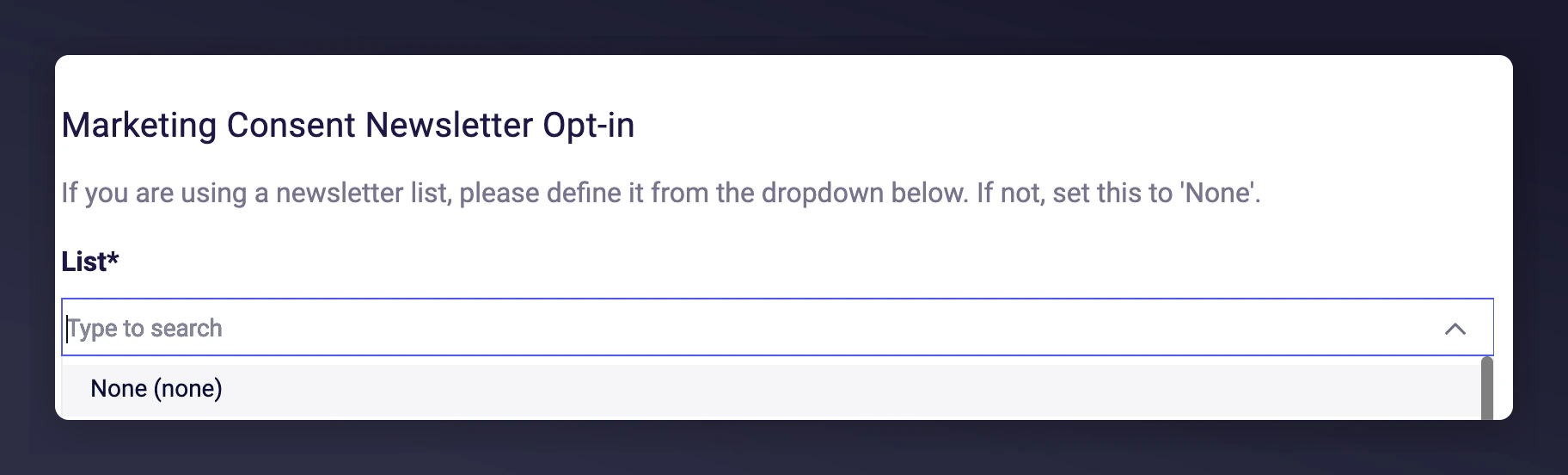 Mention Me captures opt-ins during the referee journey or post-purchase. You may use an existing list or create a new one.
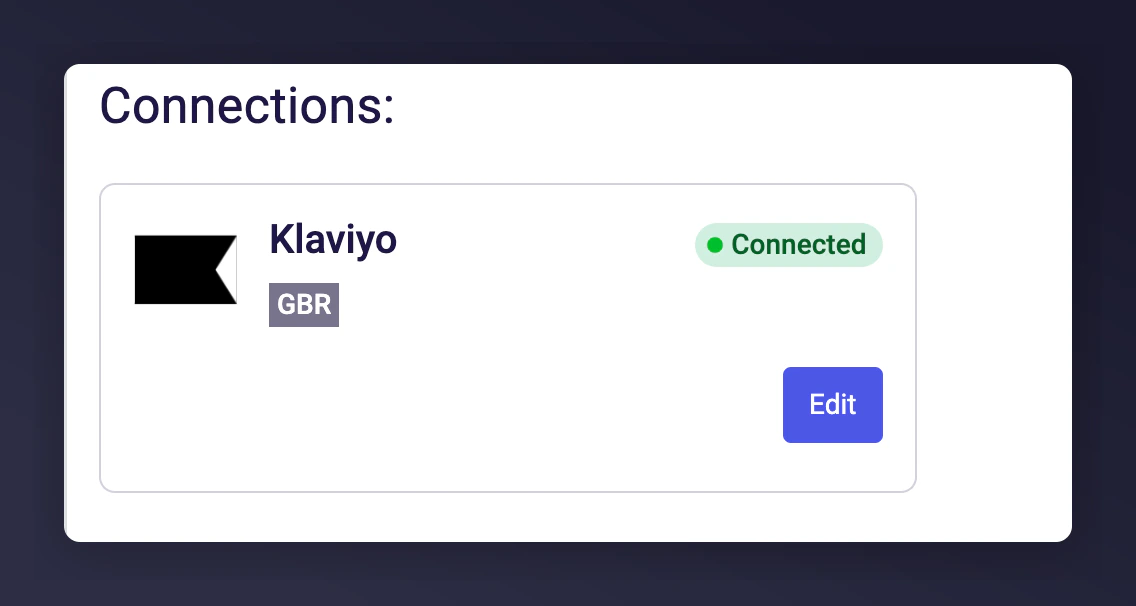 The `$source` for contacts will show as Mention Me.
If your list has Double Opt-in enabled, the contact must confirm before being added.
Select the country(s) you want to sync.
The `$source` for contacts will show as Mention Me.
If your list has Double Opt-in enabled, the contact must confirm before being added.
Select the country(s) you want to sync.
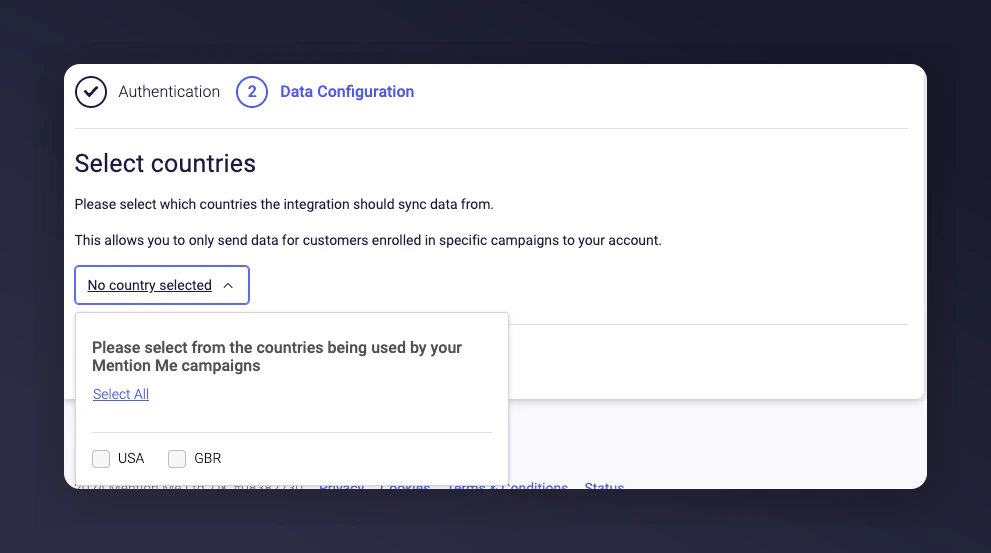 Send data only from relevant Mention Me enabled countries.
Click **Connect** to finish setup.
Send data only from relevant Mention Me enabled countries.
Click **Connect** to finish setup.
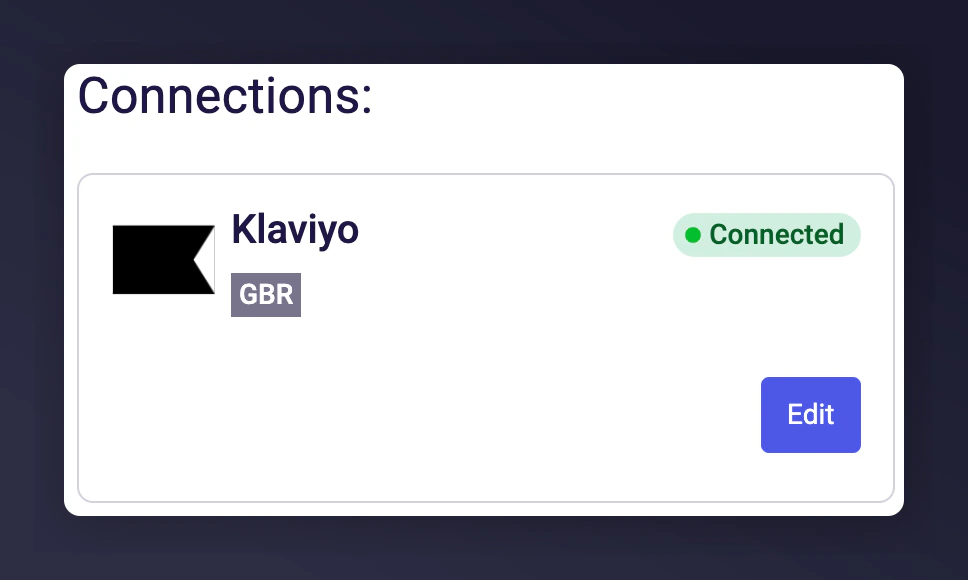 Mention Me events will now sync with Klaviyo for use in flows and segmentation.
For support, contact your CSM or [submit a support request](https://help.mention-me.com/hc/en-gb/requests/new).
### Multiple account setup (optional)
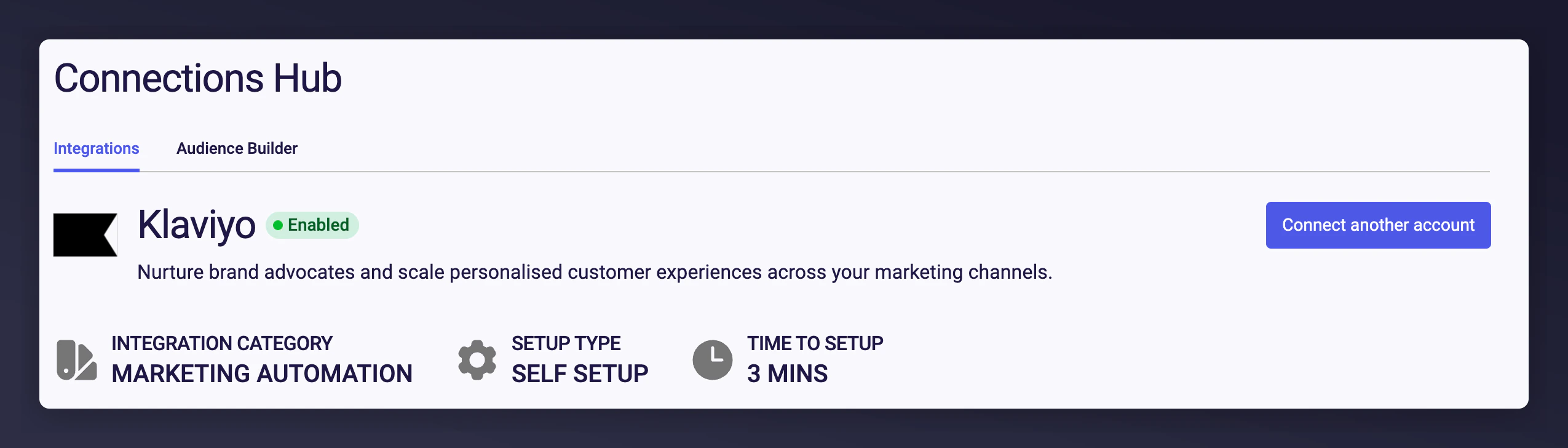
To integrate a second Klaviyo account, click **Connect Another Account** and repeat the setup steps.
Mention Me events will now sync with Klaviyo for use in flows and segmentation.
For support, contact your CSM or [submit a support request](https://help.mention-me.com/hc/en-gb/requests/new).
### Multiple account setup (optional)
To integrate a second Klaviyo account, click **Connect Another Account** and repeat the setup steps.
 ## Step 2: Enable pre-configured flows
Mention Me provides pre-built flows with email templates you can activate in Klaviyo:
1. [Referee Coupon Reminder](/knowledge/esp-crm/klaviyo/coupon-reminders) — 3-email series encouraging referees to use their first-purchase coupon.
2. [Referrer Coupon Reminder](/knowledge/esp-crm/klaviyo/coupon-reminders) — 3-email sequence nudging referrers to redeem their reward.
3. [Reminder to share again](/knowledge/esp-crm/klaviyo/share-again) — 2-email flow motivating past customers to refer again.
## Supplying Klaviyo credentials for opt-in triggering rules (optional)
Use this section if you have requested to enable checking of customers' opt-in status before showing a newsletter sign-up overlay. This is separate from the full Klaviyo integration above.
### Prerequisites
* **Klaviyo** — Ability to [create private API Keys](https://help.klaviyo.com/hc/en-us/articles/7423954176283).
* **Mention Me** — Access to the [Mention Me platform](https://mention-me.com/login).
### Step 1: Provide Klaviyo private API key
Log in to [Klaviyo](https://www.klaviyo.com/login).
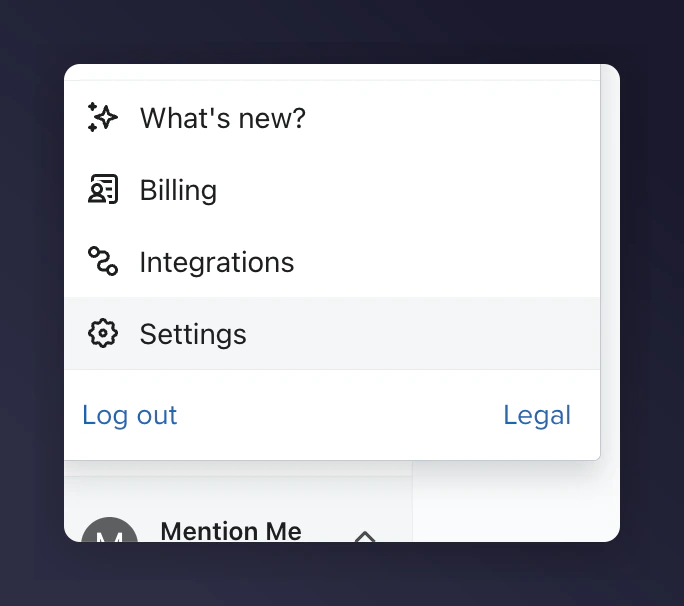
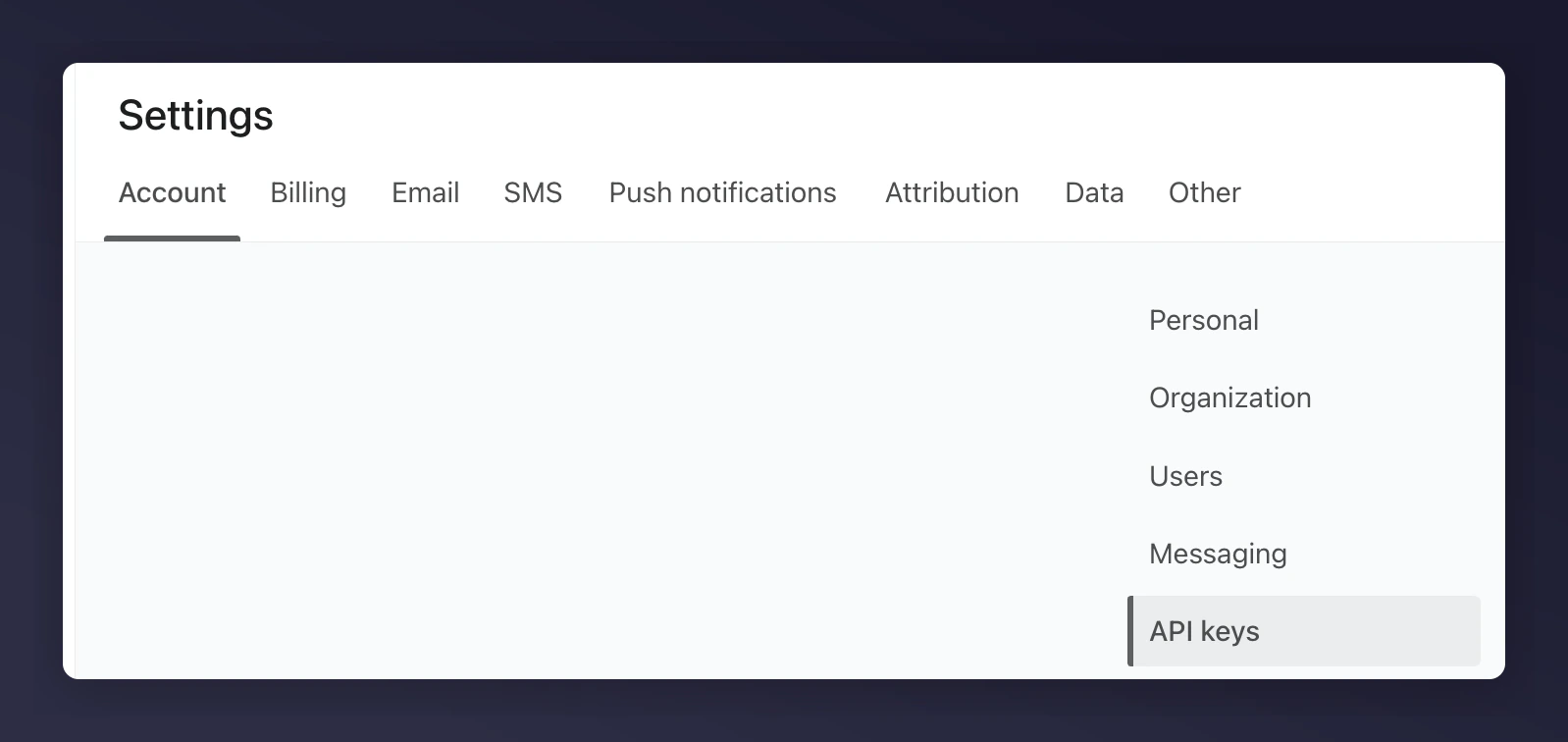
Navigate to Your Brand Name > Settings > Account > API Keys.
## Step 2: Enable pre-configured flows
Mention Me provides pre-built flows with email templates you can activate in Klaviyo:
1. [Referee Coupon Reminder](/knowledge/esp-crm/klaviyo/coupon-reminders) — 3-email series encouraging referees to use their first-purchase coupon.
2. [Referrer Coupon Reminder](/knowledge/esp-crm/klaviyo/coupon-reminders) — 3-email sequence nudging referrers to redeem their reward.
3. [Reminder to share again](/knowledge/esp-crm/klaviyo/share-again) — 2-email flow motivating past customers to refer again.
## Supplying Klaviyo credentials for opt-in triggering rules (optional)
Use this section if you have requested to enable checking of customers' opt-in status before showing a newsletter sign-up overlay. This is separate from the full Klaviyo integration above.
### Prerequisites
* **Klaviyo** — Ability to [create private API Keys](https://help.klaviyo.com/hc/en-us/articles/7423954176283).
* **Mention Me** — Access to the [Mention Me platform](https://mention-me.com/login).
### Step 1: Provide Klaviyo private API key
Log in to [Klaviyo](https://www.klaviyo.com/login).
Navigate to Your Brand Name > Settings > Account > API Keys.
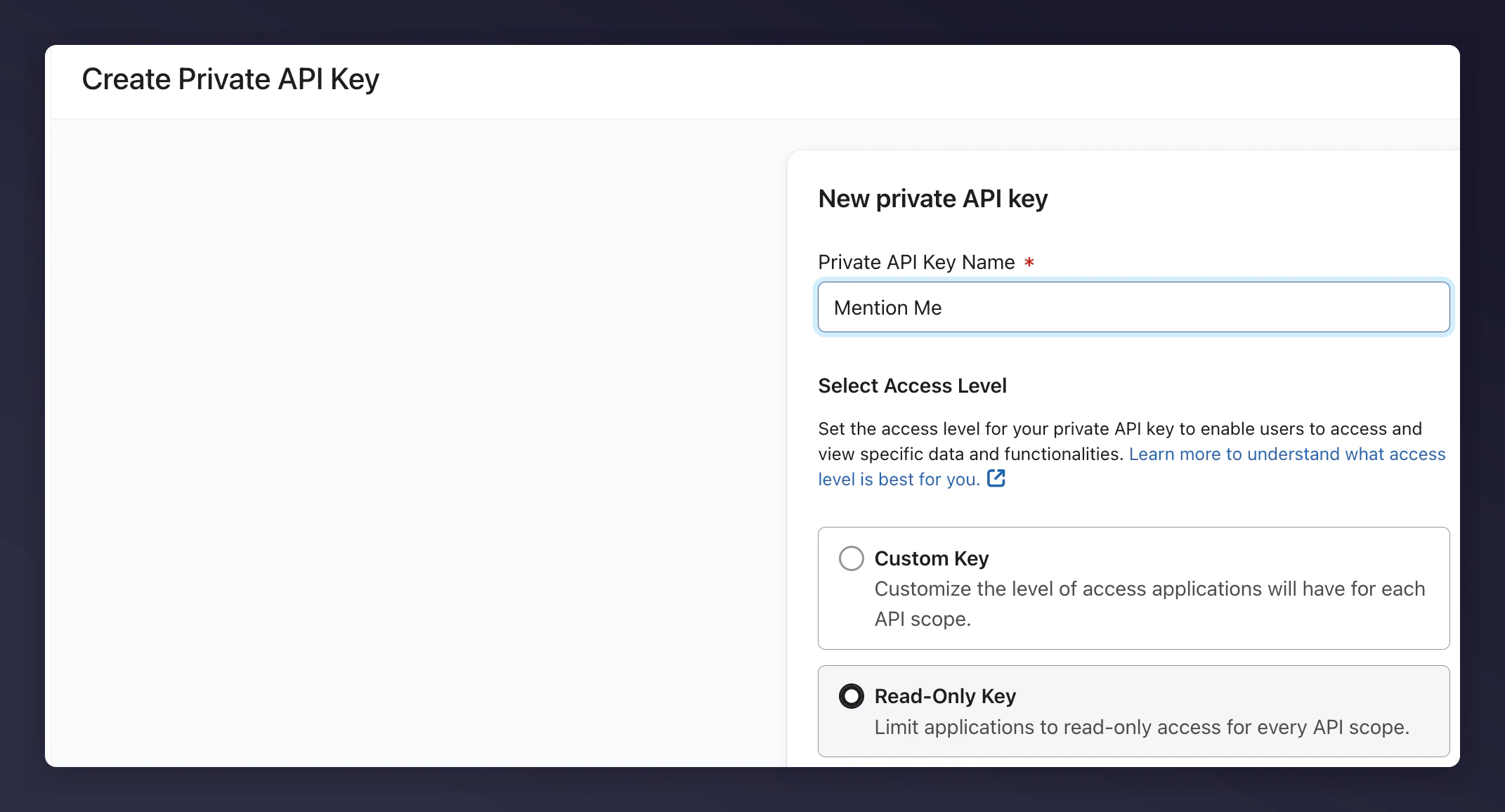
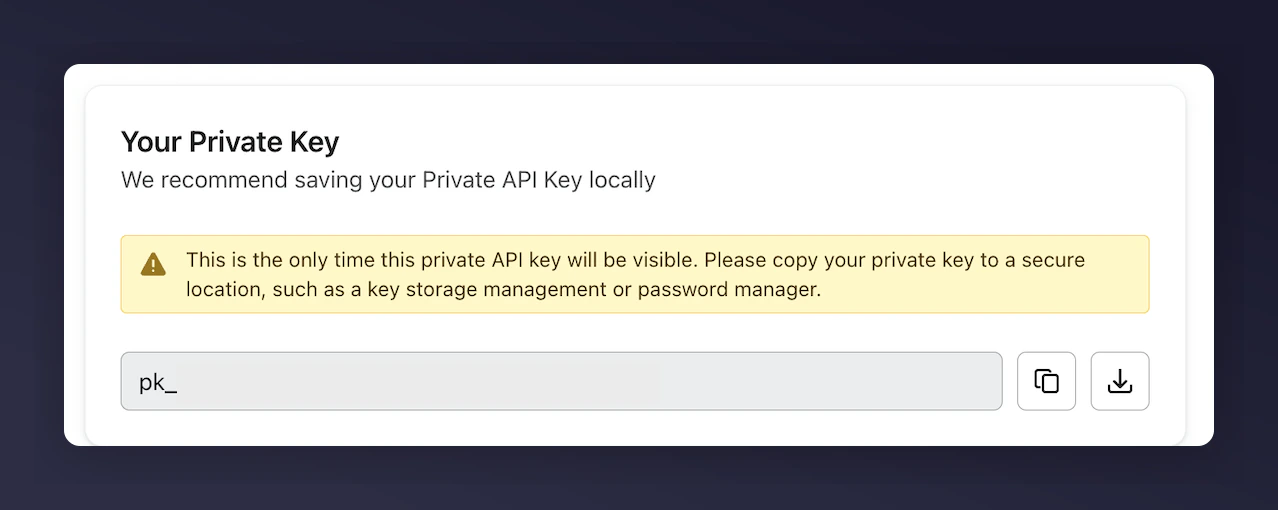
 Create a Private API Key with **Read-Only** permissions.
If you have multiple Klaviyo accounts, create a Private API Key for each account.
Create a Private API Key with **Read-Only** permissions.
If you have multiple Klaviyo accounts, create a Private API Key for each account.
 Download the credentials so you can upload them to Mention Me.
### Step 2: Send the API key securely to Mention Me
Download the credentials so you can upload them to Mention Me.
### Step 2: Send the API key securely to Mention Me
 Log in to the [Mention Me platform](https://mention-me.com/login).
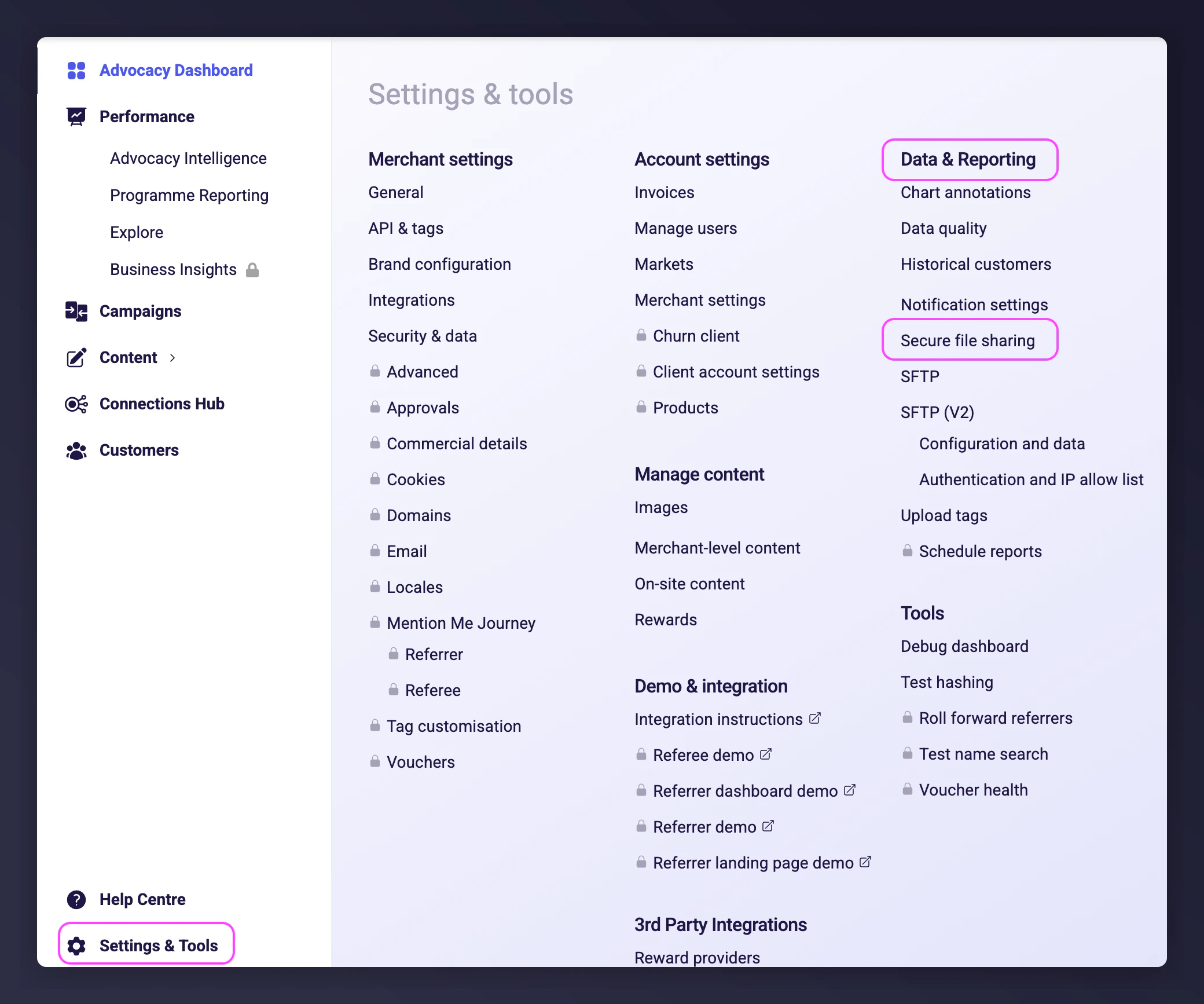
Navigate to the **Secure file transfer** option under the **Settings & Tools** tab.
Log in to the [Mention Me platform](https://mention-me.com/login).
Navigate to the **Secure file transfer** option under the **Settings & Tools** tab.
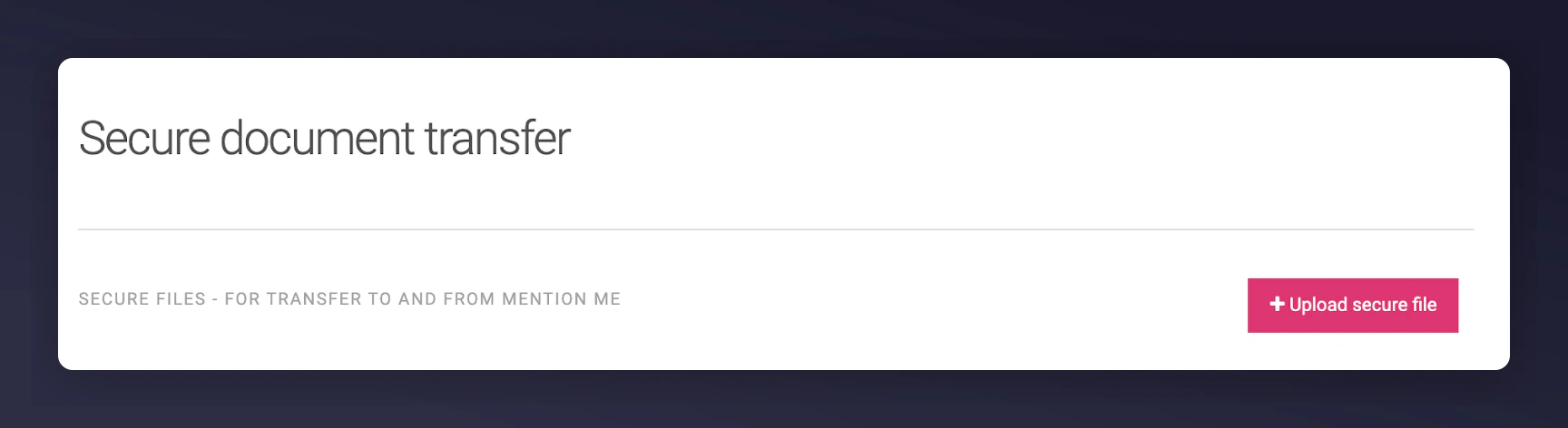
 Click **Upload secure file**, then upload the file containing your API key.
 Email your Mention Me Client Success Manager to let them know you've uploaded this information.