> ## Documentation Index
> Fetch the complete documentation index at: https://docs.mention-me.com/llms.txt
> Use this file to discover all available pages before exploring further.
# Promote Referral from Emarsys
> Add a personalised referral CTA link to your Emarsys emails and test Mention Me powered Tactics.
With the Mention Me integration into Emarsys, you can insert a CTA link in your emails to direct customers to a referral landing page. This puts your scheme in front of customers who may not have seen it yet, and reminds those who have to share with friends.
The personalised link allows customers to skip the referral registration page, as Emarsys will insert customer details to pre-populate the referral landing page with their name and email address.
## Prerequisites
* You must have an existing referral landing page on your website with the Mention Me referral tag included.
## Types of emails to consider
* Dedicated referral solus emails (recommended at least once every 2-3 months)
* Inclusion in a newsletter or regular marketing email
* "Always-on" inclusion in all marketing emails (e.g. as a link, icon, or button in the header or footer)
* Referral as a dedicated email in your journey (e.g. post-purchase, welcome flow)
## How it works
1. You promote your referral program via dedicated emails or a specific campaign and add the personalised landing page link as the CTA.
2. The customer clicks the link and is taken to the landing page.
3. The customer lands on a referral offer page with pre-filled information pulled from Emarsys.
4. They are automatically registered when they click the offer button.
5. The customer shares the offer with their friend via their preferred method.
## Adding the personalised landing page link
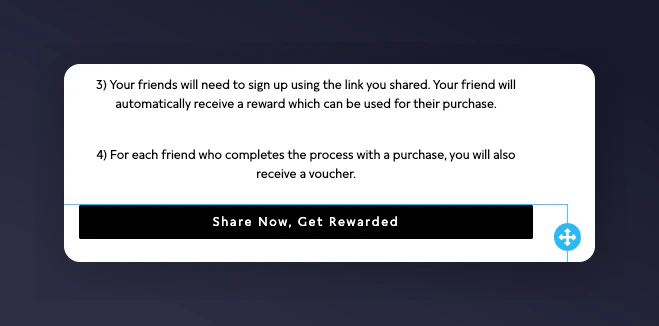
1. In your campaign promoting referral, add a CTA button:
 2. In the URL of the CTA/button, add the base URL of your referral landing page including `?` at the end:
e.g. `www.yourwebsite.com/refer-a-friend?`
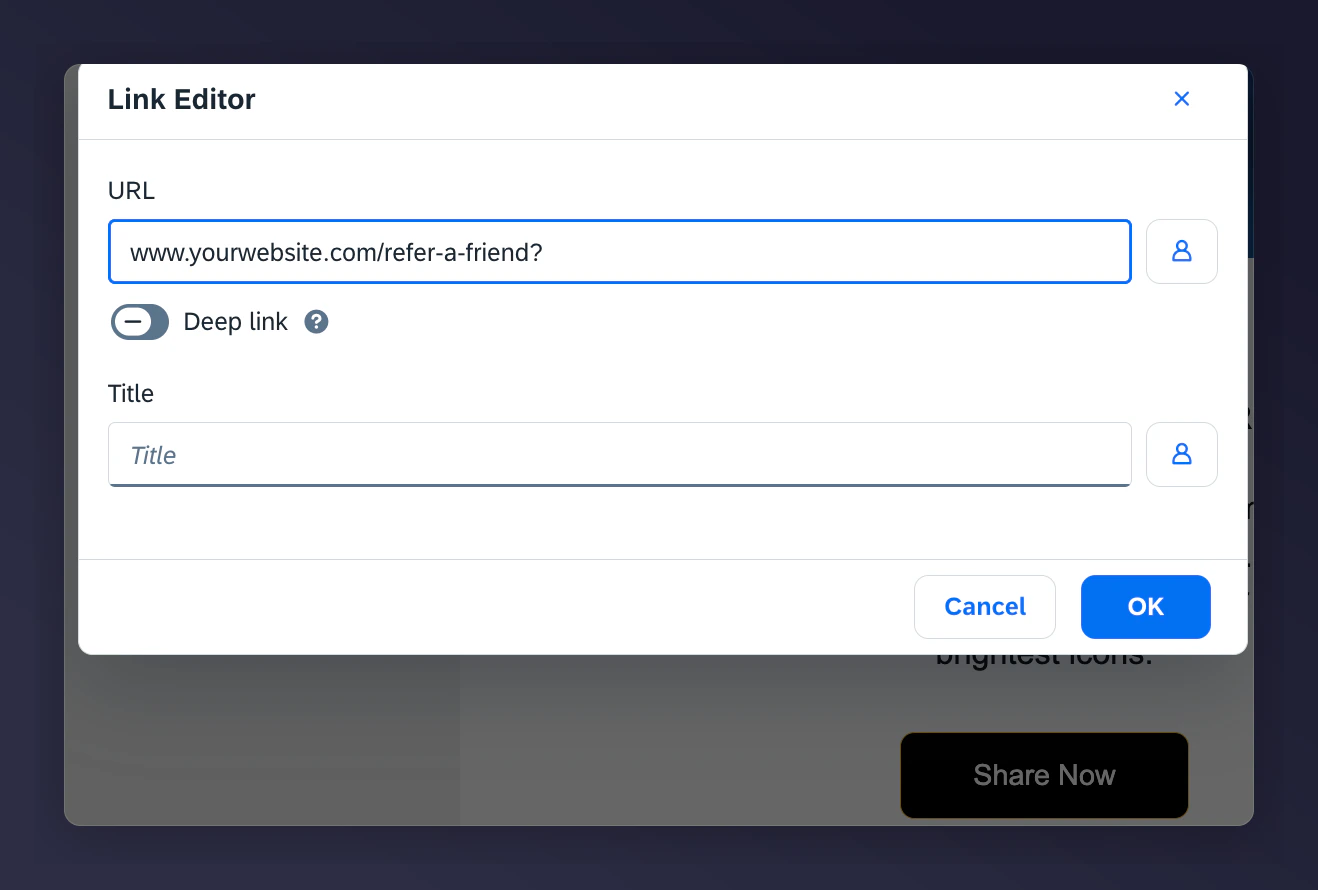
2. In the URL of the CTA/button, add the base URL of your referral landing page including `?` at the end:
e.g. `www.yourwebsite.com/refer-a-friend?`
 3. Add the following parameters to the end of the URL, separated by `&`:
| Parameter | Value / Variable | Note |
| --------- | -------------------------- | -------------------------------------------------------------------------------------------------------------------------------- |
| firstname | `{{ contact.1 }}` | Use the personalisation field you have set in Emarsys for first name. |
| surname | `{{ contact.2 }}` | Use the personalisation field you use in Emarsys for last name. |
| email | `{{ contact.3 }}` | |
| situation | `Emarsys-newsletter-jan23` | Used to identify the source of a click. Use structure: `--`. Helps with performance analysis in Mention Me. |
| segment | `loyalty` | Use for differentiating offers/campaigns for customers across segments or regions. |
| locale | `en_GB` | |
### Final example URL
```
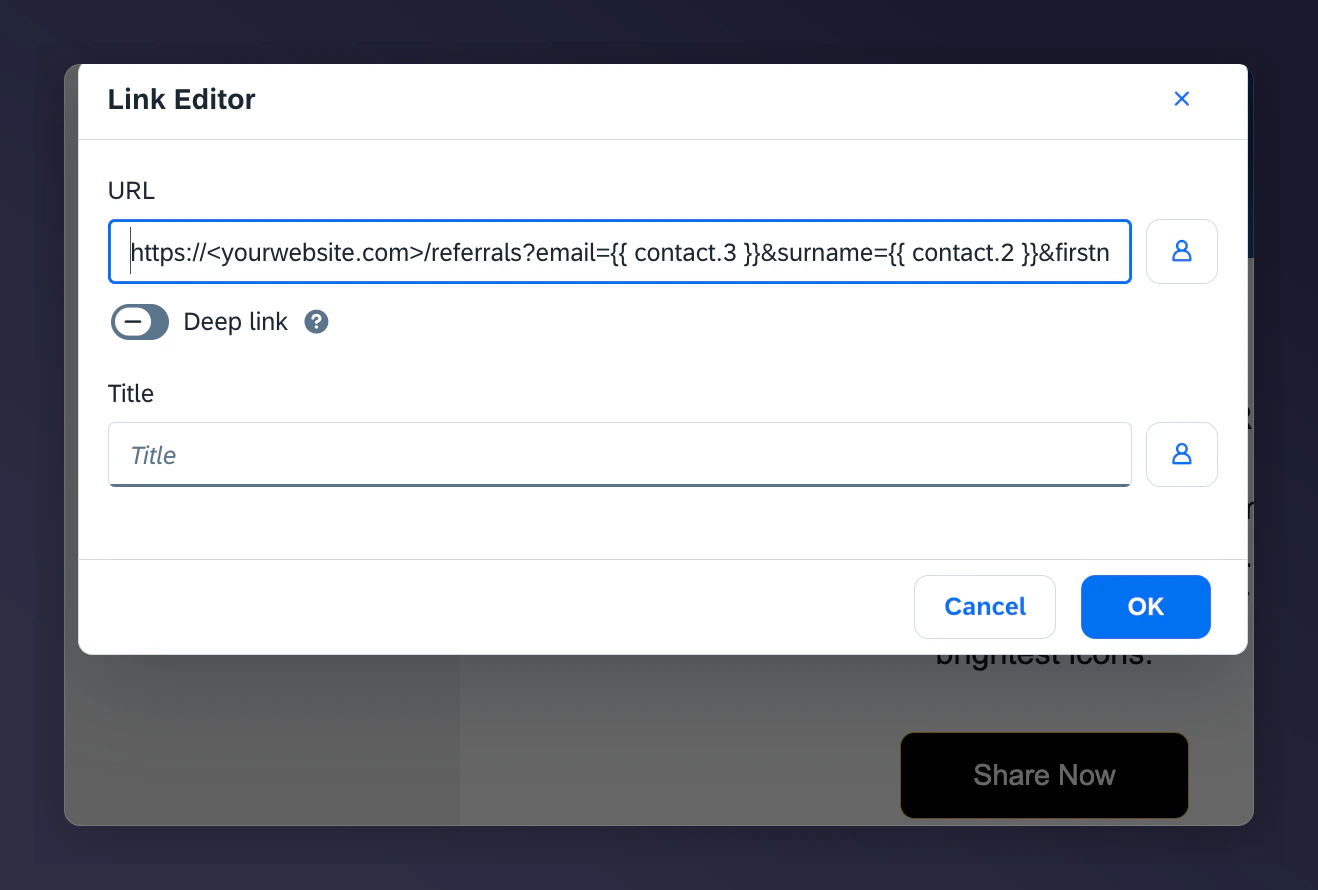
https:///referrals?email={{ contact.3 }}&surname={{ contact.2 }}&firstname={{ contact.1 }}&situation=Emarsys-newsletter-jan23&locale=en_GB&segment=loyalty
```
3. Add the following parameters to the end of the URL, separated by `&`:
| Parameter | Value / Variable | Note |
| --------- | -------------------------- | -------------------------------------------------------------------------------------------------------------------------------- |
| firstname | `{{ contact.1 }}` | Use the personalisation field you have set in Emarsys for first name. |
| surname | `{{ contact.2 }}` | Use the personalisation field you use in Emarsys for last name. |
| email | `{{ contact.3 }}` | |
| situation | `Emarsys-newsletter-jan23` | Used to identify the source of a click. Use structure: `--`. Helps with performance analysis in Mention Me. |
| segment | `loyalty` | Use for differentiating offers/campaigns for customers across segments or regions. |
| locale | `en_GB` | |
### Final example URL
```
https:///referrals?email={{ contact.3 }}&surname={{ contact.2 }}&firstname={{ contact.1 }}&situation=Emarsys-newsletter-jan23&locale=en_GB&segment=loyalty
```
 ## Testing Mention Me Tactics in Emarsys
This section covers how to test Mention Me Tactics in Emarsys to ensure all ESL variables and customer properties display correctly before going live.
The following Tactics can be tested:
* [Referee Coupon Reminder Tactic](https://help.emarsys.com/hc/en-us/articles/13050990023569-Coupon-Reminder-Referee-Friend-)
* [Referrer Coupon Reminder Tactic](https://help.emarsys.com/hc/en-us/articles/13051005105041-Coupon-Reminder-Referrer-Existing-Customer-)
* [Referrer Share Again Reminder Tactic](https://help.emarsys.com/hc/en-us/articles/13050919664529-Share-again)
You can test any of these emails based on a recent event sent to your email address to verify the ESL variables are rendering correctly. The following test steps apply to both the Referee/Referrer Coupon Reminder and the Reminder to Share Again Tactics.
### Prerequisites for testing
* Your email address must be in Emarsys as an existing contact.
* The email campaigns for the selected Automation nodes must be Active to begin testing.
### Testing steps
1. Open the relevant tactic (Referee Coupon Reminder / Referrer Coupon Reminder / Reminder to Share Again) in Emarsys.
2. Set the Status to **Test**.
## Testing Mention Me Tactics in Emarsys
This section covers how to test Mention Me Tactics in Emarsys to ensure all ESL variables and customer properties display correctly before going live.
The following Tactics can be tested:
* [Referee Coupon Reminder Tactic](https://help.emarsys.com/hc/en-us/articles/13050990023569-Coupon-Reminder-Referee-Friend-)
* [Referrer Coupon Reminder Tactic](https://help.emarsys.com/hc/en-us/articles/13051005105041-Coupon-Reminder-Referrer-Existing-Customer-)
* [Referrer Share Again Reminder Tactic](https://help.emarsys.com/hc/en-us/articles/13050919664529-Share-again)
You can test any of these emails based on a recent event sent to your email address to verify the ESL variables are rendering correctly. The following test steps apply to both the Referee/Referrer Coupon Reminder and the Reminder to Share Again Tactics.
### Prerequisites for testing
* Your email address must be in Emarsys as an existing contact.
* The email campaigns for the selected Automation nodes must be Active to begin testing.
### Testing steps
1. Open the relevant tactic (Referee Coupon Reminder / Referrer Coupon Reminder / Reminder to Share Again) in Emarsys.
2. Set the Status to **Test**.
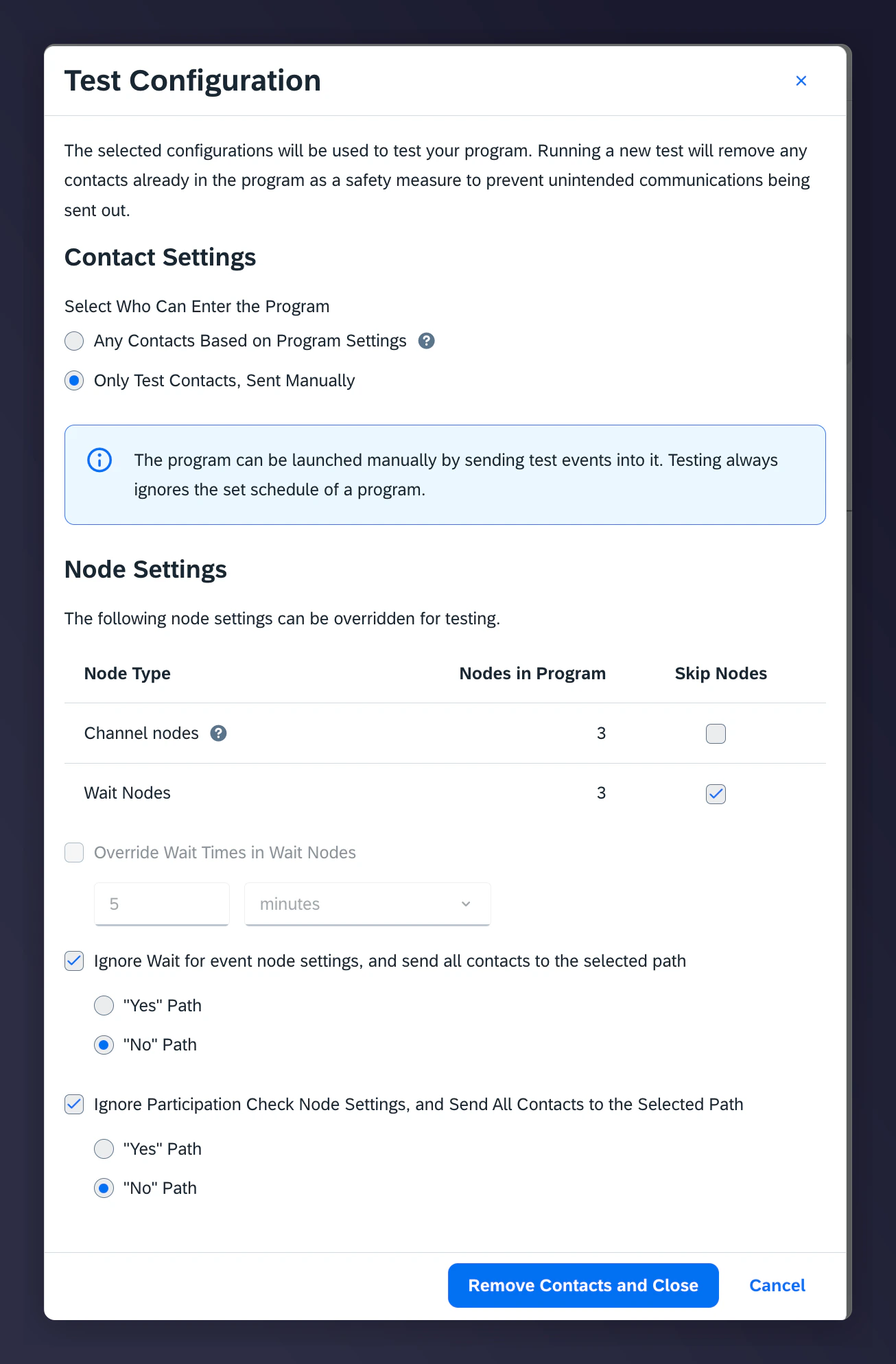
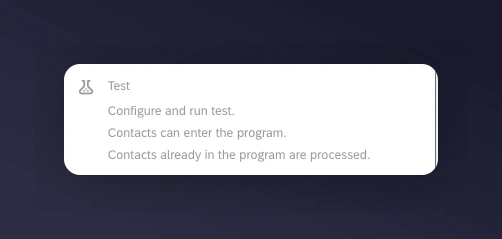 3. Configure the test node settings as follows:
* Select "Only Test Contacts, Sent Manually"
* Skip the Wait Nodes
* Ignore the Wait Events and select the "No" Path
* Ignore the Participation Events and select the "No" Path
3. Configure the test node settings as follows:
* Select "Only Test Contacts, Sent Manually"
* Skip the Wait Nodes
* Ignore the Wait Events and select the "No" Path
* Ignore the Participation Events and select the "No" Path
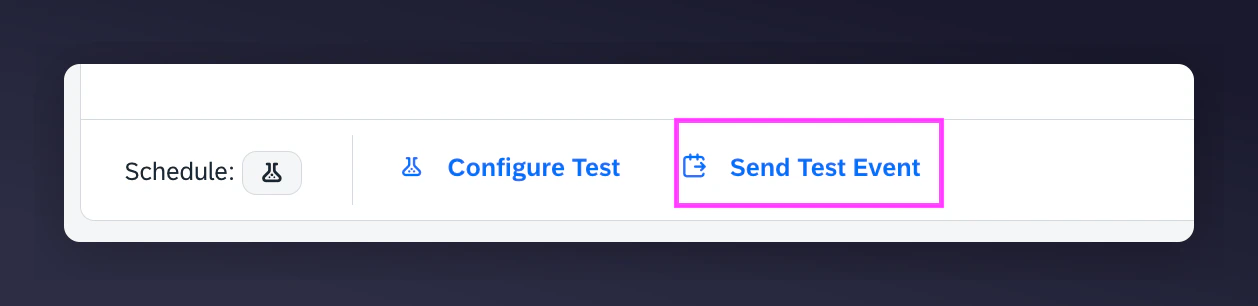
 4. Click **Send Event**
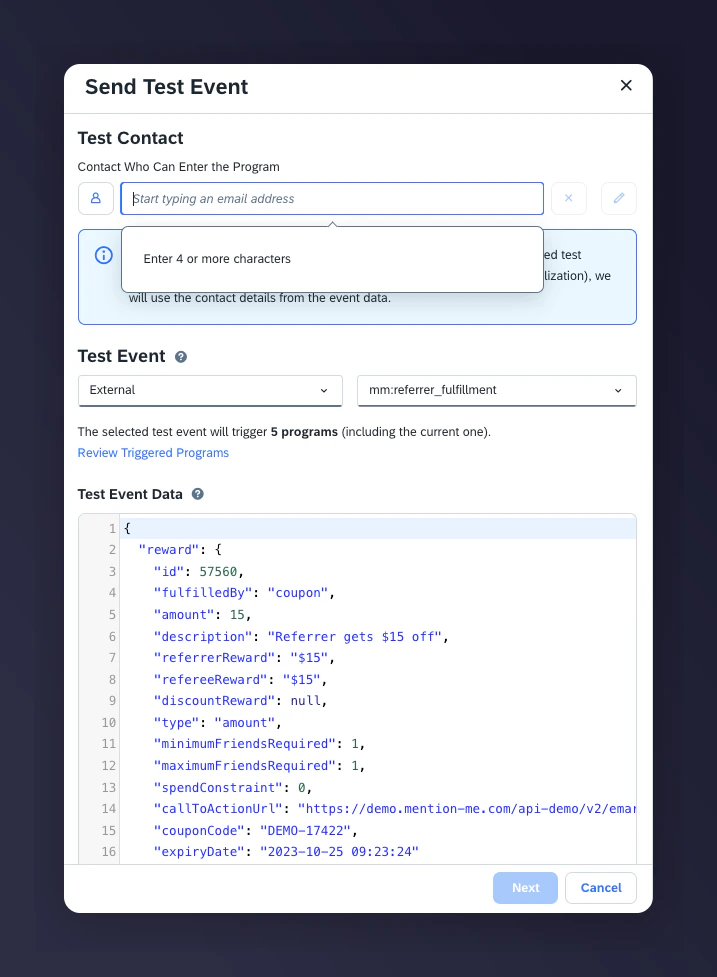
 5. Enter your test email address and click Next.
* A recent event will be detected and used to populate your test email.
* The appropriate Test Event type will be selected based on the Automation.
* The email will only be sent to the specified test email address.
5. Enter your test email address and click Next.
* A recent event will be detected and used to populate your test email.
* The appropriate Test Event type will be selected based on the Automation.
* The email will only be sent to the specified test email address.
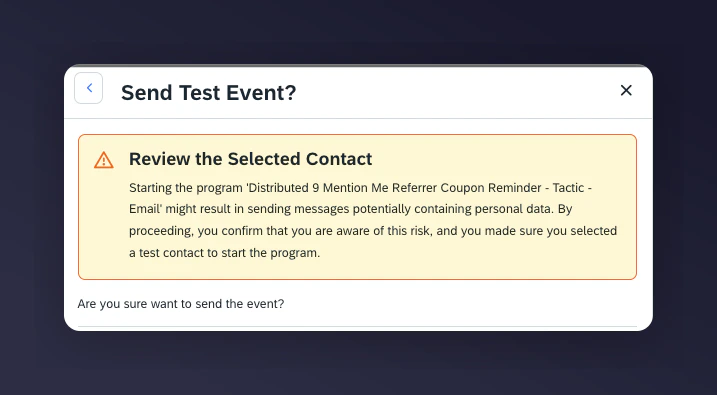
 6. Review the Send Event summary and click **Send Event**.
* A test email will be sent with your data variables populated. All wait/trigger events will be skipped in test mode.
6. Review the Send Event summary and click **Send Event**.
* A test email will be sent with your data variables populated. All wait/trigger events will be skipped in test mode.
 7. Once you've received your test email and verified the data, update Status to **Activate**.
For more information on Testing Interactions Events in Emarsys, visit [this guide](https://help.emarsys.com/hc/en-us/articles/5871445983889-Testing-Sending-test-events-to-an-Interactions-program#event-data).
7. Once you've received your test email and verified the data, update Status to **Activate**.
For more information on Testing Interactions Events in Emarsys, visit [this guide](https://help.emarsys.com/hc/en-us/articles/5871445983889-Testing-Sending-test-events-to-an-Interactions-program#event-data).