> ## Documentation Index
> Fetch the complete documentation index at: https://docs.mention-me.com/llms.txt
> Use this file to discover all available pages before exploring further.
# Share Again Reminder Scenario in Bloomreach
> Create a Bloomreach scenario to encourage referrers to keep sharing with friends and earn additional rewards.
## About this scenario
Use this scenario to encourage your brand advocates to continue sharing with friends in order to receive additional rewards.
This initiative supports:
* Increasing active customer revenue
* Growing premium customer revenue
* Boosting retention
It uses Mention Me data passed through the Bloomreach integration and builds on the [Scenarios](https://documentation.bloomreach.com/engagement/docs/introduction-to-scenarios) functionality.
## Prerequisites
1. An active Mention Me referral program that rewards existing customers
2. Integration between Mention Me and Bloomreach must be enabled
3. ESP provider integrated with Bloomreach
4. Familiarity with [Bloomreach Jinja](https://documentation.bloomreach.com/engagement/docs/filters#date--time-processing)
## Supported channels
* Email
## Basic workflow
1. A customer refers a friend through Mention Me.
2. A reminder email (subject to consent) is sent encouraging them to refer again via their personal share link.
 ## Steps to create the scenario
### Step 1: Create the scenario flow
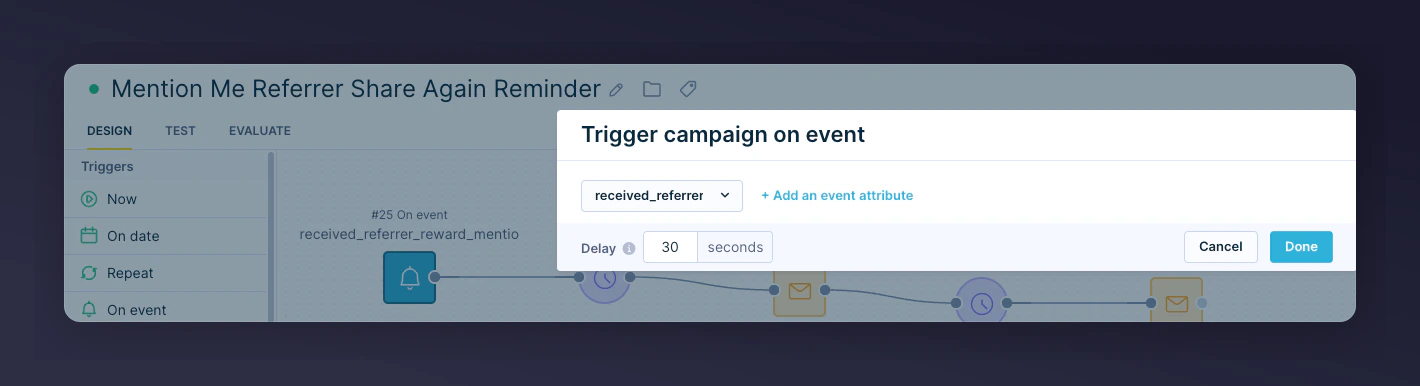
1. Set the trigger as **On Event** with event name `received_a_referrer_reward`
## Steps to create the scenario
### Step 1: Create the scenario flow
1. Set the trigger as **On Event** with event name `received_a_referrer_reward`
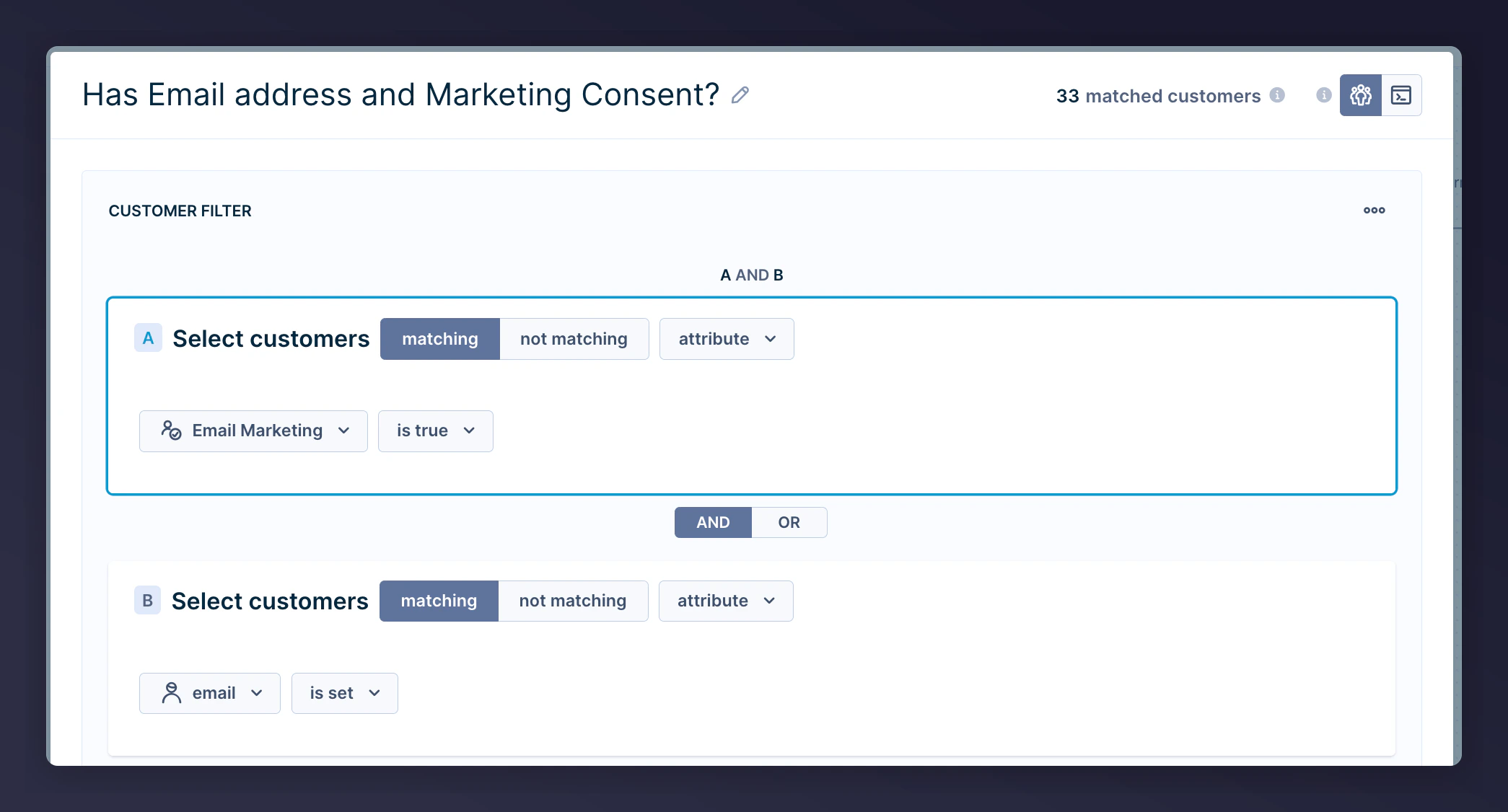
 2. Add segmentation to filter contacts with email addresses and appropriate consent
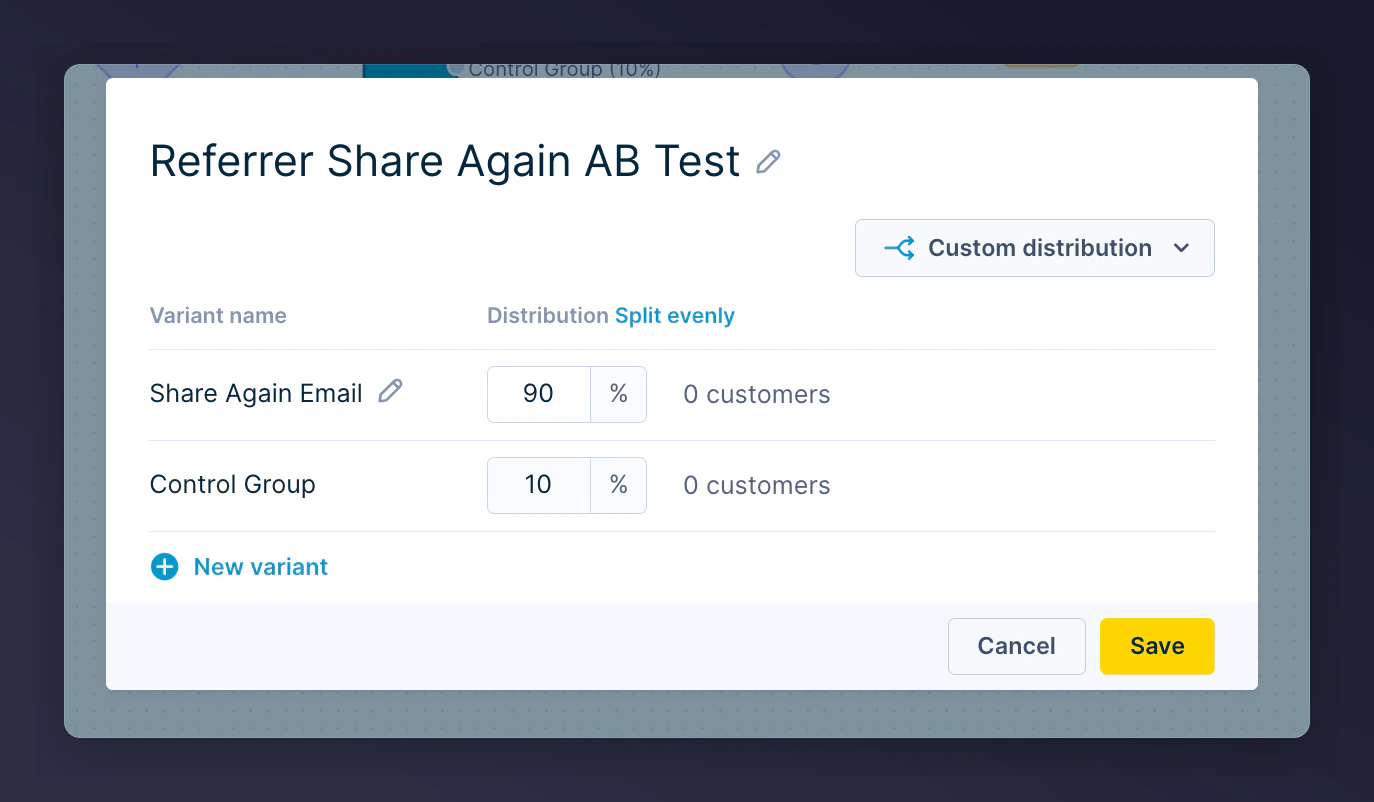
 3. Include an A/B Test (e.g. 90/10 split) to monitor performance impact
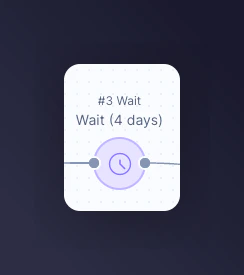
 4. Add wait periods before emails:
* 1st email: 4 days after trigger
* 2nd email: 14 days after 1st email
4. Add wait periods before emails:
* 1st email: 4 days after trigger
* 2nd email: 14 days after 1st email
 * Add an email action immediately after each wait period
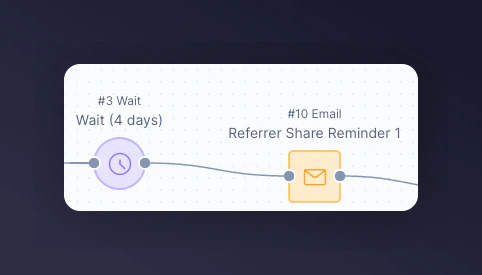 * Repeat segmentation, wait, and email logic for any follow-up emails
### Step 2: Add content to each email
1. Customise images and styling per your brand
2. Specify the relevant consent category in email **Settings**
* Repeat segmentation, wait, and email logic for any follow-up emails
### Step 2: Add content to each email
1. Customise images and styling per your brand
2. Specify the relevant consent category in email **Settings**
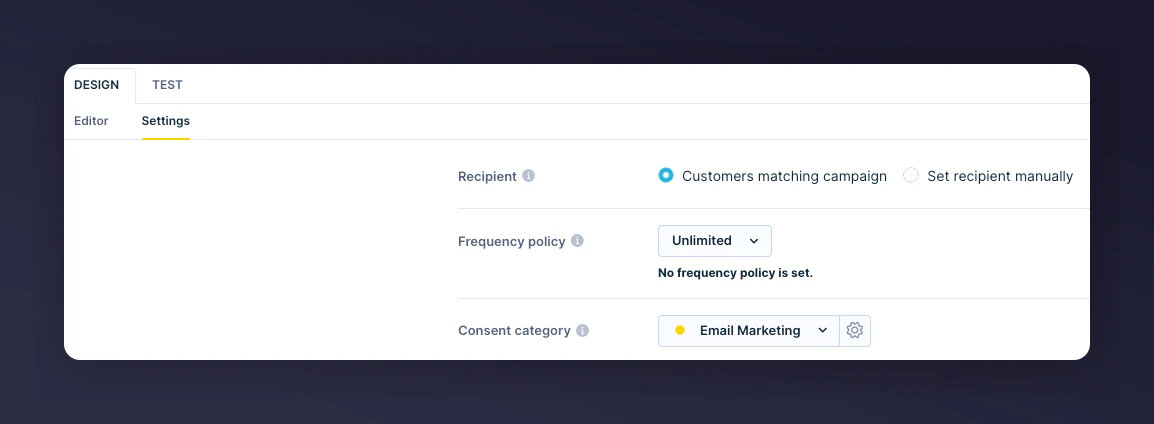 Mention Me provides sample content and Jinja variables to help.
#### Reminder examples
| Reminder 1 | Reminder 2 |
| ------------------------------------------------------------------------------------------- | ------------------------------------------ |
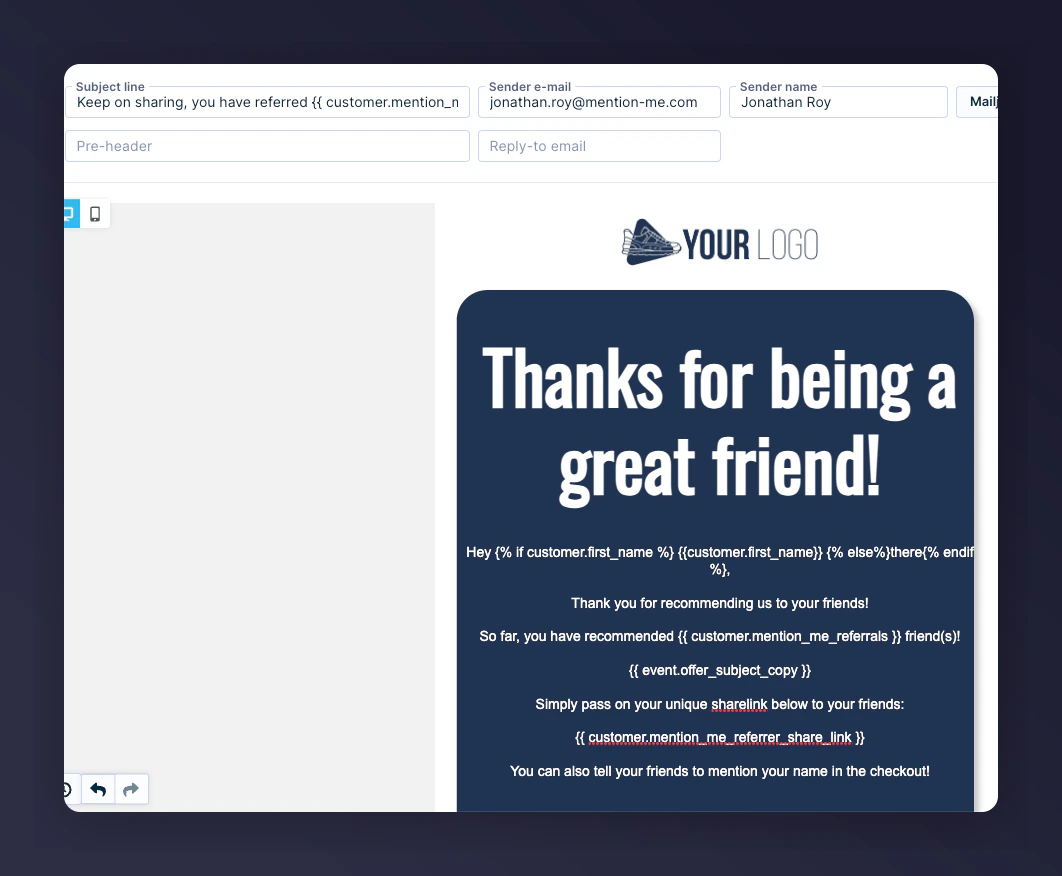
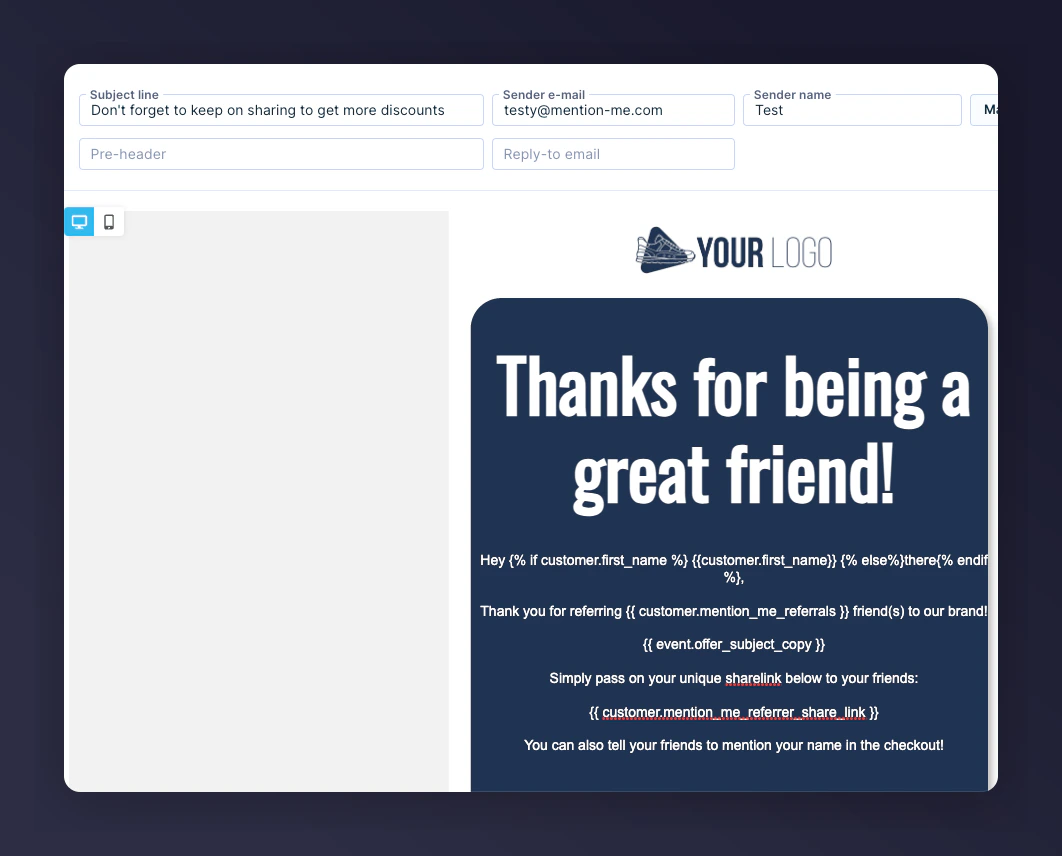
| **Subject:** Keep on sharing, you've referred `{{ customer.mention_me_referrals }}` friends | **Subject:** Don't forget to keep sharing! |
Fully rendered examples:
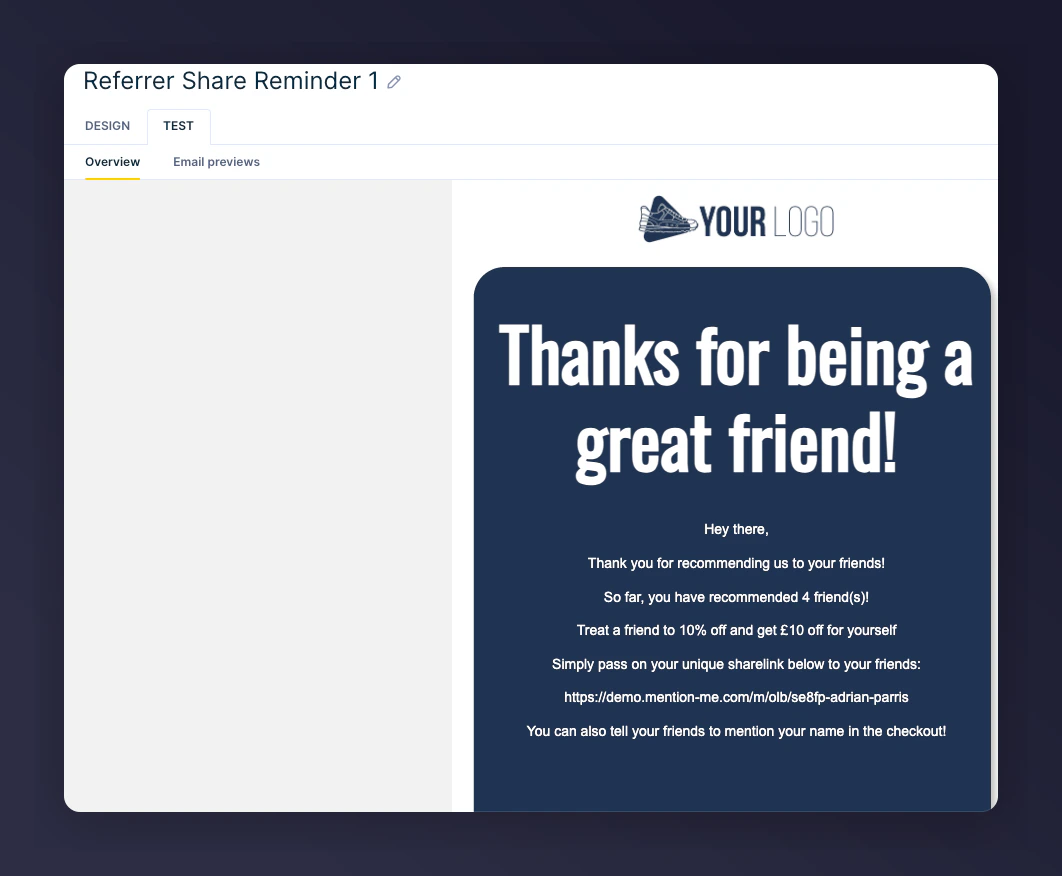
**Reminder 1:**
Mention Me provides sample content and Jinja variables to help.
#### Reminder examples
| Reminder 1 | Reminder 2 |
| ------------------------------------------------------------------------------------------- | ------------------------------------------ |
| **Subject:** Keep on sharing, you've referred `{{ customer.mention_me_referrals }}` friends | **Subject:** Don't forget to keep sharing! |
Fully rendered examples:
**Reminder 1:**
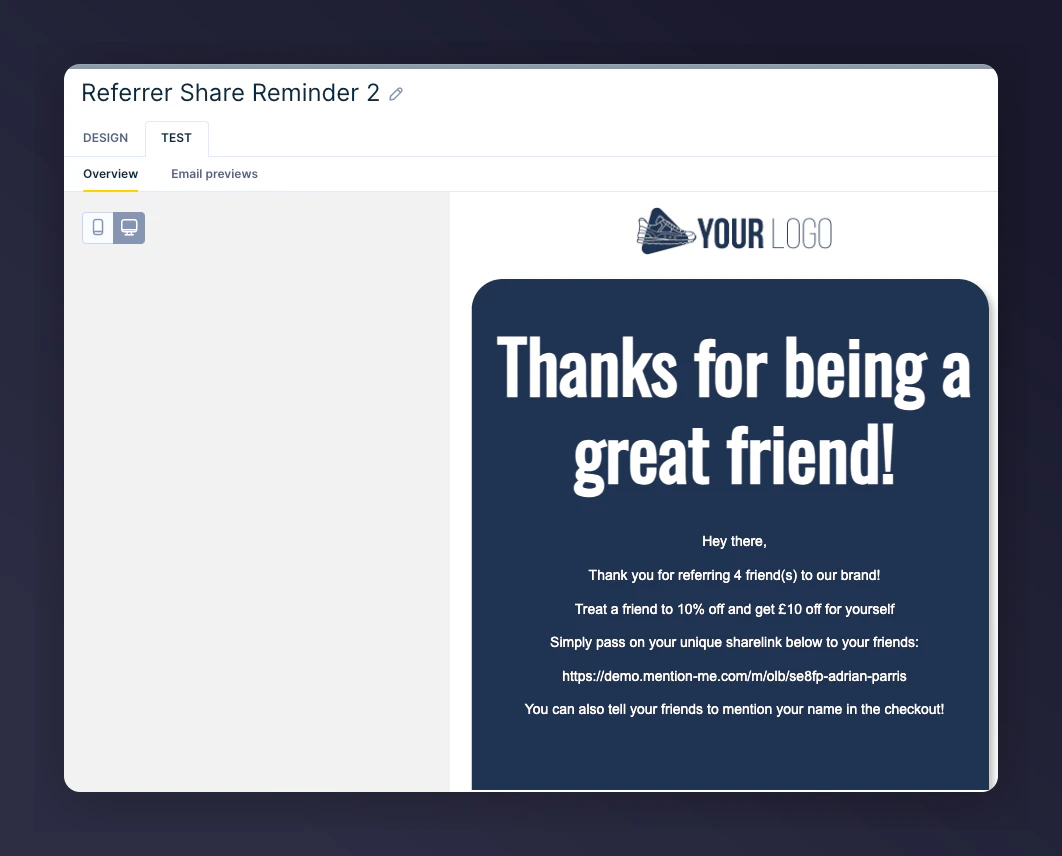
 **Reminder 2:**
 ### Jinja variables
| Jinja Syntax | Description | Example |
| --------------------------------------------------------------------------------- | --------------------------------------- | -------------------------------------------------------------------------------------------------------------- |
| `{% if customer.first_name %}{{ customer.first_name }}{% else %}there{% endif %}` | Fallback if first name is not available | Ryder or there |
| `{{ customer.mention_me_referrer_share_link }}` | Unique referral link | [https://demo.mention-me.com/m/olb/se8fp-adrian-parris](https://demo.mention-me.com/m/olb/se8fp-adrian-parris) |
| `{{ customer.mention_me_referrals }}` | Total successful referrals | 5 |
| `{{ event.offer_subject_copy }}` | Offer message from referral content | Treat a friend to 10% off and get £10 |
### Step 3: Test the email
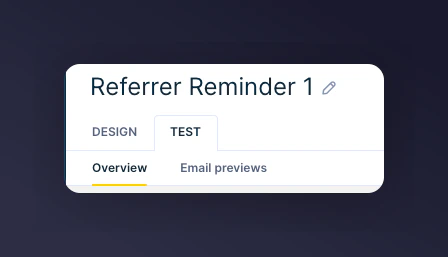
1. Enter the **Design** section and click the **Test** tab
2. Select a contact that matches the event criteria
### Jinja variables
| Jinja Syntax | Description | Example |
| --------------------------------------------------------------------------------- | --------------------------------------- | -------------------------------------------------------------------------------------------------------------- |
| `{% if customer.first_name %}{{ customer.first_name }}{% else %}there{% endif %}` | Fallback if first name is not available | Ryder or there |
| `{{ customer.mention_me_referrer_share_link }}` | Unique referral link | [https://demo.mention-me.com/m/olb/se8fp-adrian-parris](https://demo.mention-me.com/m/olb/se8fp-adrian-parris) |
| `{{ customer.mention_me_referrals }}` | Total successful referrals | 5 |
| `{{ event.offer_subject_copy }}` | Offer message from referral content | Treat a friend to 10% off and get £10 |
### Step 3: Test the email
1. Enter the **Design** section and click the **Test** tab
2. Select a contact that matches the event criteria
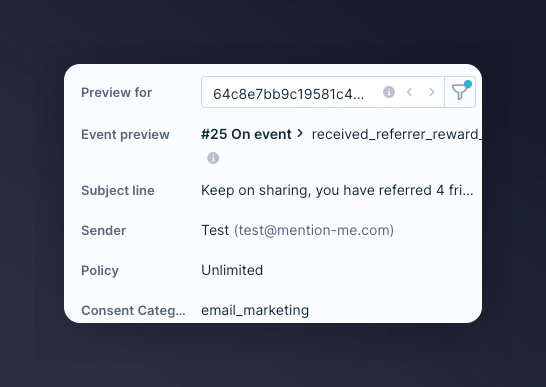 The previewed email will show event data fully rendered:
 ### Step 4: Activate the scenario
1. Ensure all content is tested and finalized
2. Click **Start** to activate the scenario
### Step 4: Activate the scenario
1. Ensure all content is tested and finalized
2. Click **Start** to activate the scenario
