> ## Documentation Index
> Fetch the complete documentation index at: https://docs.mention-me.com/llms.txt
> Use this file to discover all available pages before exploring further.
# Set Up Bloomreach with Mention Me
> Connect your Bloomreach account to Mention Me to sync referral data, opt-ins, and activate pre-built scenarios.
## About the integration
Activate your biggest fans by feeding first-party advocacy data directly into Bloomreach to enable higher engagement, retention, and revenue across your customer base.
## Integration capabilities
* Send contact data and opt-ins from Mention Me referred customers to Bloomreach in real time
* Use referral data to power coupon email reminders
* Segment and target high-value customers with referral and advocacy data to enhance other marketing channels
## Prerequisites
* **Bloomreach** — Access to [create private API keys](https://documentation.bloomreach.com/engagement/reference/prerequisites).
* **Mention Me** — Access to the [Mention Me platform](https://mention-me.com/login). If not, contact your Mention Me CSM or [submit a support request](https://help.mention-me.com/hc/en-gb/requests/new).
## Step 1: Create Mention Me events in Bloomreach (optional)
Only required if your Bloomreach project prevents 3rd parties from creating events via the API. If you're unsure, check with your Bloomreach Admin.
[Log in](https://app.exponea.com/login) to Bloomreach.
Navigate to **Data & Assets > Data Manager > Events**.
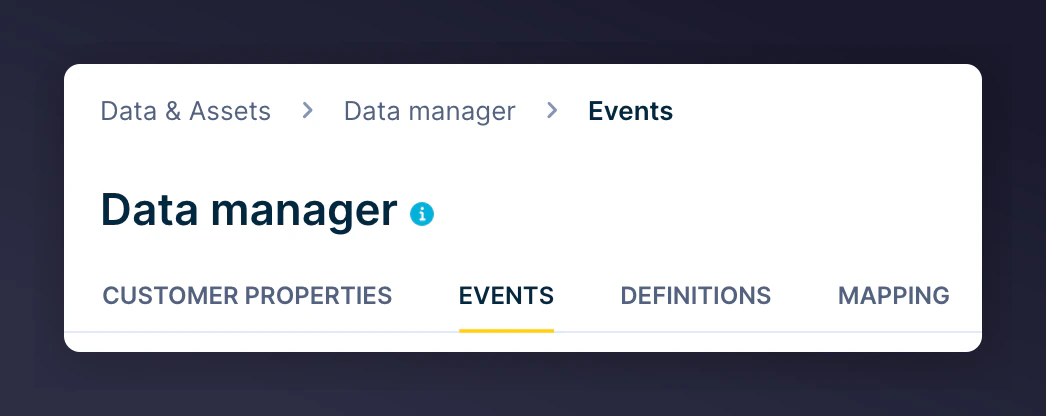 Create the following events (case-sensitive):
* `registered_as_referee`
* `registered_as_referrer`
* `received_referee_reward`
* `received_referrer_reward`
* `submitted_nps_score`
* `received_reward_next_order`
* `propensity_to_refer`
## Step 2: Create API keys in Bloomreach
[Log in](https://app.exponea.com/login) to Bloomreach.
Go to **Project Settings > Access Management > API**.
[Learn more about private API access](https://documentation.bloomreach.com/engagement/reference/authentication#private-api-access).
Create the following events (case-sensitive):
* `registered_as_referee`
* `registered_as_referrer`
* `received_referee_reward`
* `received_referrer_reward`
* `submitted_nps_score`
* `received_reward_next_order`
* `propensity_to_refer`
## Step 2: Create API keys in Bloomreach
[Log in](https://app.exponea.com/login) to Bloomreach.
Go to **Project Settings > Access Management > API**.
[Learn more about private API access](https://documentation.bloomreach.com/engagement/reference/authentication#private-api-access).
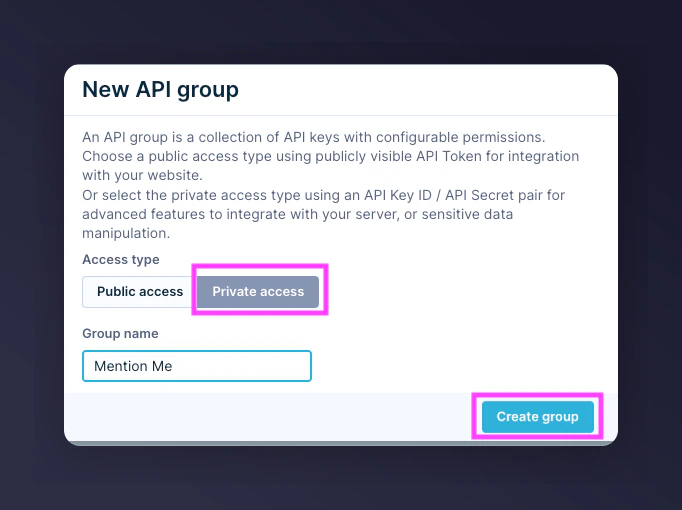
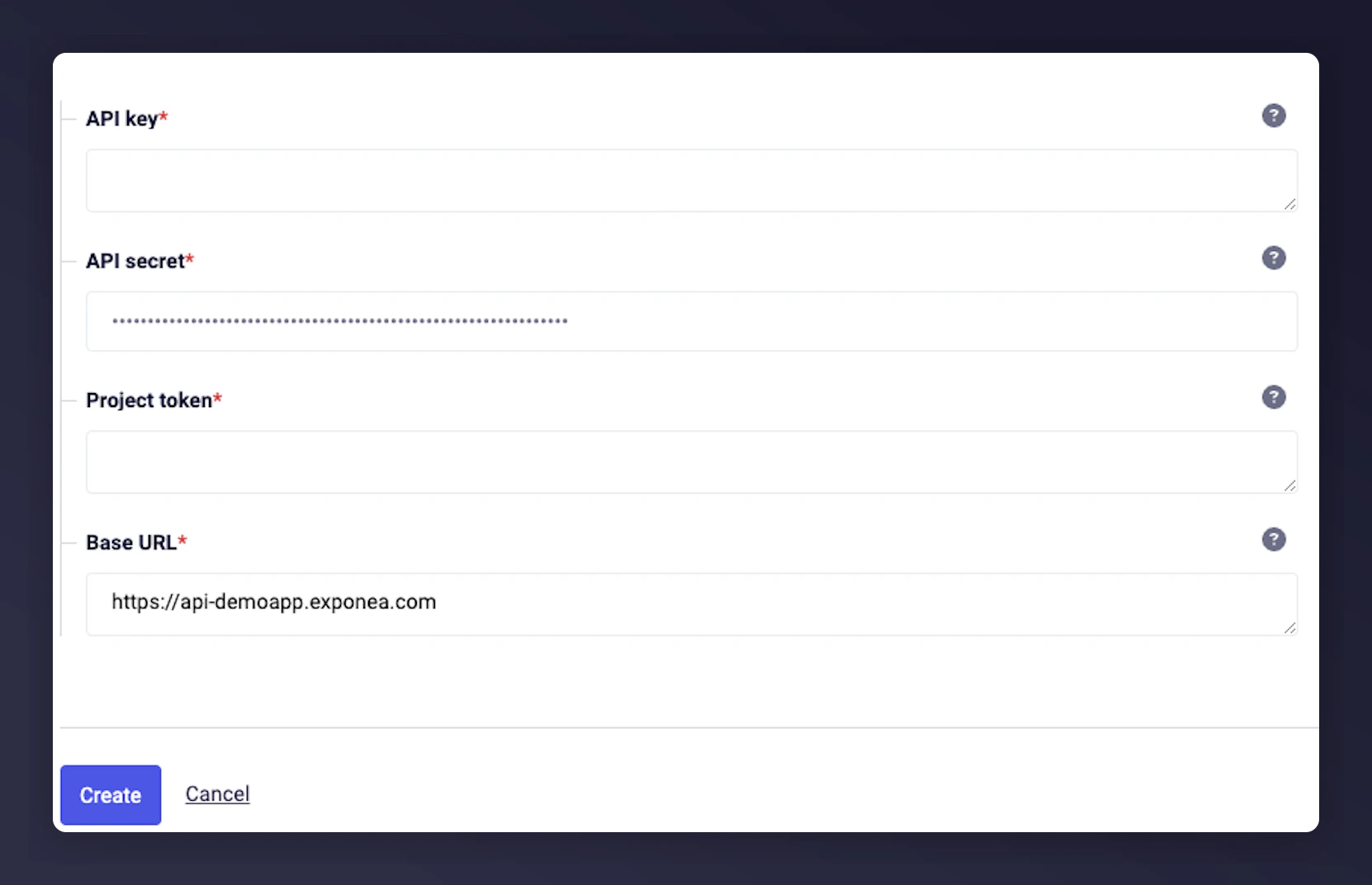
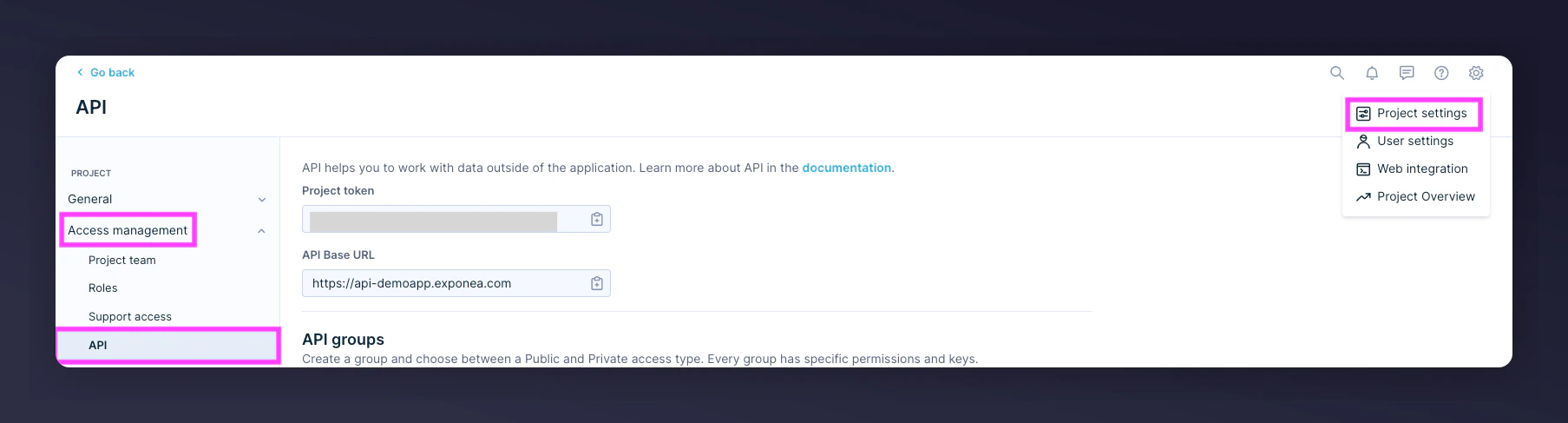 Create a new API group for Mention Me with private access.
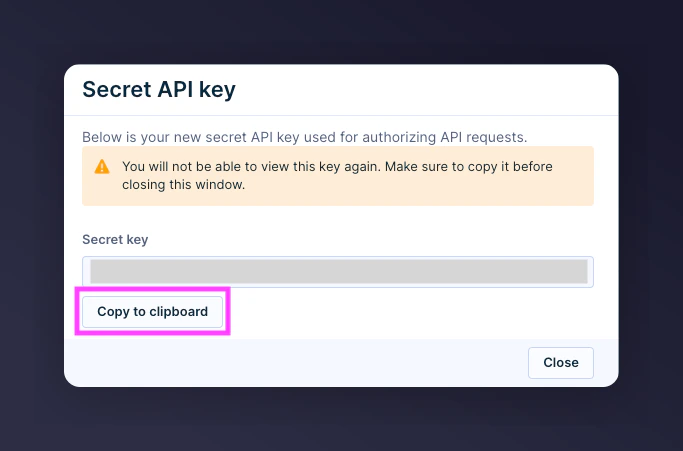
 Copy the **API Secret** (you'll only see it once).
 Copy your:
* API Key
* Project Token
* Base URL
Copy your:
* API Key
* Project Token
* Base URL
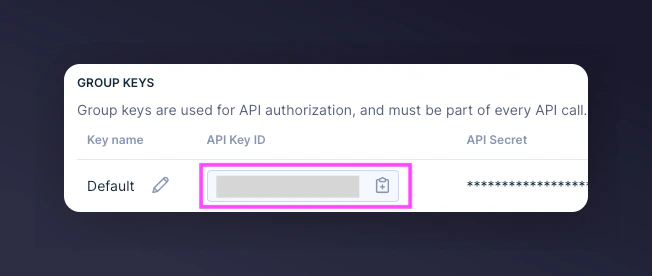
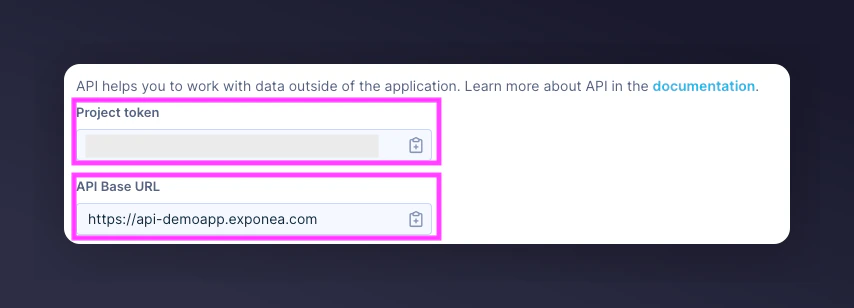 Set the API access permissions under **Customer Properties** and **Events**.
### Customer Properties
Set the API access permissions under **Customer Properties** and **Events**.
### Customer Properties
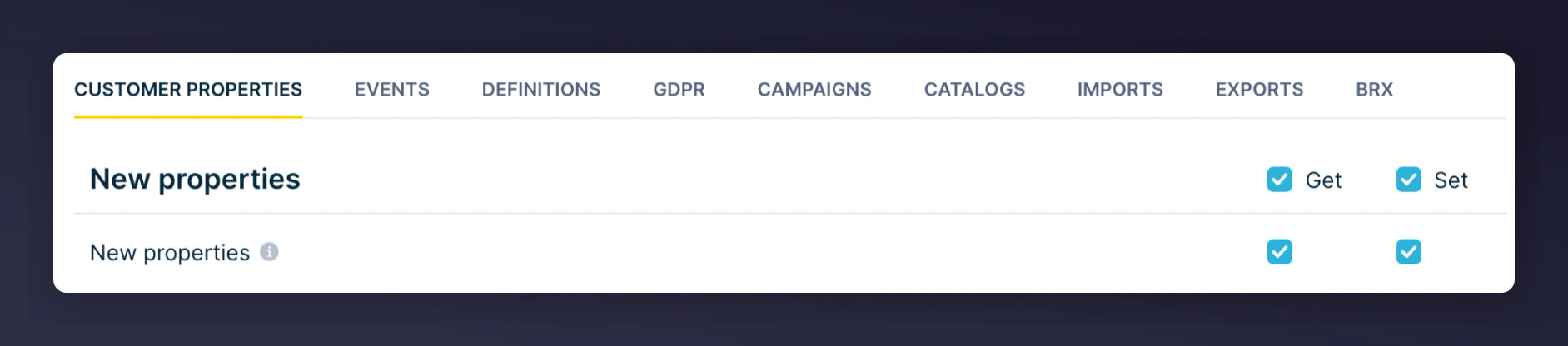

 | Property | Get | Set | Notes |
| ---------------- | --- | --- | ----------------------------------- |
| New Properties | Yes | Yes | |
| Other Properties | Yes | Yes | |
| Email | Yes | Yes | If not included in Other Properties |
### Events
| Property | Get | Set | Notes |
| ---------------- | --- | --- | ----------------------------------- |
| New Properties | Yes | Yes | |
| Other Properties | Yes | Yes | |
| Email | Yes | Yes | If not included in Other Properties |
### Events
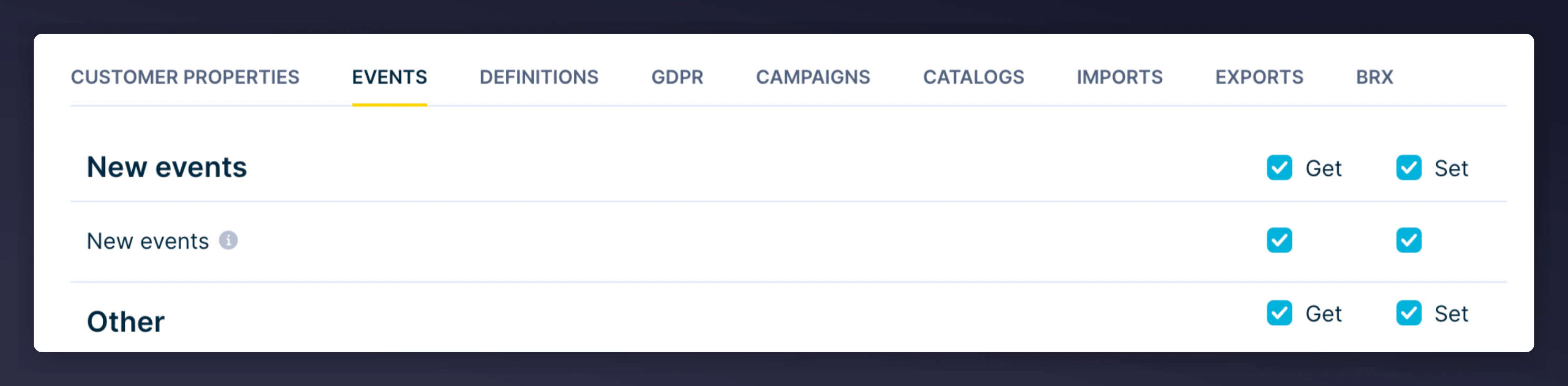
 | Event | Get | Set | Notes |
| -------------------------- | --- | --- | ---------------------------------------------------------------------------------------------- |
| New / Other Events | Yes | Yes | If you prevent 3rd party event creation, these must be created manually as outlined in Step 1. |
| consent | Yes | Yes | |
| registered\_as\_referee | Yes | Yes | |
| registered\_as\_referrer | Yes | Yes | |
| received\_referee\_reward | Yes | Yes | |
| received\_referrer\_reward | Yes | Yes | |
| submitted\_nps\_score | Yes | Yes | |
| propensity\_to\_refer | Yes | Yes | |
## Step 3: Set up the integration in Mention Me
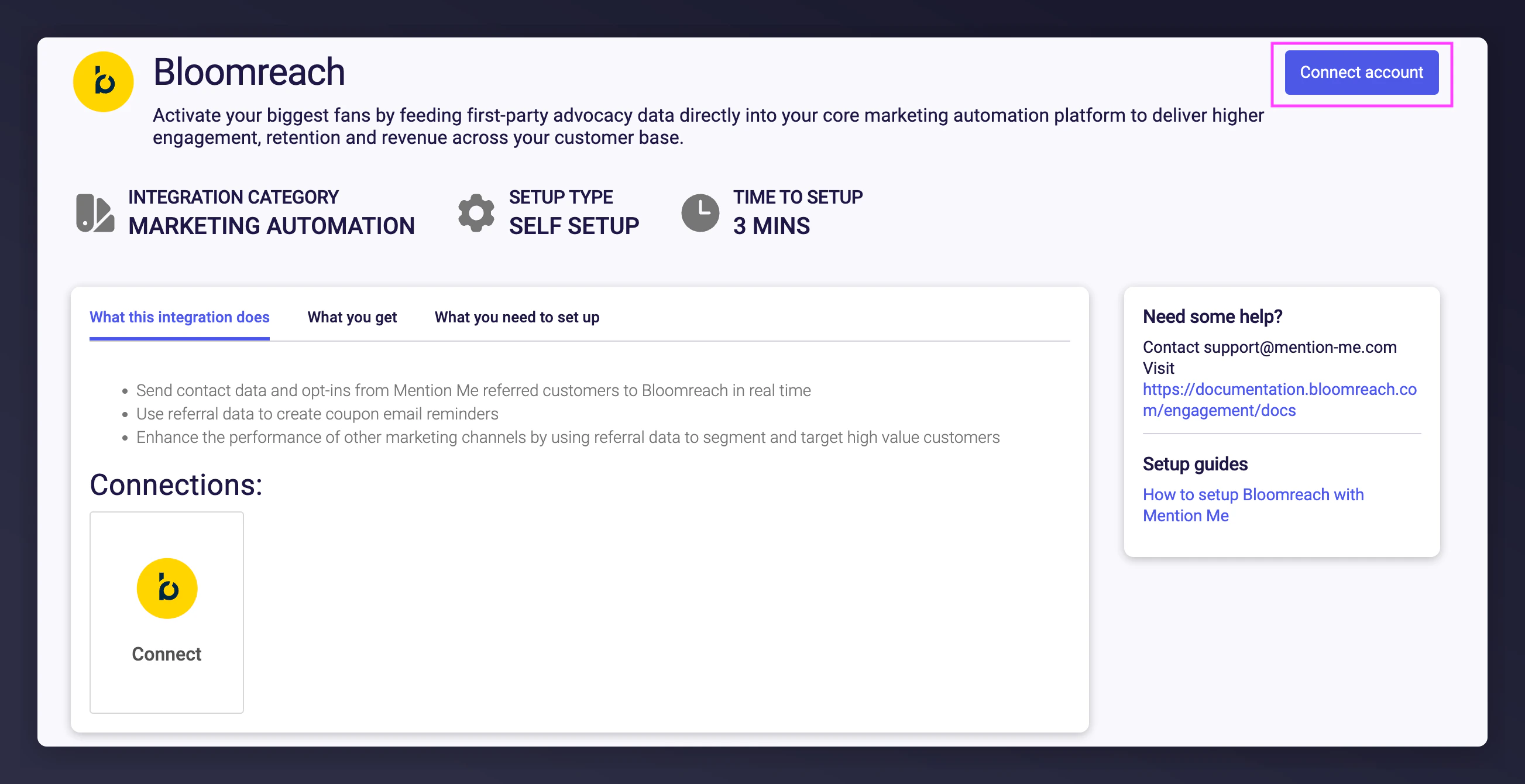
Log in to [Mention Me](https://mention-me.com/merchant/~/integrations/bloomreach) and click **Connect**.
| Event | Get | Set | Notes |
| -------------------------- | --- | --- | ---------------------------------------------------------------------------------------------- |
| New / Other Events | Yes | Yes | If you prevent 3rd party event creation, these must be created manually as outlined in Step 1. |
| consent | Yes | Yes | |
| registered\_as\_referee | Yes | Yes | |
| registered\_as\_referrer | Yes | Yes | |
| received\_referee\_reward | Yes | Yes | |
| received\_referrer\_reward | Yes | Yes | |
| submitted\_nps\_score | Yes | Yes | |
| propensity\_to\_refer | Yes | Yes | |
## Step 3: Set up the integration in Mention Me
Log in to [Mention Me](https://mention-me.com/merchant/~/integrations/bloomreach) and click **Connect**.
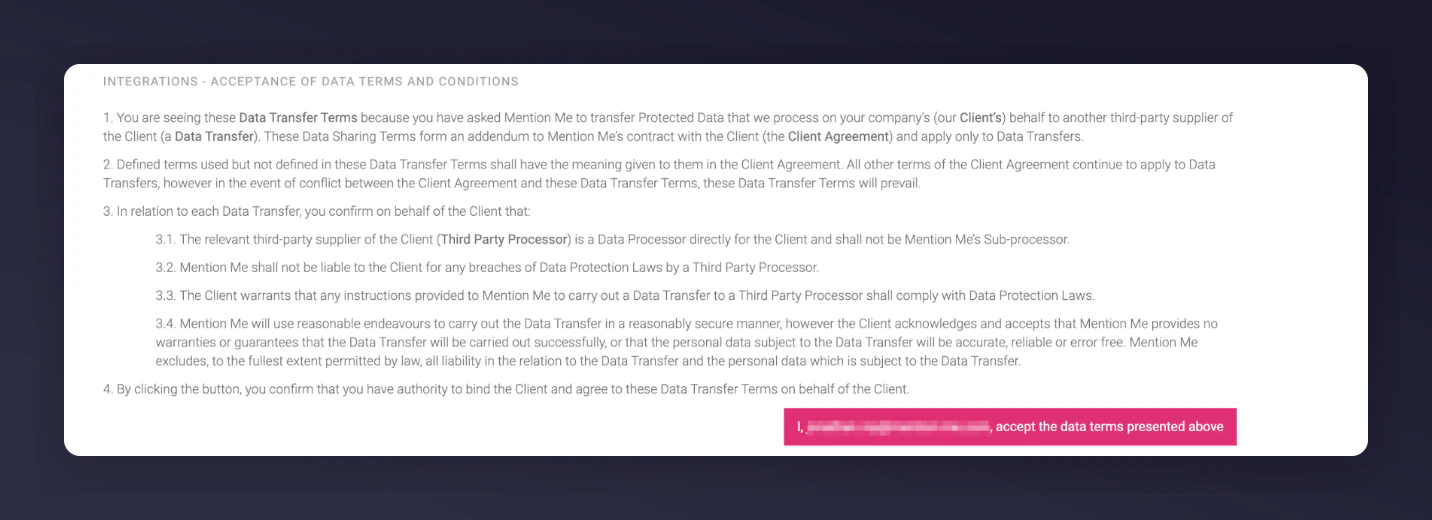
 Agree to Mention Me's Terms and Conditions if required.
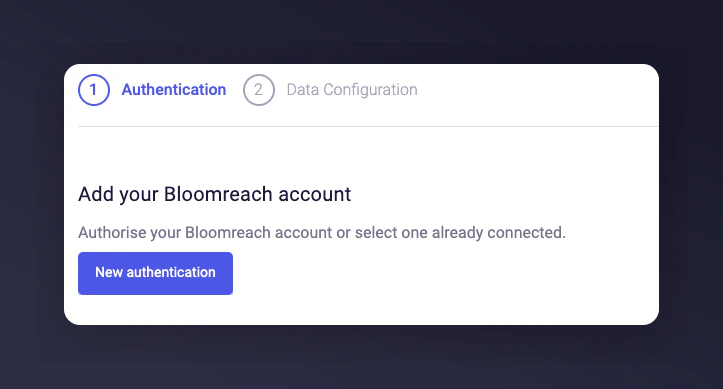
 Click **New Authentication**.
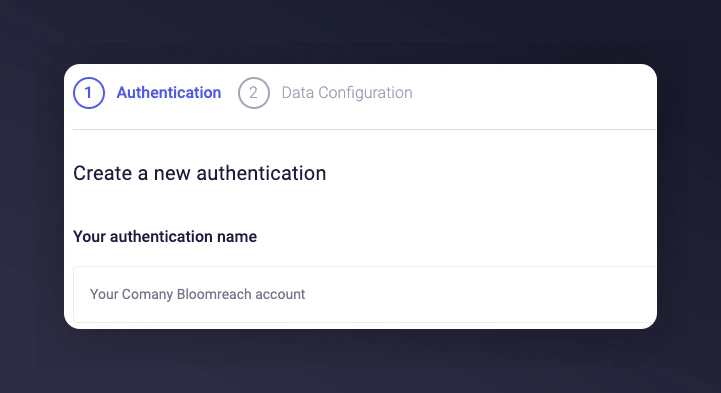
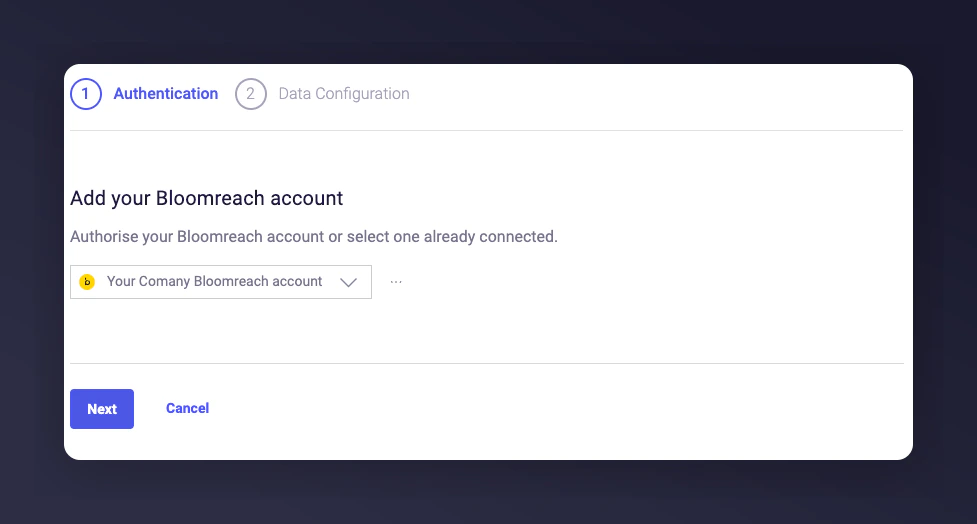
 Name the authentication and project for clear identification.
 Enter:
* API Key
* API Secret
* Project Token
* Base URL
Enter:
* API Key
* API Secret
* Project Token
* Base URL
 Click **Next**.
 Select the **Consent Category** opt-ins should map to.
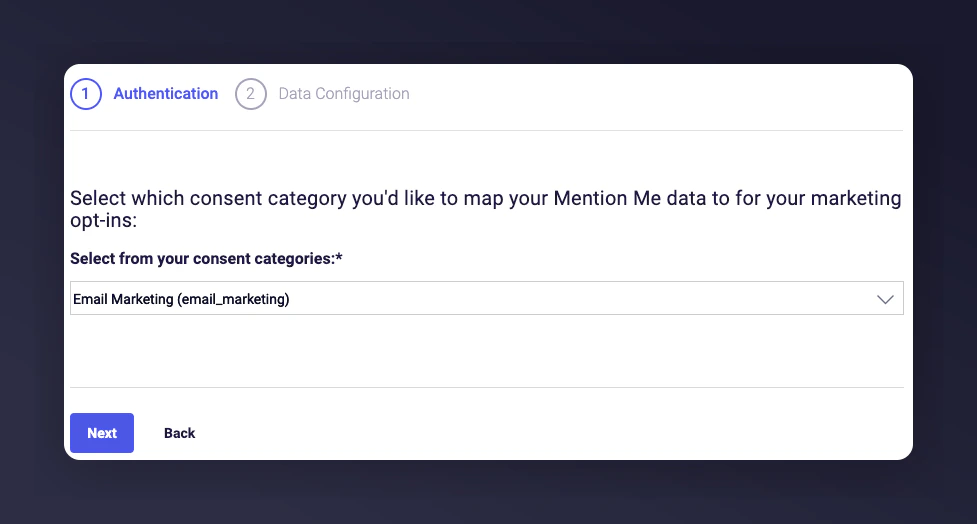 Mention Me captures opt-ins during the referee or post-purchase flow.
If using a custom identifier (instead of the default 'registered'), enter it; otherwise click **Authorise**.
Mention Me captures opt-ins during the referee or post-purchase flow.
If using a custom identifier (instead of the default 'registered'), enter it; otherwise click **Authorise**.
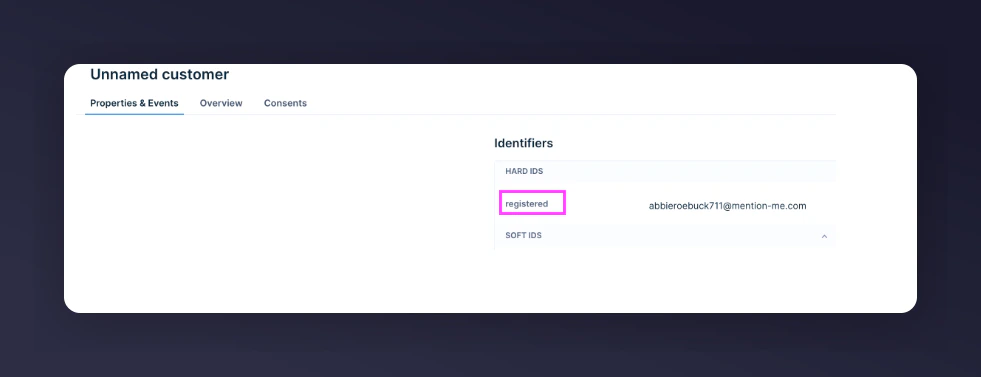 If this value is incorrect, contacts won't be created or updated.
Select the country/countries you want to sync.
If this value is incorrect, contacts won't be created or updated.
Select the country/countries you want to sync.
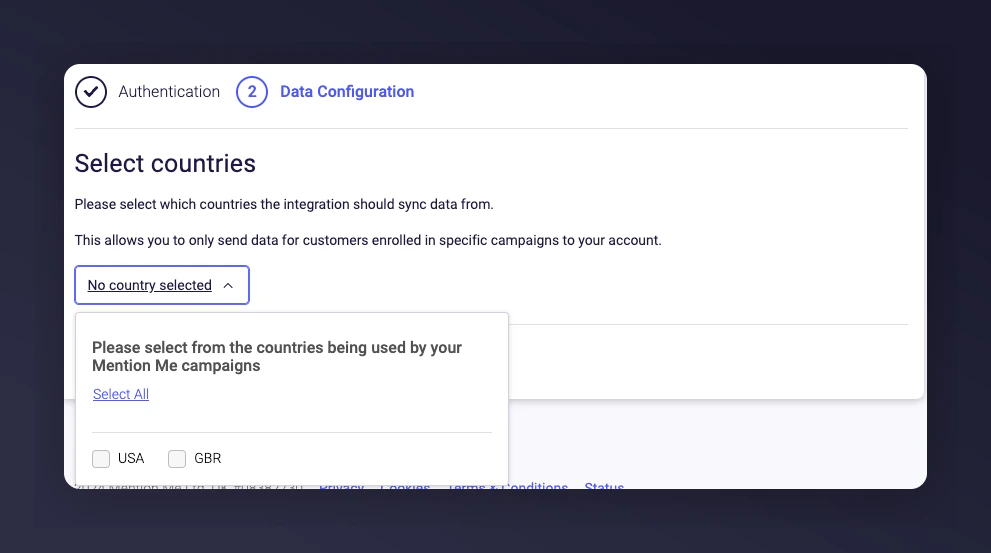 Click **Connect** to finalize setup.
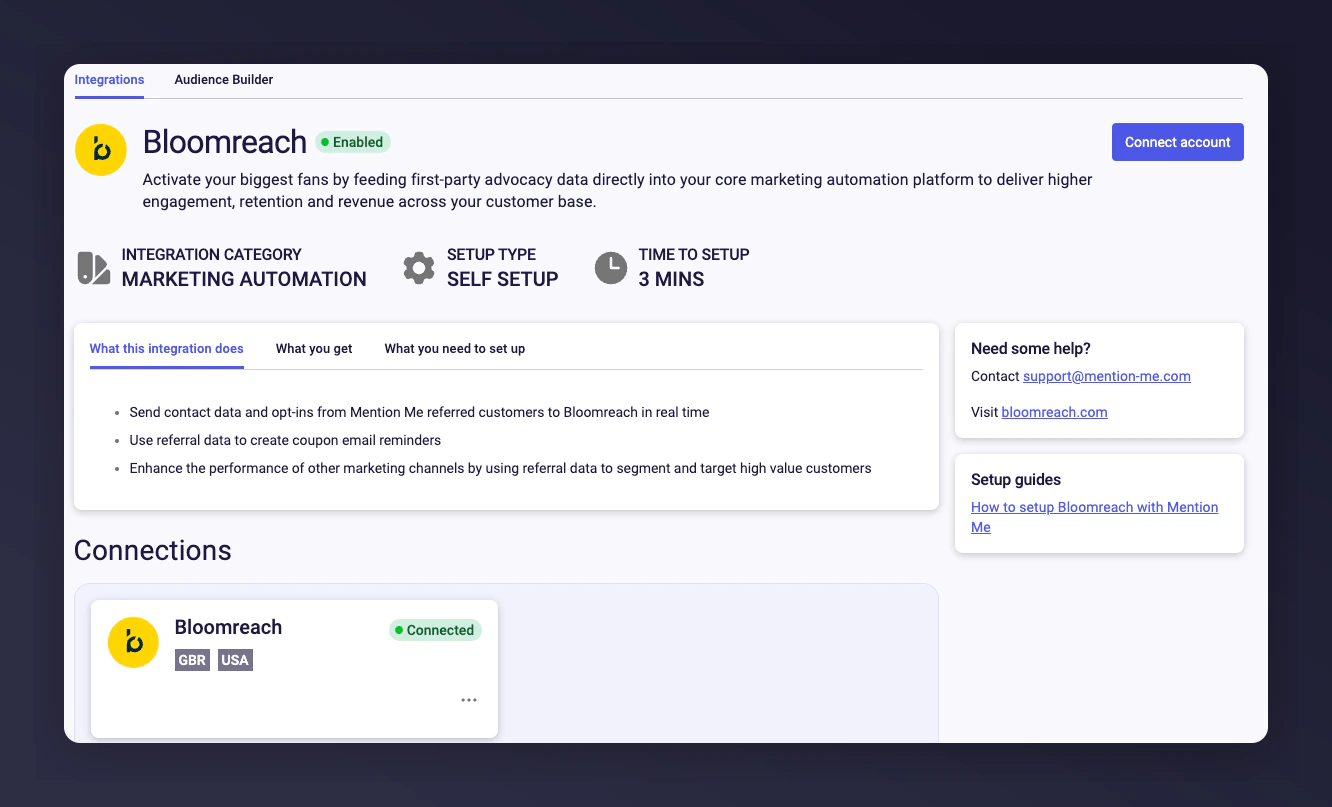 Once connected, Mention Me events and customer data will flow into Bloomreach. Use this data in Scenarios and segmentation.
For help, contact your Mention Me CSM or [submit a support request](https://help.mention-me.com/hc/en-gb/requests/new).
## Step 4: Install pre-built initiatives
Mention Me provides ready-made Scenarios and Segments you can use instantly within Bloomreach.
Follow [these instructions](/knowledge/esp-crm/bloomreach/setup) to import and activate them in your account.
Once connected, Mention Me events and customer data will flow into Bloomreach. Use this data in Scenarios and segmentation.
For help, contact your Mention Me CSM or [submit a support request](https://help.mention-me.com/hc/en-gb/requests/new).
## Step 4: Install pre-built initiatives
Mention Me provides ready-made Scenarios and Segments you can use instantly within Bloomreach.
Follow [these instructions](/knowledge/esp-crm/bloomreach/setup) to import and activate them in your account.