> ## Documentation Index
> Fetch the complete documentation index at: https://docs.mention-me.com/llms.txt
> Use this file to discover all available pages before exploring further.
# How to Promote Referral from Bloomreach
> Add a personalised referral CTA link to your Bloomreach emails and install pre-built referral initiatives.
With the Mention Me integration into Bloomreach, you can insert a CTA link in your emails to direct customers to a referral landing page. This helps amplify referral performance by surfacing the programme to more users and encouraging repeat shares.
The personalised link enables customers to skip the referral registration step. Bloomreach will populate the referral landing page with the customer's name and email address.
## Prerequisites
You must have an existing referral landing page implemented on your website with the Mention Me referral tag included.
## Types of Emails to Consider
* Dedicated referral emails (recommended sending 1 every 2-3 months)
* Inclusion within newsletters or regular campaign emails
* Always-on placement in header/footer of all marketing emails
* Dedicated email in lifecycle journeys (e.g. welcome, post-purchase)
## How It Works
1. You promote the referral programme in an email and add a CTA link to the personalised referral landing page.
2. The customer clicks the link and lands directly on their personalised landing page.
3. The page is pre-filled with their personal information from Bloomreach, and they are auto-registered upon clicking the referral button.
4. They share the referral offer with a friend using their preferred method.
## How to Add the Personalised Landing Page Link
In your campaign, add a CTA link or button.
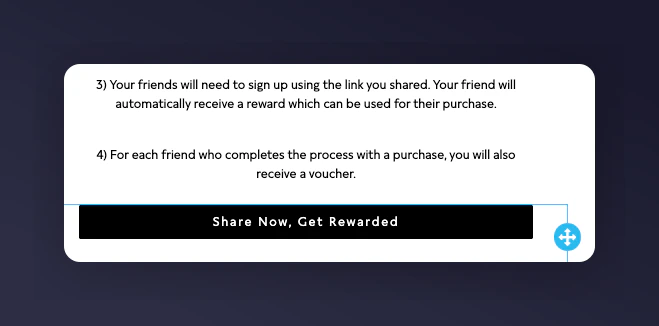 In the button/link settings, input the base URL of your referral landing page, followed by a `?`. Example: `https://www.yourwebsite.com/refer-a-friend?`
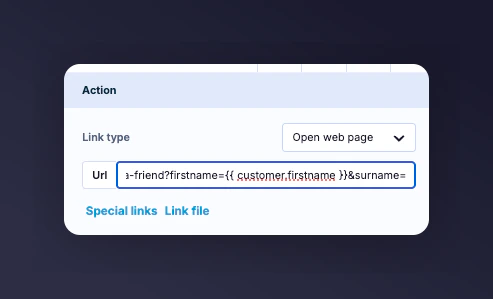
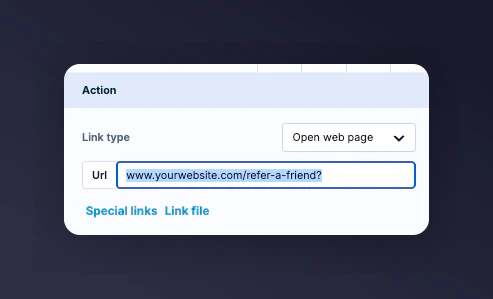 Append the following personalisation parameters to the end of the URL. Separate each with `&`:
| Parameter | Value / Variable | Notes |
| --------- | ----------------------------- | ---------------------------------------------------------------------------------------------------------------------- |
| firstname | `{{ customer.firstname }}` | Use Bloomreach's personalisation variable for first name |
| surname | `{{ customer.lastname }}` | Use Bloomreach's variable for last name |
| email | `{{ customer.email }}` | Use the customer's email variable |
| situation | `Bloomreach-newsletter-jan23` | Indicates the campaign placement. Use `channel-type-date` format to help analyse traffic in your Mention Me dashboard. |
| segment | `loyalty` | Optional parameter to target specific campaign rules (e.g. by customer type or locale). |
| locale | `en_GB` | |
### Final Example URL
```text theme={null}
https://www.yoursite.com/refer-a-friend?email={{ customer.email }}&firstname={{ customer.firstname }}&surname={{ customer.lastname }}&situation=Bloomreach-newsletter-jan23&locale=en_GB&segment=loyalty
```
Append the following personalisation parameters to the end of the URL. Separate each with `&`:
| Parameter | Value / Variable | Notes |
| --------- | ----------------------------- | ---------------------------------------------------------------------------------------------------------------------- |
| firstname | `{{ customer.firstname }}` | Use Bloomreach's personalisation variable for first name |
| surname | `{{ customer.lastname }}` | Use Bloomreach's variable for last name |
| email | `{{ customer.email }}` | Use the customer's email variable |
| situation | `Bloomreach-newsletter-jan23` | Indicates the campaign placement. Use `channel-type-date` format to help analyse traffic in your Mention Me dashboard. |
| segment | `loyalty` | Optional parameter to target specific campaign rules (e.g. by customer type or locale). |
| locale | `en_GB` | |
### Final Example URL
```text theme={null}
https://www.yoursite.com/refer-a-friend?email={{ customer.email }}&firstname={{ customer.firstname }}&surname={{ customer.lastname }}&situation=Bloomreach-newsletter-jan23&locale=en_GB&segment=loyalty
```
 ## Installing Pre-Built Initiatives
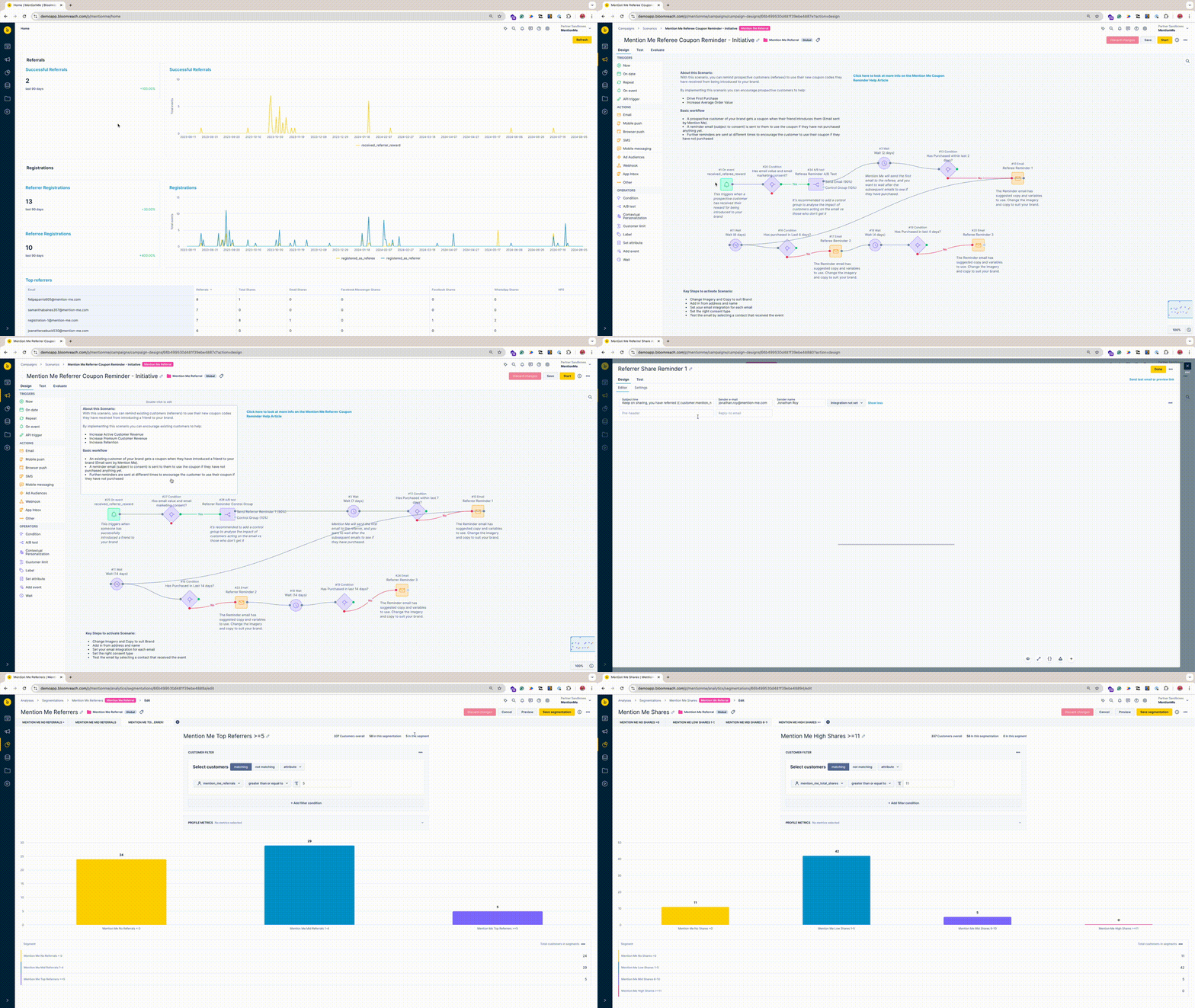
With Bloomreach Initiatives and Mention Me's integration, you can access pre-built scenarios and segments to quickly activate advocacy data and target your fans with personalised messaging.
### Pre-Built Scenarios
These ready-to-go scenarios contain suggested copy and personalised variables from Mention Me events:
* **Boost New Customer Acquisition:** Automatically [remind referred users to make their first purchase](/knowledge/esp-crm/bloomreach/coupon-reminders).
* **Drive Repeat Purchases:** Remind referrers to return and [use their earned rewards](/knowledge/esp-crm/bloomreach/coupon-reminders#referrer-scenario).
* **Increase Customer Engagement:** Encourage brand advocates to [share referral links with more friends](/knowledge/esp-crm/bloomreach/share-again).
### Pre-Built Segments
These segments help identify actionable referral cohorts, ideal for future campaigns and analysis:
* **Shares:** Identify your top sharers, medium sharers, and customers who haven't yet shared.
* **Referrals:** Spot your top referrers, average performers, and those yet to refer.
These segments will begin populating from the time the integration is enabled, capturing live referral activity.
### Prerequisites for Initiatives
1. An active Mention Me referral programme
2. Mention Me / Bloomreach integration is activated
3. Your Bloomreach account must be integrated with your ESP
4. Basic understanding of Bloomreach Jinja
## Installing Pre-Built Initiatives
With Bloomreach Initiatives and Mention Me's integration, you can access pre-built scenarios and segments to quickly activate advocacy data and target your fans with personalised messaging.
### Pre-Built Scenarios
These ready-to-go scenarios contain suggested copy and personalised variables from Mention Me events:
* **Boost New Customer Acquisition:** Automatically [remind referred users to make their first purchase](/knowledge/esp-crm/bloomreach/coupon-reminders).
* **Drive Repeat Purchases:** Remind referrers to return and [use their earned rewards](/knowledge/esp-crm/bloomreach/coupon-reminders#referrer-scenario).
* **Increase Customer Engagement:** Encourage brand advocates to [share referral links with more friends](/knowledge/esp-crm/bloomreach/share-again).
### Pre-Built Segments
These segments help identify actionable referral cohorts, ideal for future campaigns and analysis:
* **Shares:** Identify your top sharers, medium sharers, and customers who haven't yet shared.
* **Referrals:** Spot your top referrers, average performers, and those yet to refer.
These segments will begin populating from the time the integration is enabled, capturing live referral activity.
### Prerequisites for Initiatives
1. An active Mention Me referral programme
2. Mention Me / Bloomreach integration is activated
3. Your Bloomreach account must be integrated with your ESP
4. Basic understanding of Bloomreach Jinja
 ### Step 1: Download the Initiatives
Download the JSON file attached at the bottom of this guide.
### Step 2: Import into Bloomreach
Log in at [Bloomreach](https://app.exponea.com/login).
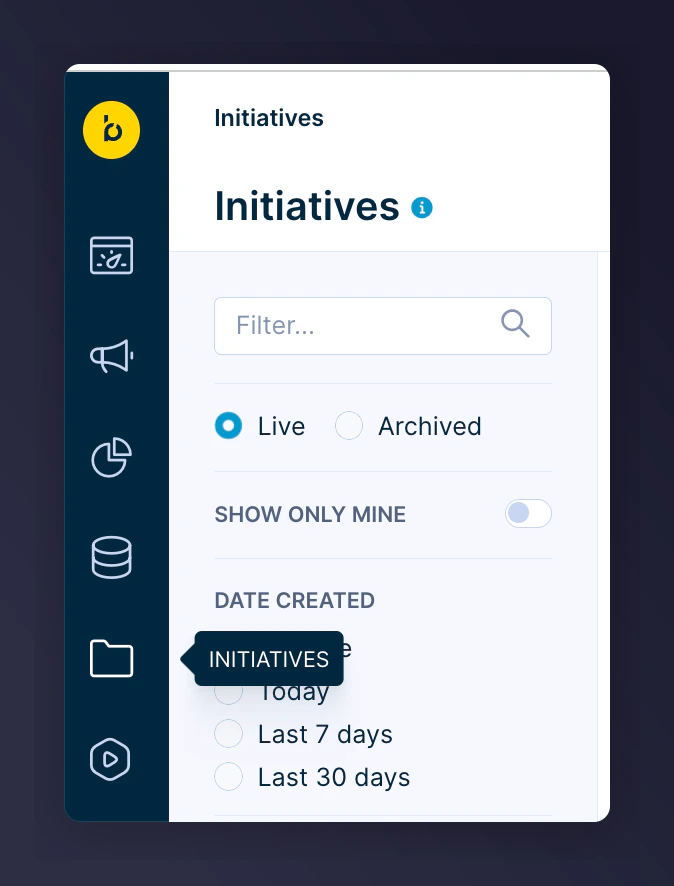
Click on **Initiatives**.
### Step 1: Download the Initiatives
Download the JSON file attached at the bottom of this guide.
### Step 2: Import into Bloomreach
Log in at [Bloomreach](https://app.exponea.com/login).
Click on **Initiatives**.
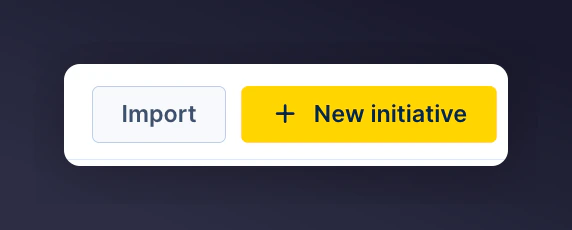
 Click **Import** at the top right.
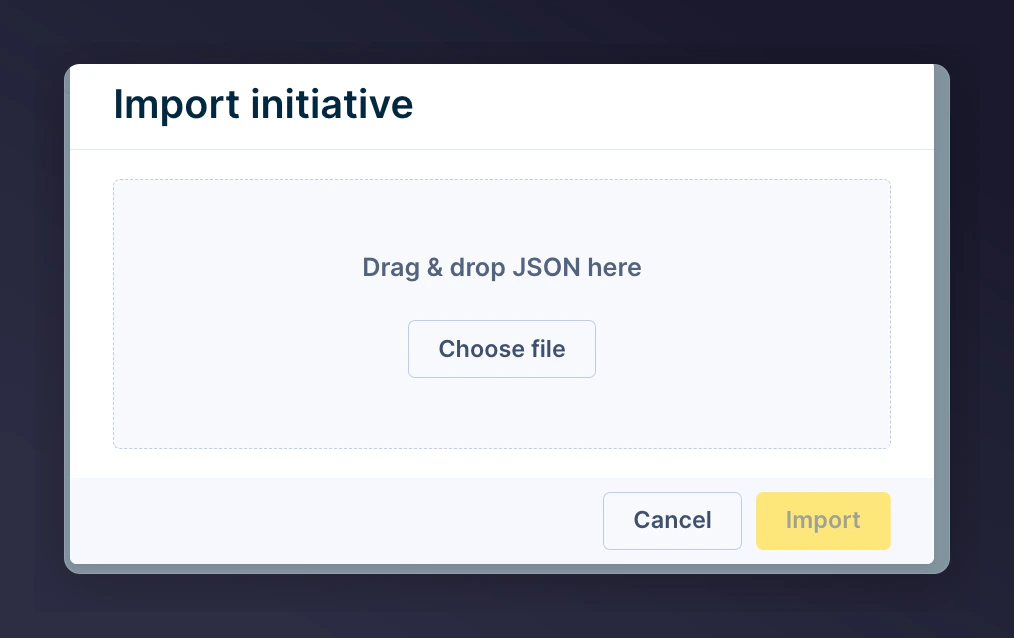
 Upload your JSON file and click **Import**.
 #### Troubleshooting: Incompatible Version Error
If you receive the error `"Imported JSON definition has incompatible version"`:
Open the JSON file in a text editor like Notepad or TextEdit.
Scroll to the end and find the line that includes `"version": "1.265.3"`.
#### Troubleshooting: Incompatible Version Error
If you receive the error `"Imported JSON definition has incompatible version"`:
Open the JSON file in a text editor like Notepad or TextEdit.
Scroll to the end and find the line that includes `"version": "1.265.3"`.
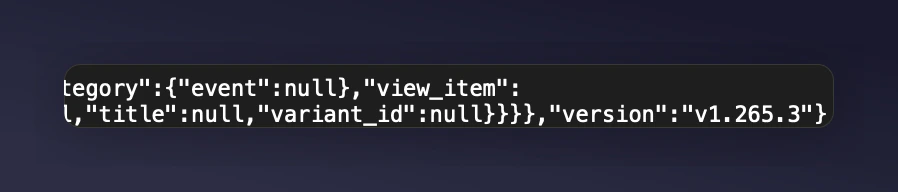 In Bloomreach, click the Help icon in the top toolbar and locate your Release Notes version number.
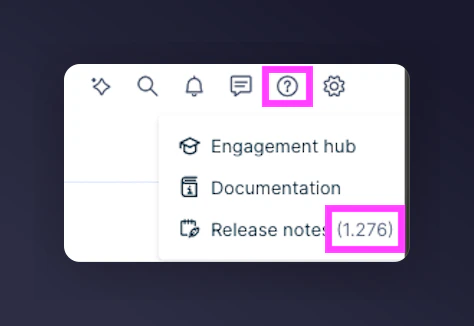 Update the version number in the JSON to match your current Bloomreach platform version (e.g. 1.276).
Save the file without changing its name or extension, then re-upload and import.
Need help? Reach out to your Mention Me CSM or [submit a support request](https://help.mention-me.com/hc/en-gb/requests/new).
### Step 3: Configure Scenarios
With your initiatives imported, finalise by configuring them:
* Update imagery and copy to match your brand.
* Set the "From" email name and address.
* Assign the correct ESP integration to emails.
* Define the correct consent type for each email journey.
* Test each flow with a contact who has the relevant event triggers.
Update the version number in the JSON to match your current Bloomreach platform version (e.g. 1.276).
Save the file without changing its name or extension, then re-upload and import.
Need help? Reach out to your Mention Me CSM or [submit a support request](https://help.mention-me.com/hc/en-gb/requests/new).
### Step 3: Configure Scenarios
With your initiatives imported, finalise by configuring them:
* Update imagery and copy to match your brand.
* Set the "From" email name and address.
* Assign the correct ESP integration to emails.
* Define the correct consent type for each email journey.
* Test each flow with a contact who has the relevant event triggers.