> ## Documentation Index
> Fetch the complete documentation index at: https://docs.mention-me.com/llms.txt
> Use this file to discover all available pages before exploring further.
# Export data
> Get the numbers out into a spreadsheet.
**Question**: "How do I get this into a spreadsheet?"
Every data-bearing tile can export to CSV. A metric tile can also copy its value to your clipboard for a single number.
## Export a tile to CSV
1. Click the three-dot menu in the top corner of the tile.
2. Click **Export CSV**.
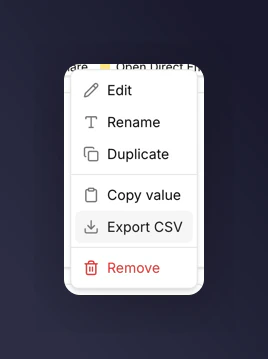 A CSV downloads with the data behind the tile.
## What's in the CSV
Depends on the tile type.
### Metric tile
A single row with the metric name, value, and the comparison value if one is set.
### Chart tile
One row per data point. Columns cover each metric plotted. If the chart has a breakdown, one row per combination of time bucket and breakdown value.
### Table tile
Exactly what you see on screen. One row per table row, one column per metric. If the table has a breakdown, the breakdown value is the first column.
### Markdown tile
Markdown tiles cannot be exported. There's no data behind them, so the menu hides the Export CSV option.
## Copy a single value
For metric tiles specifically, there's a shortcut that skips the CSV step:
1. Open the tile menu.
2. Click **Copy value**.
The number goes to your clipboard in a format that pastes cleanly into text, email, or a spreadsheet cell.
## Filters and comparisons carry over
The CSV reflects the tile as you see it:
* The dashboard's time period and market filter are applied.
* If the tile has a comparison, the comparison values are included as extra columns.
* If the tile has a breakdown, each breakdown value appears as its own row or group of rows.
## What you cannot export
There is no "export the whole dashboard" action. Export each tile separately.
## Next
* [Report to stakeholders](/knowledge-v2/referral/reporting/common-tasks/report-to-stakeholders) for patterns around packaging these exports.
* [Breakdowns](/knowledge-v2/referral/reporting/building-dashboards/breakdowns) to shape what ends up in the CSV before you export.
A CSV downloads with the data behind the tile.
## What's in the CSV
Depends on the tile type.
### Metric tile
A single row with the metric name, value, and the comparison value if one is set.
### Chart tile
One row per data point. Columns cover each metric plotted. If the chart has a breakdown, one row per combination of time bucket and breakdown value.
### Table tile
Exactly what you see on screen. One row per table row, one column per metric. If the table has a breakdown, the breakdown value is the first column.
### Markdown tile
Markdown tiles cannot be exported. There's no data behind them, so the menu hides the Export CSV option.
## Copy a single value
For metric tiles specifically, there's a shortcut that skips the CSV step:
1. Open the tile menu.
2. Click **Copy value**.
The number goes to your clipboard in a format that pastes cleanly into text, email, or a spreadsheet cell.
## Filters and comparisons carry over
The CSV reflects the tile as you see it:
* The dashboard's time period and market filter are applied.
* If the tile has a comparison, the comparison values are included as extra columns.
* If the tile has a breakdown, each breakdown value appears as its own row or group of rows.
## What you cannot export
There is no "export the whole dashboard" action. Export each tile separately.
## Next
* [Report to stakeholders](/knowledge-v2/referral/reporting/common-tasks/report-to-stakeholders) for patterns around packaging these exports.
* [Breakdowns](/knowledge-v2/referral/reporting/building-dashboards/breakdowns) to shape what ends up in the CSV before you export.