> ## Documentation Index
> Fetch the complete documentation index at: https://docs.mention-me.com/llms.txt
> Use this file to discover all available pages before exploring further.
# Understanding the Campaign Editor
> How the canvas works, how to edit a section, and the rules for what you can and can't edit.
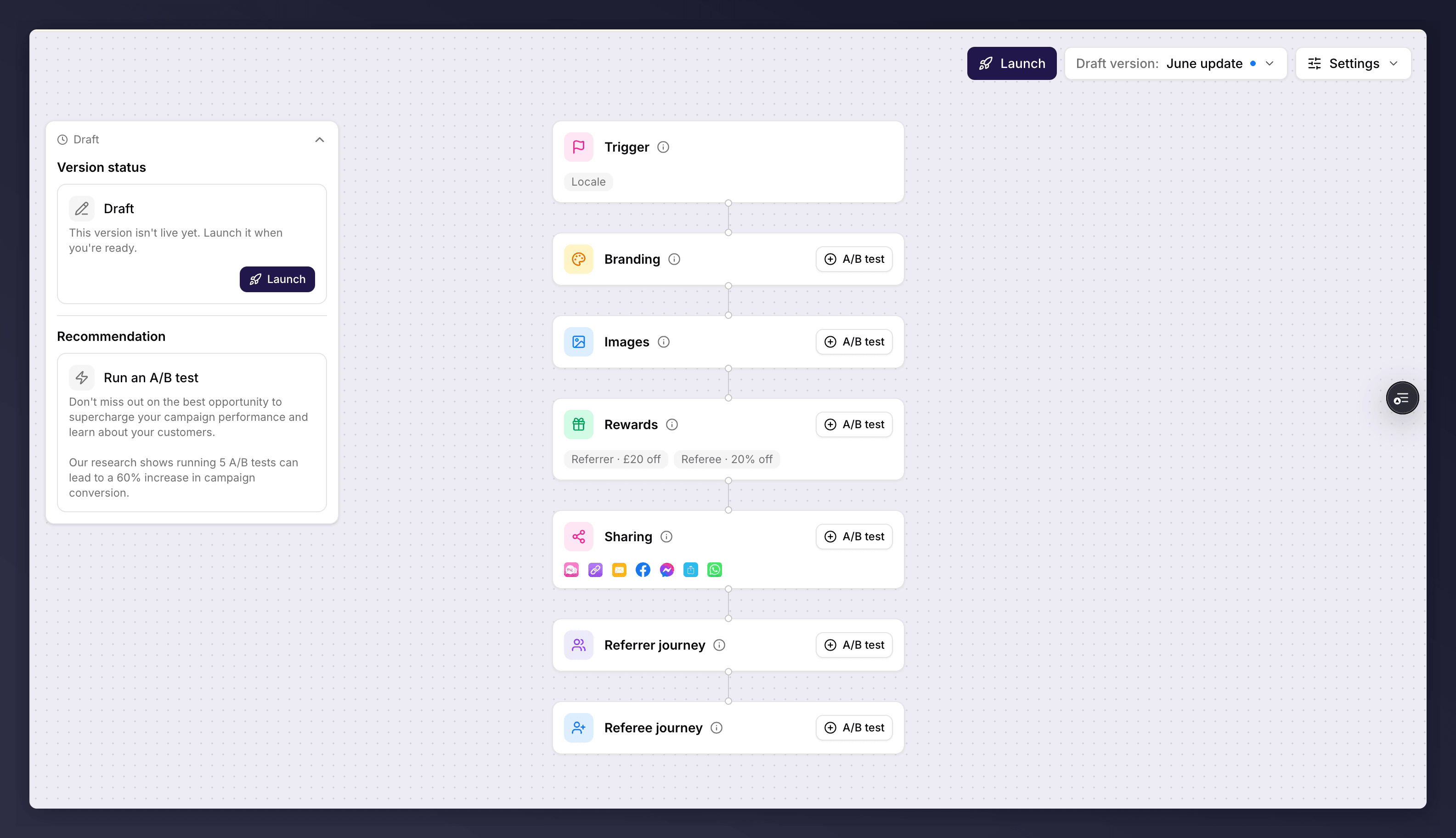
The campaign editor is where you build a version. You work on the **canvas**: a vertical stack of cards, called **sections**, that together make up the customer journey. Each section controls one part of the experience. Click a section to edit it.
 ## The Canvas
The canvas reads top to bottom. The **Trigger** section sits at the top because it decides who enters the journey. Below it are the sections that make up the offer itself. A section showing an issue-count pill (for example **1 issue**) has something to resolve: red means an error that blocks launch, amber means a warning you can launch with.
## The Sections
Each section has its own page under [Campaign editor sections](/knowledge-v2/referral/campaigns/sections/trigger).
| Section | What it controls |
| --------------------- | ------------------------------------------------------------------------------------------------------------------------------------------------------- |
| **Trigger** | When the campaign runs and which customers are eligible. See [Trigger](/knowledge-v2/referral/campaigns/sections/trigger). |
| **Branding** | Colours, fonts and styling across the journey. See [Branding](/knowledge-v2/referral/campaigns/sections/branding). |
| **Images** | Hero images and email imagery. See [Images](/knowledge-v2/referral/campaigns/sections/images). |
| **Rewards** | The incentives given to the referrer and the referee. See [Rewards](/knowledge-v2/referral/campaigns/sections/rewards). |
| **Sharing** | The channels referrers can use to share the offer. See [Sharing](/knowledge-v2/referral/campaigns/sections/sharing). |
| **Customer journeys** | The pages, emails and copy shown to the referrer and the referee. See [customer journeys](/knowledge-v2/referral/campaigns/sections/customer-journeys). |
## Editing a Section
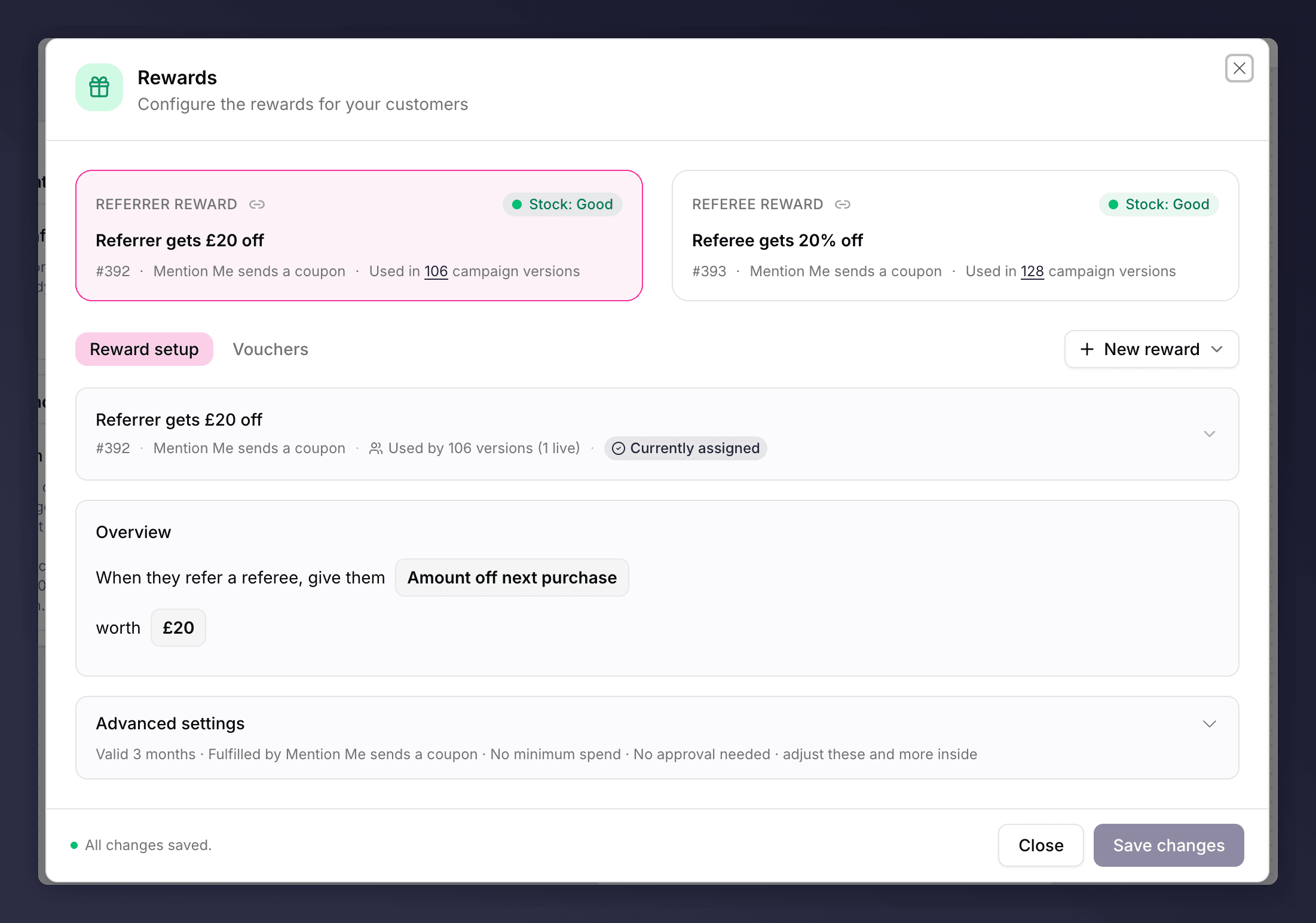
Click a section to open its editor dialog. Make your changes and click **Save & close**. An unsaved-changes indicator appears while you have edits in progress, and the dialog warns you before closing with unsaved work. If a section has problems, its pill tells you how many issues there are; hovering it shows "Open this step to see what needs fixing".
## The Canvas
The canvas reads top to bottom. The **Trigger** section sits at the top because it decides who enters the journey. Below it are the sections that make up the offer itself. A section showing an issue-count pill (for example **1 issue**) has something to resolve: red means an error that blocks launch, amber means a warning you can launch with.
## The Sections
Each section has its own page under [Campaign editor sections](/knowledge-v2/referral/campaigns/sections/trigger).
| Section | What it controls |
| --------------------- | ------------------------------------------------------------------------------------------------------------------------------------------------------- |
| **Trigger** | When the campaign runs and which customers are eligible. See [Trigger](/knowledge-v2/referral/campaigns/sections/trigger). |
| **Branding** | Colours, fonts and styling across the journey. See [Branding](/knowledge-v2/referral/campaigns/sections/branding). |
| **Images** | Hero images and email imagery. See [Images](/knowledge-v2/referral/campaigns/sections/images). |
| **Rewards** | The incentives given to the referrer and the referee. See [Rewards](/knowledge-v2/referral/campaigns/sections/rewards). |
| **Sharing** | The channels referrers can use to share the offer. See [Sharing](/knowledge-v2/referral/campaigns/sections/sharing). |
| **Customer journeys** | The pages, emails and copy shown to the referrer and the referee. See [customer journeys](/knowledge-v2/referral/campaigns/sections/customer-journeys). |
## Editing a Section
Click a section to open its editor dialog. Make your changes and click **Save & close**. An unsaved-changes indicator appears while you have edits in progress, and the dialog warns you before closing with unsaved work. If a section has problems, its pill tells you how many issues there are; hovering it shows "Open this step to see what needs fixing".
 ## What You Can and Cannot Edit
A version is only fully editable while it is a **draft of a campaign that has not yet launched**. Once a campaign is live, versions become read-only so you can't accidentally change what customers are seeing. The editor explains the lock in the footer of the section:
* **A live version**. "This version is live. Create a new draft to make changes."
* **A queued version**. "This version is scheduled to go live. Create a new draft to make changes."
* **A past version**. "This is a past version. It shows what customers experienced at the time."
To change a live campaign, create a new draft version, edit it, and launch it to replace the live one.
### The Control Variant Is Locked
In an A/B test, the **control** variant is view-only, because it is the baseline the test measures against. The editor shows: "The control variant is view-only as it's the baseline of your test. Make changes on the other variant to avoid skewing the test results." Edit the other variant instead.
### The Trigger Section Is Campaign-Scoped
The Trigger is the exception to the usual version rules, because triggering rules apply to the **whole campaign**, not a single version. They affect every version, live and draft alike. This changes where you edit it:
* **On a draft of a launched campaign, the Trigger is locked.** Editing it from a draft would silently change who the live campaign enrols. The footer reads: "This campaign is live. Switch to the live version to make changes to this area."
* **On the live version, the Trigger stays editable**, because that is exactly where live targeting changes belong. Saved changes take effect immediately for all customers. The footer reads: "This campaign is live. Saved changes take effect immediately."
Because the Trigger is campaign-scoped, edit targeting on the **live** version, not on a draft. A draft's Trigger is locked once the campaign is live, and changes you make on the live version apply across the campaign straight away.
## See Also
The detail of each section.
Set up a version.
Campaign settings and gaming control.
## What You Can and Cannot Edit
A version is only fully editable while it is a **draft of a campaign that has not yet launched**. Once a campaign is live, versions become read-only so you can't accidentally change what customers are seeing. The editor explains the lock in the footer of the section:
* **A live version**. "This version is live. Create a new draft to make changes."
* **A queued version**. "This version is scheduled to go live. Create a new draft to make changes."
* **A past version**. "This is a past version. It shows what customers experienced at the time."
To change a live campaign, create a new draft version, edit it, and launch it to replace the live one.
### The Control Variant Is Locked
In an A/B test, the **control** variant is view-only, because it is the baseline the test measures against. The editor shows: "The control variant is view-only as it's the baseline of your test. Make changes on the other variant to avoid skewing the test results." Edit the other variant instead.
### The Trigger Section Is Campaign-Scoped
The Trigger is the exception to the usual version rules, because triggering rules apply to the **whole campaign**, not a single version. They affect every version, live and draft alike. This changes where you edit it:
* **On a draft of a launched campaign, the Trigger is locked.** Editing it from a draft would silently change who the live campaign enrols. The footer reads: "This campaign is live. Switch to the live version to make changes to this area."
* **On the live version, the Trigger stays editable**, because that is exactly where live targeting changes belong. Saved changes take effect immediately for all customers. The footer reads: "This campaign is live. Saved changes take effect immediately."
Because the Trigger is campaign-scoped, edit targeting on the **live** version, not on a draft. A draft's Trigger is locked once the campaign is live, and changes you make on the live version apply across the campaign straight away.
## See Also
The detail of each section.
Set up a version.
Campaign settings and gaming control.