> ## Documentation Index
> Fetch the complete documentation index at: https://docs.mention-me.com/llms.txt
> Use this file to discover all available pages before exploring further.
# How to Set Up a Version
> Create a new version of a campaign and configure it on the canvas, ready to launch.
A version is one iteration of a campaign that you edit on the canvas and then take live. This guide covers creating and configuring a version. When it's ready, see [launch a campaign and version](/knowledge-v2/referral/campaigns/manage/launch-a-version).
## Create a Version
You can create a version from the campaign's **version picker** at the top of the editor.
In the editor, click the version name at the top to open the version picker, then click **New version**. If a version is already live, choose **Standard version** (a regular version) or **A/B test** from the menu.
 In the **Create version** dialog, enter a **Version name (internal)**. This name is for your team only and never shown to customers. Then pick **Start from**:
* **A previous setup (recommended)**. Copy the settings from an existing version, then edit. Pick the source version from the list.
* **Scratch**. Start a new version with sensible defaults applied for you, then edit.
In the **Create version** dialog, enter a **Version name (internal)**. This name is for your team only and never shown to customers. Then pick **Start from**:
* **A previous setup (recommended)**. Copy the settings from an existing version, then edit. Pick the source version from the list.
* **Scratch**. Start a new version with sensible defaults applied for you, then edit.
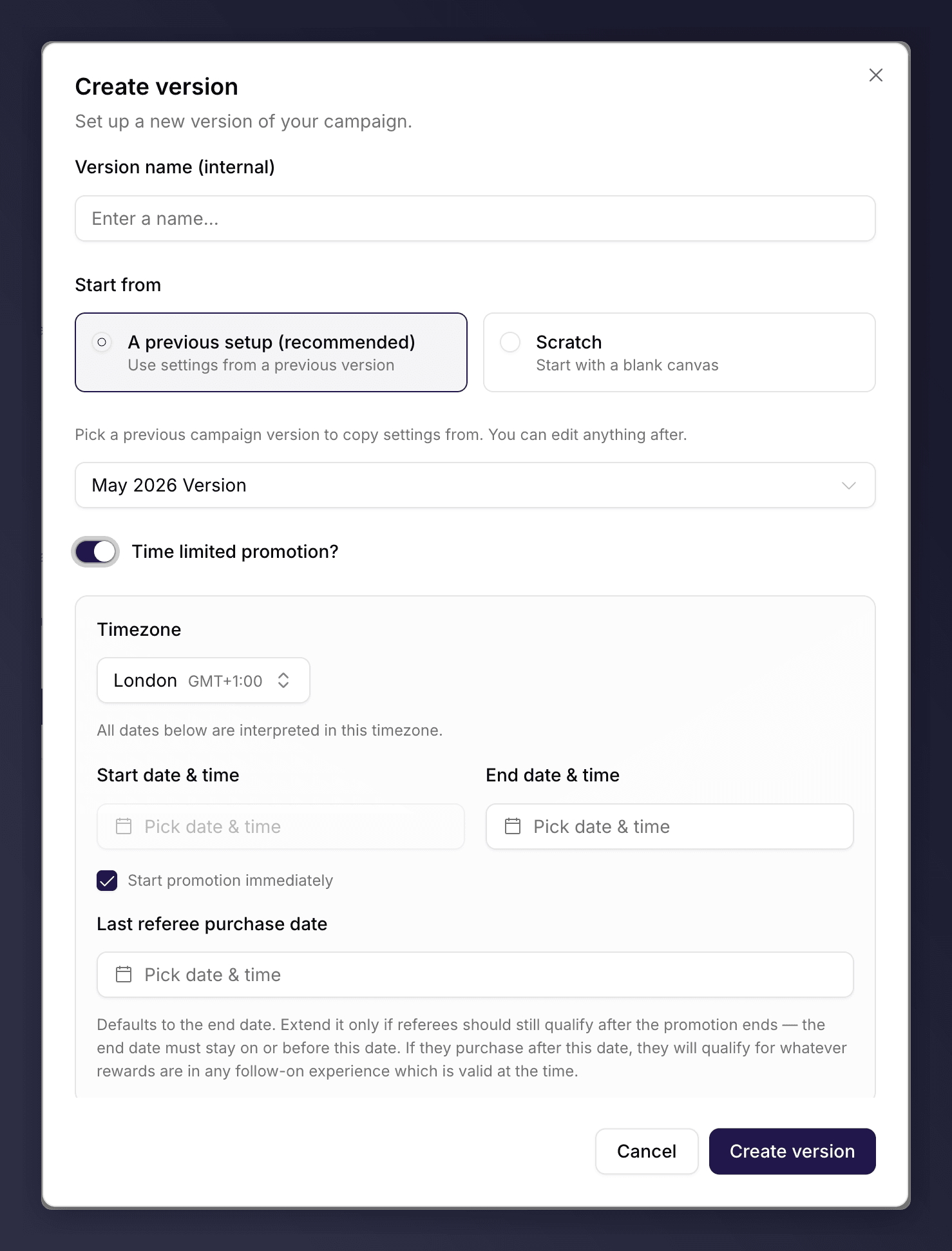 Turn on **Time limited promotion** if this version should run only between set dates. Set the **Timezone**, an end date, and the **Last referee purchase date** (the cut-off for friends to qualify). Leave **Start promotion immediately** ticked to begin the moment you launch, or untick it to set a start date. For a fuller walkthrough, see [run a promotion](/knowledge-v2/referral/campaigns/common-tasks/run-a-promotion).
Click **Create version**. The version opens in the editor as a draft, ready to edit.
An A/B test cannot be a promotion. The promotion option is hidden when the version is an A/B test.
## Configure the Version
Work through the sections on the canvas to set up the journey: triggering, rewards, sharing, branding, images and copy. A section with a problem shows an issue-count pill (for example **1 issue**), red for errors and amber for warnings. You cannot launch while a section still has errors.
See [the campaign editor](/knowledge-v2/referral/campaigns/manage/the-campaign-editor) for how the canvas works, and the [editor sections](/knowledge-v2/referral/campaigns/sections/trigger) for what each one controls.
## See Also
Take the version live.
How versions move between statuses.
Turn on **Time limited promotion** if this version should run only between set dates. Set the **Timezone**, an end date, and the **Last referee purchase date** (the cut-off for friends to qualify). Leave **Start promotion immediately** ticked to begin the moment you launch, or untick it to set a start date. For a fuller walkthrough, see [run a promotion](/knowledge-v2/referral/campaigns/common-tasks/run-a-promotion).
Click **Create version**. The version opens in the editor as a draft, ready to edit.
An A/B test cannot be a promotion. The promotion option is hidden when the version is an A/B test.
## Configure the Version
Work through the sections on the canvas to set up the journey: triggering, rewards, sharing, branding, images and copy. A section with a problem shows an issue-count pill (for example **1 issue**), red for errors and amber for warnings. You cannot launch while a section still has errors.
See [the campaign editor](/knowledge-v2/referral/campaigns/manage/the-campaign-editor) for how the canvas works, and the [editor sections](/knowledge-v2/referral/campaigns/sections/trigger) for what each one controls.
## See Also
Take the version live.
How versions move between statuses.