> ## Documentation Index
> Fetch the complete documentation index at: https://docs.mention-me.com/llms.txt
> Use this file to discover all available pages before exploring further.
# Fraud Review
> Review suspicious referral activity flagged for approval, tune your signals, and act in bulk.
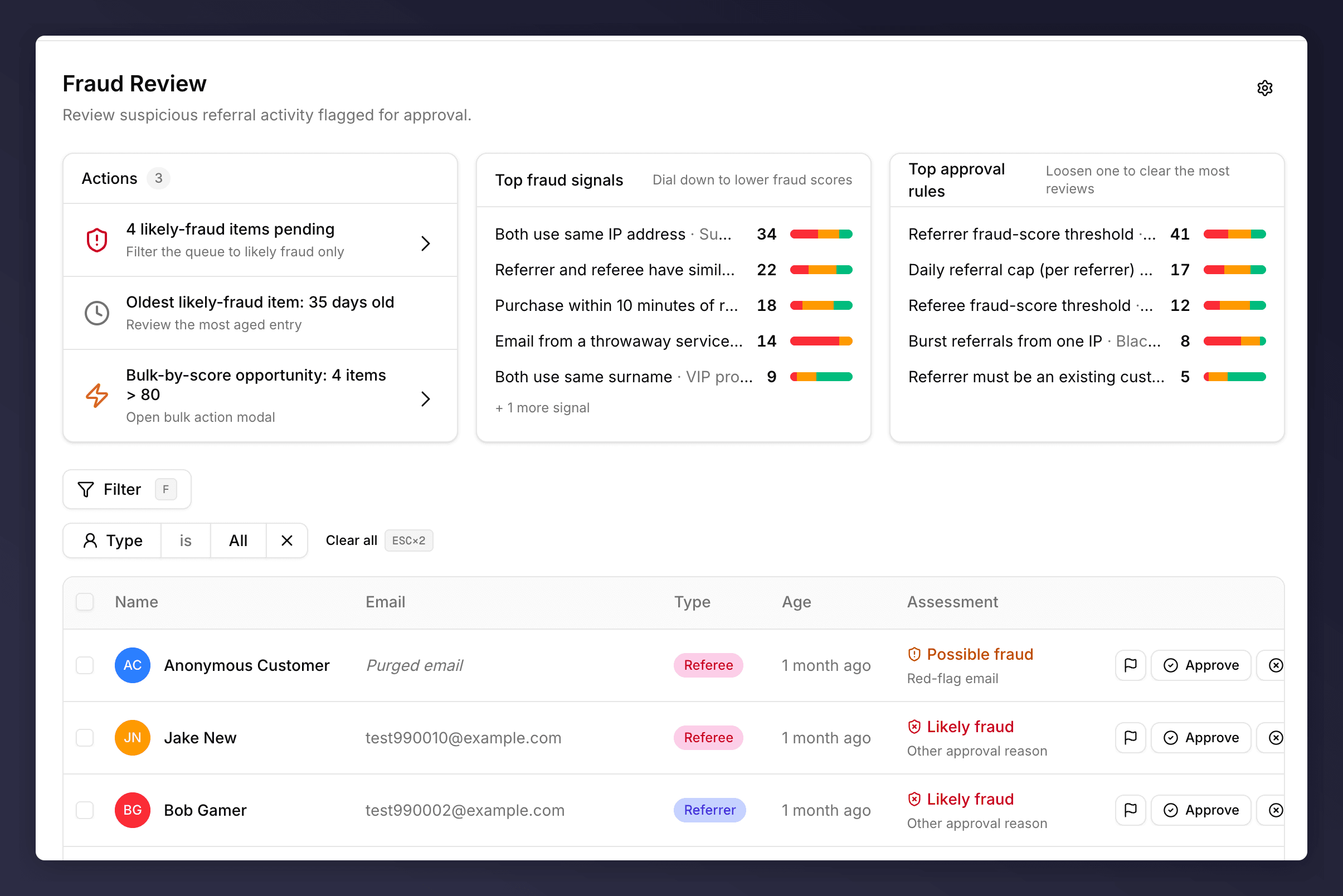
Fraud Review is the queue of referrals the platform isn't confident about. Each row is a referral the system would have auto-rewarded but didn't, because either an automatic fraud signal pushed the score past a campaign threshold, or one of your approval rules tripped. Your job here is to clear the queue: approve genuine activity, decline what's gamed.
 ## Top-of-Page Panels
### Actions
Up to three smart suggestions, generated from the state of the queue.
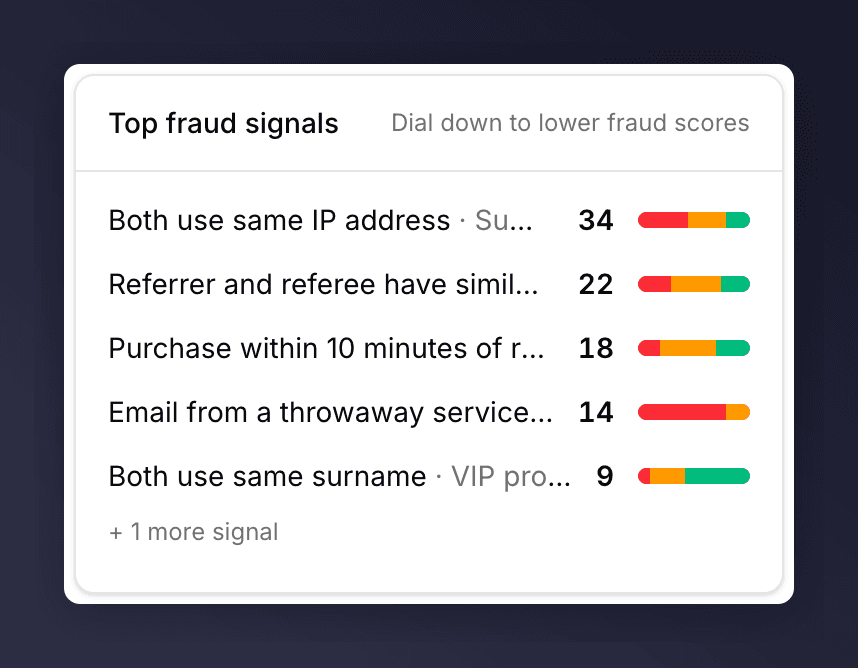
### Top fraud signals
Lists the signals contributing the most to your current fraud scores. Each row shows the signal name, the campaign it's most active in, a count, and a coloured bar showing how strong it is right now. Use this to **dial down** a signal that's catching too much legitimate activity (or up, if too little).
See the [fraud signals reference](/knowledge-v2/customers/reference/fraud-signals) for the full catalogue.
## Top-of-Page Panels
### Actions
Up to three smart suggestions, generated from the state of the queue.
### Top fraud signals
Lists the signals contributing the most to your current fraud scores. Each row shows the signal name, the campaign it's most active in, a count, and a coloured bar showing how strong it is right now. Use this to **dial down** a signal that's catching too much legitimate activity (or up, if too little).
See the [fraud signals reference](/knowledge-v2/customers/reference/fraud-signals) for the full catalogue.
 ### Top approval rules
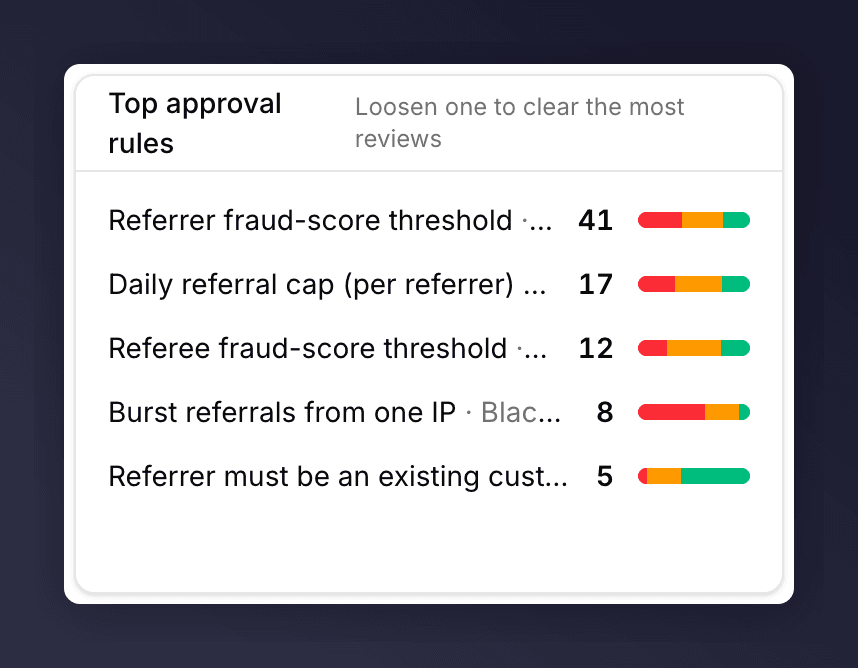
Lists the approval rules most often forcing a manual review. Use this to **loosen** a rule that's creating a queue you don't need to read.
See the [approval rules reference](/knowledge-v2/customers/reference/approval-rules) for the full catalogue.
### Top approval rules
Lists the approval rules most often forcing a manual review. Use this to **loosen** a rule that's creating a queue you don't need to read.
See the [approval rules reference](/knowledge-v2/customers/reference/approval-rules) for the full catalogue.
 ## Reading the Table
| Column | What it shows |
| ----------------- | ---------------------------------------------------------------------------------------------------------------------------------- |
| Checkbox | Bulk select. |
| Name | Customer name + avatar. |
| Email | Email on file. "Purged email" if the customer has been purged but the suspect record remains. |
| Type | Referrer / Referee. |
| Age | How long the entry has been waiting. |
| **Assessment** | A verdict badge + a short list of signal headlines. Hover for the full breakdown. See [The Assessment cell](#the-assessment-cell). |
| Flag icon | Pin for follow-up. |
| Approve / Decline | Per-row decision. |
## The Assessment Cell
The **Assessment** column shows a verdict badge and the top two **signal headlines** that contributed to it.
The verdict combines automatic fraud signals and any approval-rule reasons fired on the same referral:
| Verdict | Colour | Meaning |
| ------------------ | ------ | ---------------------------------------------------------------------------------------------------------------------------------------------- |
| **Likely fraud** | Red | A high-severity signal fired (e.g. on a known suspect list), or the fraud score is at least 67. Strong recommendation to decline. |
| **Possible fraud** | Amber | A medium-severity signal fired (identity overlap, red-flag email, suspicious timing), or the score is at least 34. Worth investigating. |
| **Worth checking** | Green | Low score and no severe signals, but worth a glance before approving. |
| **Manual review** | Grey | Caught by an approval rule with no fraud-score component (e.g. a velocity limit, an eligibility rule). The platform isn't making a fraud call. |
### Hover Card
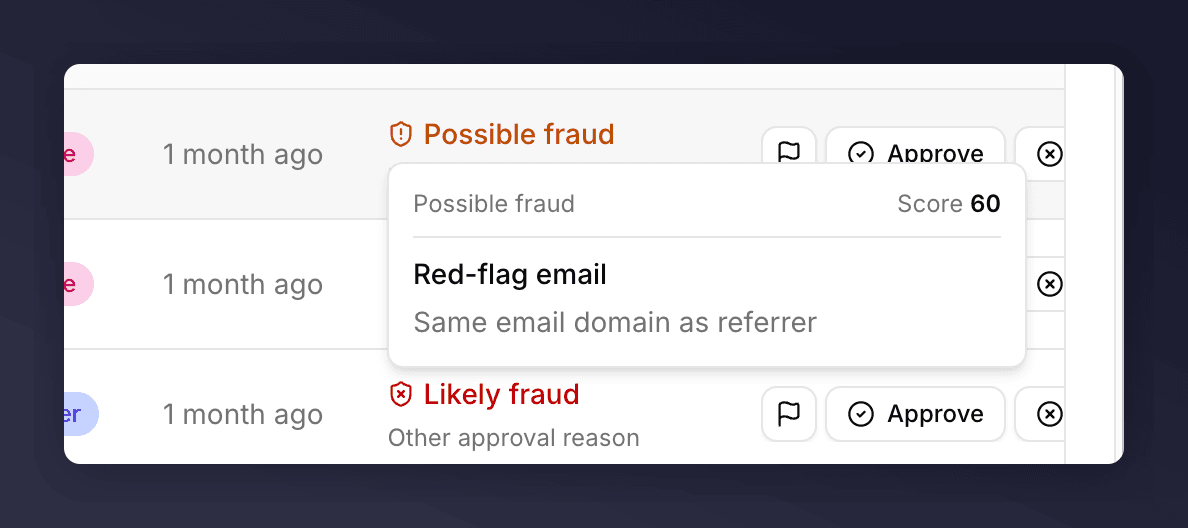
Hover the verdict badge to open a popover with the full breakdown:
* The verdict label and the current fraud **score** (if any).
* Every fired signal, grouped by signal bucket (e.g. "Looks like the same person", "Red-flag email", "Suspicious timing").
* Within each bucket, the individual signal labels with any per-signal values (counts, time windows).
* Any approval-rule reasons that don't fit a fraud-signal bucket, listed under **Other**.
## Reading the Table
| Column | What it shows |
| ----------------- | ---------------------------------------------------------------------------------------------------------------------------------- |
| Checkbox | Bulk select. |
| Name | Customer name + avatar. |
| Email | Email on file. "Purged email" if the customer has been purged but the suspect record remains. |
| Type | Referrer / Referee. |
| Age | How long the entry has been waiting. |
| **Assessment** | A verdict badge + a short list of signal headlines. Hover for the full breakdown. See [The Assessment cell](#the-assessment-cell). |
| Flag icon | Pin for follow-up. |
| Approve / Decline | Per-row decision. |
## The Assessment Cell
The **Assessment** column shows a verdict badge and the top two **signal headlines** that contributed to it.
The verdict combines automatic fraud signals and any approval-rule reasons fired on the same referral:
| Verdict | Colour | Meaning |
| ------------------ | ------ | ---------------------------------------------------------------------------------------------------------------------------------------------- |
| **Likely fraud** | Red | A high-severity signal fired (e.g. on a known suspect list), or the fraud score is at least 67. Strong recommendation to decline. |
| **Possible fraud** | Amber | A medium-severity signal fired (identity overlap, red-flag email, suspicious timing), or the score is at least 34. Worth investigating. |
| **Worth checking** | Green | Low score and no severe signals, but worth a glance before approving. |
| **Manual review** | Grey | Caught by an approval rule with no fraud-score component (e.g. a velocity limit, an eligibility rule). The platform isn't making a fraud call. |
### Hover Card
Hover the verdict badge to open a popover with the full breakdown:
* The verdict label and the current fraud **score** (if any).
* Every fired signal, grouped by signal bucket (e.g. "Looks like the same person", "Red-flag email", "Suspicious timing").
* Within each bucket, the individual signal labels with any per-signal values (counts, time windows).
* Any approval-rule reasons that don't fit a fraud-signal bucket, listed under **Other**.
 If the cell has more than two signal headlines, the remainder is shown as `+N more signals`. The hover card always shows everything.
## Approving a Suspect
The [approval review sheet](/knowledge-v2/customers/approval-review-sheet) slides in from the right with the full customer context, every fired signal, and the linked referral.
Read the activity timeline in the sheet. Check the Insights bullet. Look at any other recent suspects with the same referrer.
Click **Approve** to let the referral and any pending reward go through, or **Decline** to reject it. See [Decline a suspect](#decline-a-suspect) for the dialog options.
Approving a suspect counts as a manual override. The platform records it on the customer's Admin tab so you have an audit trail.
## Decline a Suspect
The decline flow is identical to the one in [Pending Rewards](/knowledge-v2/customers/pending-rewards#declining-a-reward): a confirmation dialog with an optional note and a choice between **Decline silently** and **Decline and notify**.
## Bulk by Score
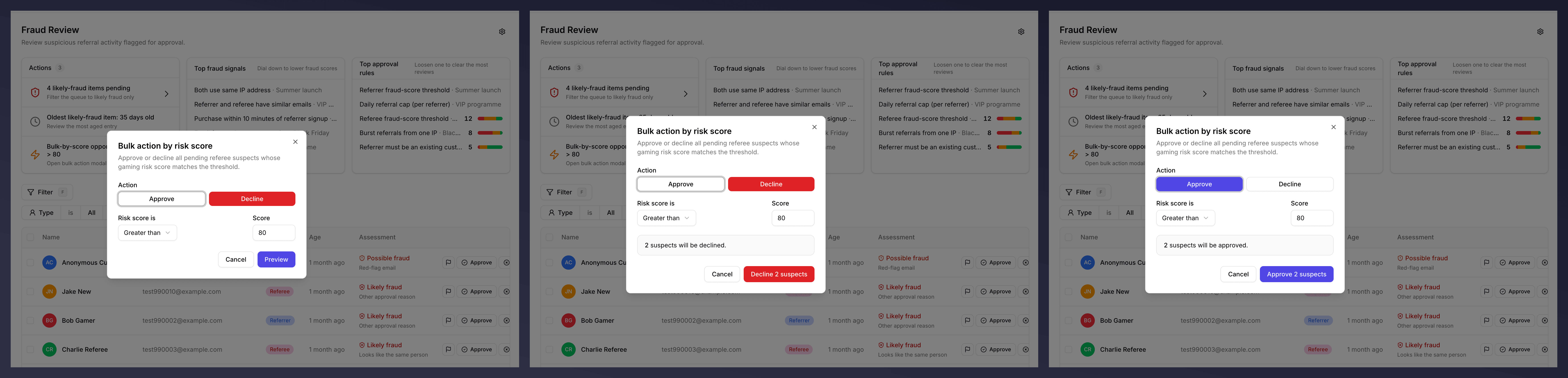
Use the **Bulk-by-score** action in the Actions panel to decide on many suspects at once based on their fraud score. Useful when a signal is producing obvious false positives at a known threshold.
If the cell has more than two signal headlines, the remainder is shown as `+N more signals`. The hover card always shows everything.
## Approving a Suspect
The [approval review sheet](/knowledge-v2/customers/approval-review-sheet) slides in from the right with the full customer context, every fired signal, and the linked referral.
Read the activity timeline in the sheet. Check the Insights bullet. Look at any other recent suspects with the same referrer.
Click **Approve** to let the referral and any pending reward go through, or **Decline** to reject it. See [Decline a suspect](#decline-a-suspect) for the dialog options.
Approving a suspect counts as a manual override. The platform records it on the customer's Admin tab so you have an audit trail.
## Decline a Suspect
The decline flow is identical to the one in [Pending Rewards](/knowledge-v2/customers/pending-rewards#declining-a-reward): a confirmation dialog with an optional note and a choice between **Decline silently** and **Decline and notify**.
## Bulk by Score
Use the **Bulk-by-score** action in the Actions panel to decide on many suspects at once based on their fraud score. Useful when a signal is producing obvious false positives at a known threshold.
 ## Filter
The **Filter** button exposes **Type** (All / Referrer / Referee). Press **F** to focus it from anywhere.
## See Also
Rewards waiting on approval, not fraud.
The shared side sheet both queues use.
The catalogue of every signal the platform can fire.
The catalogue of rules that produce queue entries.
Open the profile to investigate before deciding.
## Filter
The **Filter** button exposes **Type** (All / Referrer / Referee). Press **F** to focus it from anywhere.
## See Also
Rewards waiting on approval, not fraud.
The shared side sheet both queues use.
The catalogue of every signal the platform can fire.
The catalogue of rules that produce queue entries.
Open the profile to investigate before deciding.