> ## Documentation Index
> Fetch the complete documentation index at: https://docs.mention-me.com/llms.txt
> Use this file to discover all available pages before exploring further.
# How to Link a Friend to a Referrer
> Manually attach a referee to an existing referrer when the share didn't track automatically.
Use this when the friend didn't arrive via the share link, maybe they bought through a different device, or signed up using a different email. Linking them manually credits the referrer and triggers reward fulfilment as if the referral had tracked normally.
If the referrer doesn't exist yet, [enrol them first](/knowledge-v2/customers/common-tasks/enrol-a-customer), then come back to link the friend.
## Steps
Search for the existing customer by name, email, customer ID, or share link from the [Customers list](/knowledge-v2/customers/browse/customer-list). Click their row to open the profile.
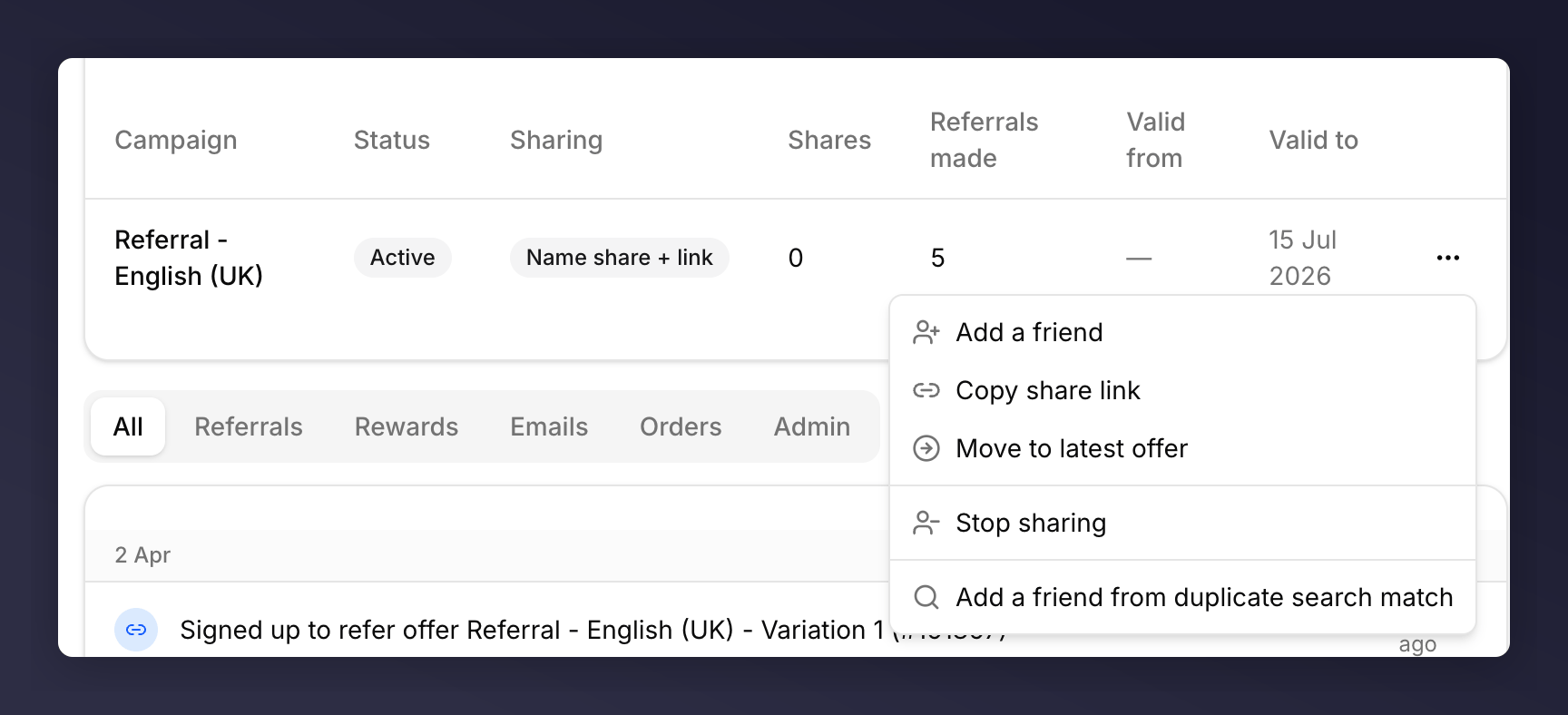
Scroll to the **Campaigns** table on the profile. Find the campaign you're linking the friend to, then click its **…** menu.
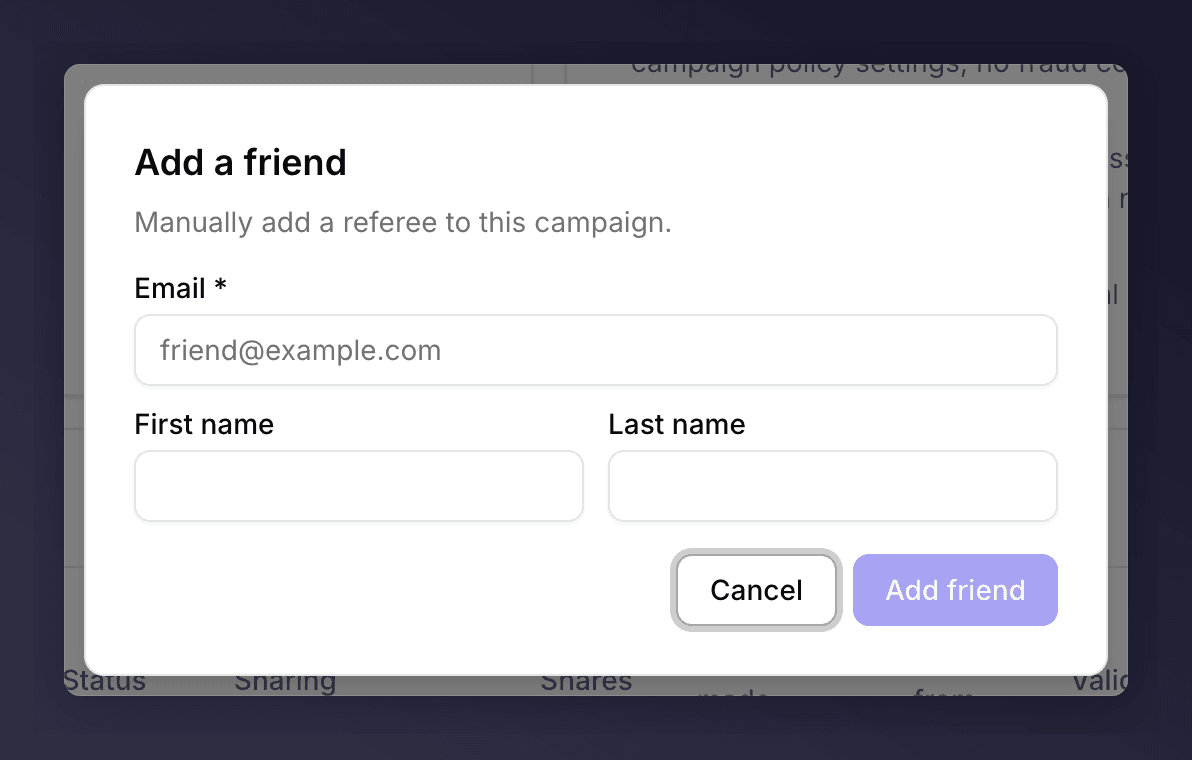
 Fill in the friend's email, first name, and surname, then click **Add friend**. The referral is linked immediately and you'll see a confirmation toast.
 ## Use the Duplicate-Search Version Instead?
If the referrer typed the friend's name into the share-page search box but the referral didn't track automatically, use [Add a friend from duplicate search match](/knowledge-v2/customers/common-tasks/add-a-friend-from-duplicate-search) on the same campaign menu. That path reconciles against an existing search query and avoids creating a duplicate customer record.
## See Also
Use this when the referrer doesn't exist yet.
The variant for friends typed into the share-page search.
The other action on the same campaign menu.
## Use the Duplicate-Search Version Instead?
If the referrer typed the friend's name into the share-page search box but the referral didn't track automatically, use [Add a friend from duplicate search match](/knowledge-v2/customers/common-tasks/add-a-friend-from-duplicate-search) on the same campaign menu. That path reconciles against an existing search query and avoids creating a duplicate customer record.
## See Also
Use this when the referrer doesn't exist yet.
The variant for friends typed into the share-page search.
The other action on the same campaign menu.