> ## Documentation Index
> Fetch the complete documentation index at: https://docs.mention-me.com/llms.txt
> Use this file to discover all available pages before exploring further.
# How to Enrol a Customer
> Manually add a single customer to a campaign from the Customers landing page.
Use this when you have one specific customer to enrol, typically because they signed up offline, or your team is handling a support request and you want them in the programme straight away. For a list of customers, [upload a CSV](/knowledge-v2/data/uploads) instead.
## Open the Wizard
Three entry points all open the same modal:
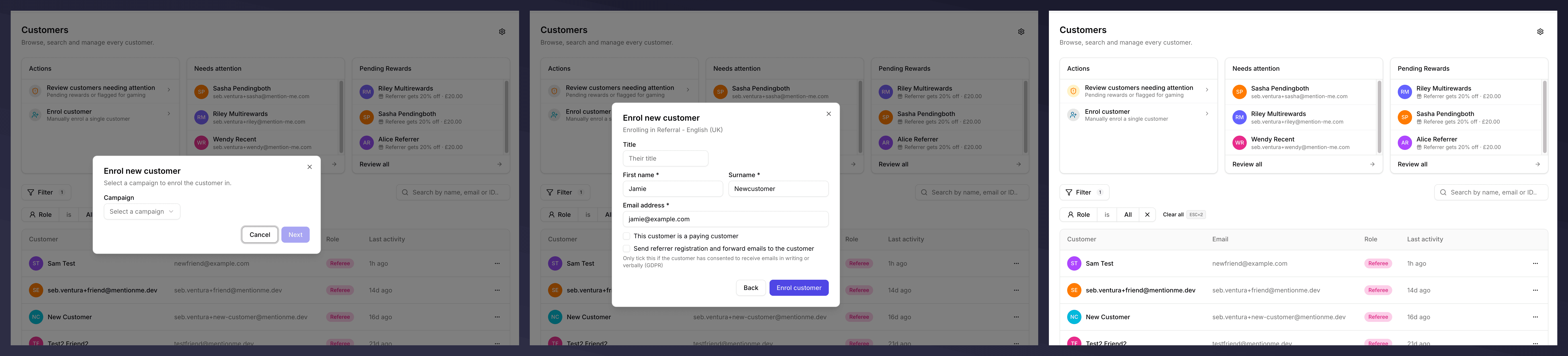
* **Enrol customer** card on the [Customers landing page](/knowledge-v2/customers/browse/customer-list).
* A row's **…** menu, then **Enrol in campaign**.
* A customer profile's **Enrol in campaign** button (top right).
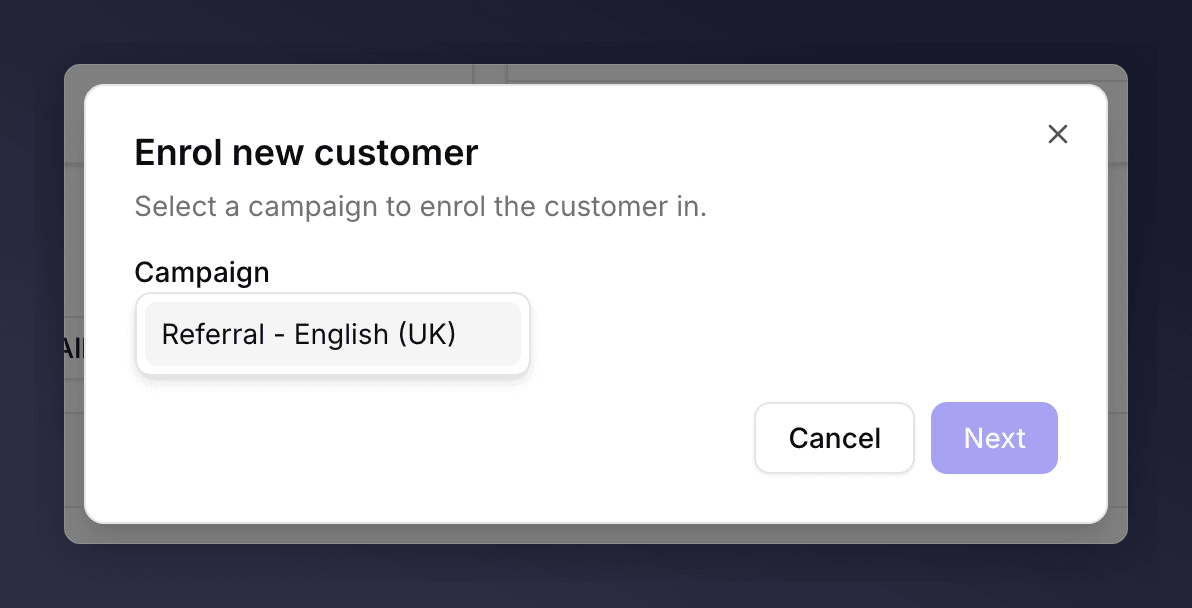 Only active campaigns appear in the dropdown. Pick the one that matches the customer's market and segment. If you're unsure, check **Campaigns > Active** to confirm before continuing.
Click **Next** to proceed.
Only active campaigns appear in the dropdown. Pick the one that matches the customer's market and segment. If you're unsure, check **Campaigns > Active** to confirm before continuing.
Click **Next** to proceed.
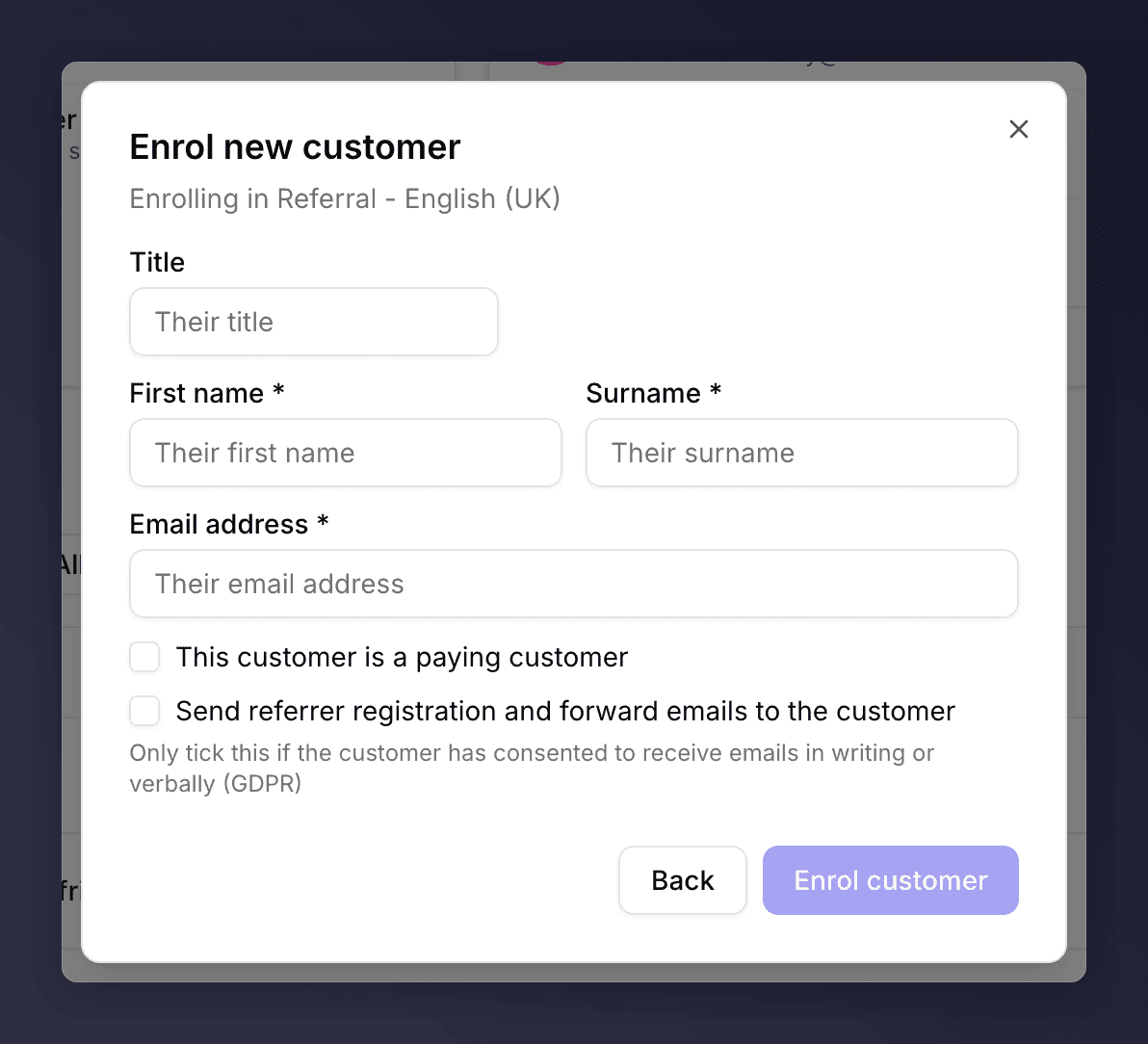 | Field | Required | Notes |
| ------------------------------------------------------------- | -------- | ------------------------------------------------------------------------------------------------------------------ |
| Title | No | E.g. Mr / Ms / Dr. |
| First name | Yes | |
| Surname | Yes | |
| Email address | Yes | Must be a valid email. |
| This customer is a paying customer | No | Tick if the customer has a confirmed purchase on file. Required if your campaign only rewards existing customers. |
| Send referrer registration and forward emails to the customer | No | Triggers the standard Mention Me onboarding emails. **Only tick if you have GDPR consent in writing or verbally.** |
Click **Enrol customer** to submit.
## What Happens Next
* The customer appears at the top of the list, with **Last activity** set to today.
* If you ticked the emails box, the registration email goes out immediately.
* The customer is enrolled in the selected campaign only. To enrol the same person in a second campaign, open the profile and click **Enrol in campaign** again.
| Field | Required | Notes |
| ------------------------------------------------------------- | -------- | ------------------------------------------------------------------------------------------------------------------ |
| Title | No | E.g. Mr / Ms / Dr. |
| First name | Yes | |
| Surname | Yes | |
| Email address | Yes | Must be a valid email. |
| This customer is a paying customer | No | Tick if the customer has a confirmed purchase on file. Required if your campaign only rewards existing customers. |
| Send referrer registration and forward emails to the customer | No | Triggers the standard Mention Me onboarding emails. **Only tick if you have GDPR consent in writing or verbally.** |
Click **Enrol customer** to submit.
## What Happens Next
* The customer appears at the top of the list, with **Last activity** set to today.
* If you ticked the emails box, the registration email goes out immediately.
* The customer is enrolled in the selected campaign only. To enrol the same person in a second campaign, open the profile and click **Enrol in campaign** again.
 ## Common Issues
No active campaigns in your account. Create one in **Campaigns** first.
Make sure there are no trailing spaces and the domain is reachable. Mention Me validates the format only, so it won't catch mistyped addresses. Check carefully.
The wizard creates a fresh record. If the customer already exists, find them via search and use **Enrol in campaign** from their profile to add them to a different campaign without duplicating.
The box enables once an email address is filled in. Only tick it if you have GDPR consent on file.
## See Also
Why most customers don't need to be enrolled manually at all.
Bulk enrolment for a list of customers.
Enrol a friend under an existing referrer.
## Common Issues
No active campaigns in your account. Create one in **Campaigns** first.
Make sure there are no trailing spaces and the domain is reachable. Mention Me validates the format only, so it won't catch mistyped addresses. Check carefully.
The wizard creates a fresh record. If the customer already exists, find them via search and use **Enrol in campaign** from their profile to add them to a different campaign without duplicating.
The box enables once an email address is filled in. Only tick it if you have GDPR consent on file.
## See Also
Why most customers don't need to be enrolled manually at all.
Bulk enrolment for a list of customers.
Enrol a friend under an existing referrer.