> ## Documentation Index
> Fetch the complete documentation index at: https://docs.mention-me.com/llms.txt
> Use this file to discover all available pages before exploring further.
# How to Delete Customer Data
> Permanently remove a customer's personal data from Mention Me, individually or in bulk.
Use this when you need to fulfil a GDPR or equivalent erasure request. Mention Me supports three paths: from the UI for one customer, via CSV upload for many, or via SFTP for an automated feed.
Purging is permanent. The customer's email is replaced with **Purged email**, their referral activity is anonymised, and rewards in flight are cancelled. There is no undo.
## One Customer, from the UI
Search the [Customers list](/knowledge-v2/customers/browse/customer-list).
Two ways:
* From the list, click the row **…** menu and choose **Purge data**.
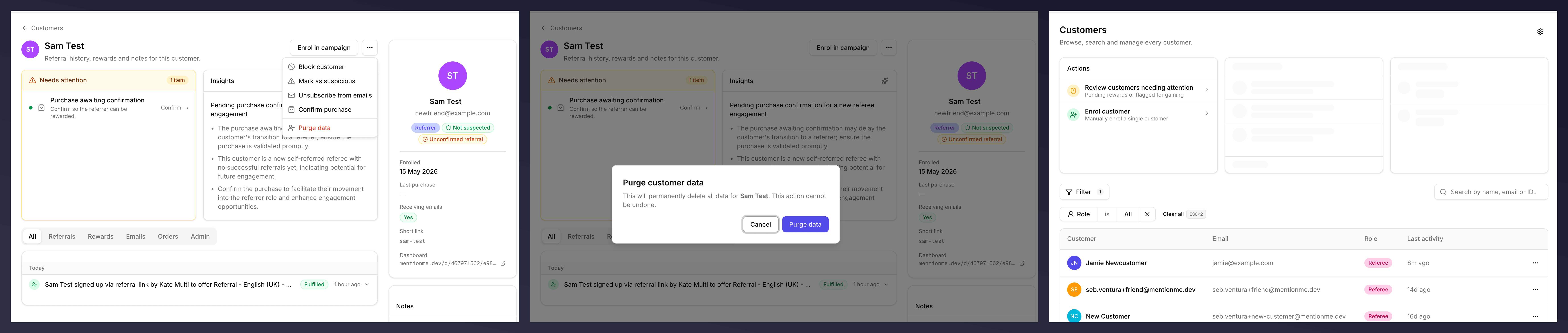
* From the profile, click **…** next to **Enrol in campaign** and choose **Purge data**.
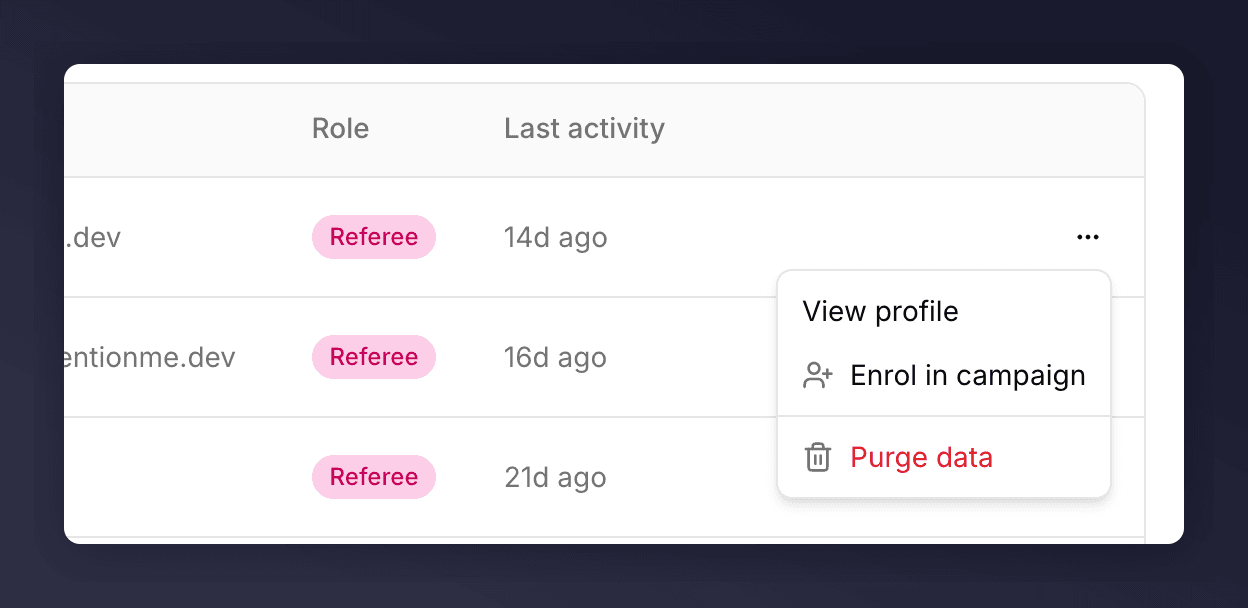 The customer is purged immediately and the row leaves the list.
 ## Many Customers, via CSV
For a list of customers, use [Upload a CSV](/knowledge-v2/data/uploads) with the **Existing customers** type and the suppression flow. See the uploads guide for the file format and the validation step.
## Automated, via SFTP
If you've got SFTP set up with us, drop a purge CSV in the agreed folder using the format in **Settings & Tools > Integration Instructions > Sending Data via SFTP > Purge Customers**. We process the file and purge the listed users on receipt.
If you don't have SFTP set up yet, talk to your CSM about provisioning it.
## See Also
Stops sharing without deleting data.
The bulk path for many customers.
## Many Customers, via CSV
For a list of customers, use [Upload a CSV](/knowledge-v2/data/uploads) with the **Existing customers** type and the suppression flow. See the uploads guide for the file format and the validation step.
## Automated, via SFTP
If you've got SFTP set up with us, drop a purge CSV in the agreed folder using the format in **Settings & Tools > Integration Instructions > Sending Data via SFTP > Purge Customers**. We process the file and purge the listed users on receipt.
If you don't have SFTP set up yet, talk to your CSM about provisioning it.
## See Also
Stops sharing without deleting data.
The bulk path for many customers.