> ## Documentation Index
> Fetch the complete documentation index at: https://docs.mention-me.com/llms.txt
> Use this file to discover all available pages before exploring further.
# How to Add a Friend from Duplicate Search Match
> Link a referee to a referrer using a name a customer typed into the friend-search field on your share page.
When a customer uses the friend-search feature on your share page, they type their friend's name into a search box and we look for matches in your customer base. Sometimes the customer makes the search but the referral doesn't track. They don't pick anyone, the share doesn't go through, or the friend signs up later via a different path. Their search query stays on the referrer's record as a **duplicate search match** you can act on.
Use **Add a friend from duplicate search match** when you want to credit the referrer for a friend they clearly tried to refer but the system didn't link automatically.
## When to Use This vs Add a Friend
| Situation | Use |
| ----------------------------------------------------------------------------------------------- | ------------------------------------------------------------------ |
| You're attaching a brand-new friend the referrer named off the platform. | [Add a friend](/knowledge-v2/customers/common-tasks/link-a-friend) |
| The referrer already typed a name or email into the share-page search and you want to use that. | **Add a friend from duplicate search match** (this page) |
The advantage of the duplicate-search path is that the friend record already exists in some form (typically as a partially-completed search query) and the platform can reconcile it against your customer base without you having to retype the details. This also reduces the chance of creating a duplicate customer record.
## Steps
Find the referrer via the [Customers list](/knowledge-v2/customers/browse/customer-list) and click their row to open the profile.
Scroll to the **Campaigns** table. Open the **…** menu on the campaign the share happened in.
The platform shows you the names the referrer searched for that didn't end up as a tracked referral.
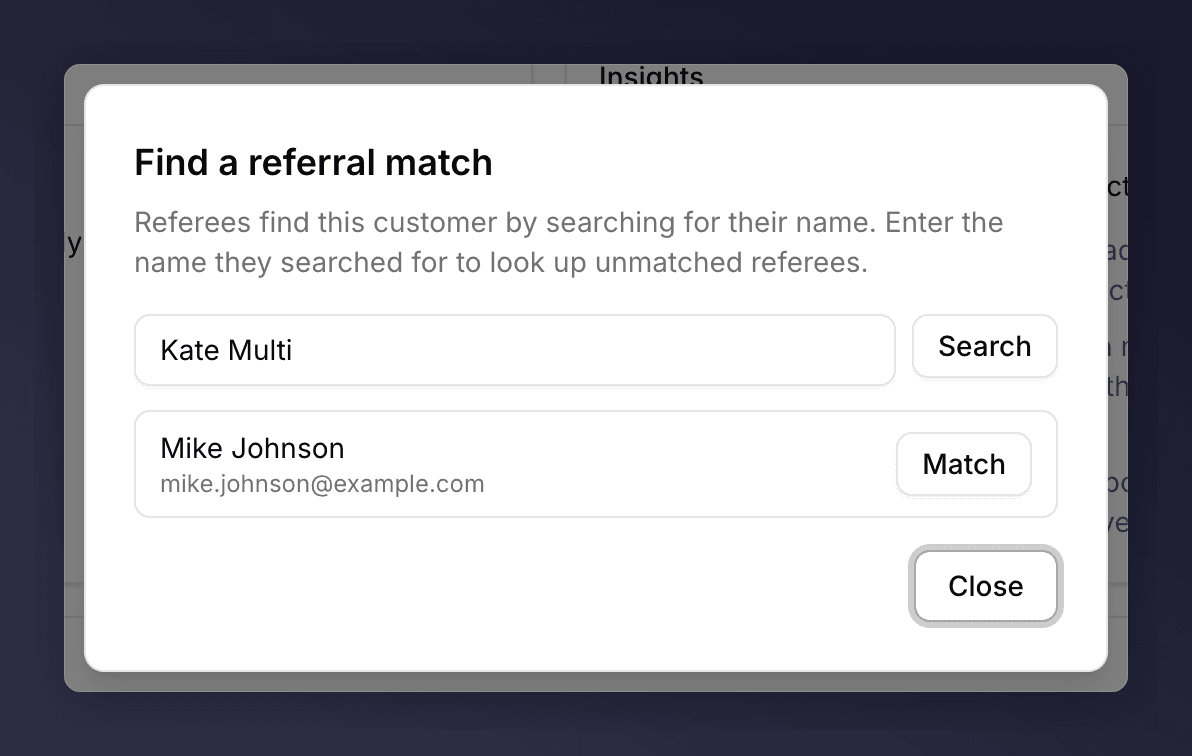 Type the friend's name into the search box. The search is fuzzy: try variations (nicknames, with or without middle initial, surname only) if your first attempt doesn't return the customer you expect. The platform looks across the referrer's existing searches and your customer base for plausible matches.
Click **Match** next to the friend you want to attach. If the platform finds an existing customer record, it links to that. If not, you'll be prompted to fill in the friend's email and continue as if you'd used [Add a friend](/knowledge-v2/customers/common-tasks/link-a-friend).
## What if There Are No Duplicate Matches?
The menu item still appears in the campaign **…** menu, but the list is empty. Use [Add a friend](/knowledge-v2/customers/common-tasks/link-a-friend) instead.
## See Also
The standard manual-link flow.
Where the campaign menu lives.
Type the friend's name into the search box. The search is fuzzy: try variations (nicknames, with or without middle initial, surname only) if your first attempt doesn't return the customer you expect. The platform looks across the referrer's existing searches and your customer base for plausible matches.
Click **Match** next to the friend you want to attach. If the platform finds an existing customer record, it links to that. If not, you'll be prompted to fill in the friend's email and continue as if you'd used [Add a friend](/knowledge-v2/customers/common-tasks/link-a-friend).
## What if There Are No Duplicate Matches?
The menu item still appears in the campaign **…** menu, but the list is empty. Use [Add a friend](/knowledge-v2/customers/common-tasks/link-a-friend) instead.
## See Also
The standard manual-link flow.
Where the campaign menu lives.