> ## Documentation Index
> Fetch the complete documentation index at: https://docs.mention-me.com/llms.txt
> Use this file to discover all available pages before exploring further.
# Customer List
> Browse, search, filter, and act on every customer in your programme.
The Customers landing page is your first stop for finding a customer or actioning a queue.
 ## Top-of-Page Panels
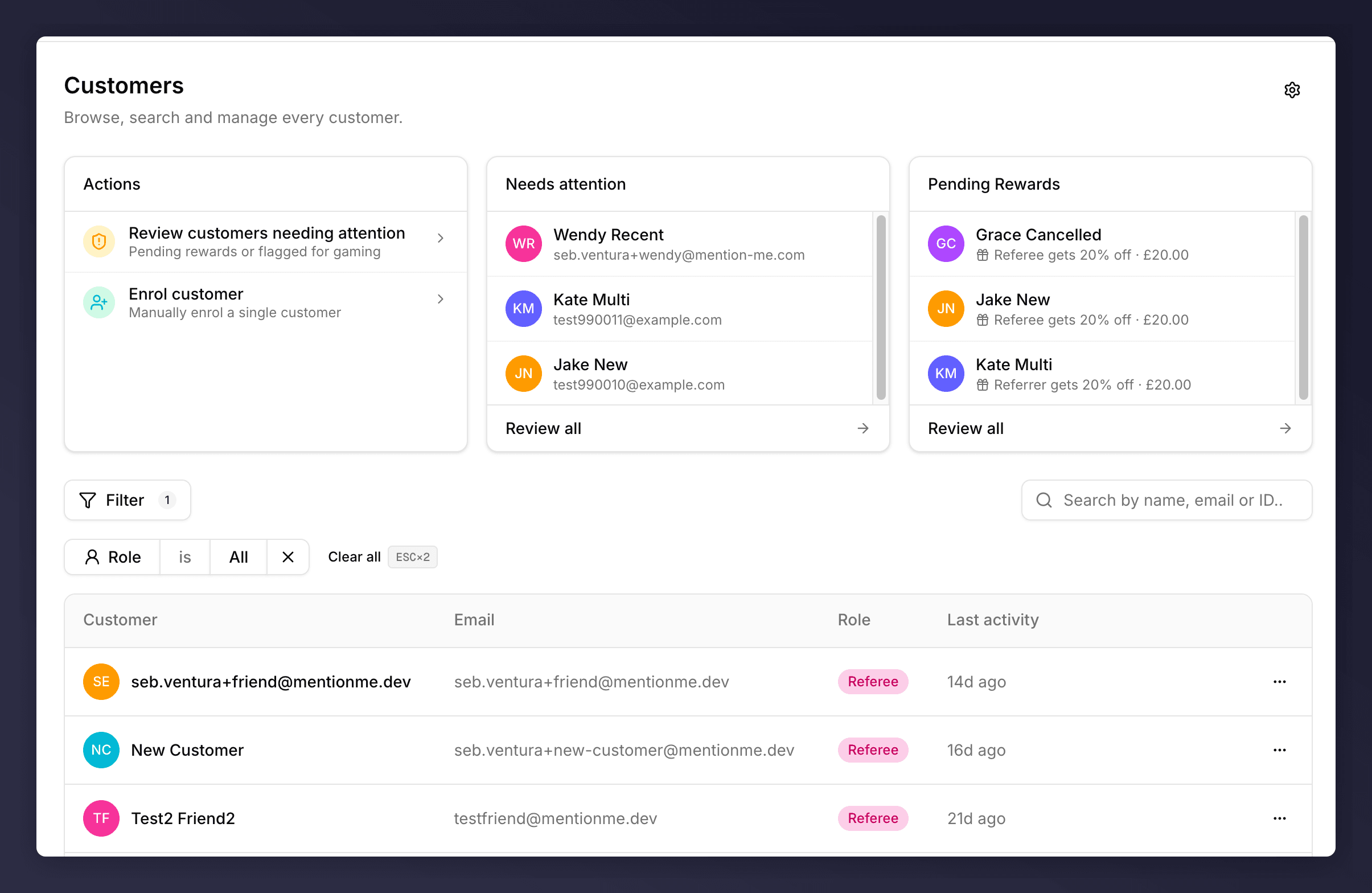
Three cards sit above the table.
* **Actions**. Three shortcuts: review attention, [upload customers](/knowledge-v2/data/uploads), [enrol customer](/knowledge-v2/customers/common-tasks/enrol-a-customer). The shortcuts mirror entries elsewhere in the app so you don't have to remember where they live.
* **Needs attention**. The first three customers with an open signal. Click any name to jump straight to their profile, or **Review all** to open the filtered list.
* **Pending Rewards or Performance**. If you have rewards waiting on a manual decision, this card lists the first three with a link to **Review all** ([Pending Rewards queue](/knowledge-v2/customers/pending-rewards)). If your queue is empty and you have reporting access, the card flips to a **Performance** view summarising your selected metrics so the space stays useful.
## Search
The search box (top right) matches against **name**, **email**, **customer ID**, and **share link**. It's a prefix-and-substring match, so `wendy`, `wend`, or `endy` will all surface Wendy Recent.
## Filter
Click **Filter** to open the filter picker.
## Top-of-Page Panels
Three cards sit above the table.
* **Actions**. Three shortcuts: review attention, [upload customers](/knowledge-v2/data/uploads), [enrol customer](/knowledge-v2/customers/common-tasks/enrol-a-customer). The shortcuts mirror entries elsewhere in the app so you don't have to remember where they live.
* **Needs attention**. The first three customers with an open signal. Click any name to jump straight to their profile, or **Review all** to open the filtered list.
* **Pending Rewards or Performance**. If you have rewards waiting on a manual decision, this card lists the first three with a link to **Review all** ([Pending Rewards queue](/knowledge-v2/customers/pending-rewards)). If your queue is empty and you have reporting access, the card flips to a **Performance** view summarising your selected metrics so the space stays useful.
## Search
The search box (top right) matches against **name**, **email**, **customer ID**, and **share link**. It's a prefix-and-substring match, so `wendy`, `wend`, or `endy` will all surface Wendy Recent.
## Filter
Click **Filter** to open the filter picker.
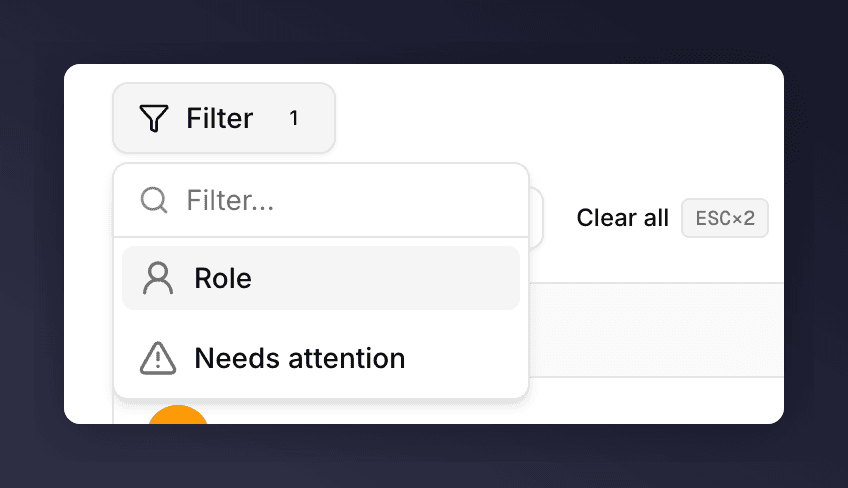 Two filters are available today.
| Filter | Values | Use when |
| ------------------- | ------------------------ | -------------------------------------------------------------------------------------------------- |
| **Role** | All / Referrer / Referee | You want only referrers (people who shared) or only referees (people who arrived through a share). |
| **Needs attention** | Toggle | You want to see only customers with an open signal. |
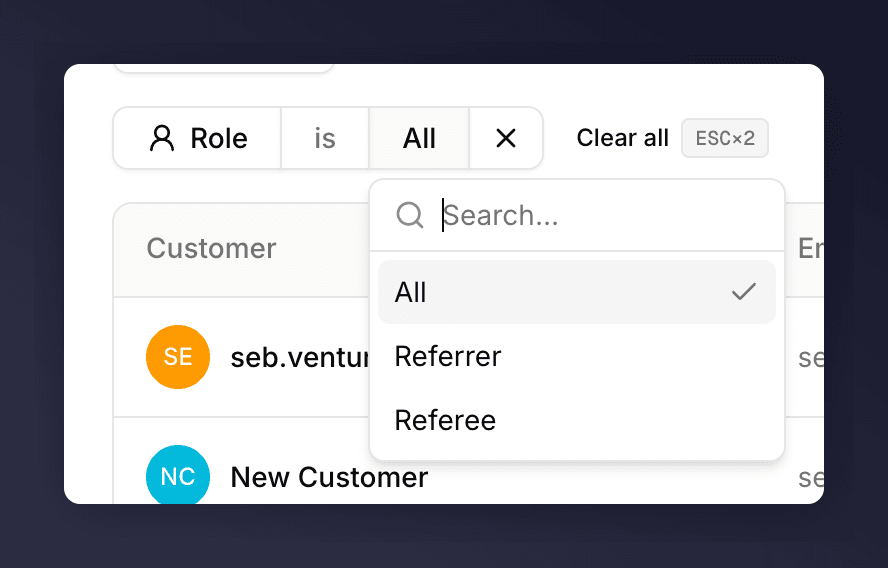
Active filters appear as chips below the **Filter** button. Click the chip's value to change it, or the **×** to remove it. **Clear all** removes every filter at once; pressing **Esc** twice does the same.
Two filters are available today.
| Filter | Values | Use when |
| ------------------- | ------------------------ | -------------------------------------------------------------------------------------------------- |
| **Role** | All / Referrer / Referee | You want only referrers (people who shared) or only referees (people who arrived through a share). |
| **Needs attention** | Toggle | You want to see only customers with an open signal. |
Active filters appear as chips below the **Filter** button. Click the chip's value to change it, or the **×** to remove it. **Clear all** removes every filter at once; pressing **Esc** twice does the same.
 ## The Table
| Column | What it shows |
| --------------------------- | --------------------------------------------------------------------------------------------------------------------------------------------------------------------------------- |
| **Customer** | Avatar + name. Click the row anywhere to open the [profile](/knowledge-v2/customers/browse/customer-profile). |
| **Email** | The customer's email address as we have it on file. Purged customers show "Purged email". |
| **Role** | Referrer or Referee, as a pill. |
| **Last activity** | Their most recent purchase date, or the date they were enrolled if they haven't purchased yet. Recent dates show as a relative time ("13d ago"), older dates as an absolute date. |
| **Status pill** (rightmost) | "Needs attention" appears here when a signal is open. |
## The Table
| Column | What it shows |
| --------------------------- | --------------------------------------------------------------------------------------------------------------------------------------------------------------------------------- |
| **Customer** | Avatar + name. Click the row anywhere to open the [profile](/knowledge-v2/customers/browse/customer-profile). |
| **Email** | The customer's email address as we have it on file. Purged customers show "Purged email". |
| **Role** | Referrer or Referee, as a pill. |
| **Last activity** | Their most recent purchase date, or the date they were enrolled if they haven't purchased yet. Recent dates show as a relative time ("13d ago"), older dates as an absolute date. |
| **Status pill** (rightmost) | "Needs attention" appears here when a signal is open. |
 ### Row Actions
The **…** menu at the right of each row exposes the three actions you can do without opening the profile.
### Row Actions
The **…** menu at the right of each row exposes the three actions you can do without opening the profile.
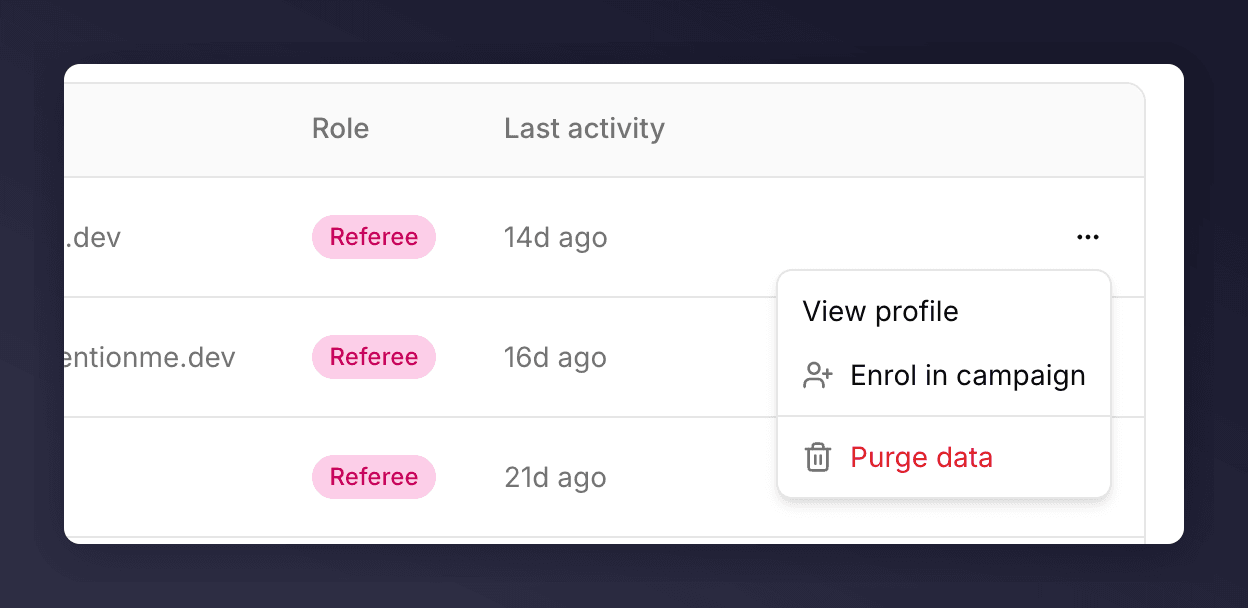 * **View profile**. Same as clicking the row. Opens the [customer profile](/knowledge-v2/customers/browse/customer-profile).
* **Enrol in campaign**. Opens the [enrolment flow](/knowledge-v2/customers/common-tasks/enrol-a-customer) pre-filled with this customer.
* **Purge data**. GDPR delete. See [Delete customer data](/knowledge-v2/customers/common-tasks/delete-customer-data) for what this removes and when to use it.
For anything else (turn emails off, block a customer, move between campaigns), open the profile first.
## Customer Settings
The gear icon in the top right opens [Customer settings](/knowledge-v2/customers/customer-settings). Those rules control data retention and when dormant customers can claim a fresh referee reward.
## Pagination
Ten rows per page. The footer shows "Viewing 1-10 of N customers" with **Previous** / **Next** buttons. If you're looking for someone specific, search before you paginate.
The total in the footer is always the **total number of customers in your account**, not the number that match the current filters. The visible rows do reflect filters, the count doesn't.
* **View profile**. Same as clicking the row. Opens the [customer profile](/knowledge-v2/customers/browse/customer-profile).
* **Enrol in campaign**. Opens the [enrolment flow](/knowledge-v2/customers/common-tasks/enrol-a-customer) pre-filled with this customer.
* **Purge data**. GDPR delete. See [Delete customer data](/knowledge-v2/customers/common-tasks/delete-customer-data) for what this removes and when to use it.
For anything else (turn emails off, block a customer, move between campaigns), open the profile first.
## Customer Settings
The gear icon in the top right opens [Customer settings](/knowledge-v2/customers/customer-settings). Those rules control data retention and when dormant customers can claim a fresh referee reward.
## Pagination
Ten rows per page. The footer shows "Viewing 1-10 of N customers" with **Previous** / **Next** buttons. If you're looking for someone specific, search before you paginate.
The total in the footer is always the **total number of customers in your account**, not the number that match the current filters. The visible rows do reflect filters, the count doesn't.