> ## Documentation Index
> Fetch the complete documentation index at: https://docs.mention-me.com/llms.txt
> Use this file to discover all available pages before exploring further.
# Approval Review Sheet
> The side sheet that opens when you click a row in Pending Rewards or Fraud Review.
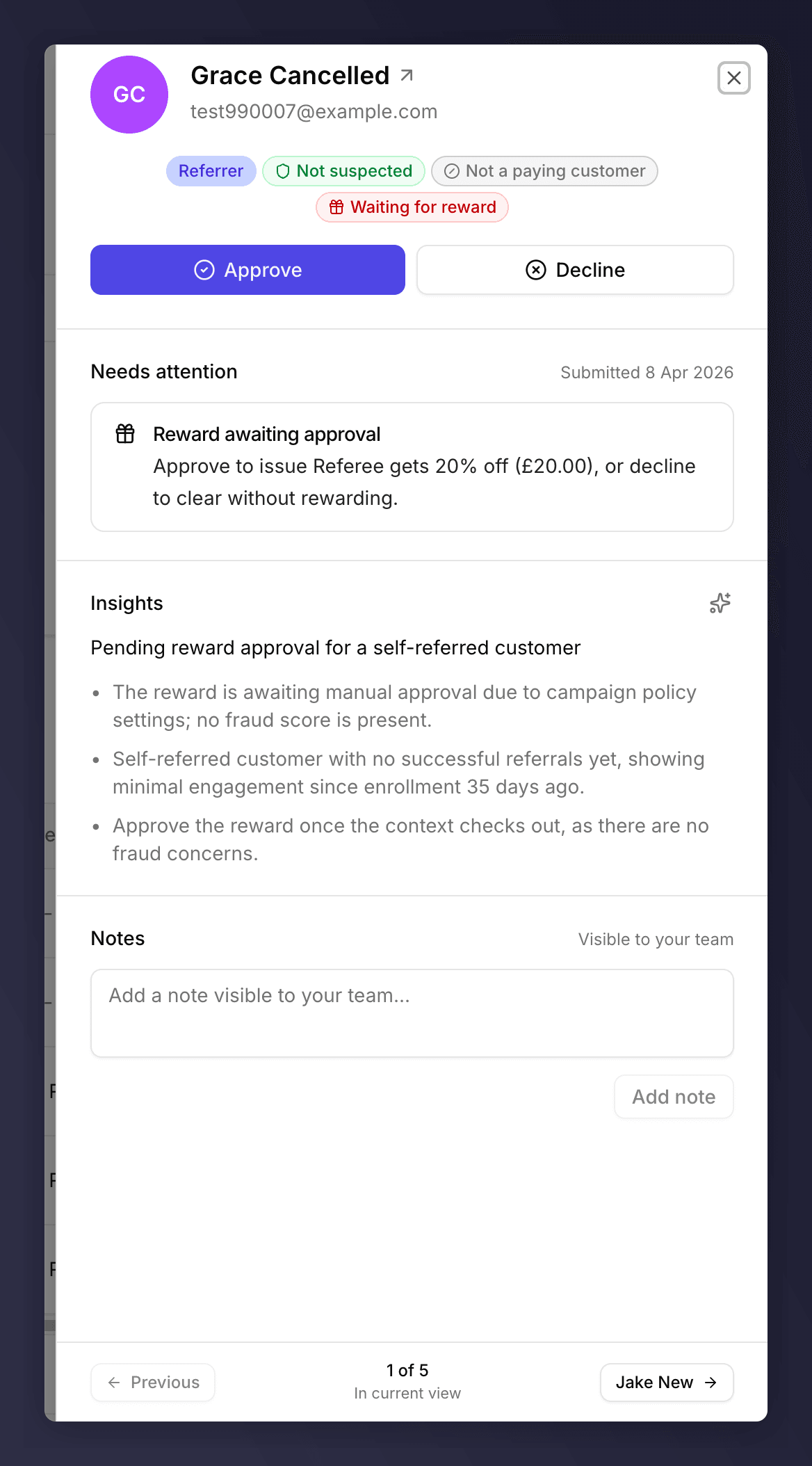
Both the [Pending Rewards](/knowledge-v2/customers/pending-rewards) and [Fraud Review](/knowledge-v2/customers/fraud-review) queues open the same side sheet when you click a row. The sheet is where you do the real work: read context, decide, and move on.
 ## What's in the Sheet
| Section | Shows |
| ----------------- | --------------------------------------------------------------------------------------------------------------------------------------------------------------------------- |
| Header | Customer name, avatar, role, and a link to open the full [profile](/knowledge-v2/customers/browse/customer-profile) in a new tab. |
| Customer summary | The same AI Insights bullet that appears on the profile, plus the most recent activity. |
| Assessment | Verdict badge (Fraud Review) or pending reason (Pending Rewards), with the full breakdown the [hover card](/knowledge-v2/customers/fraud-review#the-assessment-cell) shows. |
| Referral | The linked referral (referrer + referee) with the campaign and offer. |
| Activity timeline | Last few events from the customer's timeline, scoped to this referral. |
| Footer | **Approve** and **Decline** buttons. |
## Single-Item vs Multi-Item
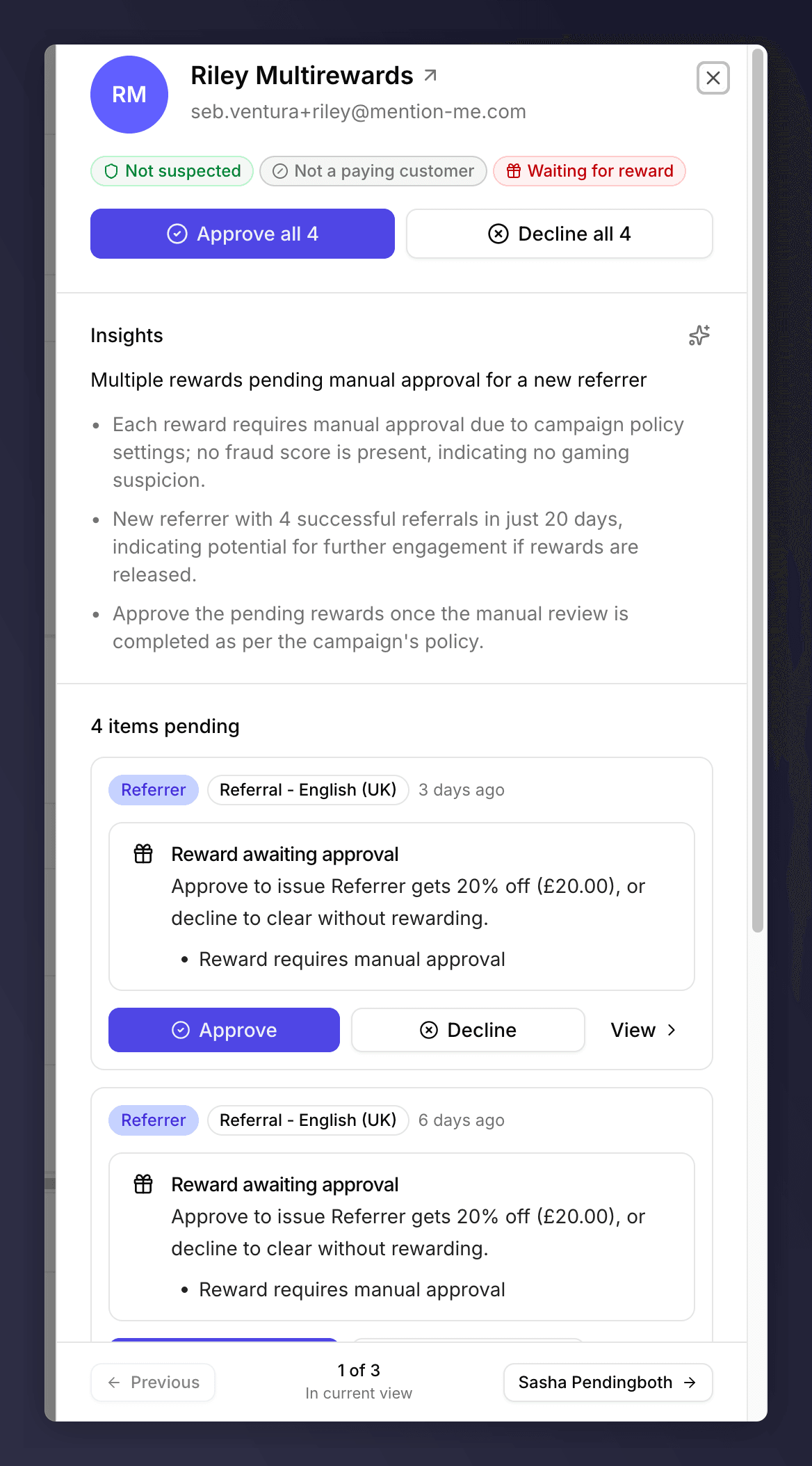
If you clicked a stacked row (e.g. "2 rewards"), the sheet opens in **multi-item** mode: every underlying item is listed, each with its own Approve / Decline. The footer also offers **Approve all** and **Decline all** to action the whole bundle.
## What's in the Sheet
| Section | Shows |
| ----------------- | --------------------------------------------------------------------------------------------------------------------------------------------------------------------------- |
| Header | Customer name, avatar, role, and a link to open the full [profile](/knowledge-v2/customers/browse/customer-profile) in a new tab. |
| Customer summary | The same AI Insights bullet that appears on the profile, plus the most recent activity. |
| Assessment | Verdict badge (Fraud Review) or pending reason (Pending Rewards), with the full breakdown the [hover card](/knowledge-v2/customers/fraud-review#the-assessment-cell) shows. |
| Referral | The linked referral (referrer + referee) with the campaign and offer. |
| Activity timeline | Last few events from the customer's timeline, scoped to this referral. |
| Footer | **Approve** and **Decline** buttons. |
## Single-Item vs Multi-Item
If you clicked a stacked row (e.g. "2 rewards"), the sheet opens in **multi-item** mode: every underlying item is listed, each with its own Approve / Decline. The footer also offers **Approve all** and **Decline all** to action the whole bundle.
 ## Approve
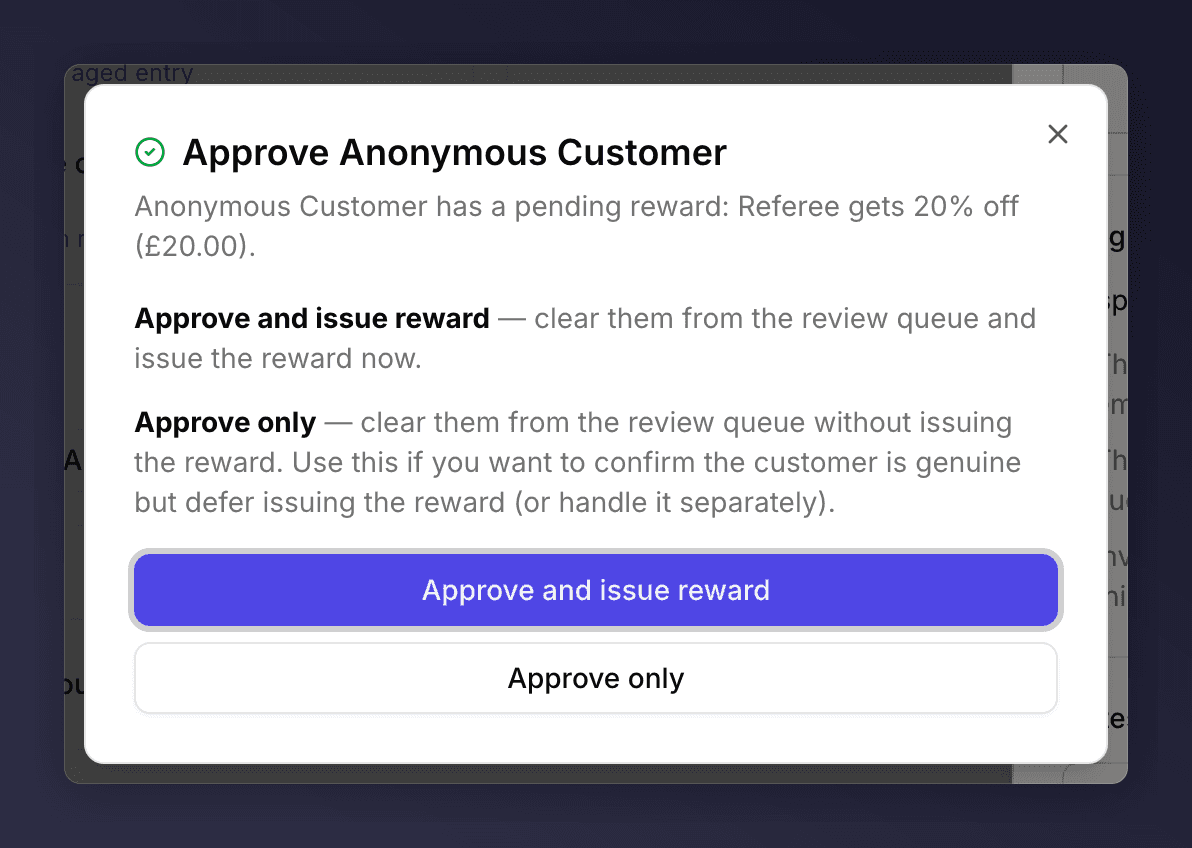
Click **Approve**. For items flagged with a gaming score above the bulk-approval threshold (typically referee suspects from Fraud Review), a dialog appears with two options:
* **Approve and issue reward**: clear them from the review queue and issue the reward now.
* **Approve only**: clear them from the review queue without issuing the reward. Use this if you want to confirm the customer is genuine but defer issuing the reward (or handle it separately).
For other items, the action goes through immediately.
## Approve
Click **Approve**. For items flagged with a gaming score above the bulk-approval threshold (typically referee suspects from Fraud Review), a dialog appears with two options:
* **Approve and issue reward**: clear them from the review queue and issue the reward now.
* **Approve only**: clear them from the review queue without issuing the reward. Use this if you want to confirm the customer is genuine but defer issuing the reward (or handle it separately).
For other items, the action goes through immediately.
 After approving, the row is removed from the queue. If the sheet was on a single item it closes automatically; in multi-item mode it stays open for the remaining items.
## Decline
Decline opens the standard decline dialog (note + silent / notify). See [Pending Rewards > Declining a Reward](/knowledge-v2/customers/pending-rewards#declining-a-reward) for the full breakdown.
## Keyboard
* `Esc` closes the sheet.
* Clicking outside the sheet closes it.
## See Also
One of the two queues that opens this sheet.
The other queue that opens this sheet.
Offers deeper context than the sheet provides.
After approving, the row is removed from the queue. If the sheet was on a single item it closes automatically; in multi-item mode it stays open for the remaining items.
## Decline
Decline opens the standard decline dialog (note + silent / notify). See [Pending Rewards > Declining a Reward](/knowledge-v2/customers/pending-rewards#declining-a-reward) for the full breakdown.
## Keyboard
* `Esc` closes the sheet.
* Clicking outside the sheet closes it.
## See Also
One of the two queues that opens this sheet.
The other queue that opens this sheet.
Offers deeper context than the sheet provides.