> ## Documentation Index
> Fetch the complete documentation index at: https://docs.mention-me.com/llms.txt
> Use this file to discover all available pages before exploring further.
# How to Manage Tracking Setup
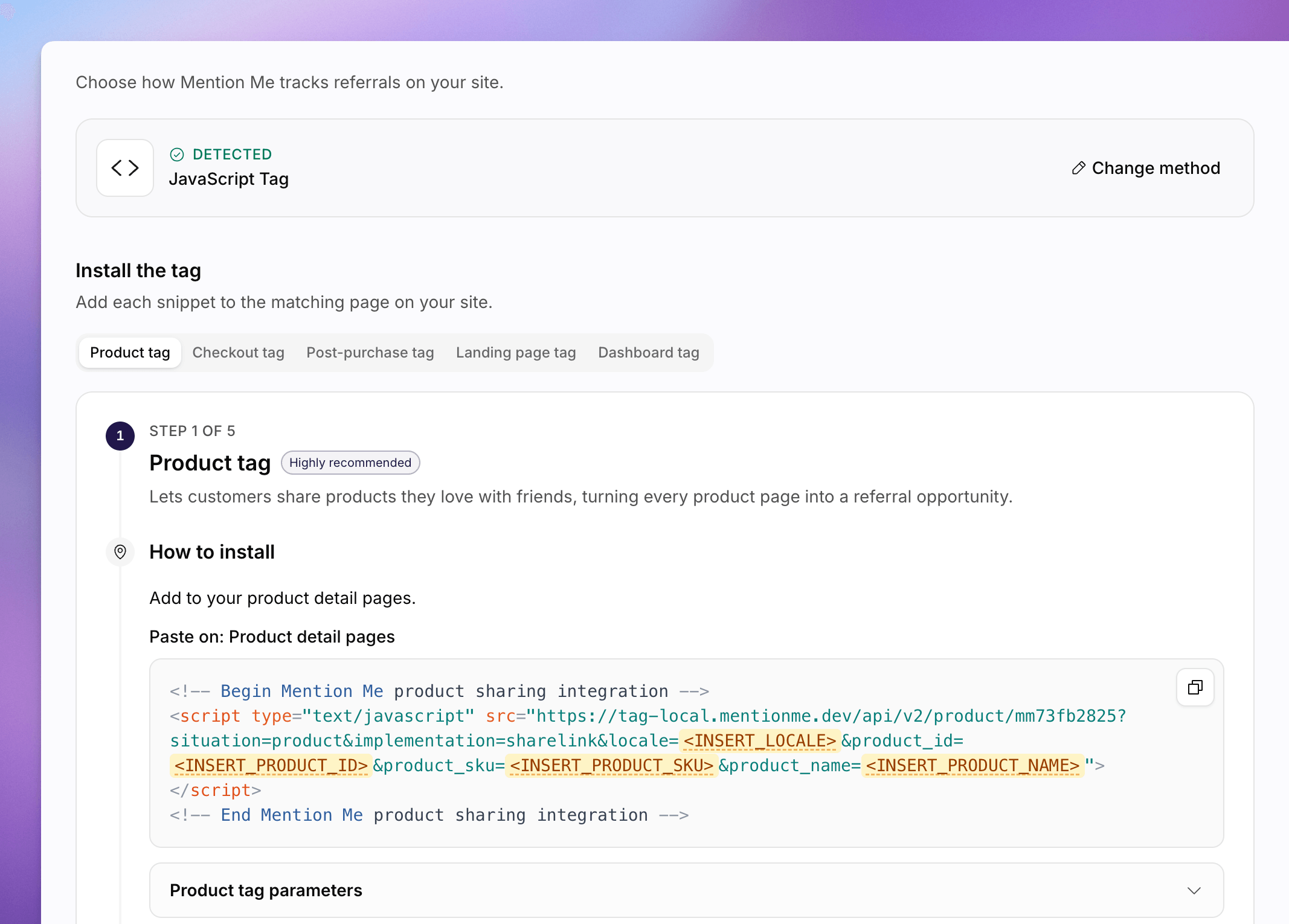
> Choose how Mention Me tracks referrals on your site, and find the snippets for your method.
Open **Settings > Tracking setup** to choose how Mention Me tracks referrals on your site, and to return to the snippets later.
 First-time install is also the **Set up tracking** step in the Onboarding Hub. Use [How to Set Up Tracking](/knowledge-app/onboarding/set-up-tracking) for the full tag list. This Settings page is the lasting home for the same choice.
If your partner code is not ready yet, the page shows **Your partner code isn't available yet**. Try again in a moment, or contact support.
## Choose a Method
Go to **Settings > Tracking setup**.
Under **Choose your integration method**, pick how you want to install Mention Me:
| Method | Best when | Effort |
| ---------------------- | ----------------------------------------------------- | --------------------------- |
| **Shopify** | You run on Shopify and can install the Mention Me app | Quickest, about 5 minutes |
| **Google Tag Manager** | You already manage tags in GTM | Flexible, about 15 minutes |
| **JavaScript Tag** | You can paste snippets into your site | Developer, about 30 minutes |
| **Mention Me API** | You want a server-side integration | Developer, 30+ minutes |
If a method is already detected, you will see a **Detected** banner. Click **Change method** to pick a different one.
## After You Choose
* **Shopify**. Verify the app on **Verify your Shopify installation**. **Manage** or **Connect** opens **Settings > Integrations**.
* **Google Tag Manager** and **JavaScript Tag**. Work through the tabbed tag cards and copy the snippets.
* **Mention Me API**. Follow **Use the Mention Me API**. **API reference** opens the [API introduction](/api-reference/introduction). Tracking-log verification for this method is still coming.
Developer-required methods sit below the **Developer required** divider.
For live-traffic checks after install, see [How to Enable Live Tracking](/knowledge-app/onboarding/enable-live-tracking). To inspect fires that already happened, see [How to Use the Integration Logs](/knowledge-app/settings/files/logs).
## See Also
First-time install from the Onboarding Hub, including the tag list.
Inspect tag fires, orders, and errors after install.
Classic documentation for tag placement.
Server-side integration reference.
First-time install is also the **Set up tracking** step in the Onboarding Hub. Use [How to Set Up Tracking](/knowledge-app/onboarding/set-up-tracking) for the full tag list. This Settings page is the lasting home for the same choice.
If your partner code is not ready yet, the page shows **Your partner code isn't available yet**. Try again in a moment, or contact support.
## Choose a Method
Go to **Settings > Tracking setup**.
Under **Choose your integration method**, pick how you want to install Mention Me:
| Method | Best when | Effort |
| ---------------------- | ----------------------------------------------------- | --------------------------- |
| **Shopify** | You run on Shopify and can install the Mention Me app | Quickest, about 5 minutes |
| **Google Tag Manager** | You already manage tags in GTM | Flexible, about 15 minutes |
| **JavaScript Tag** | You can paste snippets into your site | Developer, about 30 minutes |
| **Mention Me API** | You want a server-side integration | Developer, 30+ minutes |
If a method is already detected, you will see a **Detected** banner. Click **Change method** to pick a different one.
## After You Choose
* **Shopify**. Verify the app on **Verify your Shopify installation**. **Manage** or **Connect** opens **Settings > Integrations**.
* **Google Tag Manager** and **JavaScript Tag**. Work through the tabbed tag cards and copy the snippets.
* **Mention Me API**. Follow **Use the Mention Me API**. **API reference** opens the [API introduction](/api-reference/introduction). Tracking-log verification for this method is still coming.
Developer-required methods sit below the **Developer required** divider.
For live-traffic checks after install, see [How to Enable Live Tracking](/knowledge-app/onboarding/enable-live-tracking). To inspect fires that already happened, see [How to Use the Integration Logs](/knowledge-app/settings/files/logs).
## See Also
First-time install from the Onboarding Hub, including the tag list.
Inspect tag fires, orders, and errors after install.
Classic documentation for tag placement.
Server-side integration reference.