> ## Documentation Index
> Fetch the complete documentation index at: https://docs.mention-me.com/llms.txt
> Use this file to discover all available pages before exploring further.
# How to Set Up SFTP
> Add your SSH key, IP addresses and folders in Mention Me, and optionally set up encryption, to exchange files over SFTP.
export const AdminOnly = () =>
This page is visible to organisation admins only. If you
see You do not have permission to view this page, ask an
admin to make the change, or to invite you with the Admin role.
;
To exchange files with Mention Me over SFTP, add your SSH public key and the IP addresses you will connect from, then create the folders (feeds) you need. You can also encrypt your feeds.
## Add Your SSH Key and IP Addresses
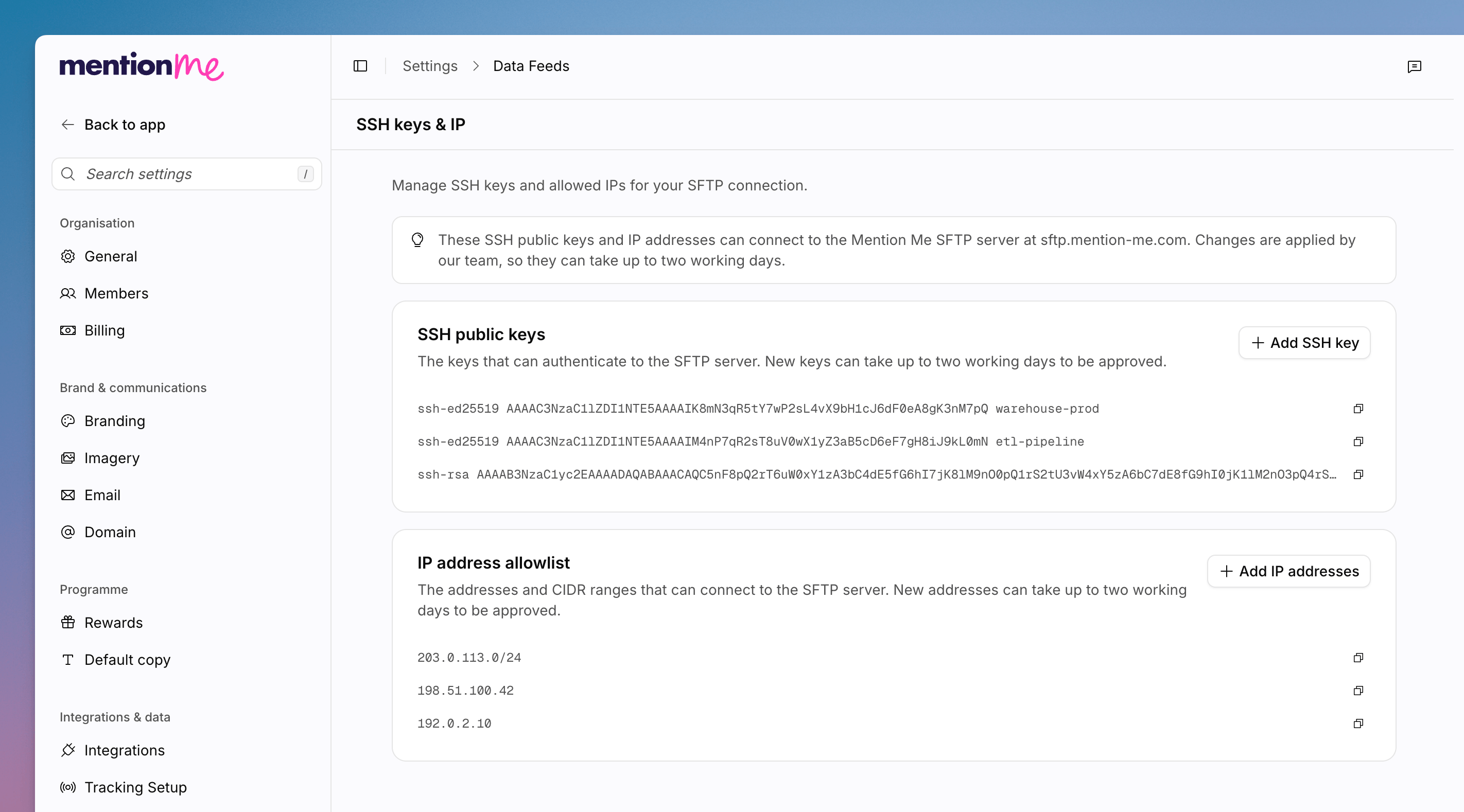 Go to **Settings > Integrations & data > Data feeds**, then select **SSH
keys & IP**.
Under **SSH public keys**, click **Add SSH key**. Paste your SSH public key
(for example, one starting `ssh-ed25519` or `ssh-rsa`), then click **Submit
key**. This sends your key to the Mention Me team.
Under **IP address allowlist**, click **Add IP addresses**. Enter the public
IP addresses or CIDR ranges you will connect from, then click **Submit
allowlist**. This sends your addresses to the Mention Me team. Private
(internal) addresses such as `10.x`, `172.16-31.x` and `192.168.x` can't be
added.
The Mention Me team applies your SSH key and IP addresses. This can take up
to **two working days**.
## Add Your Folders
Each folder on the SFTP server is a **feed**. Inbound feeds are for files you send to Mention Me. Outbound feeds are for reports Mention Me sends to you.
Go to **Settings > Integrations & data > Data feeds**, then select **SSH
keys & IP**.
Under **SSH public keys**, click **Add SSH key**. Paste your SSH public key
(for example, one starting `ssh-ed25519` or `ssh-rsa`), then click **Submit
key**. This sends your key to the Mention Me team.
Under **IP address allowlist**, click **Add IP addresses**. Enter the public
IP addresses or CIDR ranges you will connect from, then click **Submit
allowlist**. This sends your addresses to the Mention Me team. Private
(internal) addresses such as `10.x`, `172.16-31.x` and `192.168.x` can't be
added.
The Mention Me team applies your SSH key and IP addresses. This can take up
to **two working days**.
## Add Your Folders
Each folder on the SFTP server is a **feed**. Inbound feeds are for files you send to Mention Me. Outbound feeds are for reports Mention Me sends to you.
 Go to **Settings > Integrations & data > Data feeds**, then select **Feeds
setup**.
Click **Add inbound feed** or **Add outbound feed**.
Enter a **Name** and **Description** for the folder. To encrypt it, turn on
**Mark this feed as encrypted**. An encrypted inbound feed rejects files
that aren't encrypted with its key. An encrypted outbound feed won't send
you files until it has an active public key.
Go to **Settings > Integrations & data > Data feeds**, then select **Feeds
setup**.
Click **Add inbound feed** or **Add outbound feed**.
Enter a **Name** and **Description** for the folder. To encrypt it, turn on
**Mark this feed as encrypted**. An encrypted inbound feed rejects files
that aren't encrypted with its key. An encrypted outbound feed won't send
you files until it has an active public key.
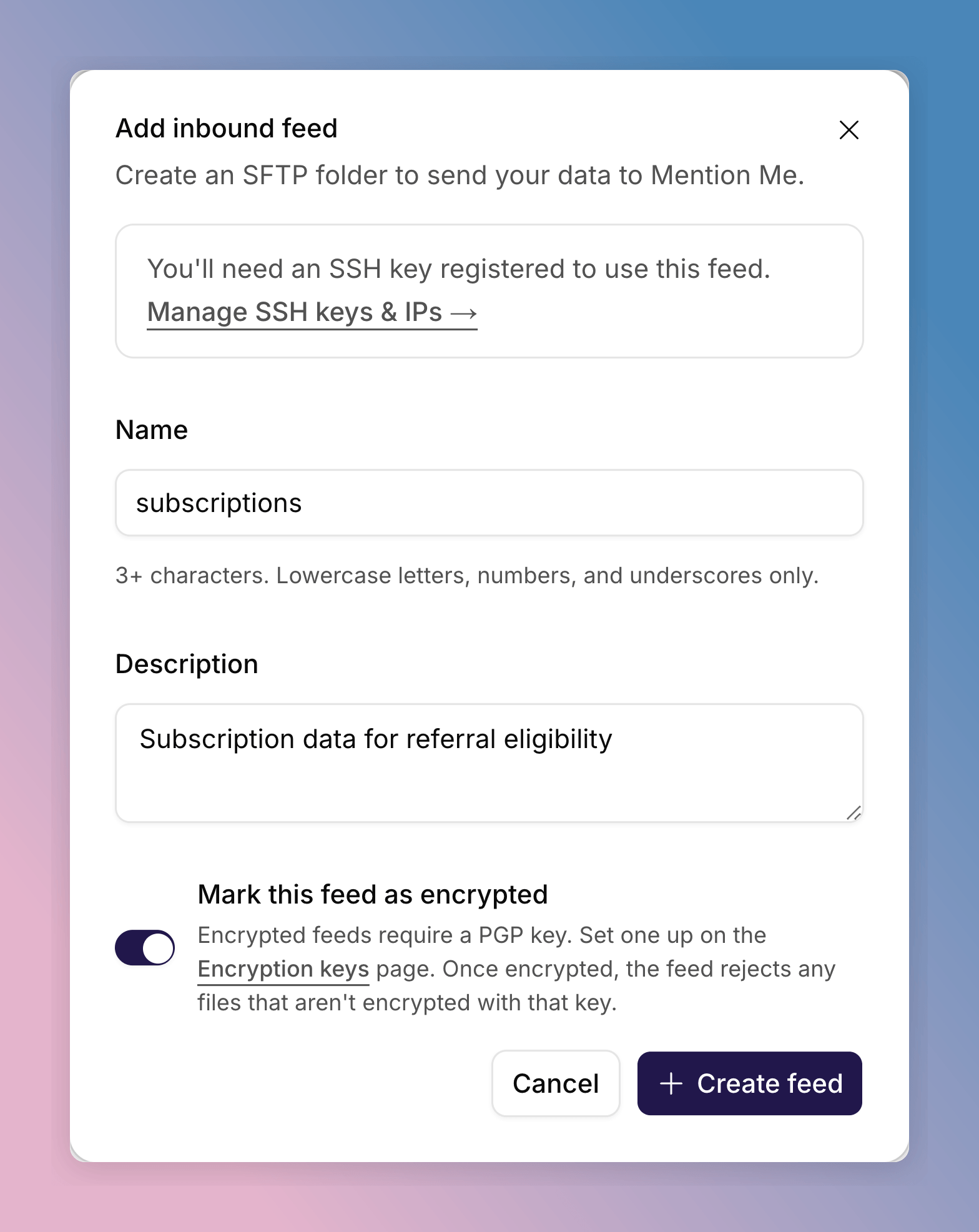 Click **Create feed**. Repeat for each folder you need.
A new feed shows **Pending setup** while the Mention Me team sets it up on
the SFTP server. This can take up to **two working days**. It changes to
**Active** when it is ready to transfer files.
## Set Up Encryption (Optional)
If you marked a feed as encrypted, give it a PGP key. Go to **Settings >
Integrations & data > Data feeds**, then select **Encryption keys**.
Click **Create feed**. Repeat for each folder you need.
A new feed shows **Pending setup** while the Mention Me team sets it up on
the SFTP server. This can take up to **two working days**. It changes to
**Active** when it is ready to transfer files.
## Set Up Encryption (Optional)
If you marked a feed as encrypted, give it a PGP key. Go to **Settings >
Integrations & data > Data feeds**, then select **Encryption keys**.
 For files you send to Mention Me, Mention Me generates the key pair and you
encrypt your files with the public key.
On the **Inbound** tab, click **Generate inbound key**.
Under **Feed**, select the encrypted folder. Or turn on **Set as your
default key (covers all inbound feeds)** to use one key for every
inbound feed without its own key.
For files you send to Mention Me, Mention Me generates the key pair and you
encrypt your files with the public key.
On the **Inbound** tab, click **Generate inbound key**.
Under **Feed**, select the encrypted folder. Or turn on **Set as your
default key (covers all inbound feeds)** to use one key for every
inbound feed without its own key.
 Click **Generate key**, then **Download public key**. Use it to encrypt
the files you send to that folder.
For reports Mention Me sends to you, upload your own PGP public key and
Mention Me encrypts the files with it.
On the **Outbound** tab, click **Import outbound key**.
Under **Feed**, select the encrypted folder. Or turn on **Set as your
default key (covers all outbound feeds)** to use one key for every
outbound feed without its own key.
Click **Generate key**, then **Download public key**. Use it to encrypt
the files you send to that folder.
For reports Mention Me sends to you, upload your own PGP public key and
Mention Me encrypts the files with it.
On the **Outbound** tab, click **Import outbound key**.
Under **Feed**, select the encrypted folder. Or turn on **Set as your
default key (covers all outbound feeds)** to use one key for every
outbound feed without its own key.
 Paste your PGP public key under **Public key**, then click **Import
key**.
See [How to Manage Encryption Keys](/knowledge-app/settings/integrations/encryption-keys) for rotating keys and key history.
## Connect
Once your SSH key and IP addresses are approved, you can connect. See [SFTP Connection](/developer-docs/integration/mention-me/sftp-connection) for connection details and the folder structure.
## See Also
Add inbound and outbound SFTP folders.
Copy, review or add more keys and IP addresses.
This documentation is built and hosted on [Mintlify](https://mintlify.com), a developer documentation platform.
Paste your PGP public key under **Public key**, then click **Import
key**.
See [How to Manage Encryption Keys](/knowledge-app/settings/integrations/encryption-keys) for rotating keys and key history.
## Connect
Once your SSH key and IP addresses are approved, you can connect. See [SFTP Connection](/developer-docs/integration/mention-me/sftp-connection) for connection details and the folder structure.
## See Also
Add inbound and outbound SFTP folders.
Copy, review or add more keys and IP addresses.
This documentation is built and hosted on [Mintlify](https://mintlify.com), a developer documentation platform.