> ## Documentation Index
> Fetch the complete documentation index at: https://docs.mention-me.com/llms.txt
> Use this file to discover all available pages before exploring further.
# How to Manage Encryption Keys
> Generate, import, and rotate PGP keys for encrypted SFTP feeds, including inbound rotation grace periods.
export const AdminOnly = () =>
This page is visible to organisation admins only. If you
see You do not have permission to view this page, ask an
admin to make the change, or to invite you with the Admin role.
;
Open **Settings > Data feeds > Encryption keys** to manage PGP keys used for secure data feeds.
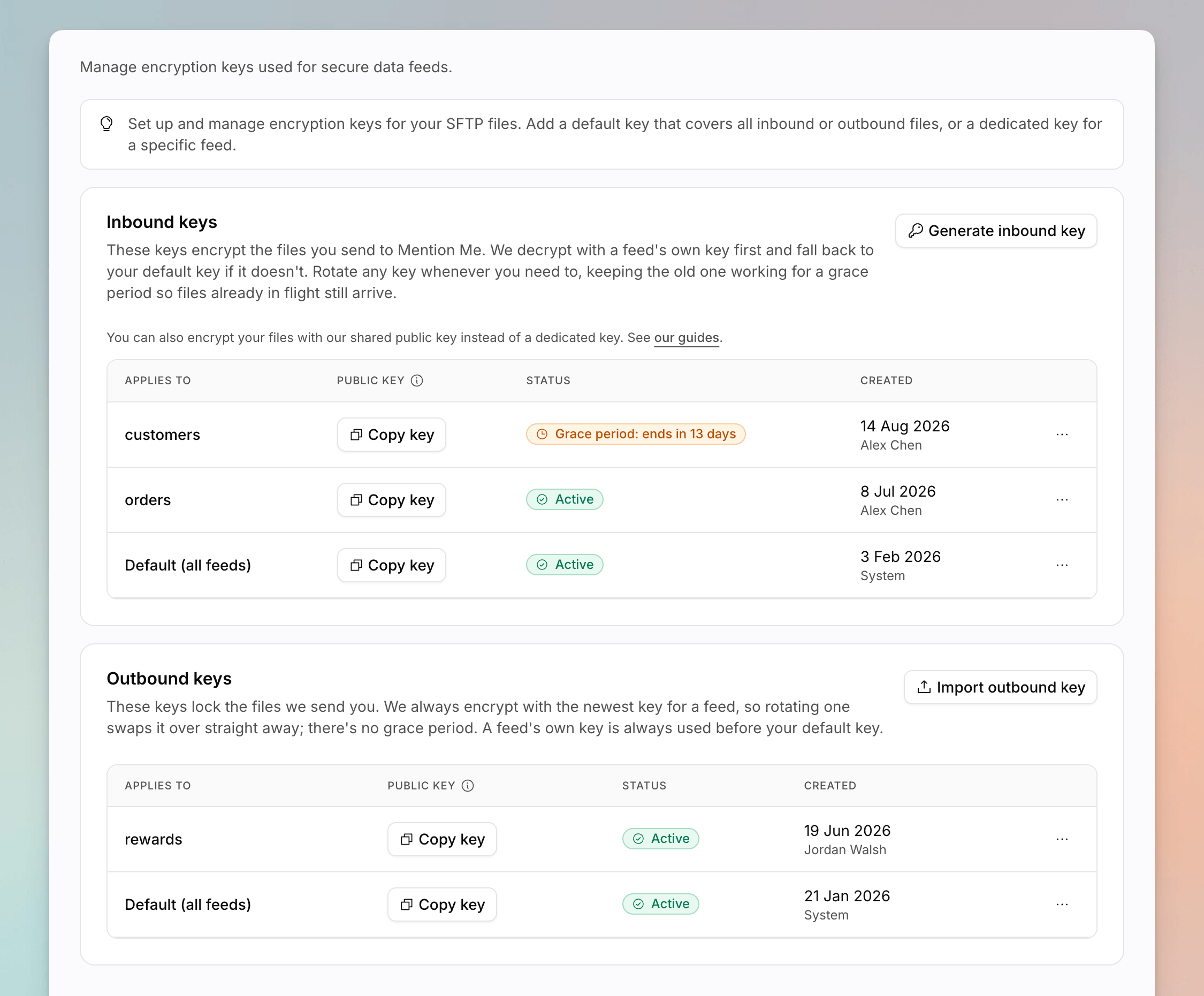 Add a **default** key that covers all inbound or outbound files, or a **dedicated** key for a specific feed.
For the encryption model, algorithms, and strict mode, see [SFTP File Encryption](/developer-docs/integration/sftp-encryption). This page is the how-to for the Settings UI.
If keys fail to load, you will see **We couldn't load your encryption keys**. Existing keys keep working. Reload the page, or contact support if it persists.
## Inbound Keys
Inbound keys are minted by Mention Me so you can encrypt files you send. Copy the public key into your process before you upload.
Click **Generate inbound key**. Choose the default scope or a specific encrypted feed.
Copy the public key as soon as it is shown. You need it to encrypt files before they land on SFTP.
Use **Rotate key** on the row. Choose whether to keep the current key active as a grace key so files already encrypted to it keep decrypting:
* **No, replace it immediately**
* **Yes, for 7 / 14 / 30 / 60 / 90 days**
You can **End grace period early** while a grace period is running.
## Outbound Keys
Outbound keys are public keys you import so Mention Me can encrypt files it delivers to you. There is **no grace period**: Mention Me always encrypts with the newest key.
Click **Import outbound key**. Paste your public key and choose the default
scope or a specific encrypted feed.
Use **Rotate key** and import the replacement public key. Update the
matching private key on your side before you expect new files.
Each row's menu also includes **View key history** and **Copy fingerprint**.
You can only add a key for a direction that has at least one encrypted feed. Mark a feed as encrypted when you create it, or edit the feed on [Feeds setup](/knowledge-app/settings/integrations/data-feeds).
## See Also
Create encrypted inbound and outbound feeds.
Algorithms, shared versus dedicated keys, and strict mode.
Add a **default** key that covers all inbound or outbound files, or a **dedicated** key for a specific feed.
For the encryption model, algorithms, and strict mode, see [SFTP File Encryption](/developer-docs/integration/sftp-encryption). This page is the how-to for the Settings UI.
If keys fail to load, you will see **We couldn't load your encryption keys**. Existing keys keep working. Reload the page, or contact support if it persists.
## Inbound Keys
Inbound keys are minted by Mention Me so you can encrypt files you send. Copy the public key into your process before you upload.
Click **Generate inbound key**. Choose the default scope or a specific encrypted feed.
Copy the public key as soon as it is shown. You need it to encrypt files before they land on SFTP.
Use **Rotate key** on the row. Choose whether to keep the current key active as a grace key so files already encrypted to it keep decrypting:
* **No, replace it immediately**
* **Yes, for 7 / 14 / 30 / 60 / 90 days**
You can **End grace period early** while a grace period is running.
## Outbound Keys
Outbound keys are public keys you import so Mention Me can encrypt files it delivers to you. There is **no grace period**: Mention Me always encrypts with the newest key.
Click **Import outbound key**. Paste your public key and choose the default
scope or a specific encrypted feed.
Use **Rotate key** and import the replacement public key. Update the
matching private key on your side before you expect new files.
Each row's menu also includes **View key history** and **Copy fingerprint**.
You can only add a key for a direction that has at least one encrypted feed. Mark a feed as encrypted when you create it, or edit the feed on [Feeds setup](/knowledge-app/settings/integrations/data-feeds).
## See Also
Create encrypted inbound and outbound feeds.
Algorithms, shared versus dedicated keys, and strict mode.