> ## Documentation Index
> Fetch the complete documentation index at: https://docs.mention-me.com/llms.txt
> Use this file to discover all available pages before exploring further.
# How to Set Up Data Feeds
> Configure inbound and outbound SFTP feeds for customer data and reports.
export const AdminOnly = () =>
This page is visible to organisation admins only. If you
see You do not have permission to view this page, ask an
admin to make the change, or to invite you with the Admin role.
;
Open **Settings > Data feeds** to configure inbound and outbound SFTP feeds. The root URL redirects to **Feeds setup**.
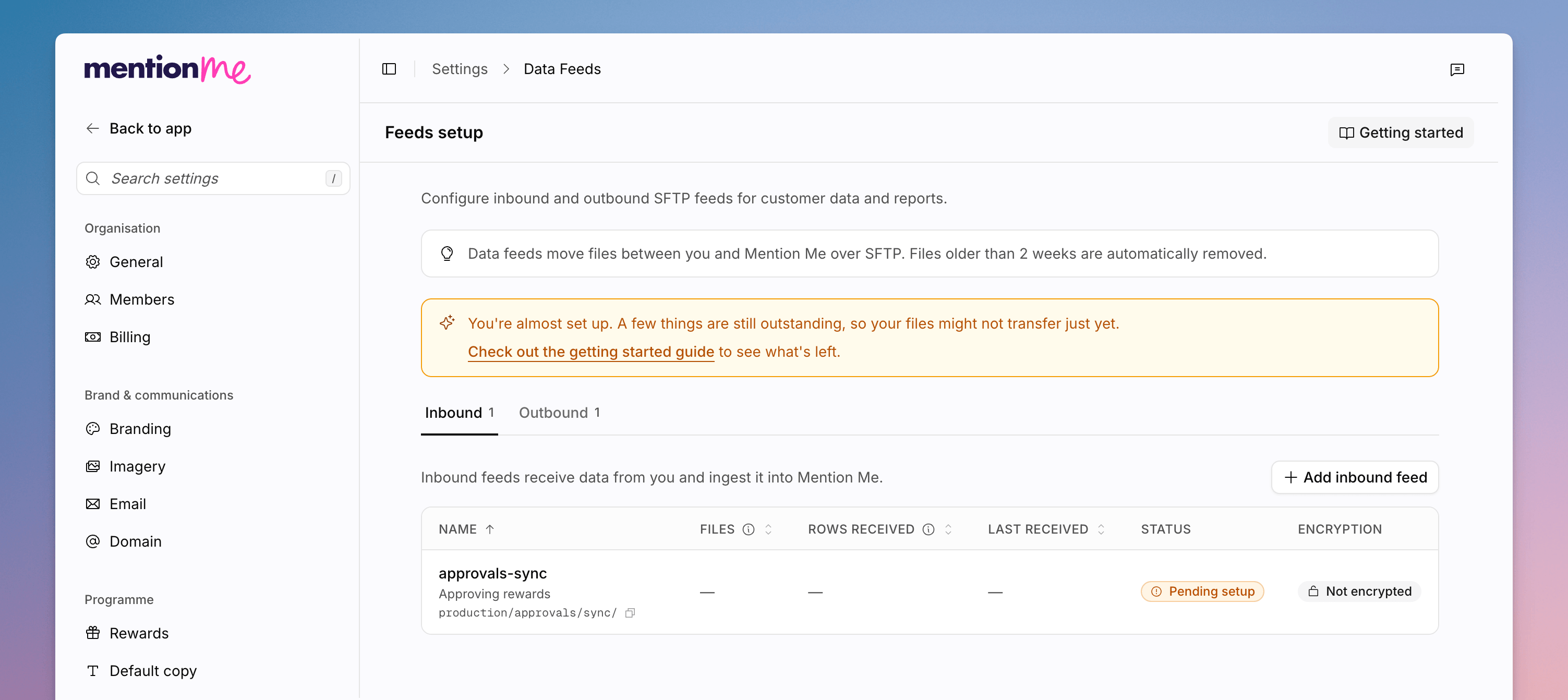 Data feeds move files between you and Mention Me over SFTP. Files older than 2 weeks are automatically removed.
If SSH keys or encryption are still incomplete, the page tells you **You're almost set up**. Use **Getting started** in the header, or **Check out the getting started guide**, to work through the in-app checklist.
The Classic SFTP walkthrough still applies for folder formats. See [SFTP Setup](/knowledge/integrations/data-feeds/sftp-setup). On app.mention-me.com, authentication and encryption live on the sibling pages below rather than on Classic's SFTP screen.
## Add a Feed
Go to **Settings > Data feeds**.
**Inbound** feeds receive data from you and ingest it into Mention Me.
**Outbound** feeds send data from Mention Me into your own systems. Each tab
shows a count.
Click **Add inbound feed** or **Add outbound feed**. Enter a **Name** (for
example `customer_orders`) and a **Description**. Turn on encryption if the
files should be PGP-encrypted.
If you do not yet have keys or allowed IPs, follow **Manage SSH keys &
IPs**. New keys and IPs can take up to two working days to be approved.
Empty states are **No inbound feeds yet**, **No outbound feeds yet**, or **No data feeds yet** when nothing exists in either direction.
Click a feed to see files already sitting in that folder.
## Related Settings
Control who can connect to sftp.mention-me.com.
Generate and rotate PGP keys for encrypted feeds.
Classic SFTP connection and folder setup.
A one-off alternative to a recurring feed.
Data feeds move files between you and Mention Me over SFTP. Files older than 2 weeks are automatically removed.
If SSH keys or encryption are still incomplete, the page tells you **You're almost set up**. Use **Getting started** in the header, or **Check out the getting started guide**, to work through the in-app checklist.
The Classic SFTP walkthrough still applies for folder formats. See [SFTP Setup](/knowledge/integrations/data-feeds/sftp-setup). On app.mention-me.com, authentication and encryption live on the sibling pages below rather than on Classic's SFTP screen.
## Add a Feed
Go to **Settings > Data feeds**.
**Inbound** feeds receive data from you and ingest it into Mention Me.
**Outbound** feeds send data from Mention Me into your own systems. Each tab
shows a count.
Click **Add inbound feed** or **Add outbound feed**. Enter a **Name** (for
example `customer_orders`) and a **Description**. Turn on encryption if the
files should be PGP-encrypted.
If you do not yet have keys or allowed IPs, follow **Manage SSH keys &
IPs**. New keys and IPs can take up to two working days to be approved.
Empty states are **No inbound feeds yet**, **No outbound feeds yet**, or **No data feeds yet** when nothing exists in either direction.
Click a feed to see files already sitting in that folder.
## Related Settings
Control who can connect to sftp.mention-me.com.
Generate and rotate PGP keys for encrypted feeds.
Classic SFTP connection and folder setup.
A one-off alternative to a recurring feed.