> ## Documentation Index
> Fetch the complete documentation index at: https://docs.mention-me.com/llms.txt
> Use this file to discover all available pages before exploring further.
# How to Manage Imagery
> Set the workspace logo and social sharing image, and manage the Image Library.
Open **Settings > Imagery** to manage the logo and social sharing image used across your referral programme.
 ## Brand Imagery
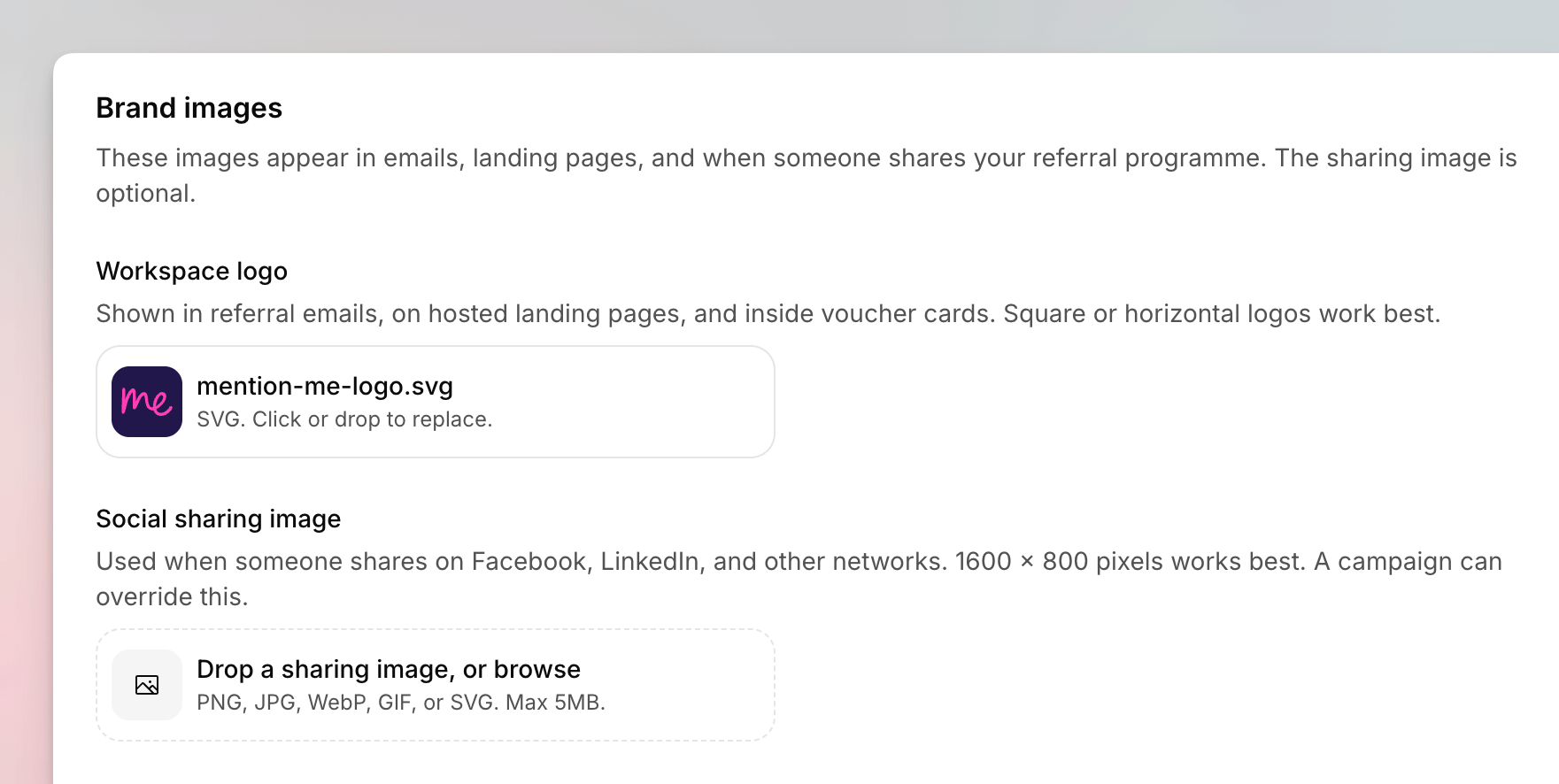
These images appear in emails, landing pages, and when someone shares your referral programme. The sharing image is optional.
If Mention Me is already pulling a logo from your store, you will see a **Heads up** banner. Upload only if you want a different one.
| Slot | Where it appears | Format |
| ------------------------ | --------------------------------------------------------------------------------------------------- | ----------------------------------------------------------------------- |
| **Workspace logo** | Referral emails, hosted landing pages, and voucher cards. Square or horizontal logos work best. | PNG, JPG, WebP, GIF, or SVG. Max 5MB. Cannot be removed, only replaced. |
| **Social sharing image** | Facebook, LinkedIn, and other networks. 1600 × 800 pixels works best. A campaign can override this. | Same formats. Can be removed. |
Go to **Settings > Imagery**. Stay on **Brand Imagery**.
Drop a file onto **Drop a logo, or browse**, then crop in **Crop your
logo**.
Drop a file onto **Drop a sharing image, or browse**, then crop in **Crop
your sharing image**.
## Image Library
The **Image Library** tab is for brand images you reuse on referral pages. It is available if you have design permission.
## Brand Imagery
These images appear in emails, landing pages, and when someone shares your referral programme. The sharing image is optional.
If Mention Me is already pulling a logo from your store, you will see a **Heads up** banner. Upload only if you want a different one.
| Slot | Where it appears | Format |
| ------------------------ | --------------------------------------------------------------------------------------------------- | ----------------------------------------------------------------------- |
| **Workspace logo** | Referral emails, hosted landing pages, and voucher cards. Square or horizontal logos work best. | PNG, JPG, WebP, GIF, or SVG. Max 5MB. Cannot be removed, only replaced. |
| **Social sharing image** | Facebook, LinkedIn, and other networks. 1600 × 800 pixels works best. A campaign can override this. | Same formats. Can be removed. |
Go to **Settings > Imagery**. Stay on **Brand Imagery**.
Drop a file onto **Drop a logo, or browse**, then crop in **Crop your
logo**.
Drop a file onto **Drop a sharing image, or browse**, then crop in **Crop
your sharing image**.
## Image Library
The **Image Library** tab is for brand images you reuse on referral pages. It is available if you have design permission.
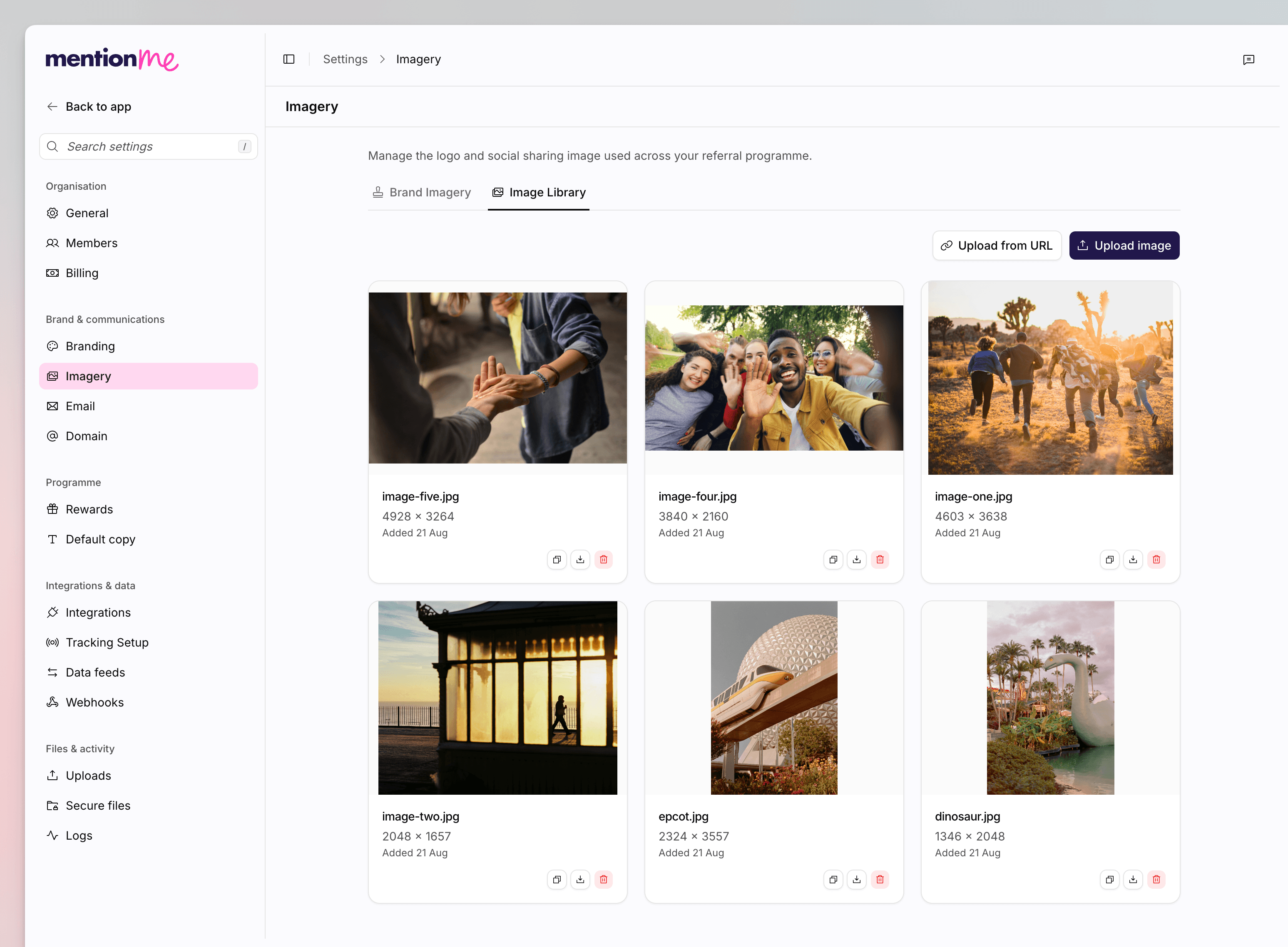 Go to **Settings > Imagery**, then open **Image Library**.
Click **Upload image** to browse from your computer, or **Upload from URL**
to pull an image from a link. Use JPEG, PNG, SVG, or GIF.
On an image, click **Copy image URL**. You will see **Image URL copied**.
Remove an image you no longer need. Offers that already use it keep the
file. Confirm in **Remove this image from your library?**
If the library is empty, you will see **No images yet**.
For Classic image management, see [Managing Images](/knowledge/referral/design/managing-images).
## See Also
Themes and font packs for the same programme.
Override imagery on a single campaign version.
Go to **Settings > Imagery**, then open **Image Library**.
Click **Upload image** to browse from your computer, or **Upload from URL**
to pull an image from a link. Use JPEG, PNG, SVG, or GIF.
On an image, click **Copy image URL**. You will see **Image URL copied**.
Remove an image you no longer need. Offers that already use it keep the
file. Confirm in **Remove this image from your library?**
If the library is empty, you will see **No images yet**.
For Classic image management, see [Managing Images](/knowledge/referral/design/managing-images).
## See Also
Themes and font packs for the same programme.
Override imagery on a single campaign version.