> ## Documentation Index
> Fetch the complete documentation index at: https://docs.mention-me.com/llms.txt
> Use this file to discover all available pages before exploring further.
# How to Set Your Reply-To Email
> Choose where customer replies to referral emails are delivered.
export const AdminOnly = () =>
This page is visible to organisation admins only. If you
see You do not have permission to view this page, ask an
admin to make the change, or to invite you with the Admin role.
;
Open **Settings > Email** to set the reply-to address for emails sent by your programme.
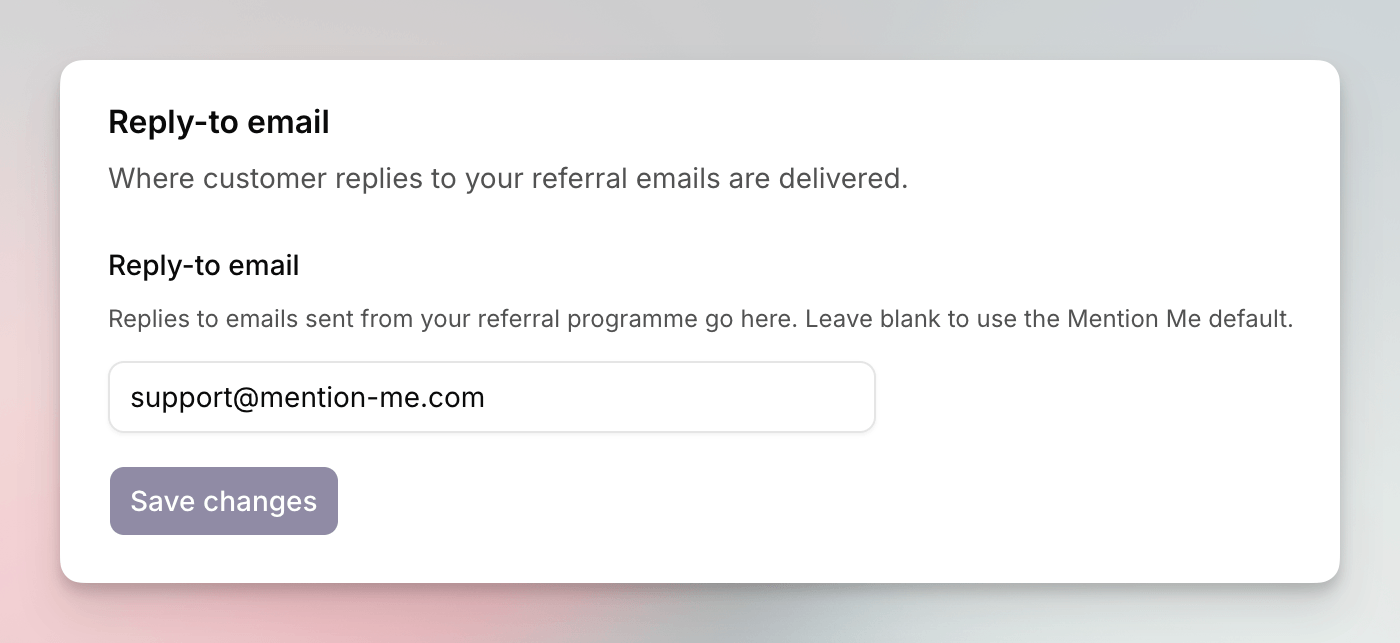 Replies to emails sent from your referral programme go here. Leave the field blank to use the Mention Me default.
Go to **Settings > Email**.
In **Reply-to email**, type the address (for example `replies@example.com`).
Click **Save changes**.
A campaign can still set its own reply-to. See [campaign settings](/knowledge-app/referral/campaigns/brand-referral/campaign-settings).
## See Also
Choose the subdomain on referral links.
Classic documentation for referral email.
Replies to emails sent from your referral programme go here. Leave the field blank to use the Mention Me default.
Go to **Settings > Email**.
In **Reply-to email**, type the address (for example `replies@example.com`).
Click **Save changes**.
A campaign can still set its own reply-to. See [campaign settings](/knowledge-app/referral/campaigns/brand-referral/campaign-settings).
## See Also
Choose the subdomain on referral links.
Classic documentation for referral email.