> ## Documentation Index
> Fetch the complete documentation index at: https://docs.mention-me.com/llms.txt
> Use this file to discover all available pages before exploring further.
# How to Manage Branding
> List referral themes and upload font packs from Settings.
export const ClassicCallout = ({children, href, linkLabel = "Open the Classic guide"}) =>
This finishes in Classic.
{children ? <> {children} : null}
{href ? <>
{" "}
For the setup steps, see {linkLabel}.
: null}
;
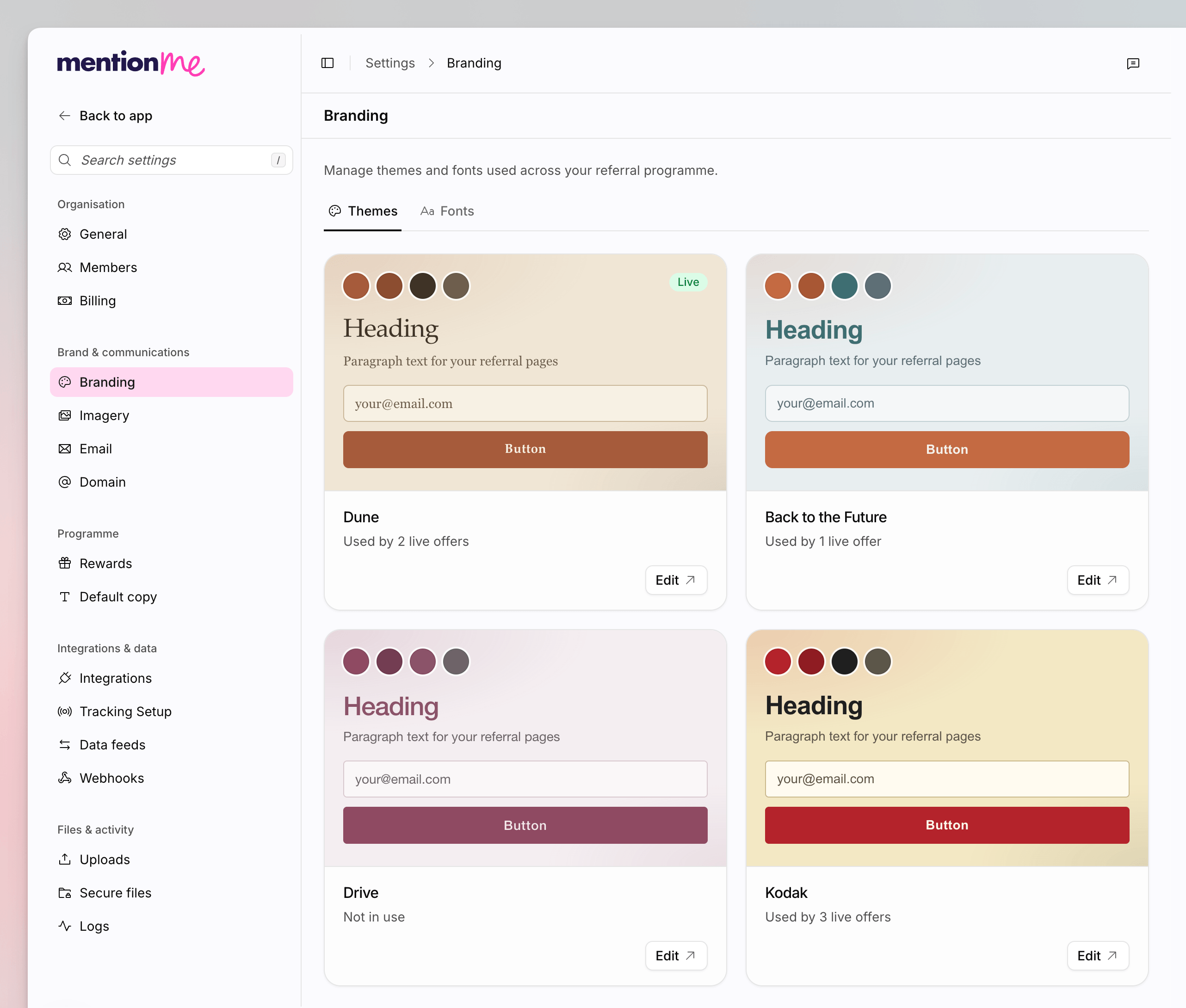
Open **Settings > Branding** to manage the themes and fonts your referral programme uses.
 Onboarding also has a [Configure branding](/knowledge-app/onboarding/configure-branding) step for first-time colours and tone. This Settings page is where themes and font packs live afterwards.
## Themes
The **Themes** tab lists themes created for your referral pages. Badges include **Live** and **Generating**. Each card previews heading, paragraph, email, and button styles.
Theme editing still happens in Mention Me Classic. Click **Edit** on a theme
card, or **Manage in Classic** if you have no themes yet. For the Classic
guide, see [Understanding Design
Themes](/knowledge/referral/design/design-themes).
The Themes tab is hidden unless you have design permission and Classic links are enabled for the workspace.
## Fonts
The **Fonts** tab is available to everyone in the organisation.
A **font pack** is one or more fonts you upload together as a ZIP. Pages use one pack at a time. To use different fonts for headings and body, put both in the same pack. New packs take a few minutes to process after uploading.
Go to **Settings > Branding**, then open the **Fonts** tab.
Drop a ZIP of your font files onto **Upload a font pack**, or click to
browse.
In **Use this font pack?**, confirm. Selecting a pack switches to it across
every campaign.
If pages currently use a font that is not one of your uploaded packs, a notice tells you to select a pack to switch.
For the Classic custom-fonts walkthrough, see [How to Change Your Fonts](/knowledge/referral/design/custom-fonts).
## See Also
Set the logo, social sharing image, and Image Library.
First-time colours, fonts, tone, and button style in the Onboarding Hub.
Classic documentation for uploading and applying fonts.
Classic documentation for editing themes.
Onboarding also has a [Configure branding](/knowledge-app/onboarding/configure-branding) step for first-time colours and tone. This Settings page is where themes and font packs live afterwards.
## Themes
The **Themes** tab lists themes created for your referral pages. Badges include **Live** and **Generating**. Each card previews heading, paragraph, email, and button styles.
Theme editing still happens in Mention Me Classic. Click **Edit** on a theme
card, or **Manage in Classic** if you have no themes yet. For the Classic
guide, see [Understanding Design
Themes](/knowledge/referral/design/design-themes).
The Themes tab is hidden unless you have design permission and Classic links are enabled for the workspace.
## Fonts
The **Fonts** tab is available to everyone in the organisation.
A **font pack** is one or more fonts you upload together as a ZIP. Pages use one pack at a time. To use different fonts for headings and body, put both in the same pack. New packs take a few minutes to process after uploading.
Go to **Settings > Branding**, then open the **Fonts** tab.
Drop a ZIP of your font files onto **Upload a font pack**, or click to
browse.
In **Use this font pack?**, confirm. Selecting a pack switches to it across
every campaign.
If pages currently use a font that is not one of your uploaded packs, a notice tells you to select a pack to switch.
For the Classic custom-fonts walkthrough, see [How to Change Your Fonts](/knowledge/referral/design/custom-fonts).
## See Also
Set the logo, social sharing image, and Image Library.
First-time colours, fonts, tone, and button style in the Onboarding Hub.
Classic documentation for uploading and applying fonts.
Classic documentation for editing themes.