> ## Documentation Index
> Fetch the complete documentation index at: https://docs.mention-me.com/llms.txt
> Use this file to discover all available pages before exploring further.
# How to Manage Account Security
> Change your password, passkeys, and two-factor authentication.
Open **Account settings > Security** from your avatar to manage how you sign in. These settings follow you across workspaces.
 ## Change Your Password
This card appears if your account uses password sign-in.
Click your avatar, then **Account settings > Security**.
Fill in **Current password**, **New password**, and **Confirm password**.
Click **Save Changes**. You will be signed out of other devices.
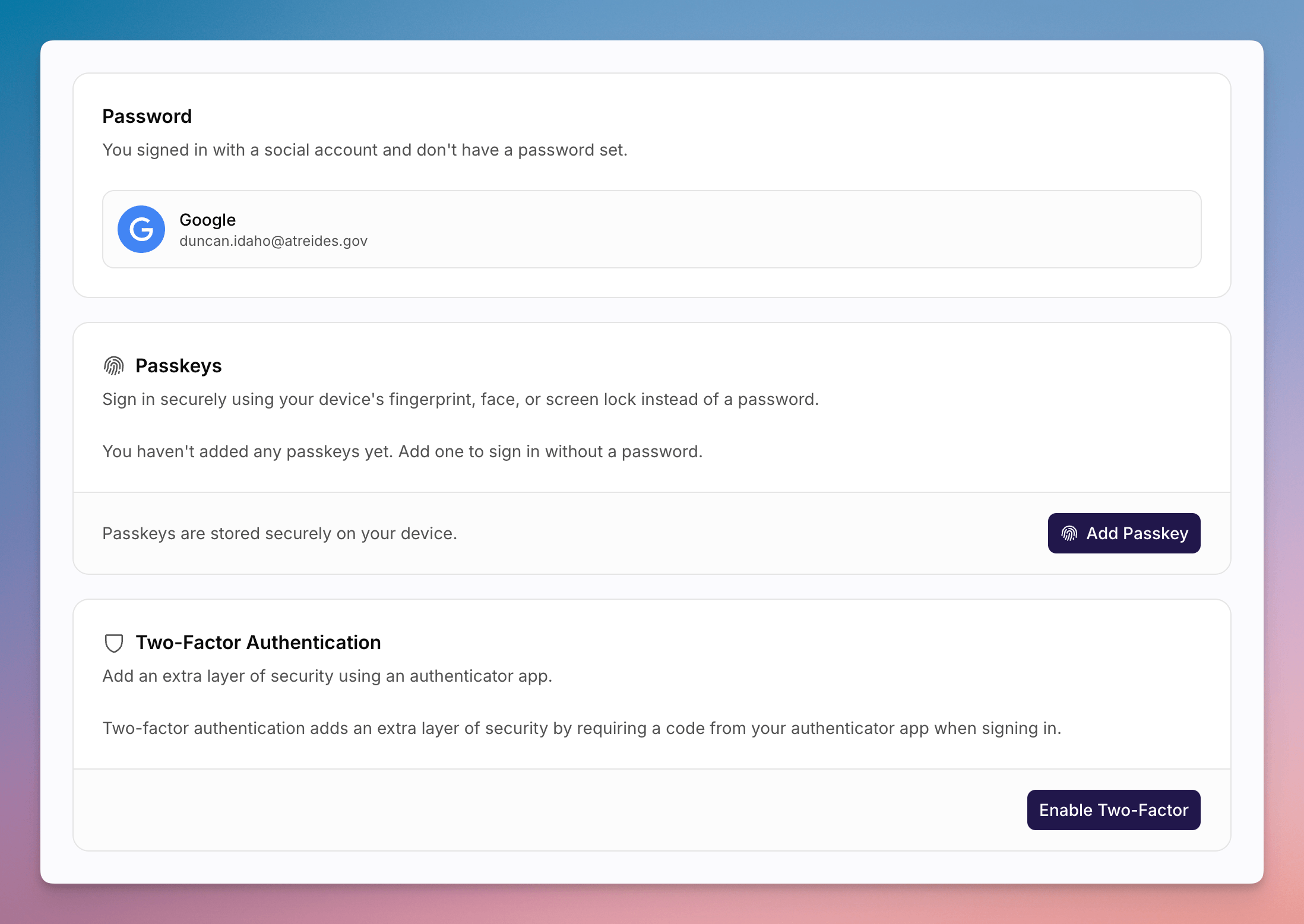
If you signed in with a social account instead of a password, you will see a card for managing that linked account rather than the password form.
## Passkeys
If your organisation does not use enterprise SSO, you can add a passkey from the **Passkey** card.
## Two-Factor Authentication
On **Two-Factor Authentication**, click **Enable Two-Factor**. The disabled
description is **Add an extra layer of security using an authenticator
app.**
Scan the QR code with your authenticator app, or enter the manual secret.
Then type the 6-digit code (placeholder `000000`) and click **Verify**.
When two-factor is on, the description is **Your account is protected with
an authenticator app.** Click **Disable Two-Factor** and confirm. You will
only need your password to sign in after that.
For Classic two-factor documentation, see [Two-Factor Authentication](/knowledge/security/account/two-factor-auth).
## See Also
Display name and time zone.
Classic documentation for authenticator-app setup.
## Change Your Password
This card appears if your account uses password sign-in.
Click your avatar, then **Account settings > Security**.
Fill in **Current password**, **New password**, and **Confirm password**.
Click **Save Changes**. You will be signed out of other devices.
If you signed in with a social account instead of a password, you will see a card for managing that linked account rather than the password form.
## Passkeys
If your organisation does not use enterprise SSO, you can add a passkey from the **Passkey** card.
## Two-Factor Authentication
On **Two-Factor Authentication**, click **Enable Two-Factor**. The disabled
description is **Add an extra layer of security using an authenticator
app.**
Scan the QR code with your authenticator app, or enter the manual secret.
Then type the 6-digit code (placeholder `000000`) and click **Verify**.
When two-factor is on, the description is **Your account is protected with
an authenticator app.** Click **Disable Two-Factor** and confirm. You will
only need your password to sign in after that.
For Classic two-factor documentation, see [Two-Factor Authentication](/knowledge/security/account/two-factor-auth).
## See Also
Display name and time zone.
Classic documentation for authenticator-app setup.