> ## Documentation Index
> Fetch the complete documentation index at: https://docs.mention-me.com/llms.txt
> Use this file to discover all available pages before exploring further.
# Understanding the Campaign Editor
> How the canvas works, how to edit a node, and the rules for what you can and can't change.
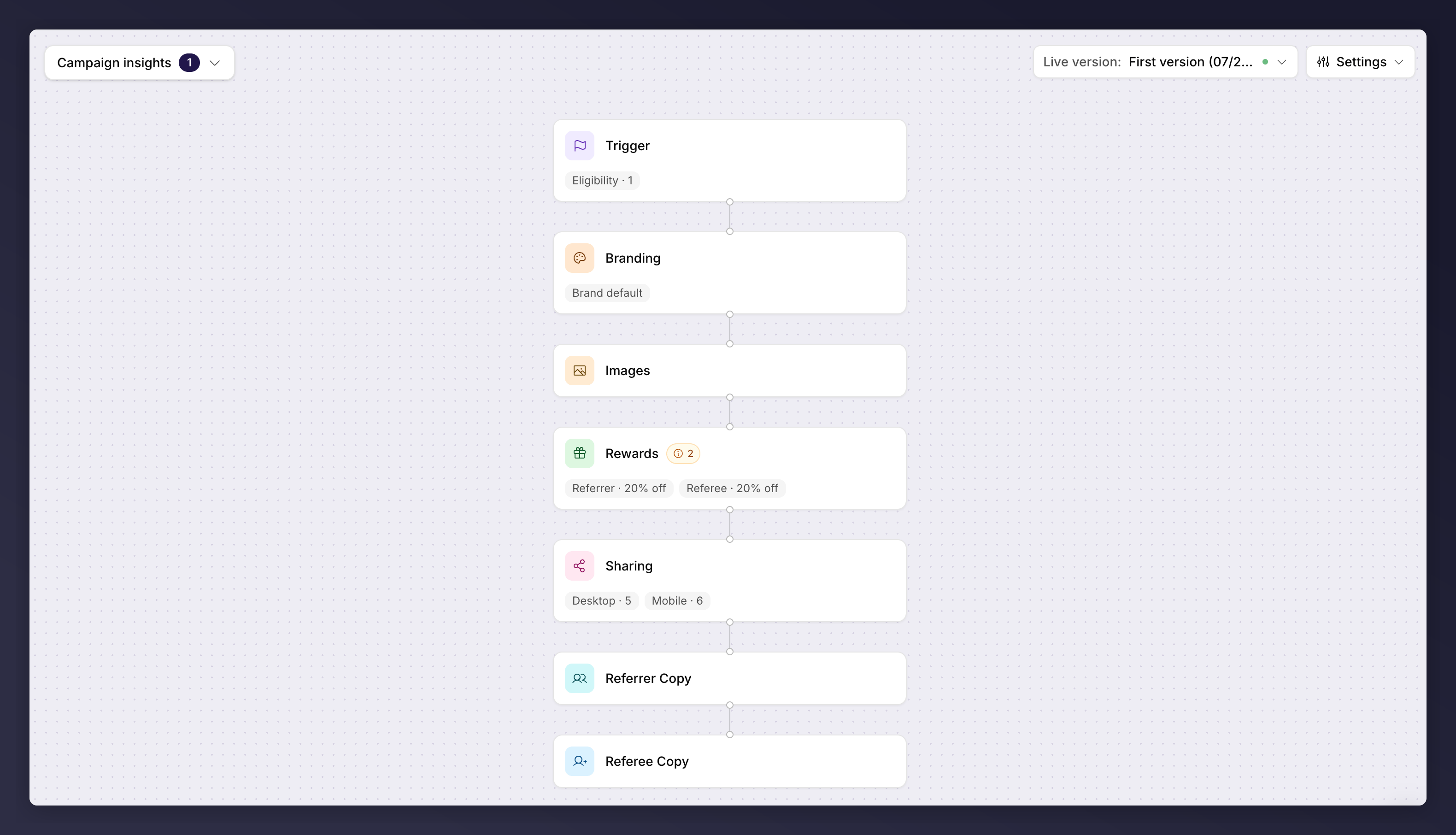
The campaign editor is where you build a version. You work on the **canvas**: a vertical stack of cards, called **nodes**, that together make up the experience. Each node controls one part of it. Click a node to edit it.
Brand referral and product referral campaigns share this editor, the version picker above it and the insights panel beside it. It behaves the same way for both; what differs is which nodes appear.
 ## The Canvas
The canvas reads top to bottom. The **Trigger** node sits at the top because it decides who enters. Below it are the nodes that make up the offer itself.
Each node shows summary pills beneath it, so you can read the version's shape without opening anything: how many eligibility rules the Trigger carries, what the reward is, how sharing is set up. A node with something to resolve carries a count beside its name: red for an error that blocks launch, amber for a warning you can launch with.
## Which Nodes You Get
The **Trigger** is always there. What sits below it depends on the campaign type, and is covered where you configure it:
Branding, Images, Rewards, Sharing, Referrer Copy and Referee Copy.
The share link, and on an incentivised version the holdout and the offer
nodes.
## Editing a Node
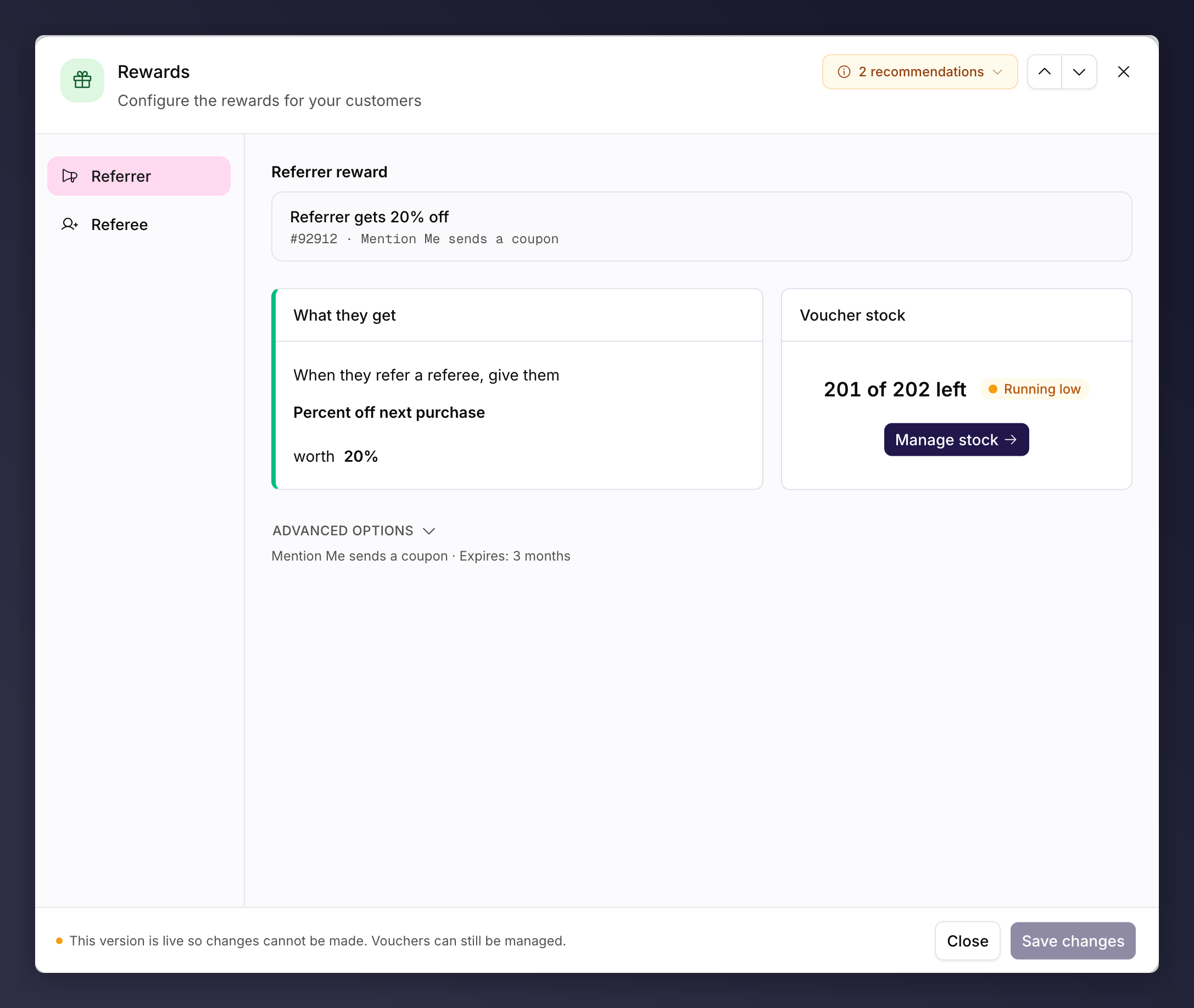
Click a node to open its editor. Make your changes and save. An unsaved-changes indicator appears while you have edits in progress, and you are asked before closing with unsaved work. If a node has problems, the count beside its name says how many; hovering it shows "Open this step to see what needs fixing".
## The Canvas
The canvas reads top to bottom. The **Trigger** node sits at the top because it decides who enters. Below it are the nodes that make up the offer itself.
Each node shows summary pills beneath it, so you can read the version's shape without opening anything: how many eligibility rules the Trigger carries, what the reward is, how sharing is set up. A node with something to resolve carries a count beside its name: red for an error that blocks launch, amber for a warning you can launch with.
## Which Nodes You Get
The **Trigger** is always there. What sits below it depends on the campaign type, and is covered where you configure it:
Branding, Images, Rewards, Sharing, Referrer Copy and Referee Copy.
The share link, and on an incentivised version the holdout and the offer
nodes.
## Editing a Node
Click a node to open its editor. Make your changes and save. An unsaved-changes indicator appears while you have edits in progress, and you are asked before closing with unsaved work. If a node has problems, the count beside its name says how many; hovering it shows "Open this step to see what needs fixing".
 Some nodes need a permission as well as an editable version:
* **Images** and **Branding** can be edited by admins, marketing users and designers.
* The copy nodes, **Rewards**, **Sharing** and **Trigger** can be edited by admins and marketing users.
Where your role cannot edit a node, its controls are disabled and the footer says so.
## The Settings Control
At the top right of the campaign page sits the campaign-level control, holding **Pause campaign** or **Resume campaign** and the campaign's own settings. Where there is only one thing to offer it is a plain button rather than a menu.
Both campaign types call the settings entry **Campaign settings**, but they open different dialogs: [brand referral](/knowledge-app/referral/campaigns/brand-referral/campaign-settings) has destination URLs, email, purchase details and advanced options, and brand referral alone also has [Fraud controls](/knowledge-app/referral/campaigns/brand-referral/fraud-controls); product referral has [link tracking and UTM parameters](/knowledge-app/referral/campaigns/product-referral/tracking-settings).
## What You Can and Cannot Edit
A version is only fully editable while it is a **draft of a campaign that has not yet launched**. Once a campaign is live, versions become read-only so you can't accidentally change what customers are seeing. The editor explains the lock in the footer of the node:
* **A live version**. "This version is live. Create a new draft to make changes."
* **A queued version**. "This version is scheduled to go live. Create a new draft to make changes."
* **A past version**. "This is a past version. It shows what customers experienced at the time."
To change a live campaign, create a new draft version, edit it, and launch it to replace the live one.
### The Control Variant Is Locked
In an A/B test, the **control** variant is view-only, because it is the baseline the test measures against. The editor shows: "The control variant is view-only as it's the baseline of your test. Make changes on the other variant to avoid skewing the test results." Edit the other variant instead. A/B testing applies to brand referral only.
### The Trigger Node Is Campaign-Scoped
The Trigger is the exception to the usual version rules, because triggering rules apply to the **whole campaign**, not a single version. They affect every version, live and draft alike. This changes where you edit it:
* **On a draft of a launched campaign that still has a running version, the Trigger is locked.** Editing it from a draft would silently change who the live campaign enrols. The footer reads: "This campaign is live. Switch to the live version to make changes to this area."
* **On the live version, the Trigger stays editable**, because that is exactly where live targeting changes belong. Saved changes take effect immediately for all customers. The footer reads: "This campaign is live. Saved changes take effect immediately."
* **Where a launched campaign has no running version**, there is no live version to send you to, so the Trigger stays editable on the draft.
Because the Trigger is campaign-scoped, edit targeting on the **live** version,
not on a draft. Changes you make there apply across the campaign straight away.
## See Also
Every brand referral node in detail.
Every product referral node in detail.
Create and configure a version.
What the issues and notices in the editor mean.
Some nodes need a permission as well as an editable version:
* **Images** and **Branding** can be edited by admins, marketing users and designers.
* The copy nodes, **Rewards**, **Sharing** and **Trigger** can be edited by admins and marketing users.
Where your role cannot edit a node, its controls are disabled and the footer says so.
## The Settings Control
At the top right of the campaign page sits the campaign-level control, holding **Pause campaign** or **Resume campaign** and the campaign's own settings. Where there is only one thing to offer it is a plain button rather than a menu.
Both campaign types call the settings entry **Campaign settings**, but they open different dialogs: [brand referral](/knowledge-app/referral/campaigns/brand-referral/campaign-settings) has destination URLs, email, purchase details and advanced options, and brand referral alone also has [Fraud controls](/knowledge-app/referral/campaigns/brand-referral/fraud-controls); product referral has [link tracking and UTM parameters](/knowledge-app/referral/campaigns/product-referral/tracking-settings).
## What You Can and Cannot Edit
A version is only fully editable while it is a **draft of a campaign that has not yet launched**. Once a campaign is live, versions become read-only so you can't accidentally change what customers are seeing. The editor explains the lock in the footer of the node:
* **A live version**. "This version is live. Create a new draft to make changes."
* **A queued version**. "This version is scheduled to go live. Create a new draft to make changes."
* **A past version**. "This is a past version. It shows what customers experienced at the time."
To change a live campaign, create a new draft version, edit it, and launch it to replace the live one.
### The Control Variant Is Locked
In an A/B test, the **control** variant is view-only, because it is the baseline the test measures against. The editor shows: "The control variant is view-only as it's the baseline of your test. Make changes on the other variant to avoid skewing the test results." Edit the other variant instead. A/B testing applies to brand referral only.
### The Trigger Node Is Campaign-Scoped
The Trigger is the exception to the usual version rules, because triggering rules apply to the **whole campaign**, not a single version. They affect every version, live and draft alike. This changes where you edit it:
* **On a draft of a launched campaign that still has a running version, the Trigger is locked.** Editing it from a draft would silently change who the live campaign enrols. The footer reads: "This campaign is live. Switch to the live version to make changes to this area."
* **On the live version, the Trigger stays editable**, because that is exactly where live targeting changes belong. Saved changes take effect immediately for all customers. The footer reads: "This campaign is live. Saved changes take effect immediately."
* **Where a launched campaign has no running version**, there is no live version to send you to, so the Trigger stays editable on the draft.
Because the Trigger is campaign-scoped, edit targeting on the **live** version,
not on a draft. Changes you make there apply across the campaign straight away.
## See Also
Every brand referral node in detail.
Every product referral node in detail.
Create and configure a version.
What the issues and notices in the editor mean.