> ## Documentation Index
> Fetch the complete documentation index at: https://docs.mention-me.com/llms.txt
> Use this file to discover all available pages before exploring further.
# How to Use Secure Files
> Upload and manage files securely between Mention Me and your team.
Use **Settings > Secure files** whenever you need to share sensitive files with Mention Me, such as customer data extracts, without sending them by email. Reports Mention Me sends you appear here too.
Everyone in the organisation can open and download files. Uploading and deleting is limited to organisation **admins**.
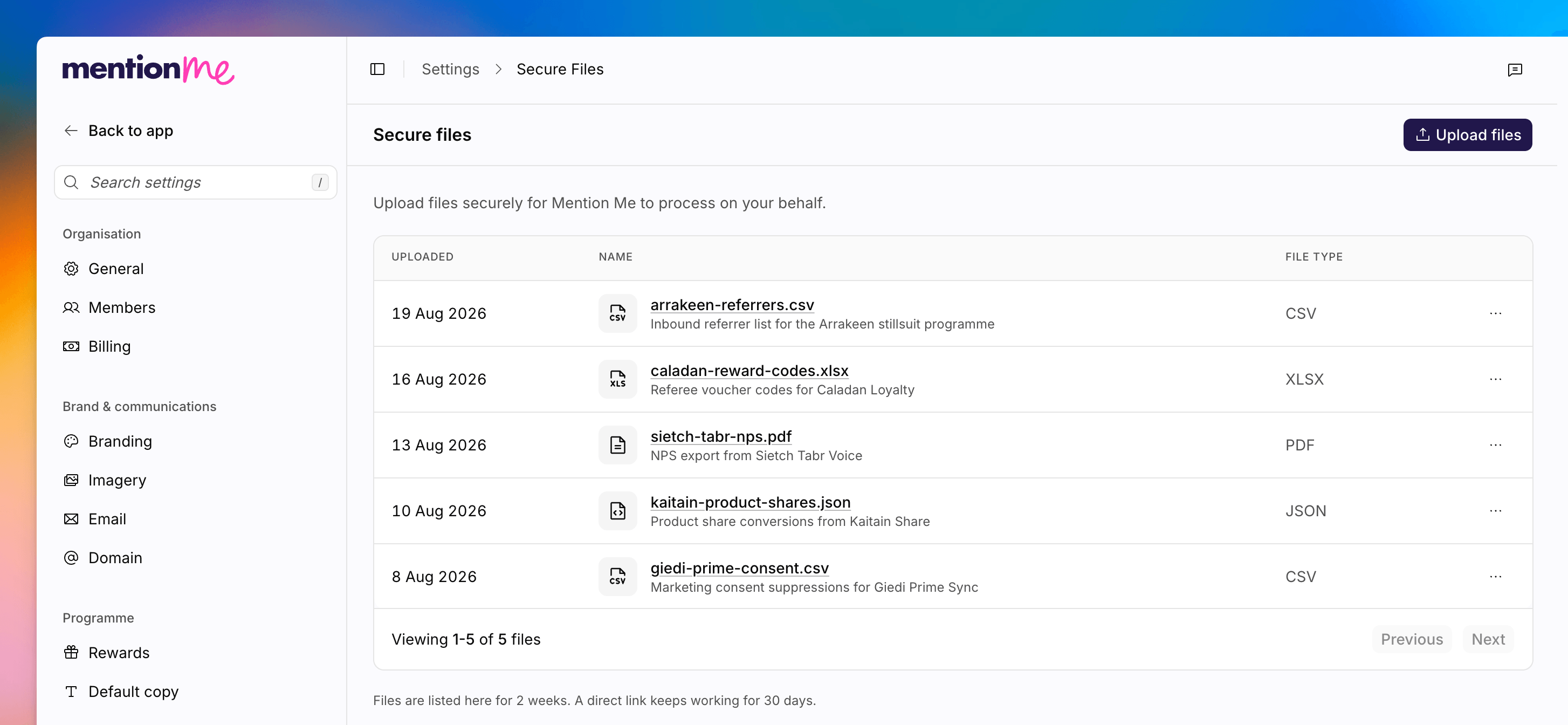 Files are listed on this page for **2 weeks**. A direct link keeps working for
**30 days**. After that, the file is no longer available.
For the Classic transfer screen, see [How to Send Data Securely](/knowledge/security/data-management/send-data-securely#access-secure-document-transfer).
## Upload a File
Click **Upload files**. Only admins see this action.
Drop files onto **Drop files here, or click to browse**. Each file can be up
to 500 MB. Allowed types include csv, txt, doc, docx, xls, xlsx, pptx, pdf,
zip, json, gif, jpeg, jpg, png, and svg.
Optionally fill in **Description**. The placeholder is **What are these
files for?** If you leave it empty, the filename is used instead.
Click **Upload** for the queued files. Each file is scanned before the
download link appears. That check takes about 30 seconds. You will see
**Checking this file, it will be ready to download shortly** while it runs.
Once the scan completes, the file becomes a downloadable link. Your teammates and Mention Me staff can also access files in this shared space.
To share a file, copy its URL from the row actions. You will see **File link copied to clipboard**.
## Delete a File
Only admins can delete.
Locate the file in the list.
Click **Delete**, then confirm. Deleting a file is not reversible.
If there are no files yet, you will see **No secure files yet**.
## See Also
Bulk-import customer data via CSV to suppress existing customers or enrol
them into a referral offer.
Recurring SFTP folders for larger or automated file movement.
Classic documentation for secure document transfer.
Files are listed on this page for **2 weeks**. A direct link keeps working for
**30 days**. After that, the file is no longer available.
For the Classic transfer screen, see [How to Send Data Securely](/knowledge/security/data-management/send-data-securely#access-secure-document-transfer).
## Upload a File
Click **Upload files**. Only admins see this action.
Drop files onto **Drop files here, or click to browse**. Each file can be up
to 500 MB. Allowed types include csv, txt, doc, docx, xls, xlsx, pptx, pdf,
zip, json, gif, jpeg, jpg, png, and svg.
Optionally fill in **Description**. The placeholder is **What are these
files for?** If you leave it empty, the filename is used instead.
Click **Upload** for the queued files. Each file is scanned before the
download link appears. That check takes about 30 seconds. You will see
**Checking this file, it will be ready to download shortly** while it runs.
Once the scan completes, the file becomes a downloadable link. Your teammates and Mention Me staff can also access files in this shared space.
To share a file, copy its URL from the row actions. You will see **File link copied to clipboard**.
## Delete a File
Only admins can delete.
Locate the file in the list.
Click **Delete**, then confirm. Deleting a file is not reversible.
If there are no files yet, you will see **No secure files yet**.
## See Also
Bulk-import customer data via CSV to suppress existing customers or enrol
them into a referral offer.
Recurring SFTP folders for larger or automated file movement.
Classic documentation for secure document transfer.